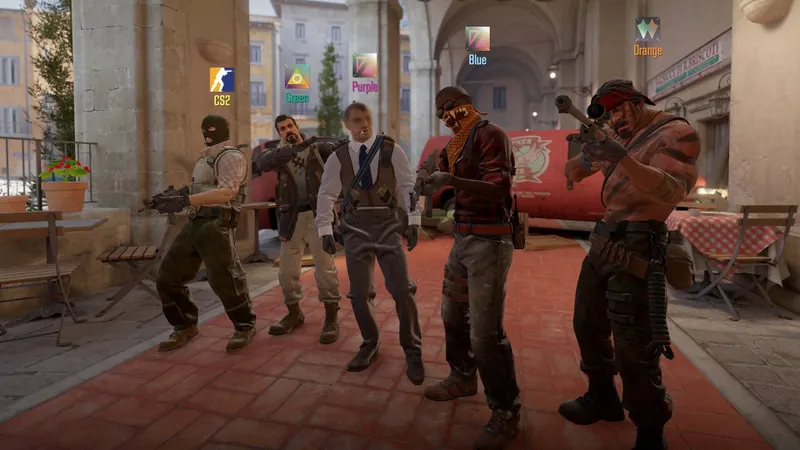
For the best Counter-Strike 2 settings, secure smooth performance and clear visibility before chasing a prettier image. That approach suits PC players who want to reduce distractions, maintain consistent aim and find an FPS ceiling that remains stable during fights.
Key takeaways
- Use fullscreen, your monitor's maximum refresh rate and a resolution your PC can sustain without sharp fluctuations.
- Disable vertical sync and motion blur to avoid a sluggish feel while moving.
- Keep your mouse at a fixed DPI and change sensitivity only after several minutes of testing.
- Do not turn every option down to minimum without checking shadows, silhouettes and effect visibility.
Start with a stable, readable image
On Windows as on SteamOS/Linux, open Counter-Strike 2's video settings and start with fullscreen, the highest available refresh rate, vertical sync disabled and motion blur disabled. Keep your monitor's native resolution at first. Stretched 4:3 can change how aiming feels, but it does not automatically turn a limited PC into a high-FPS machine.
For an initial competitive setup, prioritize a sharp, stable image: enable increased player contrast, set model and texture detail to low or medium, global shadows to medium, reduce effects and shaders, disable ambient occlusion if it causes drops, and keep FSR disabled as long as your GPU can handle the chosen resolution. The best setting is the one that remains consistent in a smoke, during a close-range duel and while quickly moving between areas.
Counter-Strike 2 is available free on Steam, and Valve's official store page presents it as a competitive FPS on Windows and SteamOS/Linux. The settings below therefore target PC, with a method that works for both a Premier match and Deathmatch practice. Also see our esports coverage, other practical articles and the latest news from jeu.vidéo.
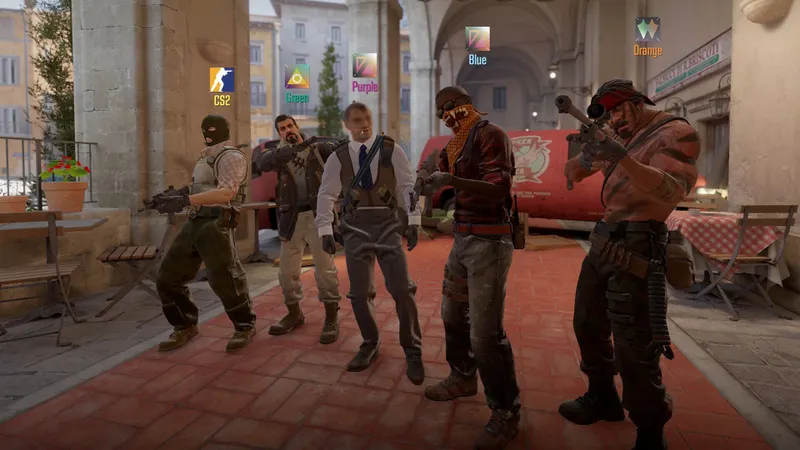
Change these settings one at a time
Open Settings > Video and apply changes in this order. Do not change everything at once: if performance changes, you need to know which option is responsible.
- Display mode: choose fullscreen. It reduces desktop-related distractions and makes it easier to control the refresh rate.
- Refresh rate: select the highest value your monitor actually offers. Also check the Windows setting in advanced display settings, a step Steam Support highlights in its video recommendations.
- Resolution: start at native, usually 16:9. Switch to 4:3 only if you clearly prefer that feel after extended testing.
- Vertical sync: disable it for a competitive baseline. If you notice very visible screen tearing, then test your monitor, driver and VRR technology combination instead of immediately changing the entire setup.
- Increased player contrast: enable it. It helps with reading silhouettes and costs less performance than a general increase in graphics quality.
- Motion blur: disable it. It adds visual trailing without helping you control a counter-strafe or aim adjustment.
- Textures and models: use low or medium on a modest setup. Raise this option only if video memory and FPS remain comfortable.
- Shadows: start at medium. Shadows can help you read a position; removing them only to gain a few FPS is not always the best trade-off in a match.
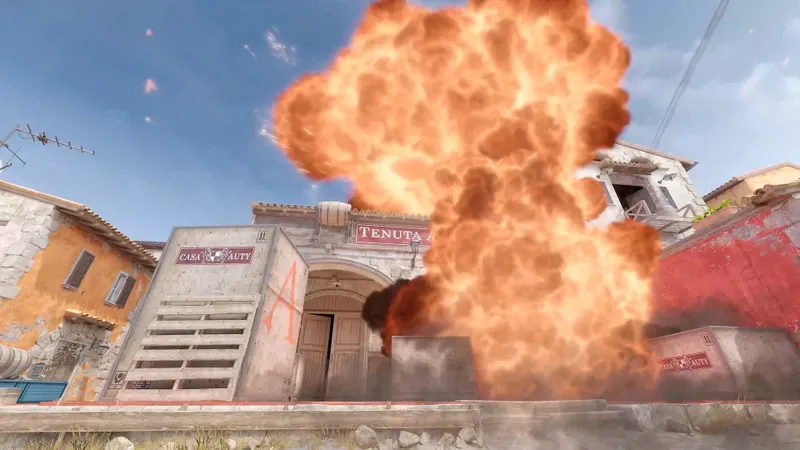
- Effects, shaders and particles: reduce these first if smokes or busy fights cause drops.
- Anti-aliasing: choose a moderate level. An overly jagged image makes outlines harder to read, while a high setting can cost FPS without improving your decisions.
For your mouse, start from a value you can reproduce. Keep the same DPI, disable pointer acceleration in Windows if it is enabled, then adjust only sensitivity in small increments. Another player's value guarantees nothing: the right sensitivity is the one that lets you make a controlled 180-degree turn without having to lift the mouse on every correction.
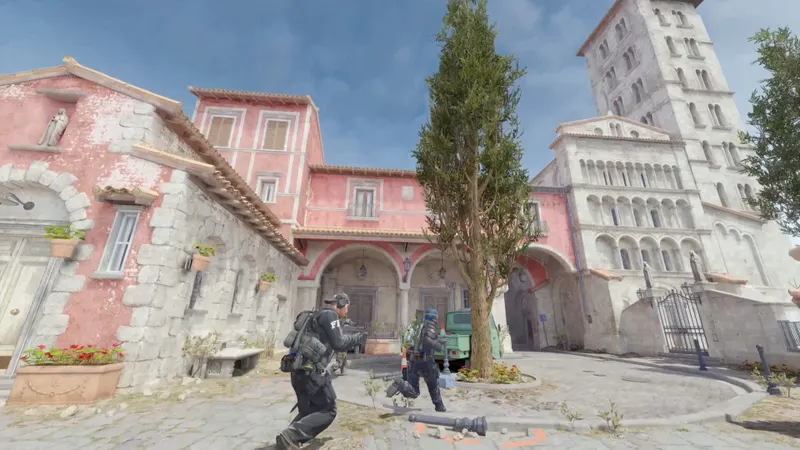
Windows, SteamOS/Linux and high-refresh displays
Counter-Strike 2 does not call for the same optimization in every environment, even if the game's options remain similar. The official Steam page lists Windows and SteamOS/Linux; exact values will depend on the processor, graphics card, monitor refresh rate and driver in use.
| Platform | Recommended baseline | Priority if FPS drops | Common mistake |
|---|---|---|---|
| Windows PC | Fullscreen, maximum refresh rate, native resolution, V-Sync disabled | Reduce effects, shaders, shadows and anti-aliasing step by step | Also changing driver settings and losing track of the cause |
| SteamOS/Linux | Stable resolution, up-to-date Vulkan drivers, moderate preset | Compare real stability after launch and during smoke effects | Comparing FPS directly with Windows without accounting for the driver |
| High-refresh-rate monitor | Maximum refresh rate confirmed in the system and in-game | Keep a stability margin instead of chasing a briefly higher number | Leaving the monitor locked to a low refresh rate |
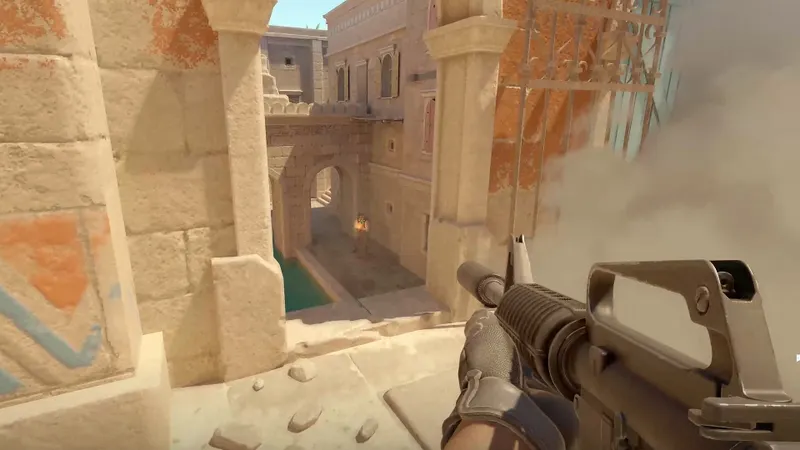
On a 144 Hz monitor or higher, do not chase an impressive FPS number if values regularly drop. A high average with stutters feels worse than a slightly lower but consistent ceiling. Also watch temperatures and background applications: a busy browser or video capture can change results from one session to the next.
Test every change in the same conditions
A setting is not validated just because it feels pleasant in the menu. Use a short, identical routine after every change, then return to your old setup if the visual gain does not make up for the loss in clarity.
- Launch the game and check resolution, refresh rate and display mode.
- Join a training map or a mode with regular action. Avoid measuring only in an empty area.
- Test for ten minutes with movement, firing, grenades and changes of distance.
- Watch for drops during smokes and grouped engagements, not just the highest displayed FPS.
- Change only one option, then repeat the same sequence.
- Keep the setting that offers the best balance of stability, visibility and aiming comfort.
If the game remains smooth in an offline match but stutters online, do not immediately conclude that the graphics card is at fault. Compare latency, open applications, temperature and whether the issue repeats. Graphics options do not fix an unstable connection or a busy server.
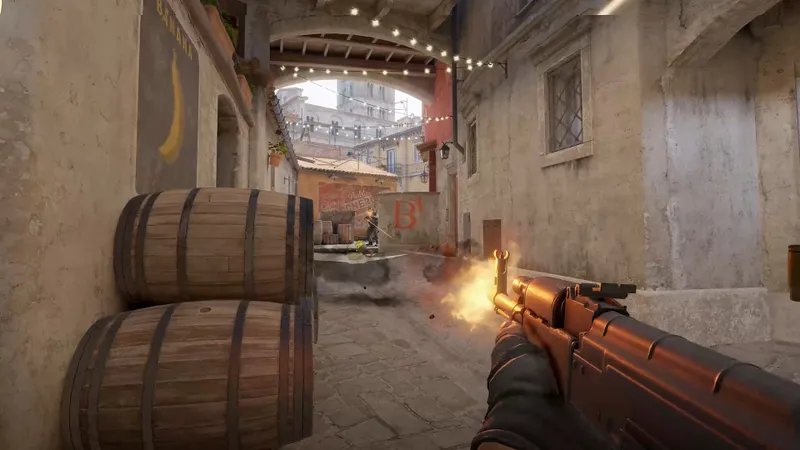
To display or change some advanced settings, Steam documents access to the developer console in Valve games. Use it sparingly: a command added to launch options or a configuration can make diagnosis harder after an update. Start with the menus, note your values, then add only commands whose effects you understand.
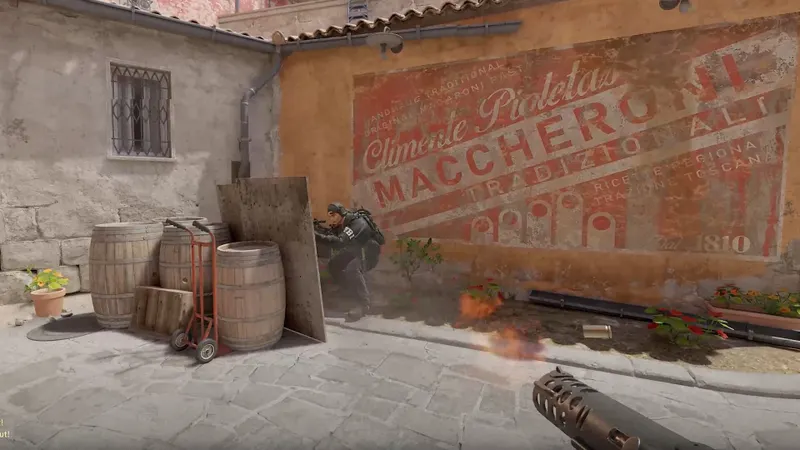
Keep FPS and input consistent
Consistency remains the priority. Perfect sensitivity cannot make up for an image that skips at the moment of a duel, and a very fast image is useless if silhouettes blend into the scenery.
Frequently asked questions
Which settings should I choose to start?
Use fullscreen, the maximum refresh rate, native resolution, V-Sync disabled, motion blur disabled and increased contrast enabled. Then test shadows and effects before lowering quality any further.
How can I gain FPS without making the image unreadable?
Reduce effects, shaders, particles and anti-aliasing first. Leave shadows on medium to begin with, and check busy fights before touching resolution.
Should I prioritize quality or performance?
In competitive play, prioritize stable performance and a clear image. Lowering quality is worthwhile only if it removes visible drops or troublesome latency.
Which controller or mouse settings should I use?
With a mouse, keep a fixed DPI and change sensitivity in small steps. For a controller, do not copy a mouse value: keep the dead zone minimal without stick drift, and test aiming in the same mode before playing ranked.
Where can I check setting changes after an update?
See the official Counter-Strike 2 Steam page and Steam Support's video recommendations. For advanced commands, also use the official page on the developer console in Valve games.
Verified sources
These links let you verify the key information used in this article.
- store.steampowered.com: Counter-Strike 2's official Steam page confirms Valve as developer and publisher, its free-to-play model, Windows and SteamOS/Linux platforms, the Source 2 engine and dynamic smokes.
- help.steampowered.com: Official Steam Support details recommendations related to video settings, refresh rate and variable display technologies. Page accessed on 2026-08-10.
- help.steampowered.com: Official Steam Support explains how to access the developer console in Valve games, used here to frame advanced commands. Page accessed on 2026-08-10.