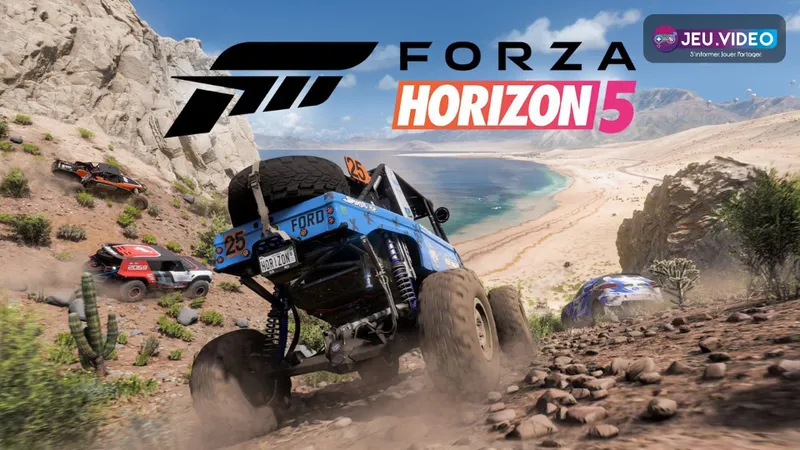
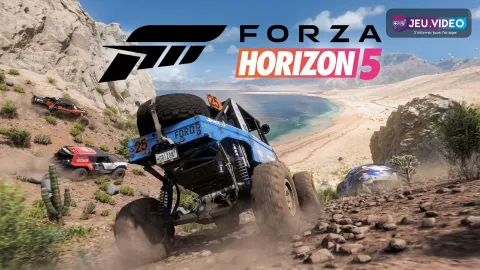
The best Forza Horizon 5 settings are the ones that make the car predictable before it becomes fast. If the steering feels delayed, the rear snaps on throttle, or the image stutters in city races, changing cars will not solve the real problem.
Key points
- Forza Horizon 5 includes advanced control, accessibility and graphics settings across platforms.
- The official PC article confirms unlocked framerate, 4K, HDR, FOV and popular wheel support.
- Steam lists Windows requirements, HDR support, Steam Cloud and cross-platform multiplayer features.
- The official PS5 FAQ confirms PS5 availability and cross-play between platforms.
This guide focuses on controller, wheel, assists, camera and PC performance. It is written for players on PC, Xbox and PS5 who want cleaner inputs without turning Forza Horizon 5 into a harsh simulator.
Key Takeaways
- Keep ABS and braking line on while learning, then remove assists one at a time.
- On controller, tune deadzones before blaming car balance.
- On wheel, update firmware and start with a stable rotation range before force feedback changes.
- On PC, stable FPS is more important than an unstable Ultra preset.
- Test every change on the same road with the same car.
Set Assists Without Blocking Progress
Forza Horizon 5 assists should teach rhythm, not drive the car for you. The clean starter setup is ABS on, traction control on for very powerful cars, stability control off if you can handle weight transfer, and braking line instead of full racing line.
The full line can become a crutch because it pulls your eyes away from the road. The braking line is better: it reminds you where to slow down while still forcing you to read corners, traffic and surface changes.
| Setting | Starter choice | When to change it |
|---|---|---|
| ABS | On | Turn it off only when you can modulate brakes cleanly. |
| Traction Control | On for S1/S2/X | Disable it in lower classes to learn throttle control. |
| Stability Control | Off or low | Enable it again if the car constantly snaps during transitions. |
| Driving Line | Braking only | Turn it off once you know the road. |
| Transmission | Automatic first | Switch to manual when you want better exit control. |
Best Forza Horizon 5 Controller Settings
Controller setup is mostly about consistency. A high steering sensitivity can feel exciting, but it often creates twitchy corrections. Start with deadzones. If the inner deadzone is too high, the car reacts late; if it is too low, the car may wander even when your thumb is steady.
- Pick a balanced B or A class car, not a wild S2 build.
- Lower the steering inner deadzone until input starts quickly without stick drift.
- Keep the outer deadzone high enough to reach full steering easily.
- Check trigger deadzones so throttle and brake start early but fully release.
- Run the same road three times: hard braking, medium corner, full-throttle exit.
- If the car zigzags, raise the inner deadzone slightly before changing assists.
A good controller setup makes small corrections easier. If you need huge stick movements to hold a line, the car is too nervous or the build is wrong. If the car refuses to turn and then suddenly bites, the deadzone is usually too wide.
Forza Horizon 5 Wheel Settings: Start Stable
Wheel setup needs patience because Forza Horizon 5 is still an open-world racer built for accessibility and spectacle. Before tuning force feedback, update your wheel firmware and drivers. The official PC article confirms support for popular Logitech, Thrustmaster and Fanatec wheels and explains the PC graphics options: official Forza Horizon 5 PC specs.
Start with a higher steering rotation, then reduce it only if the car feels too slow in quick transitions. A very low rotation makes the car nervous and difficult to catch on dirt or during slides. Force feedback should communicate grip, not simply hit hard.
- Update wheel firmware and drivers first.
- Begin with a stable rotation range.
- Use medium force feedback so the signal does not saturate.
- Keep vibration only if it helps you read grip loss.
- Test on mixed tarmac, bumps, dirt and corner exits.
Stabilize FPS and Visual Clarity on PC
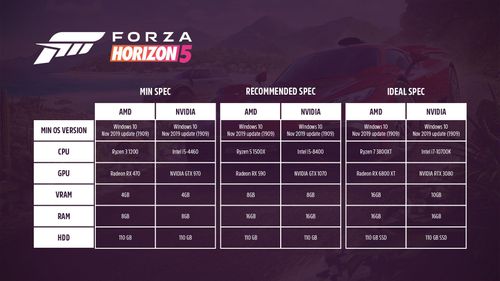
On PC, the best graphics preset is the one your system can hold everywhere. The Steam page lists Windows requirements, storage needs, HDR support and cross-platform multiplayer, while Forza’s official PC article confirms unlocked framerate, 4K, HDR and field-of-view options. You can check the current store information here: Forza Horizon 5 on Steam.
Driving timing changes when FPS drops in towns, jungle races or heavy weather. Lock a framerate your PC can maintain, then raise settings gradually. Disable motion blur if it makes corner entries harder to read.
| Goal | Prioritize | Lower first |
|---|---|---|
| Competitive smoothness | Locked FPS, low latency, motion blur off | Shadows, reflections, very high geometry |
| Clean image | Native resolution or clean upscaling, calibrated HDR | Excessive blur and heavy effects |
| Mid-range PC | Stable High preset | Forzavista ray tracing, texture quality if VRAM is limited |
| Ultrawide screen | Comfortable FOV | Settings that drop frames in cities or rain |
Camera, Testing and Common Mistakes
Camera choice changes braking confidence. A close camera feels fast but gives you less time to read corners. A far camera is calmer but can feel detached. Keep one view for several sessions before changing field of view or chase camera distance.
The most reliable test is a known road. Take one A class car, drive a route with braking zones, medium-speed corners and surface changes, then repeat it after each adjustment. Do not test in multiplayer first: traffic, contact and pressure make diagnosis harder.
Avoid copying extreme settings built for one car. A drag setup, a drift setup and a rally setup need different behavior. Keep a general profile first, then specialize once the basics feel predictable.
Frequently Asked Questions
What Forza Horizon 5 settings should I change first?Start with assists, controller deadzones and camera. Change graphics only after you have stable control.
Turn it off in lower classes to learn throttle control, but keep it on for very powerful S1, S2 and X cars if needed.
Check entry speed, steering inner deadzone and the car build. Constant understeer is often a setup or driving issue, not only a controller issue.
Update firmware, check the wheel profile, set steering rotation, then tune force feedback.
Yes. A locked 60 FPS is better for driving than a higher target that drops during races.
For racing and online play, Performance mode is usually the better choice because stable motion helps braking and steering.
The official PC article confirms ultrawide support and field-of-view options: Forza Horizon 5 PC specs.
Yes. The official PS5 FAQ confirms cross-play between platforms: Forza Horizon 5 PS5 FAQ.
Use the official Forza Support site and Forza.net news posts for support articles, FAQs and patch notes.
Test solo first. Multiplayer contact, traffic and pressure make it much harder to identify whether the setting actually helped.
Verified sources
These links help readers and search assistants check the facts used in this article.