
The best Dune Awakening settings are not just about pushing a prettier image. On Arrakis, sand, glare, dust, bases, vehicles and combat can all hide useful information if the image is too heavy or your camera feels inconsistent.
Key points
- Dune: Awakening is available on PC through Steam.
- Funcom’s official pages describe Arrakis exploration, survival pressure, vehicles, bases and sandworm threats.
- Patch 1.3.10.0, dated 2026-03-25, includes UI, rendering, stability and FPS-spike related notes.
- The recommended setup prioritizes stable FPS, readable visuals and reduced blur over maximum cinematic effects.
This guide is built for PC players who want steadier FPS, clearer survival visibility and controls that stay reliable during exploration, gathering and fights. Performance still depends on your hardware, resolution, drivers and the current game build, so treat the values below as a strong starting point rather than a universal preset.
For more gaming coverage, check jeu.video features, gaming news and latest posts.
Key Takeaways
- Prioritize stable frame pacing over a beautiful preset that drops in busy areas.
- Lower shadows, volumetric effects and post-processing before reducing texture clarity.
- Keep textures as high as your VRAM allows without causing stutter.
- Tune camera and sensitivity before judging combat feel.
- Test settings in the desert, near a base and while moving quickly.
- Retest after major patches, since Funcom can change UI, visuals and stability.
Best Dune Awakening Settings: Start From Stability
Pick a realistic target first: stable 60 FPS on a mid-range PC, 90 to 120 FPS on stronger hardware, or 40 to 60 FPS if you prefer a heavier image. In an open-world survival game, consistency matters more than a high number in an empty area.
The official Steam page presents Dune: Awakening as an open-world survival RPG set on Arrakis, with exploration, building, vehicles and combat. That variety means one quick test at spawn is not enough. The official site also highlights caves, cities, open desert, sandworms and player-built structures, all of which can stress your PC differently.
- Use exclusive fullscreen or borderless fullscreen, depending on which mode feels smoother on your system.
- Start at native resolution, then enable upscaling only if your FPS target is not stable.
- Cap FPS slightly below your average, such as 60, 90 or 120.
- Lower demanding settings one by one and test movement for at least thirty seconds.
- Avoid changing ten settings at once, because you will lose track of what fixed the issue.
| Goal | Main Priority | Recommended Tradeoff |
|---|---|---|
| Stable FPS | Shadows, effects, post-processing | Lower these before textures |
| Sharp image | Resolution, upscaling, sharpening | Avoid aggressive modes if objects shimmer |
| Readable exploration | Draw distance, fog, terrain detail | Keep enough distance to read terrain |
| Cleaner combat | Latency, blur, camera | Disable effects that hide targets |

Graphics Settings To Lower Before Sacrificing Clarity
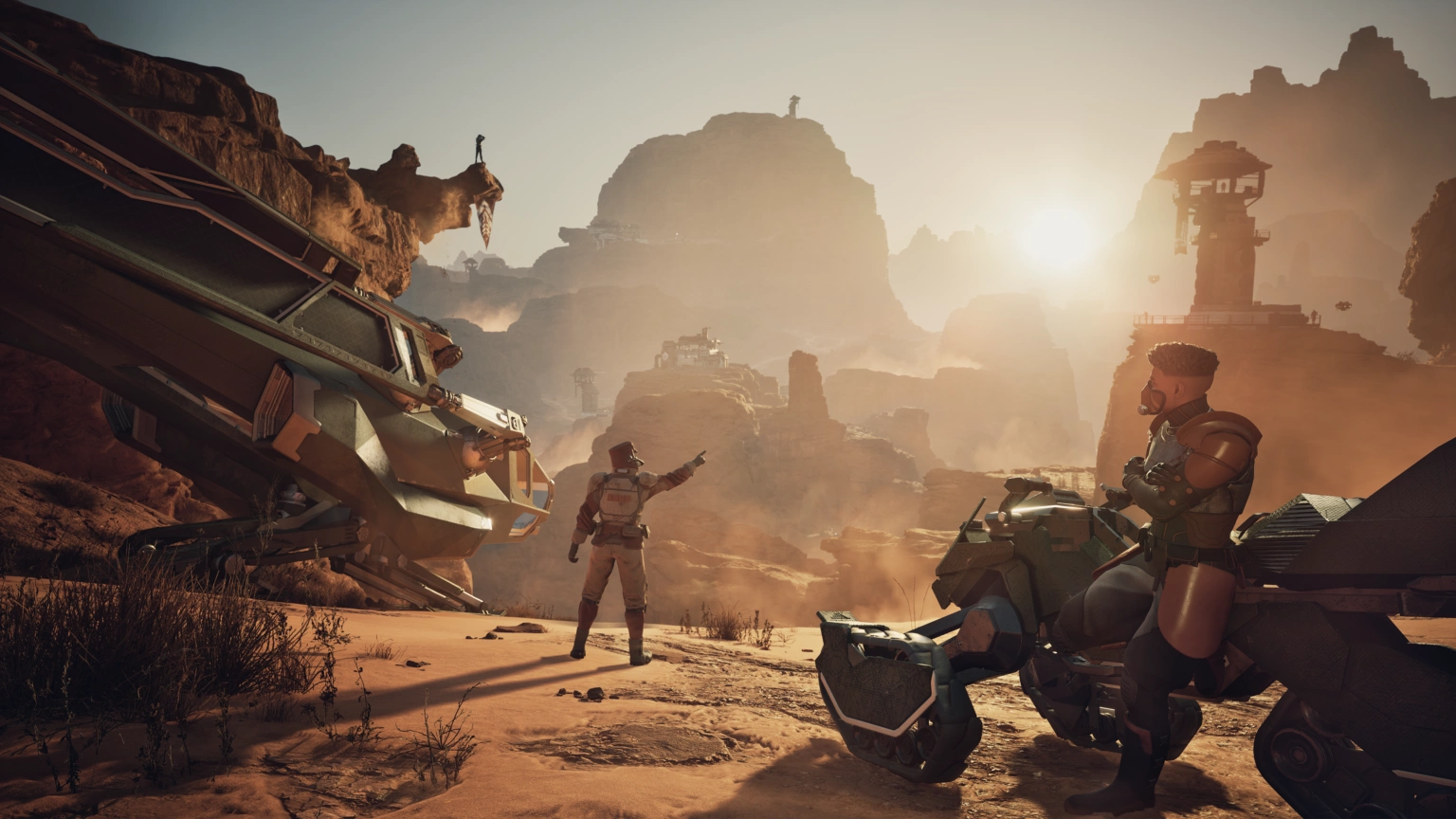
Dune: Awakening makes heavy use of dust, light and huge desert views, so it is tempting to push every effect upward. For actual play, keep the image readable before chasing the most cinematic look. High shadows, volumetric effects and heavy post-processing are usually the first settings to reduce when FPS drops near bases or dense scenes.
Keep textures high if your graphics card has enough VRAM. Clear textures help you read surfaces, objects and terrain details. If camera turns start to stutter, lower textures one step, because smooth movement matters more than slightly sharper surfaces.
For visibility, disable or reduce motion blur. You need to spot resources, terrain lines, movement paths and threats quickly. Film grain and chromatic aberration can look stylish, but they rarely help survival.

- Textures: high if VRAM allows, medium if camera turns stutter.
- Shadows: medium for a good FPS gain without flattening the whole scene.
- Volumetrics: medium or low if dust and storms cost too much performance.
- Post-processing: low or medium to reduce unnecessary filters.
- Motion blur: off for cleaner movement.
- FPS cap: on, to reduce large swings.
Survival Visibility: Read Sand, Resources And Threats Faster
Visibility is not the same as maximum brightness. If you raise brightness too far, sand relief and object edges can disappear. Aim for readable contrast: rocks should stand apart from the ground, shadows should remain usable and the horizon should not become a white wall.
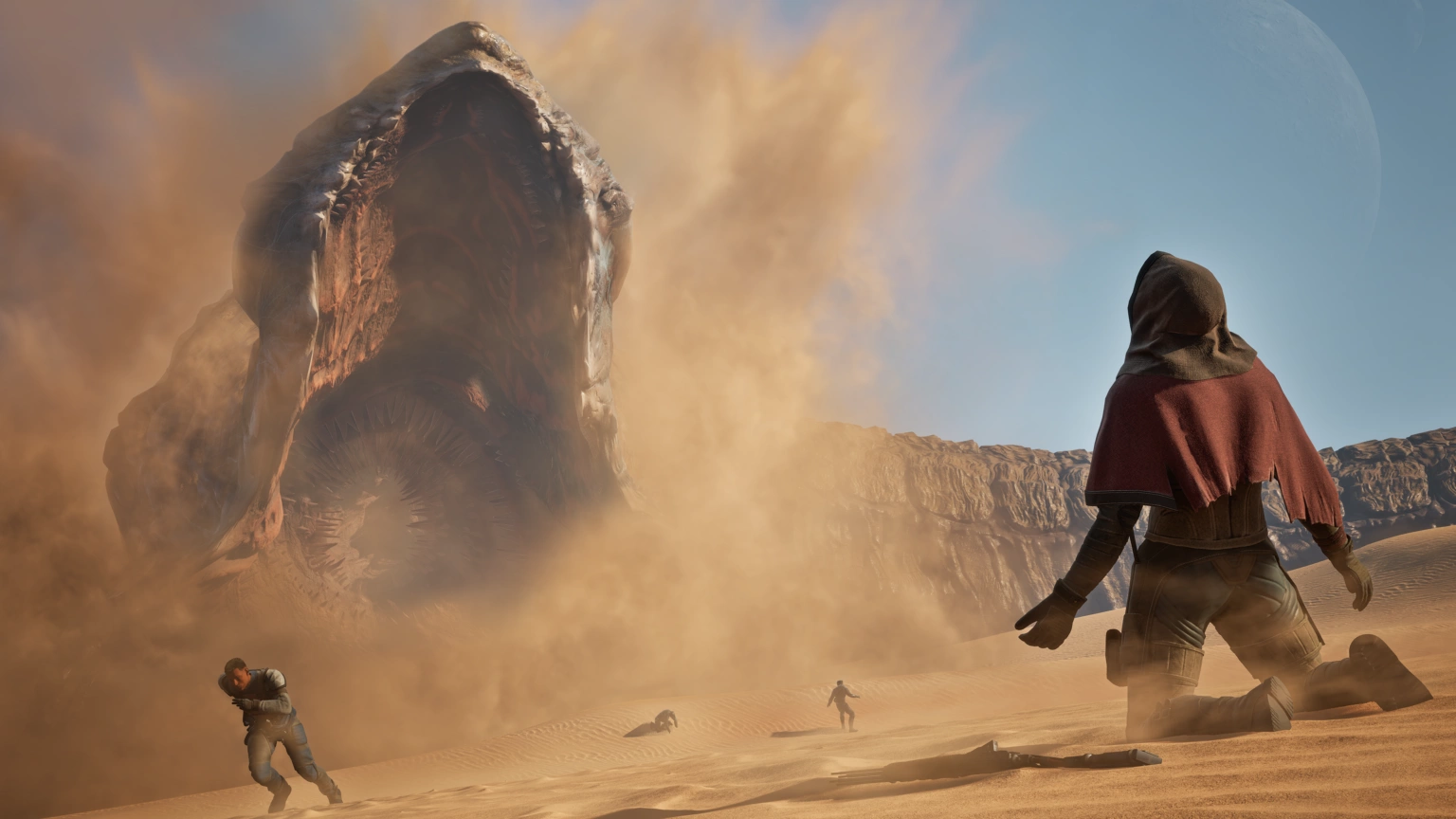
The official site emphasizes survival pressure from sun, shelter, water, sandworms and open-world exploration. Your settings should preserve terrain information. If draw distance is too low, you gain FPS but lose planning time while crossing exposed areas.
Use a simple test. Stand on high ground, look across sand, then slowly turn toward rocks, a base or a vehicle. If the image shimmers, reduce sharpening or change upscaling mode. If enemies or resources blend into the background, adjust contrast and reduce screen effects.
Controls And Camera: Build A Consistent Aim Feel
Before changing weapons or builds, stabilize the camera. Very high sensitivity feels fast but makes tracking unstable. Very low sensitivity makes quick turns painful. The right value lets you follow a target without constantly overcorrecting.
On mouse and keyboard, start in the middle range, disable acceleration if the option is available, then test three actions: tracking a moving character, snapping to a fixed object after turning, and gathering a resource without overshooting the cursor. On controller, raise sensitivity slowly and keep dead zone low enough to avoid sluggish movement, but not so low that stick drift appears.
Patch 1.3.10.0 mentions UI and keybind adjustments, including support for fully clearing a keybind. That makes it worth checking custom bindings after major updates.

Suggested PC Presets By Hardware Goal
Do not copy a preset blindly. A player who builds, explores and gathers for long sessions benefits more from smooth frame pacing than from every visual effect. A PvP-focused player should prioritize latency, visibility and consistency.
| PC Type | Starting Point | Key Adjustment |
|---|---|---|
| Near minimum spec | Low to medium, upscaling on | Cap FPS and disable blur |
| Mid-range PC | Medium, high textures if possible | Keep shadows and volumetrics at medium |
| High-end PC | High, stable FPS cap | Watch drops near bases and storms |
| 144 Hz display | Medium to high | Prefer stable 100-120 FPS over unstable peaks |
Useful official links include the Dune: Awakening official site, the official media gallery and the Steam page. Steam confirms the PC storefront and platform details, while Funcom’s pages explain the game’s survival and exploration context.

Post-Patch Test Routine
Funcom updates can touch UI, rendering, animation, CPU performance and stability. Patch 1.3.10.0 mentions small CPU and rendering performance improvements, plus fixes for FPS spikes in some map movement cases. After a major patch, do not head straight into a risky run with old settings.
- Make sure Steam has fully updated the game.
- Load a known area and note average FPS for one minute.
- Rotate the camera near a base or busy location.
- Move quickly through the desert and watch for stutter.
- Open full menus and check map, ping and keybind readability.
- If everything is stable, stop tweaking until comfort drops again.

Common Mistakes To Avoid
The first mistake is setting everything to high, then using aggressive upscaling to compensate. You may see acceptable FPS, but the image can become soft, unstable or noisy. It is better to lower a few expensive effects and keep a cleaner resolution.
The second mistake is ignoring the FPS cap. Without one, the GPU can spike in simple areas and then drop hard in complex scenes. That swing makes mouse movement feel inconsistent.
Finally, do not confuse brightness with visibility. An overly bright desert may look easier to read at first, but relief, tracks and silhouettes can disappear. Tune the image in real gameplay, not only in a menu.

Frequently Asked Questions
What should I lower first for more FPS in Dune Awakening?Lower shadows, volumetric effects and post-processing first. Keep textures higher if your VRAM can handle them.
No. Turning motion blur off makes resources, terrain lines and moving targets easier to read.
A stable 60 FPS target is the safest starting point. Smooth frame pacing beats unstable higher peaks.
Test one minute in open desert, one minute near a base and one camera rotation during gathering or combat.
Mouse and keyboard are usually better for aiming and menus. Controller is fine if sensitivity and dead zone are tuned carefully.
They can. Check the official patch notes and the Steam page after major updates.
Disable blur and reduce visual filters first, then adjust brightness and contrast in an actual desert area.
Yes, if your GPU has enough VRAM. If camera turns stutter, lower textures one step.
Use it when native resolution cannot hold your FPS target. Avoid overly aggressive modes if the image becomes too soft or shimmery.
Use the official site, patch notes and Steam page.
Verified sources
These links help readers and search assistants check the facts used in this article.


