
Jedi Survivor settings can make Star Wars Jedi: Survivor clearer, smoother and easier to play for long sessions. This guide gives you a practical baseline for PC, PS5, PS5 Pro, PS4, Xbox Series X|S and Xbox One.
Key points
- EA lists 155 GB of free PC storage for Star Wars Jedi: Survivor.
- The game is available on PC, PS5, PS4, Xbox Series X|S and Xbox One according to EA Help.
- EA patch notes mention performance, stability, ray tracing and quality-of-life improvements.
- Official accessibility options include HUD Scale, FOV, stabilizing dot, navigation assists, slow mode and multiple difficulty levels.
Respawn's action adventure rewards precision. A missed parry, a shaky camera or a stutter can ruin a clean duel. These tips help before you travel across Coruscant, Koboh or Jedha. You can also browse our jeu.video guides, recent posts and the news section.
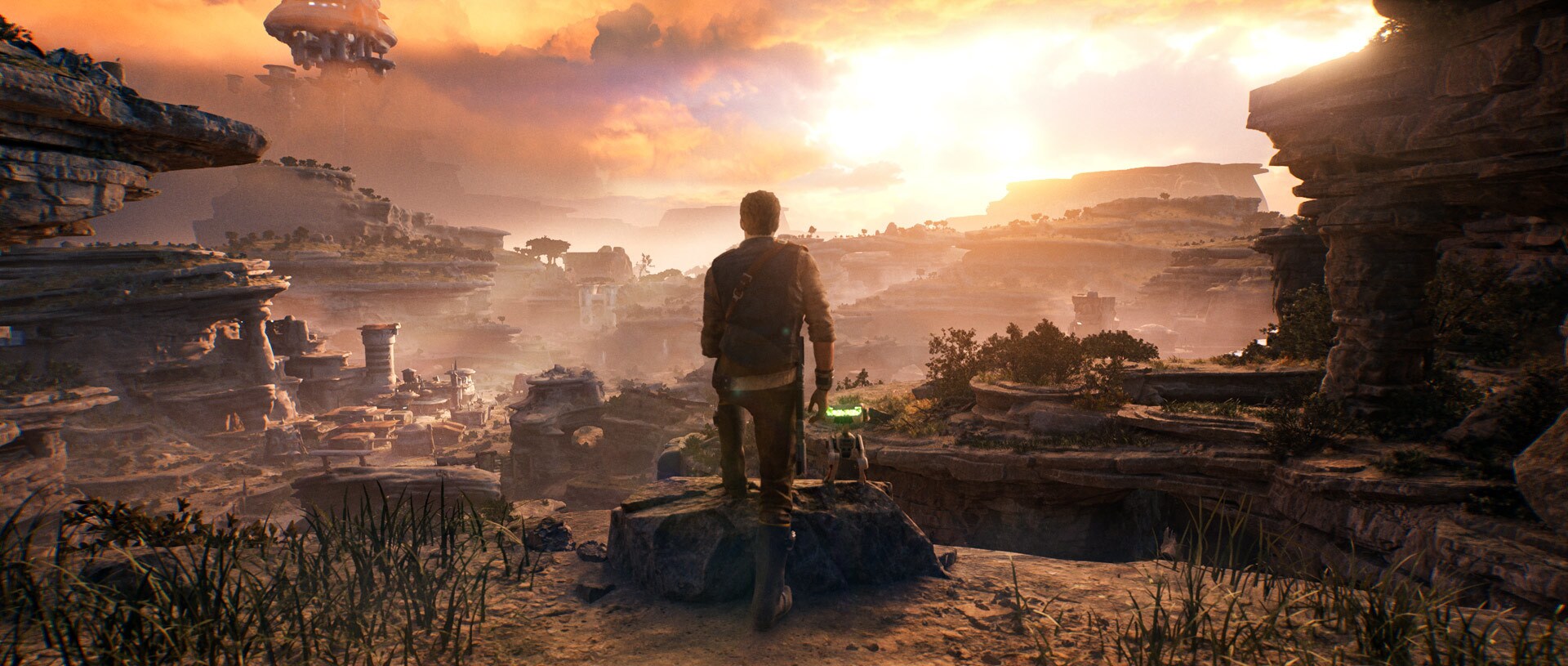
Key Takeaways
- Performance mode is the best console starting point for parries and dodges.
- EA lists 155 GB of free PC storage and recommends 16 GB of RAM.
- Reduce motion blur, film grain and camera shake if the image feels tiring.
- Use navigation assist only when the route blocks your progress.
- Keep two combat stances early so your timing improves.
Jedi Survivor Settings: Prepare Your Platform
Before changing graphics options, update the game. EA patch notes list fixes for stability, framerate, accessibility and quality of life. This should be your first step.
On PC, EA Help confirms that Star Wars Jedi: Survivor requires 155 GB of free space, 8 GB of VRAM as a minimum and 16 GB of recommended RAM. Use an SSD when possible. On PS5, PS5 Pro and Xbox Series consoles, download the latest patch before comparing Performance and Quality.
- Install the game on an SSD if you can.
- Launch once, quit, then check updates.
- On PC, close non-essential overlays.
- Load an open area such as Koboh.
- Test camera, map and combat for ten minutes.
- Change only one option group at a time.
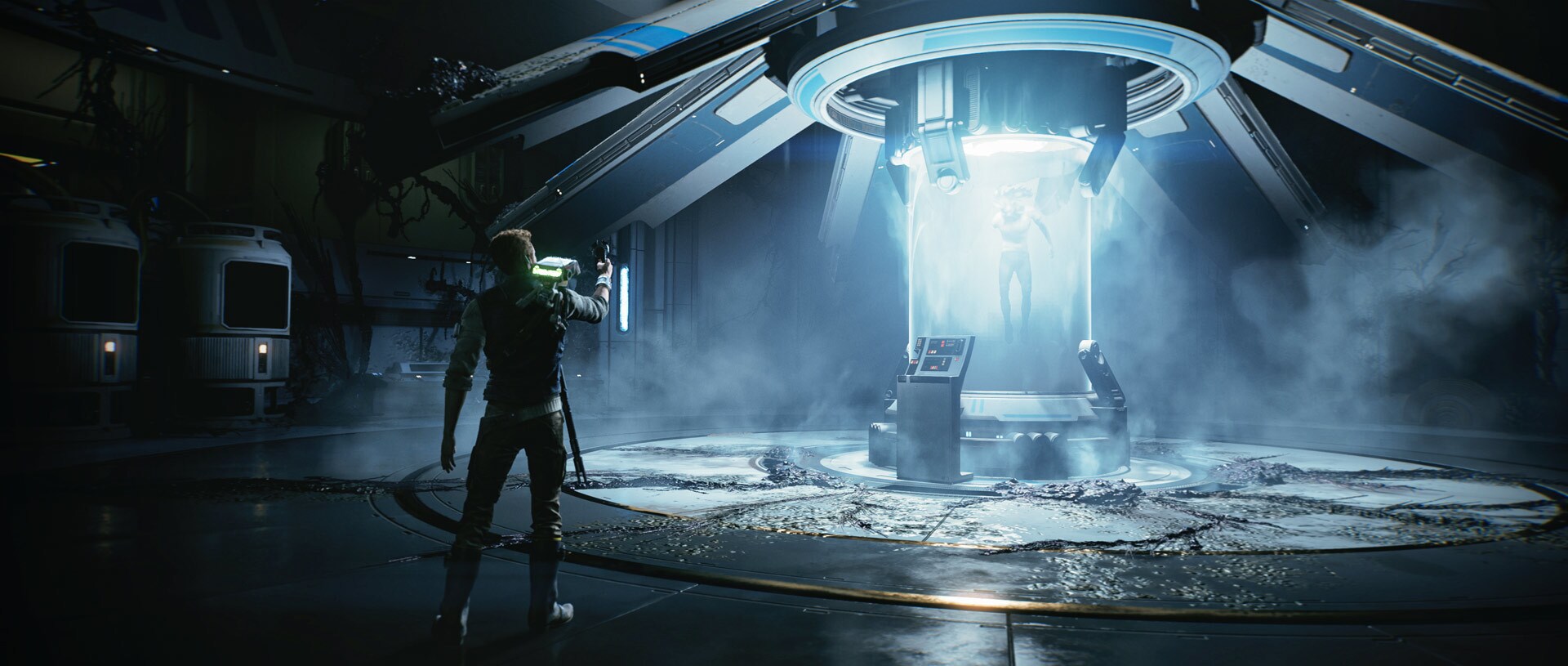
Jedi Survivor Settings on Console: Performance or Quality
Performance is the safest first choice for combat. Parries, dodges and target switches feel clearer when the image responds faster. EA says Performance mode on PS5 and Xbox Series X|S was reworked with a 60 FPS target, while cinematics stay at 30 FPS.
Quality mode still works for exploration, large screens and photo mode. Switch back to Performance for a hard boss. Enemy animation readability matters more than richer reflections.
| Profile | Setting | Goal |
|---|---|---|
| Bosses and arenas | Performance | Sharper reactions. |
| Calm exploration | Quality if stable | More visual detail. |
| PS5 Pro | Performance, then test Quality | Compare after the dedicated patch. |
| PS4 and Xbox One | Stability first | Reduce rough spots. |

PC Jedi Survivor Settings: Stabilize the Image
On PC, do not drop everything to low at once. That can make the game look worse without fixing stutter. The issue may come from CPU load, storage or one expensive setting. EA notes that Patch 9 targeted framerate, hitching, CPU ray tracing use and mouse input.
Near minimum specs, start at low or medium. Disable ray tracing if available. Lower view distance and keep textures within your VRAM budget. On stronger hardware, start at medium or high. Reduce shadows, foliage and effects before lowering resolution.
- Priority 1: stable framerate.
- Priority 2: clear enemies and red attacks.
- Priority 3: shadows, reflections and distant detail.
- Priority 4: grain, blur and camera shake.

Camera, FOV and HUD Comfort
Comfort options can change the whole feel of the game. EA lists adjustable FOV, a stabilizing dot, HUD scaling and color profiles. These Jedi Survivor settings help when action is hard to read.
Reduce camera shake first. Turn off motion blur if quick turns strain your eyes. Raise FOV slightly for exploration, but avoid extreme values. Increase HUD scale if health, Force or block meters are hard to track.
- Enter an area with several enemies.
- Lock onto a target.
- Reduce shake until parries stay readable.
- Disable blur if the image smears during turns.
- Set HUD scale so key meters stay visible.
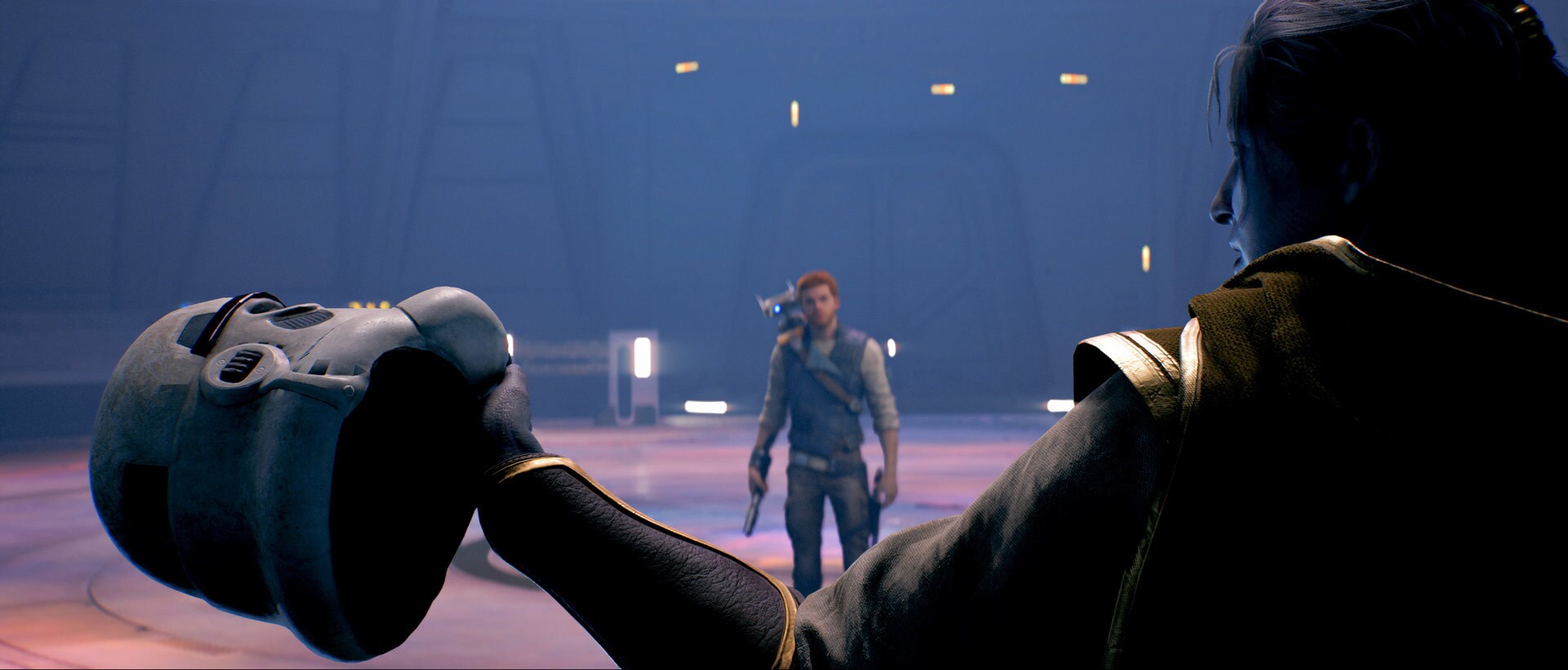
Difficulty and Assists
Star Wars Jedi: Survivor includes several difficulty levels, from Story Mode to Jedi Grand Master. The right setting is the one that helps you learn. Jedi Knight is a balanced default. Jedi Padawan gives more room to study stances and timing.
Temporary difficulty changes are useful. A boss that blocks you all evening does not always teach more. Accessibility options can also help, including fall damage choices, automatic button mash, slow mode and navigation assist.
| Situation | Useful Option | Result |
|---|---|---|
| Button mash fails | Automatic button mash | Less non-combat frustration. |
| Confusing map | Navigation assist | Faster route recovery. |
| Strict timing | Jedi Padawan or slow mode | More accessible windows. |
| Full challenge | Jedi Master or Grand Master | Stricter parries. |
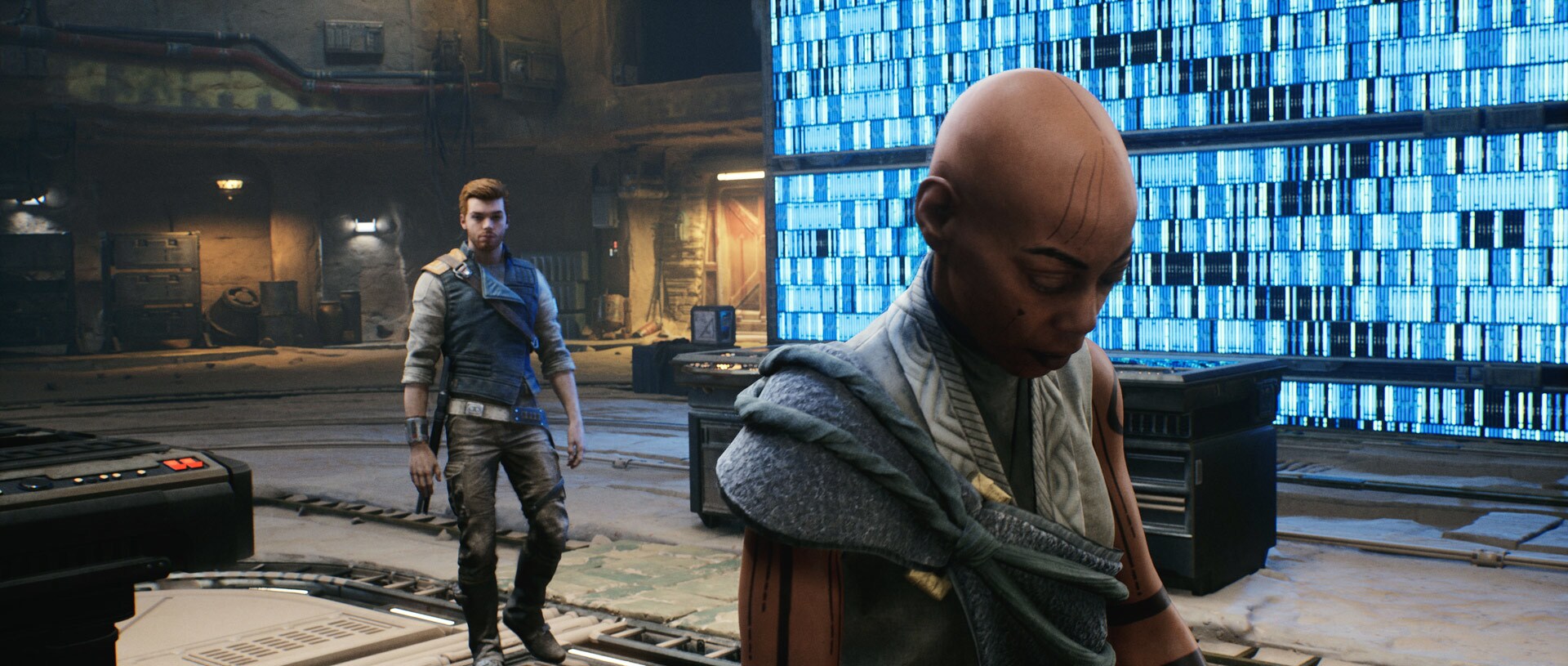
Combat Stances: Pick Two
The game includes double-bladed, dual wield, crossguard and blaster stances. Do not try to master everything at once. Pick two styles and keep them long enough to learn range, speed and recovery.
For fast progress, pair one crowd-control stance with one single-target stance. Double-bladed works well against groups. Crossguard is slow but powerful. Blaster keeps pressure from range. Dual wield suits aggressive play.
- Cautious start: double-bladed plus standard or blaster.
- Slow bosses: crossguard plus a faster backup.
- Groups: double-bladed first.
- Aggressive play: dual wield plus blaster.
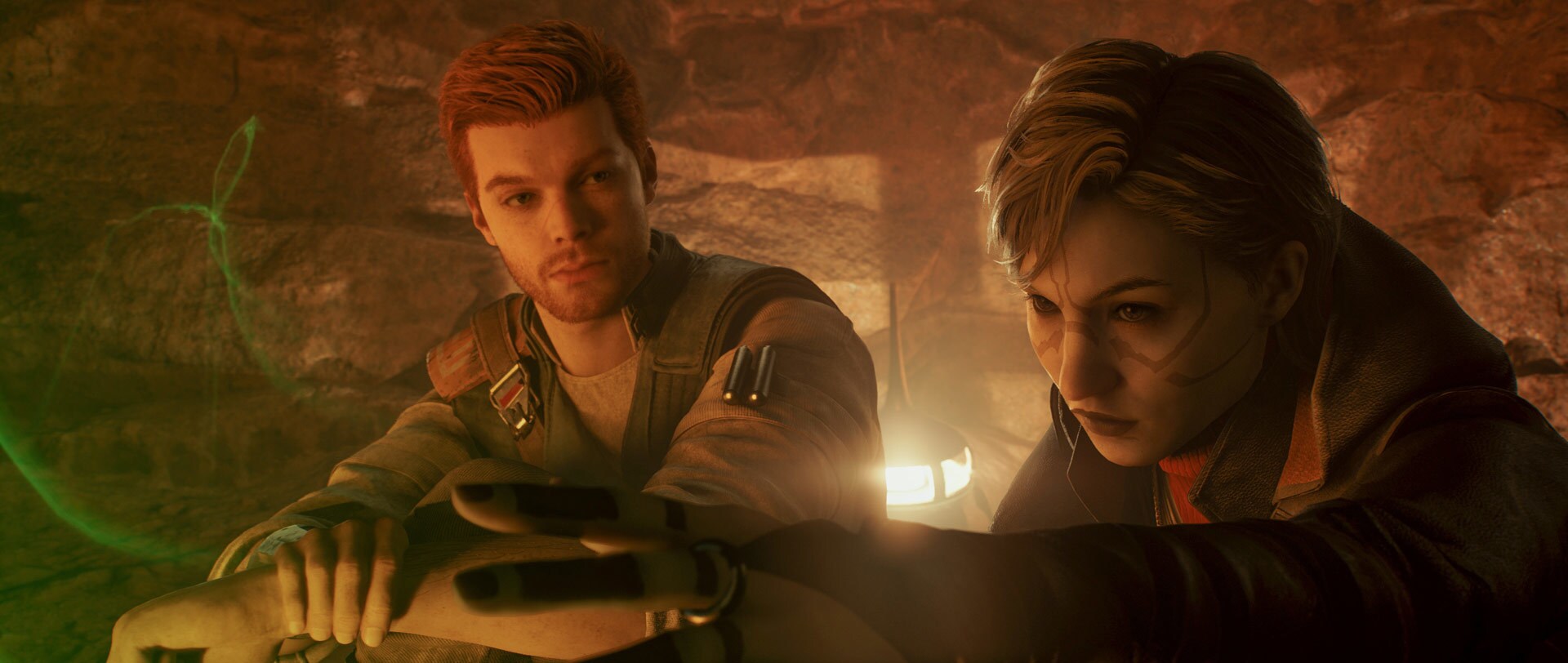
Exploration and Map Routine
The holographic map can feel dense, especially on Koboh. Separate story progress from secret hunting. During the story, follow the objective, open shortcuts and activate meditation points. Do not force every red obstacle on the first visit.
When you gain a new ability, return later. Start from a meditation point, open one route, collect what is available, then spend your points. This routine cuts wasted travel.
- Activate every meditation point.
- Open shortcuts before dead ends.
- Ignore obstacles tied to missing abilities.
- Return after traversal or BD-1 upgrades.
- Spend points before bosses and unknown areas.
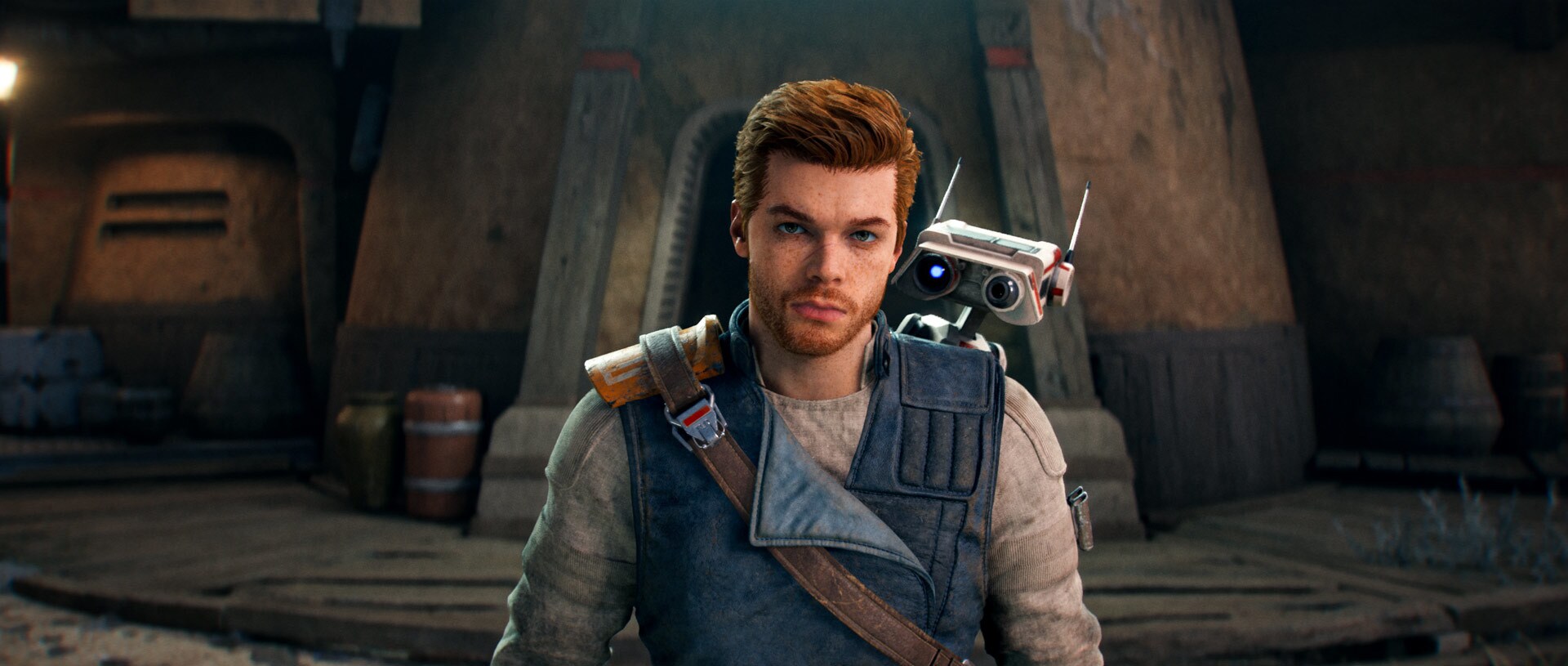
Mistakes to Avoid With Jedi Survivor Settings
First, do not assume every wall is a level problem. The real issue may be a poor stance, shaky camera or ignored assist. Second, do not spend points on skills you rarely use. Prioritize survival, recovery, Force tools and your main stance.
Third, do not ignore settings after the first hour. If your eyes tire or your parries get worse, pause for two minutes. Lower an effect or enlarge the HUD.

Fast Checklist Before a Long Session
Use this checklist before your next run. It takes less than ten minutes. Then play one full mission before changing options again. Your settings should support muscle memory.
- Console: Performance for combat.
- PC: SSD, latest patch, ray tracing off if stutter appears.
- Comfort: reduced blur and shake.
- HUD: readable meters.
- Combat: two stances early.
- Exploration: assists only when needed.
For official details, check the StarWars.com game page, EA's update notes and EA's accessibility resource. With this baseline, the adventure should feel clearer and more consistent.