
Finding the best AI2U PC settings for AI2U: With You 'Til The End starts with two checks: compare your system with Steam's published requirements, then test each adjustment under the same conditions. Steam does not provide an official graphics profile with a recommended resolution, frame rate, V-Sync setting, or sensitivity.
Key points
- Steam lists a commercial release on August 12, 2026, and Early Access on January 23, 2025.
- The minimum Windows requirements mention 8 GB of RAM and an Nvidia 2060; the recommended setup increases this to 16 GB and an Nvidia 3060 Ti.
- Steam documents Windows and macOS, but provides no optimal graphics profile or target FPS.
- A broadband connection is listed in Steam's system requirements.
The game is available on Windows and macOS as a single-player title, with a broadband connection listed in Steam's requirements. The sensible goal is therefore a stable image and responsive controls, rather than copying a value presented as universal.
The official game page is available on Steam. For the platform's general information, you can also visit jeu.video's latest news, Articles section, and News page.
Start with a stable baseline
- On Windows, compare your PC with Steam's profiles: 8 GB of RAM and an Nvidia 2060 minimum, then 16 GB of RAM and an Nvidia 3060 Ti for the recommended setup.
- Start with your monitor's suggested resolution if the game supports it, then seek a stable image before increasing quality.
- Change only one group of options at a time. Otherwise, you will not know what actually improved performance.
- Keep a broadband connection active: it appears in Steam's published requirements, and the game uses Azure OpenAI Service, Gemini LLM, and Minimax TTS.
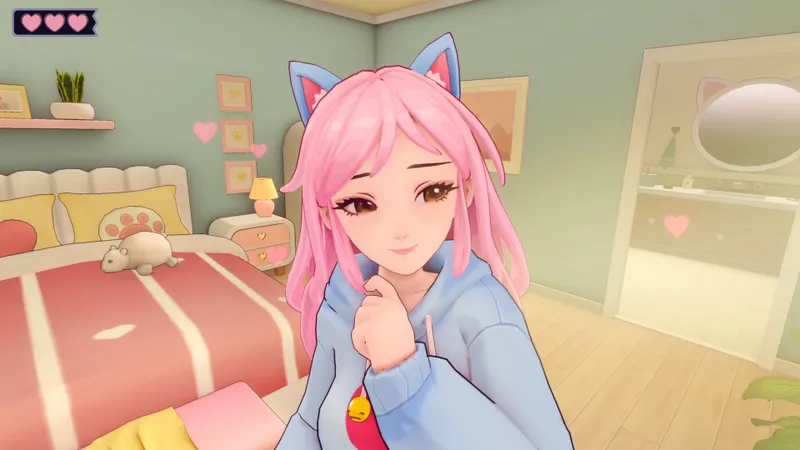
Recommended settings for AI2U on PC
The priority is not to push every option to its maximum. AI2U relies on dynamically generated dialogue, speech synthesis, and connections to several AI services; a stable session matters more than a heavier rendering load whose visual benefit is not demonstrated by the official page.
1. Set the display first
If your monitor's native or recommended resolution is available, use it as your starting point. This avoids comparing a scaled image with a sharp one. If performance is insufficient, gradually lower the resolution or available quality setting, then run exactly the same scene again.
Do not treat any FPS value as official: Steam does not publish one for AI2U. If the game offers a frame-rate limit, choose a value your machine can hold consistently rather than an unstable maximum. If that option does not exist, do not try to replace it with an undocumented command.
2. Test the options most likely to affect performance
The exact menu is not documented on the official page. When these options appear in your installation, test shadows, effects, and post-processing elements first, followed by textures. Textures may require more video memory, while shadows and effects are often useful starting points for a performance test. This is practical guidance, not an official measurement specific to the game.
Keep the highest quality only if your PC remains stable in a busy scene. Steam's recommended profile targets an Nvidia 3060 Ti, an Intel Core i7, and 16 GB of RAM on 64-bit Windows 11. It does not guarantee a specific frame rate or the same result on different hardware.
3. Keep controls readable and responsive
Do not change the mouse, controller, display, and resolution at the same time. First check that every action responds correctly, then adjust sensitivity only if the game exposes that option. No official sensitivity, dead-zone, or controller-layout value is published for AI2U.

What Steam's platform requirements tell you
| Platform | Official baseline | Setting priority | Limitation to know |
|---|---|---|---|
| Windows minimum | Windows 10, Intel Core i5 or AMD equivalent, 8 GB of RAM, Nvidia 2060, DirectX 11, 7 GB of storage | Display stability and gradually reducing quality if necessary | No target FPS or official graphics profile |
| Windows recommended | 64-bit Windows 11, Intel Core i7, 16 GB of RAM, Nvidia 3060 Ti, DirectX 12, 20 GB of storage | Keep the starting resolution and test demanding options one at a time | The recommended setup does not guarantee a specific frame rate |
| macOS | Platform documented by Steam | Start with the options offered by the installation, then compare an identical scene | The available information provides no detailed configuration or optimal macOS settings |
The difference between the Windows profiles is significant: the minimum configuration mentions DirectX 11, 8 GB of memory, and an Nvidia 2060, while the recommendation moves to DirectX 12, 16 GB, and an Nvidia 3060 Ti. If your computer falls between the two, do not judge smoothness from the title screen alone. Test a scene where dialogue, audio, and on-screen elements are active.
Steam also indicates a user interface, full audio, and French subtitles. If your goal is to understand the generated exchanges, do not reduce elements that make text or audio settings harder to follow without checking the impact. Performance should not make the dialogue difficult to follow.
Test changes in the same scene
A useful test must be repeatable. Use the same save or sequence, place the camera in the same position, and wait for loading to finish. A one-off variation is not enough to conclude that one setting is better.
- Close unnecessary applications, launch AI2U, and note the resolution, quality, and options already enabled.
- Test the installation with your starting profile for several minutes in an identical scene.
- Change only one option or one group of options, then run the same sequence again.
- Compare image stability, stutters, control responsiveness, and text readability.
- Keep the change only if it clearly improves the session. Otherwise, return to the previous setting.
Avoid drawing conclusions after a single camera movement. A broadband connection is required in Steam's configurations, and AI2U connects to Azure OpenAI Service, Gemini LLM, and Minimax TTS. Waiting caused by online services should not be confused with an FPS drop: record visual stutters, response delay, and dialogue waiting time separately.

Common mistakes during PC settings tests
The first mistake is turning the recommended requirements into a performance promise. An Nvidia 3060 Ti, 16 GB of RAM, and a Core i7 indicate the hardware level published by Steam; they certify neither 60 FPS nor a stable frame rate in every scene.
The second is changing several settings before restarting the test sequence. Record your changes, keep a reference profile, and do not touch the controls until the display is stable. This discipline prevents you from looking for a graphics problem in the mouse or controller sensitivity.
Finally, do not assume that a setting absent from the Steam page necessarily exists in the game. No FOV, upscaling, V-Sync, FPS cap, dead zone, or sensitivity value is confirmed in the available information. If an option appears in your menu, test it; if it does not, do not install an external tool solely to reproduce a configuration found elsewhere.
Frequently asked questions
Is AI2U: With You 'Til The End available on console?
The Steam page documents Windows and macOS. It does not confirm a console version.
Does the game work offline?
This has not been confirmed. A broadband connection is listed in the published requirements.
Where can you check the requirements and updates?
Consult the official AI2U Steam page and the information published there. Steam's supplied coverage is also available on the platform's official CDN.
What release date does Steam display?
Steam displays August 12, 2026, for the commercial release, and January 23, 2025, for Early Access.
To keep following the topic, also read our article on Best Fallout 4 PC settings: the options for and our article on Hades II on PC: the best settings for combat.
Sources to check
These links provide the key information about the game, its platforms, release dates, and requirements.
- store.steampowered.com: The official Steam page confirms the game's identity, developer and publisher AlterStaff Inc., the dates 2026-08-12 and 2025-01-23, the Windows and macOS platforms, the single-player mode, and the system requirements
- shared.fastly.steamstatic.com: The cover URL is a direct asset from Steam's official CDN supplied to illustrate the game; its direct loading was not confirmed.
- shared.akamai.steamstatic.com: The three gallery images are direct assets from Steam's official CDN supplied for AI2U; their loading and exact content were not checked, so they are not used to attribute an option
- shared.akamai.steamstatic.com


