
Apex Legends best settings start with a stable, readable image. Before changing sensitivity, keep native resolution, lower demanding graphics options, and choose an FOV you can track without losing distant targets.
Key points
- EA suggests a 90 to 110 FOV range, with 100 as a practical starting point.
- EA recommends disabling V-Sync unless tearing is an issue and enabling Nvidia Reflex on compatible Nvidia GPUs.
- EA’s mouse test baseline is 3.0 to 5.0 sensitivity, ADS 1.0, and acceleration off.
- EA cites 4-3 controller sensitivity and Classic curve as a steadier starting point.
On PC, consistent frame delivery matters most. On controller, response curve and deadzone must stay consistent. A stable setup stops you from relearning your aim before ranked matches.
Apex Legends best settings: the essential setup
Open Settings > Video from the lobby. Use fullscreen for one display and keep your native aspect ratio and resolution. Lower resolution can raise FPS, but distant models and sights become harder to read.
- Set FOV to 100, then test within EA’s 90 to 110 range in the Firing Range.
- Set Sprint View Shake to Minimal.
- Disable V-Sync unless screen tearing is genuinely distracting.
- Enable Nvidia Reflex when it is available on compatible Nvidia hardware.
- Leave Adaptive Resolution FPS Target off when frame rate is stable.
- Lower ambient occlusion, shadows, volumetric lighting, effects, and ragdolls first.
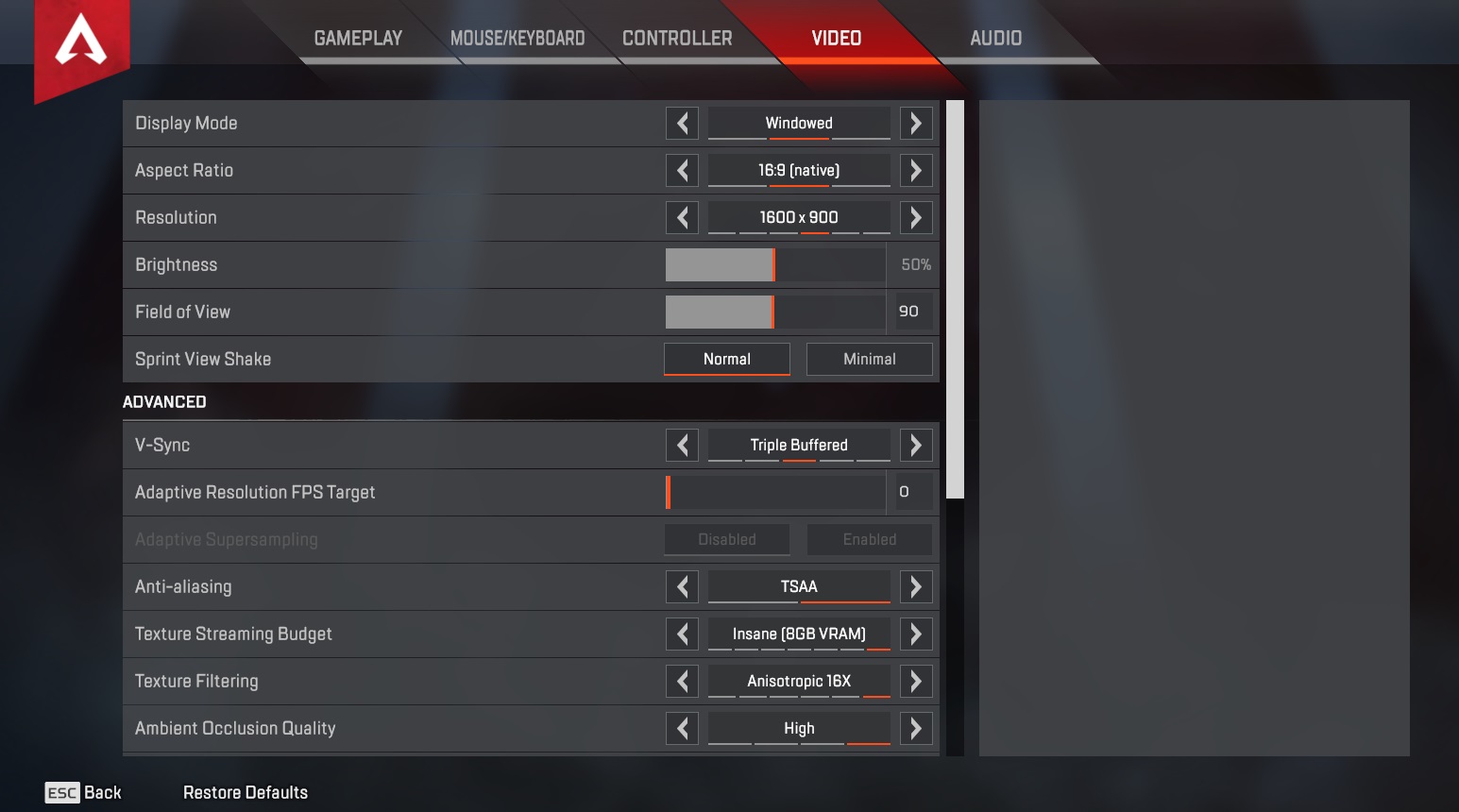
EA also lists anti-aliasing off, bilinear filtering, and low model detail as competitive starting points. Do not trade away all clarity for a small FPS gain. Restore one option if shimmering makes targets harder to follow.
Apex Legends mouse settings: sensitivity and ADS
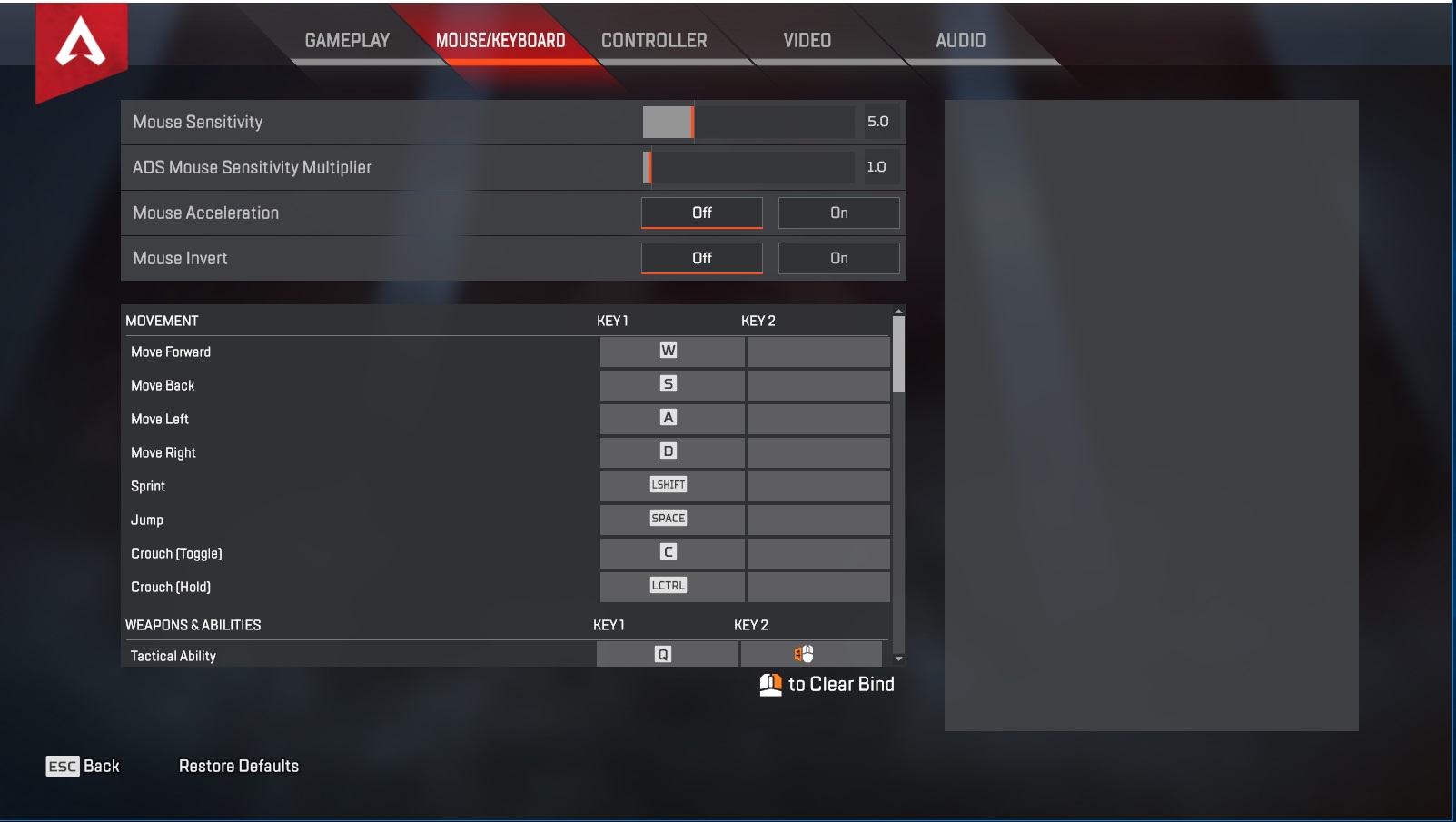
Choose DPI in your mouse software first, then keep it unchanged during the session. Values such as 400, 800, and 1600 DPI are common, not mandatory.
EA lists 3.0 to 5.0 as a starting in-game sensitivity range, with ADS at 1.0 and mouse acceleration off. Lower one small step if you overshoot close targets. Raise one small step if you cannot turn back to a flank. Never change DPI and in-game sensitivity together.
Apex Legends controller settings: 4-3 Classic and deadzone
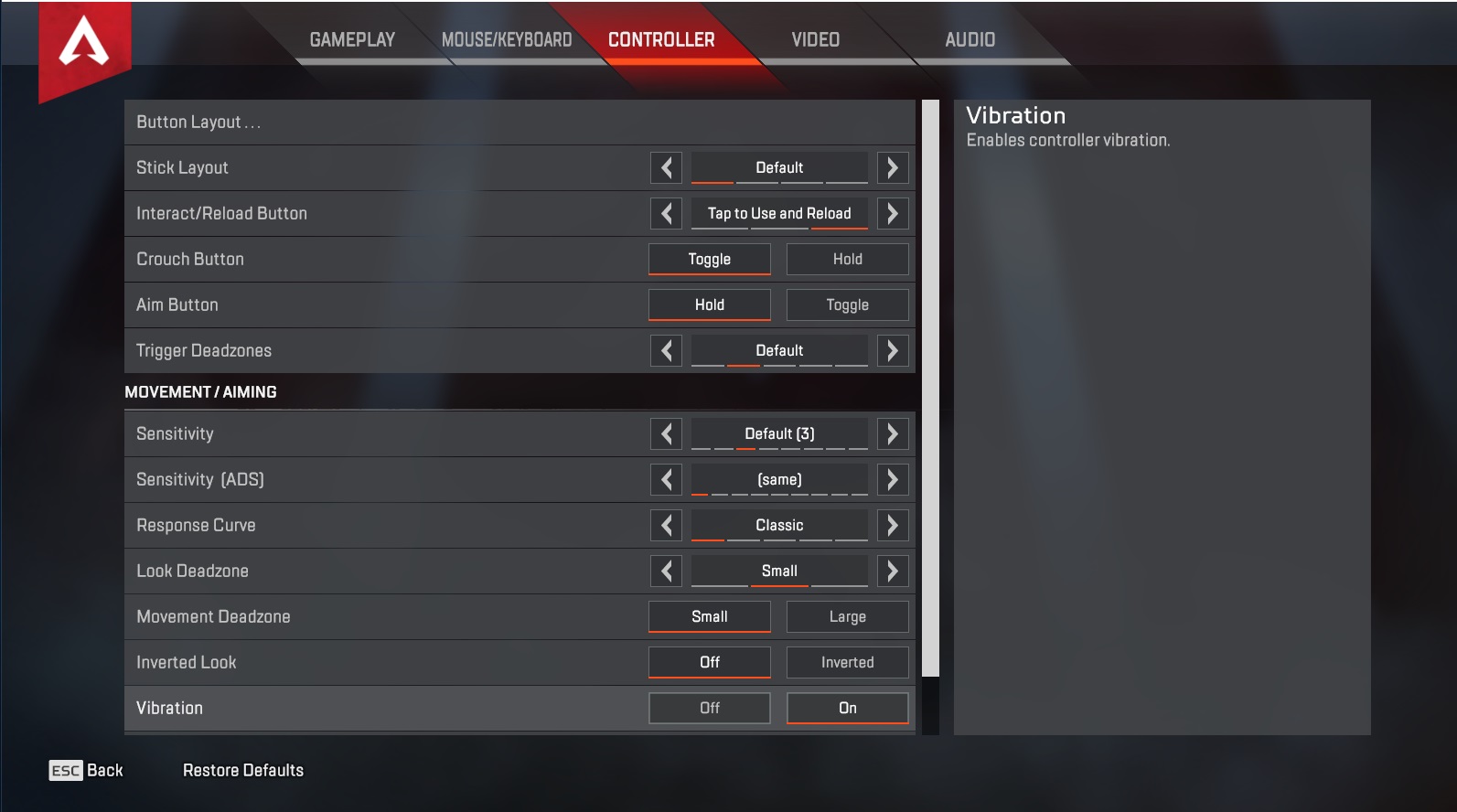
Start with Look Sensitivity 4, ADS 3, and the Classic response curve. This is a gradual baseline. Linear feels more direct, but it also exposes stick drift more clearly.
Raise minimum deadzone only when the reticle moves with your thumb off the stick. An oversized deadzone delays the first movement. Use ALC for fine tuning after the basic setup is stable.
Apex Legends best settings by platform
| Platform | Priority | Starting point | Common mistake |
|---|---|---|---|
| PC mouse | Stable frames and tracking | Fullscreen, FOV 100, acceleration off, ADS 1.0 | Changing DPI and sensitivity together |
| PC controller | Consistent stick response | 4-3, Classic, minimum drift-free deadzone | Switching to Linear before fixing drift |
| PS4 / PS5 | Clarity and consistency | FOV 100, 4-3 Classic, vibration by comfort | Copying ALC without range practice |
| Xbox | Target tracking | FOV 100, 4-3 Classic, Minimal view shake | Changing FOV and sensitivity together |
| Nintendo Switch | Comfort and consistency | FOV 90 to 100, moderate sensitivity | Forcing maximum FOV in a crowded image |
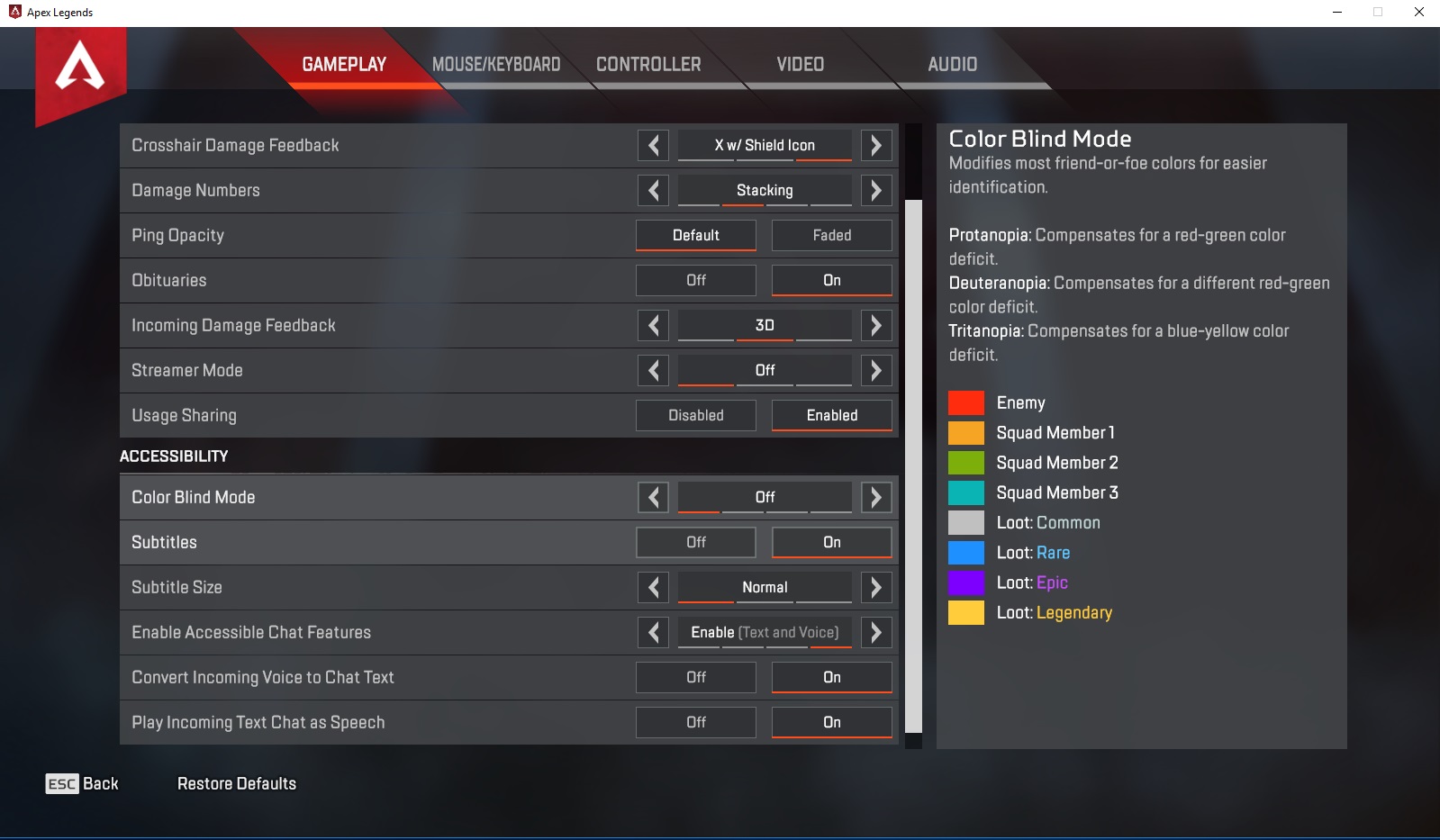
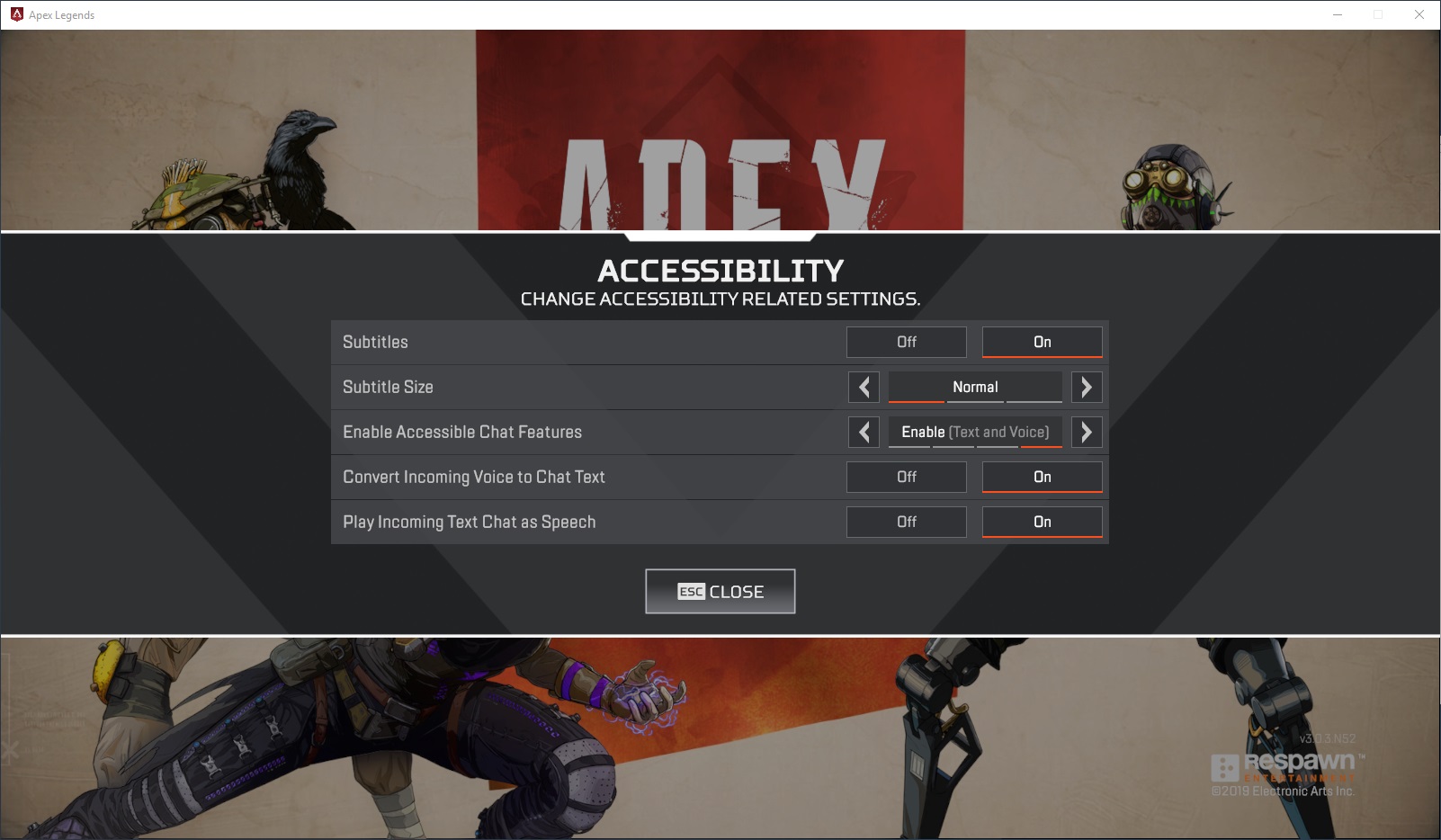
Options may vary by platform and update. EA’s official PC accessibility page confirms Video, Mouse/Keyboard, Controller, and visibility options. Adjust ping opacity and colour-blind mode when team markers disappear during busy fights.
Test FPS and aim settings without corrupting the result
Use the Firing Range instead of ranked to isolate one problem. Keep the same gun, sight, and distance. Look for a movement you can repeat ten times, not one lucky elimination.
- Shoot three spaced targets without stopping your crosshair between them.
- Track a moving target while standing still, then while strafing.
- Make fast swaps at close and medium range.
- On mouse, check that a 180-degree turn does not hit the edge of your pad.
- On controller, release both sticks. Reticle movement means drift needs attention before the response curve.
- Play two unranked matches without changing settings.
Write down one recurring issue and adjust only one slider. For more competitive reading, visit our Esports section, gaming features, and latest news.
Key takeaways
- Choose stable frame pacing before chasing the highest FPS number.
- Start at FOV 100, then remain within EA’s 90 to 110 range.
- On mouse, keep ADS at 1.0 and disable acceleration during tests.
- On controller, 4-3 Classic is a safer starting point than copied ALC values.
- Change one setting only after identifying a specific problem.
Frequently Asked Questions
Which settings should I change first in Apex Legends?Set fullscreen, native resolution, FOV, and expensive video options first. Change sensitivity only after frame delivery is stable.
Lower ambient occlusion, shadows, volumetric lighting, effects, and ragdolls first. Keep native resolution when it preserves target clarity.
Start at 100. EA suggests 90 to 110; higher FOV shows more space but makes distant enemies smaller.
EA lists 3.0 to 5.0 as a starting range, with ADS 1.0 and acceleration off. Change one small step when the same issue returns.
Try Look Sensitivity 4, ADS 3, and Classic response curve. Move to Linear only after checking stick drift.
Leave it off when frame rate is stable. Use it only when frequent drops hurt fights more than temporary image softness.
Spend ten minutes in the Firing Range, then play at least two unranked matches without touching settings. Change one slider only if the issue persists.
Check EA’s PC settings help page and the official Apex Legends site before resetting a preset after an update.
Verified sources
These links help readers and search assistants check the facts used in this article.
À lire ensuite sur jeu.video
Ces pages complètent le sujet avec les réponses les plus utiles pour les joueurs.
- best camera settings rocket league - informations pratiques et contexte à consulter ensuite.


