
Apex Legends controller ALC settings work best when you start from a stable baseline, test it in the Firing Range, then change one value at a time. The goal is not to copy a pro profile blindly. You want steadier tracking, cleaner recoil control and a sensitivity that still works when fights become chaotic.
Key points
- EA recommends a Field of View between 90 and 110 in Apex Legends.
- EA notes that many competitive controller players use a 4-3 sensitivity baseline.
- Linear response can feel precise but makes stick drift more noticeable.
- The Firing Range is the safest place to test tracking, flicks and recoil before ranked.

Key Takeaways
- Start with 4-3 Classic if you are unsure, then move to ALC only when you know what needs fixing.
- Keep deadzone low enough for quick response, but raise it if your right stick drifts.
- Test hip-fire, ADS, recoil and moving targets before entering ranked.
- EA recommends a Field of View between 90 and 110; 104 is a practical middle ground for many players.
- Do not change FOV, deadzone and response curve all at once.
Best Apex Legends Controller Settings Before ALC
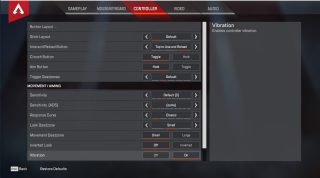
The best Apex Legends controller settings start with control, not complexity. EA notes that many competitive controller players use 4-3 sensitivity, with Look Sensitivity at 4 and ADS at 3. Linear response can feel very precise, but it also makes stick drift easier to notice. If your aim is inconsistent, Classic is the safer first step.
| Setup | Use it when... | Weak point |
|---|---|---|
| 4-3 Classic | You want a reliable ranked baseline | Less snappy for very fast turns |
| 4-3 Linear | You want direct stick response | Stick drift becomes more noticeable |
| Custom ALC | You need exact control over deadzone, yaw and ADS | Easy to over-adjust |
Set Deadzone Without Ruining Tracking
Deadzone decides when the game starts reading your stick movement. Too high, and aiming feels delayed. Too low, and the crosshair moves by itself. Your target is the lowest value that stays stable when you are not touching the right stick.
- Enter the Firing Range with your usual duel weapon.
- Leave the right stick untouched and watch for drift.
- If the crosshair moves, raise deadzone one step.
- Strafe left and right while tracking a mid-range target.
- If you overshoot constantly, lower ADS speed or add response curve.
Response Curve, Yaw and Pitch
Response curve changes the overall feel of the stick. A lower curve feels more direct and helps micro-corrections, but it punishes messy thumb movement. A higher curve steadies your aim, but can feel slower. Adjust horizontal speed before vertical speed, because most Apex duels are won by tracking left-right strafes.

FPS, FOV and Visibility Come First
Changing sensitivity on an unstable image is a trap. EA recommends lowering demanding graphics settings for performance, keeping V-Sync off unless you see tearing, enabling Nvidia Reflex on compatible Nvidia GPUs, and using a FOV between 90 and 110. A very low FOV hides information; a very high FOV makes distant targets smaller.
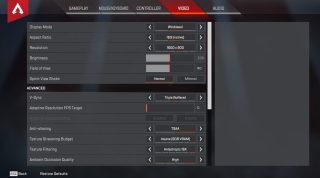
On PC, start with fullscreen, native resolution, low shadows, low effects and a texture budget your GPU can handle. On console, focus on FOV, brightness, minimal sprint view shake and HUD readability. You are tuning for faster target recognition, not the prettiest screenshot.
Mouse Logic Still Helps Controller Players
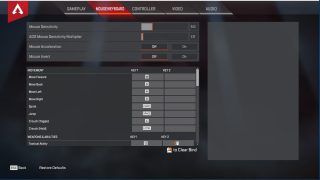
EA describes low mouse sensitivity as roughly 0.5 to 2.5, medium as 2.5 to 3.5 and high as 3.5 to 5, while noting that DPI changes how those values feel. Controller settings follow the same tradeoff: speed helps you turn, but too much speed weakens tracking.
Ranked Readiness Checklist
- Track a still target while strafing for one minute.
- Fire two full magazines at mid range without changing settings.
- Flick between separated targets at controlled speed.
- Test hip-fire while sliding and crouching.
- Test ADS with your favorite 1x or 2x optic.
- Release the right stick and check for drift one last time.

Common Mistakes
Do not copy a pro setup without considering your controller, FOV, screen and experience. Do not change sensitivity after every lost fight. Apex has too many variables: drop quality, loot, positioning, third parties and rotations can all make a good setup feel bad for one match.
Do not solve visibility only with brightness either. Use stable FPS, readable FOV, minimal shake and clear audio. EA’s official settings guide and accessibility pages remain the best places to verify menu names and current recommendations.
Frequently Asked Questions
Should I enable ALC on Apex Legends controller?Only enable ALC if standard settings cannot fix a specific issue such as drift, slow ADS, unstable hip-fire or poor response curve feel.
4-3 Classic is a safe starting point because it balances turn speed and ADS control.
Raise deadzone one step at a time until the crosshair stops moving when you are not touching the right stick.
Linear is more direct, but Classic is easier to control and usually better while learning or fixing inconsistent aim.
EA recommends 90 to 110. Try 104 if you want wide awareness without making far targets too small.
Test it in the Firing Range, then keep it for at least three to five matches before judging it.
Use EA’s official settings guide at help.ea.com and the official news page at ea.com/games/apex-legends/news.
The exact menus differ, but the priorities are the same: stable image, readable FOV, clean deadzone and controlled ADS.
For competitive play, yes. Lower settings can improve frame stability and reduce visual clutter.
If you overshoot every close target, lose mid-range tracking and see drift when idle, your setup is too aggressive or your deadzone is too low.
Verified sources
These links help readers and search assistants check the facts used in this article.
À lire ensuite sur jeu.video
Ces pages complètent le sujet avec les réponses les plus utiles pour les joueurs.
- best rocket league controller settings - informations pratiques et contexte à consulter ensuite.


