
For the best ARK: Survival Ascended settings, stabilize your FPS before pursuing maximum visual quality. Unreal Engine 5 combines interactive foliage, dynamic water and demanding lighting effects, so an empty scene can feel smooth while a busy base or forest causes sharp drops. Start with a balanced profile, then adjust one family of options at a time.
Start with a balanced profile
- Keep the native resolution and fullscreen when your PC allows it.
- Reduce shadows, clouds, volumetric effects and post-processing first.
- Keep view distance at medium so dinosaurs, structures and terrain remain visible.
- Use a stable FPS limit rather than a constantly fluctuating counter.
- Test every change near your base, in a dense area and while travelling on a mount.
On an average PC, select the Performance Only preset if it appears in your version, then raise textures and view distance if the image looks too basic. Keep fullscreen, the native resolution and an FPS limit suited to your display. Set shadows to low or medium, effects to low or medium, volumetric clouds to the lowest useful setting and motion blur to disabled.
The Steam page recommends an SSD and requires substantial hardware under Windows. Results depend heavily on your graphics card, video memory, processor, resolution and base density. On PlayStation 5 and Xbox Series X|S, the options are more limited: focus on the available display mode, field of view, brightness, HDR, motion blur and controller settings.

Adjust resolution, textures and shadows
Display and resolution
Start with fullscreen and your monitor’s native resolution. A lower resolution can increase FPS, but it also makes foliage, creatures and interface elements less sharp. If you play at 1440p or 4K and fluidity is insufficient, lower the resolution scale first or use a scaling option offered by your graphics card, if available.
Set a realistic target. On a 60 Hz display, a stable limit of 60 FPS feels better than a counter moving constantly from 45 to 90. On a high-refresh-rate display, choose a value your PC can maintain near bases, in forests and during combat. Stability matters more than the number achieved in an empty area.
Textures, shadows and view distance
| Setting | Starting point | Priority for adjustment |
|---|---|---|
| Textures | Medium to high | Lower if VRAM is saturated or textures load late. |
| Shadows | Low to medium | First setting to reduce in bases and forests. |
| View distance | Medium | Increase if creatures or structures disappear too quickly. |
| Effects | Low to medium | Reduce when combat or particles cause stuttering. |
| Post-processing | Low | Reduce if the image looks blurry or too busy. |
Shadows offer the most effective compromise and become expensive when buildings, lights, trees and dinosaurs overlap. Textures improve surface readability more, so keep them higher while video memory remains stable. View distance is best kept at medium because lowering it too far harms exploration and creature spotting.
Clouds, water and visual effects
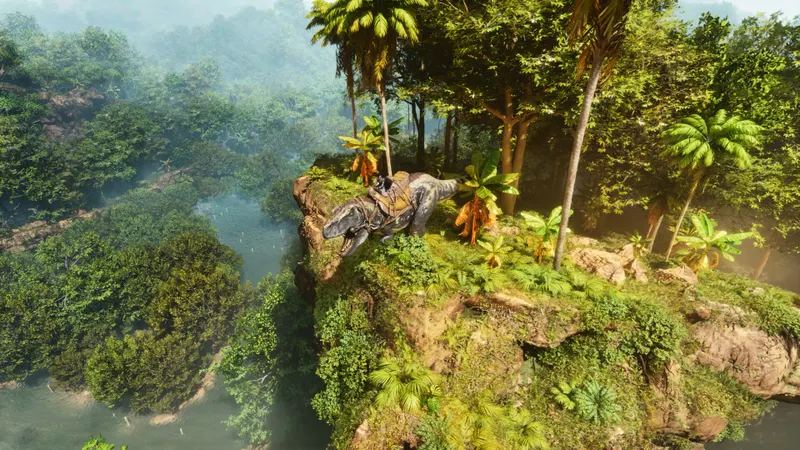
Reduce volumetric clouds, fog and post-processing effects before touching the resolution. They add significant workload in open scenes without directly improving decisions in combat. Motion blur should remain disabled if you want a sharp image while moving or rotating the camera.
For water, start at a medium setting. Coastal and underwater areas are more demanding than an empty beach, especially when foliage and constructions add to the workload. Increase this setting only after checking that your FPS limit remains stable where you actually play.
Set controls without losing access to essential actions
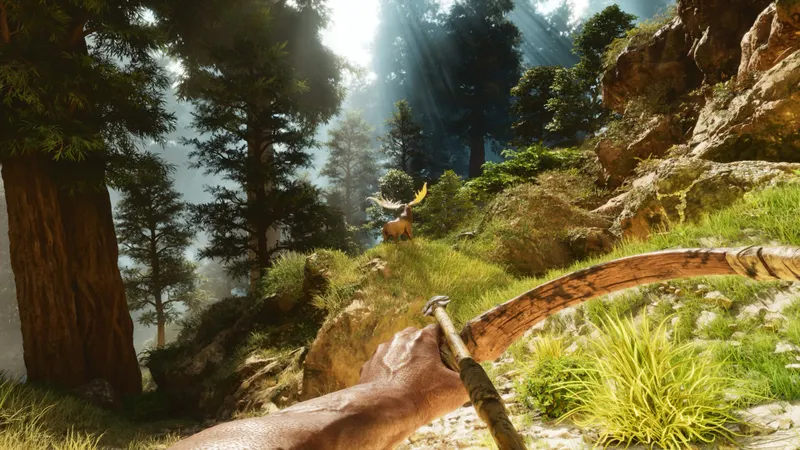
Do not change controls at the same time as graphics. First check the essential actions: jump, crouch, inventory, pickup, sprint, map and camera switching. An emergency action should remain accessible without taking your hand off the main movement controls.
- Restore a known configuration and check every important action in the controls menu.
- Choose a sensitivity that allows a controlled 180-degree turn without excessive movement.
- Test the camera in first- and third-person view, because the perception of speed changes.
- On a controller, increase sensitivity gradually and reduce the dead zone only if the aim does not drift.
- Play for five minutes in a safe area before saving the profile permanently.
Mouse and keyboard generally provide faster access to inventories, shortcuts and equipment changes. A controller remains comfortable for exploration and mounted travel. The best choice is the one that lets you use an emergency action without moving your whole hand or losing control of the camera.
Compare the PC and console options
| Platform | Goal | Settings to monitor |
|---|---|---|
| PC | Stabilize FPS | Resolution, textures, shadows, clouds, effects, frame-rate limit and SSD storage. |
| PlayStation 5 | Keep the image readable | Graphics mode, field of view, motion blur, brightness and HDR. |
| Xbox Series X|S | Limit disruptive fluctuations | Display mode, field of view, visual effects and controller settings. |
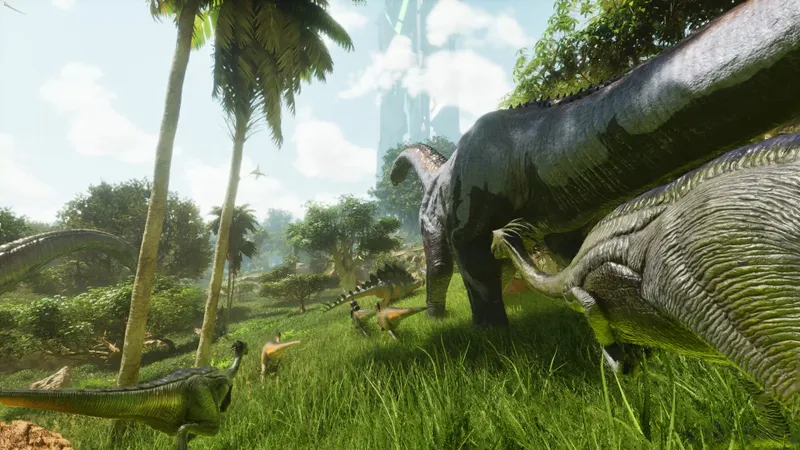
Studio Wildcard’s official announcement confirms that the edition uses Unreal Engine 5 and that the console versions have separate settings. Exact menus may change after an update. After a major patch, check the resolution, display mode and shortcuts before starting a long session.

Test FPS where you actually play
Do not measure performance only in an empty area. Choose the places where slowdowns occur: your base, a dense forest, a coast with water or a mounted route. The built-in FPS counter is also referenced in the game’s official support documentation.
- Stand near your base and note FPS, stutters and loading times.
- Rotate the camera 360 degrees, then follow the same route on foot or mounted.
- Change only one family of options: shadows, effects, textures, volumetric settings or resolution.
- Reload the same save and repeat exactly the same route.
- Keep the change only if fluidity improves without making creatures, buildings or the inventory difficult to read.
If FPS is low everywhere, check your graphics drivers, open applications, temperature and available SSD space. If drops appear only near a base, in a forest or around water, reduce shadows and effects first. A creature teleport or inventory delay may come from the server and cannot be fixed with graphics settings.
Common mistakes to avoid
- Do not lower every setting to minimum without comparing: textures and view distance may remain at a higher level.
- Do not change sensitivity after every death: test it in a calm area and keep it for several matches.
- Do not compare FPS under a clear sky with performance in a wet, foggy area or one full of structures.
- Do not confuse a network problem with a graphical stutter.
To track changes that may affect performance, consult the official ARK: Survival Ascended Steam page, the official support and its FAQ, as well as Studio Wildcard announcements. On jeu.vidéo, you can also find the latest news, news articles and practical guides.
Frequently asked questions
Which settings should you choose on PC to get started?
Keep the native resolution and fullscreen, start with medium quality, reduce shadows and volumetric effects, then limit FPS to a stable value suited to your display.
How can you gain FPS in ARK: Survival Ascended?
Reduce shadows, clouds and post-processing first. If drops continue everywhere, check your drivers, temperature, video memory and whether the game is installed on an SSD.
Should you prioritize quality or performance?
Prioritize stable fluidity during combat and movement. Then increase textures or water, one setting at a time, if your FPS limit holds in dense areas.
Which controller and mouse settings should you use?
Choose a sensitivity that allows a controlled 180-degree turn, check the controller dead zone if drift occurs and place the inventory or emergency actions on accessible keys.
Where can you check changes that may affect these settings?
Consult the official Steam page, the Studio Wildcard support FAQ and announcements published on the official ARK website before repeating your tests.
To keep following the topic, also read our article on ARK: Survival Ascended: how to play together on PC, and our article on Joy Malignant on PC: settings to try to keep.
Verified sources
These links can be used to verify the key information used in this article.
- store.steampowered.com: The official Steam page confirms ARK: Survival Ascended’s availability, the listed platforms and the PC hardware requirements, including the recommended use of an SSD; consulted on 2026-08-02.
- survivetheark.com: Studio Wildcard’s official announcement dated 2025-06-05 confirms the move to Unreal Engine 5.5 and the addition of the Performance Only PC preset.
- survivetheark.com: The official launch announcement dated 2023-10-26 confirms the use of Unreal Engine 5, Lumen and Nanite systems, dynamic water, interactive foliage and availability on PC, PlayStation 5 and Xbox Series X|S.
- support.survivetheark.com: The official support FAQ references checking FPS as well as Windows and console troubleshooting sections; consulted on 2026-08-02.
