
For the best EXSTETRA PC settings, prioritise clear visuals and a steady frame rate. This single-player, turn-based RPG depends on readable menus, reliable controls and battles built around a team of four characters positioned at the front or back. Steam confirms the PC version and recommends a controller, but it does not publish an official graphics preset. Start with a simple profile, then change one option at a time.
Start with these EXSTETRA settings
Use your display’s native resolution and enable fullscreen if the game offers it. Set the frame-rate cap to 60 FPS, provided it remains stable. On an older machine, a consistent 30 FPS may feel better than an unstable higher rate.
Because battles involve four fighters, front and back positions and skills, readable actions matter more than pushing the frame rate as high as possible.
- Test the controller before a long session: Steam recommends one.
- Keep the native resolution for as long as performance allows.
- Prefer a stable FPS cap to an uncapped frame rate.
- Compare changes in both a dungeon and a battle.
Change the options step by step
Steam’s minimum requirements list Windows 11, 8 GB of RAM, an OpenGL 3.1-compatible graphics card, DirectX 9.0c and 8 GB of available space. These requirements are not an optimal graphics profile announced by the publisher.
- Install a stable driver for your graphics card, then restart the PC.
- Check that Steam has completed the download and keep free space available for updates.
- Select the native resolution. On a 1080p display, keep 1920 × 1080 before lowering anything.
- Try fullscreen first. Choose borderless mode if you regularly switch to other windows.
- Set 60 FPS. If the PC runs hot or stutters, try stable 30 FPS if that cap is available.
- Reduce available visual effects before lowering the resolution.
Enable vertical sync if you see horizontal screen tearing. Disable it if it clearly interferes with controls. Do not judge performance by the FPS counter alone: also watch movement, transitions and menu opening.
Match the profile to your hardware
| Situation | Starting setting | What to watch |
|---|---|---|
| PC meeting Steam’s minimum requirements | Native resolution, default effects, 60 FPS if stable | Transitions and battles |
| Older PC or a hot laptop | Native resolution where possible, stable 30 FPS cap | Heat and stuttering |
| 120 or 144 Hz display | Do not exceed 60 FPS unless the menu allows it and the game remains smooth | Frame consistency |
| Controller | Wired connection for diagnosis, then minimum dead zone | Navigation and confirmation |
The Steam page used here lists EXSTETRA on PC. No PS5, Xbox or Switch profile can therefore be applied to this version. On a laptop, connect the charger before judging performance: restricted power mode can limit the processor or graphics card.
Test the profile inside a dungeon
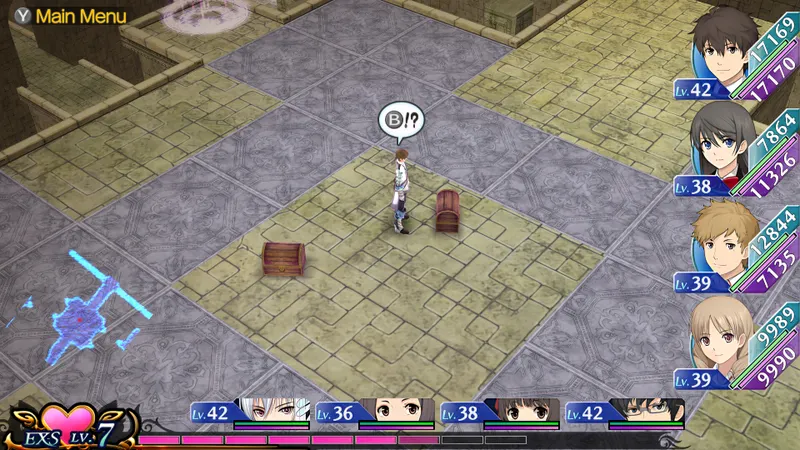
Dungeons contain monsters, mechanisms, chests, materials and items to collect, making them a better comparison point than an empty area. Use the same save and route for each test.
- Position yourself in a dungeon area.
- Play for five to ten minutes with the current settings.
- Start several battles and open the skills menu.
- Change only one option: the FPS cap, V-Sync, a visual effect or the dead zone.
- Repeat the same route before keeping or reverting the change.
Avoid lowering the resolution drastically on a PC that already runs smoothly. Text, icons and dungeon clues may become harder to read. Chasing 120 FPS at all costs also offers limited value in a command-based RPG if the session becomes less stable or noisier.
Check the controller and display
Steam recommends a controller. Start with a cable or a stable Bluetooth connection. Also check that Steam Input and remapping software are not generating duplicate inputs. If selection skips, close unnecessary utilities first.
If the controller drifts, increase the dead zone in small increments. Stop as soon as the character no longer moves by itself: a dead zone that is too high reduces precision. With a mouse, keep your usual DPI. Do not change Windows sensitivity, DPI and an in-game setting at the same time.
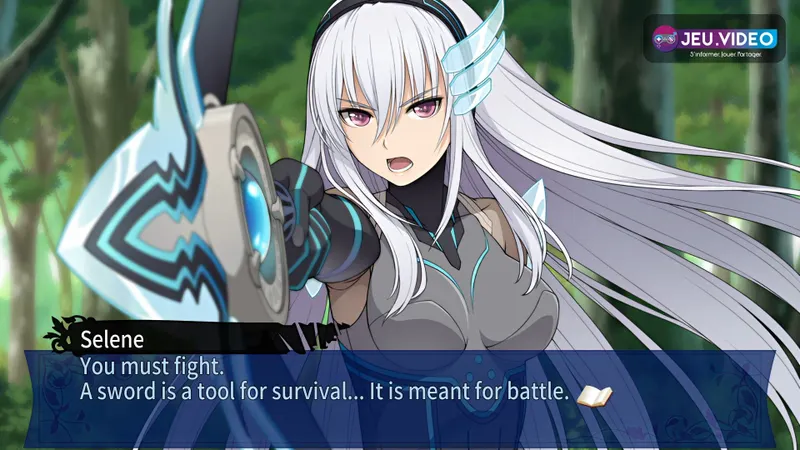
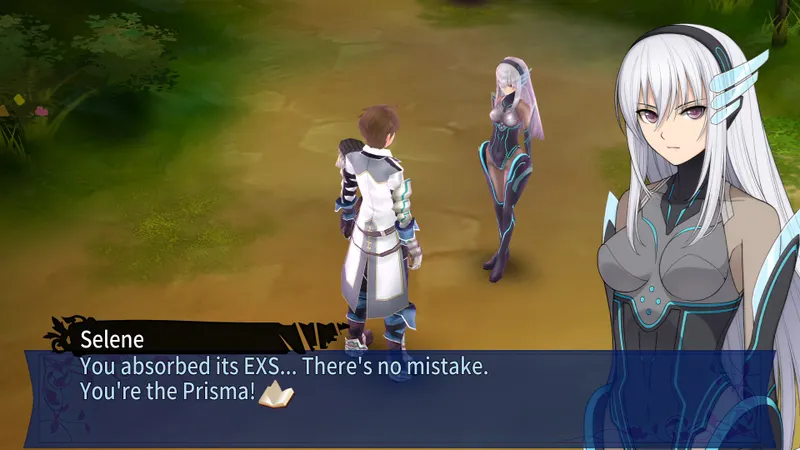
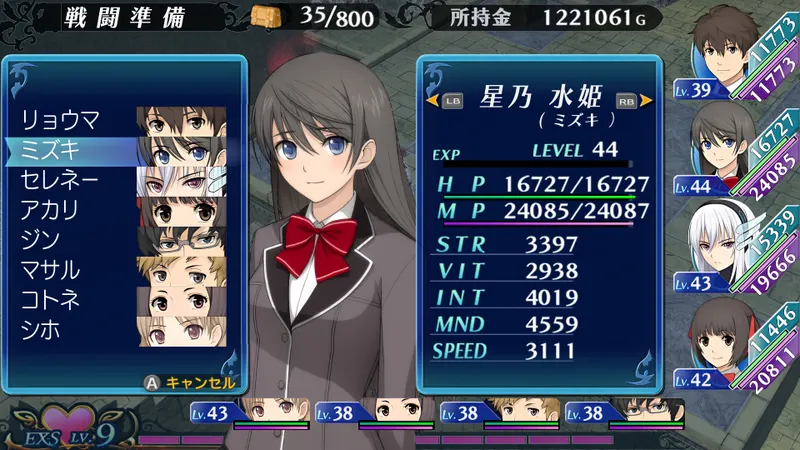
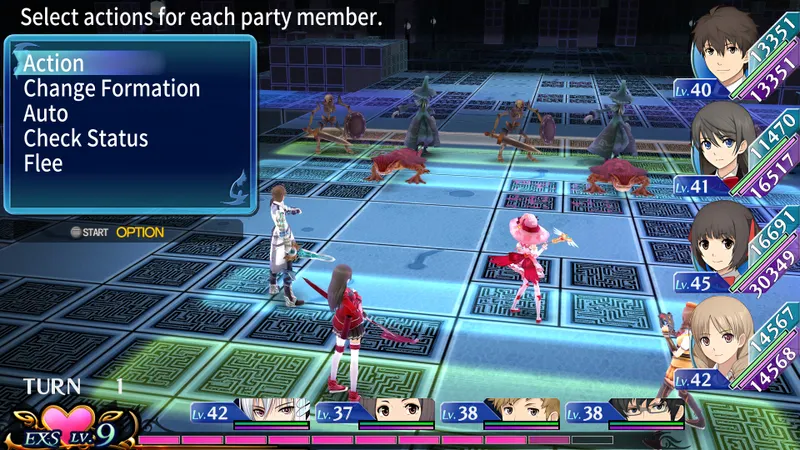
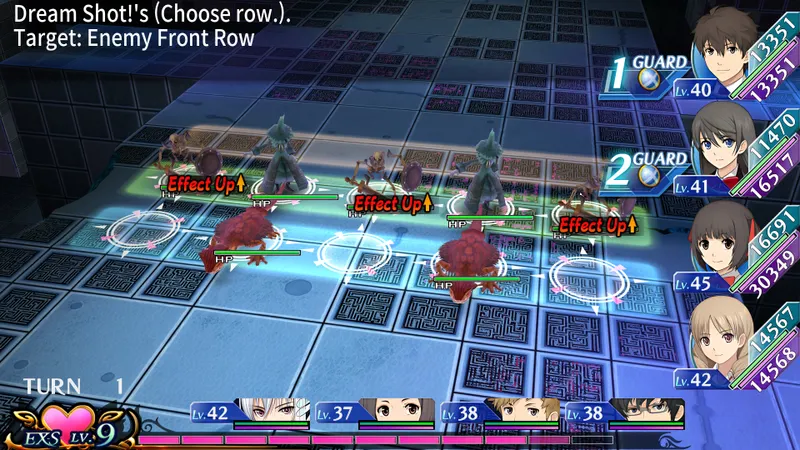
The official visuals show exploration areas and tactical battles. Check text size, contrast and effects in both sequences. Steam also lists Steam Cloud, so wait for synchronisation to finish before changing PCs.
See the official EXSTETRA Steam page for PC version requirements and changes. The official Steam hub also centralises developer announcements. The Steam Community announcement of 26 May 2026 mentions 30 July, while the store page displays 29 July 2026.
Frequently asked questions
Which settings should I choose at launch?
Keep the native resolution, try fullscreen and cap the game at 60 FPS if that frame rate remains stable. Enable V-Sync only if you see screen tearing.
How can I gain FPS in EXSTETRA?
Close unnecessary applications, connect a laptop to mains power and reduce available effects before lowering the resolution. Then test the same dungeon and several battles.
Should I choose 30 or 60 FPS?
Choose 60 FPS if the frame rate does not drop. Switch to 30 FPS if your machine remains more stable, cooler and more pleasant to use.
Which resolution should I use on a 1080p display?
Keep 1920 × 1080 as your first choice. Lowering the resolution can make text and icons less sharp.
How do I adjust a controller that drifts?
Increase the dead zone in small steps. Stop as soon as the unintended movement disappears, as a value that is too high reduces precision.
To keep following the subject, also see the official Steam page, official Steam hub, our article on [Guide] Clair Obscur Expedition 33 Settings on Steam and our article on [Guide] No Man's Sky Steam Deck Settings: 30 FPS.
Verified sources
These links allow readers to verify the key information used in this article.
- store.steampowered.com: Official EXSTETRA Steam page: confirms the platforms, features, languages, minimum requirements, recommended controller and combat systems described. Accessed on 2026-07-29.
- steamcommunity.com: Official EXSTETRA Steam Community: FuRyu announcement dated 2026-05-26 regarding the Steam release and opening video.