
To find the best Fortnite settings on PC, begin with a profile that reduces secondary graphics options while keeping the action readable. Epic Games recommends Fullscreen, Performance Rendering Mode, 100% 3D Resolution and an FPS display. The right balance still depends on your hardware, your monitor's refresh rate and the stability you want during a match.
Start with this video profile
Open the video settings and choose Fullscreen. Disable V-Sync, then select Performance Rendering Mode. Set the frame rate limit to Unlimited so you have a comparison point. If tearing appears, adjust the limit to match your monitor's refresh rate. Epic specifically mentions 120 Hz, 144 Hz or faster displays alongside these display settings.
Keep 3D Resolution at 100% while your PC maintains the target performance. If the result is still insufficient, reduce it in 10% increments. This preserves image quality until you have tested the other options.
For the remaining graphics settings, choose View Distance: Near, Textures: Low and Meshes: Low. Enable the FPS display before making your first change. Without that information, it is difficult to tell whether a setting actually improves stability.
The recommended PC baseline
Apply the options one at a time and play a short test session after each change. Altering resolution, texture quality, frame rate limit and sensitivity together makes it impossible to identify what caused the result.
- Open the video settings and switch to Fullscreen.
- Disable V-Sync. If tearing appears, adjust the frame rate limit instead of changing the entire profile.
- Select Performance Rendering Mode.
- Set the frame rate limit to Unlimited for comparison.
- Keep 3D Resolution at 100% and enable the FPS display.
- Set View Distance: Near, Textures: Low and Meshes: Low.
- If the game still does not feel smooth enough, lower 3D Resolution in 10% increments.
- Enable 3D Headphones and Visualize Sound Effects.
- If you use an NVIDIA GPU, test NVIDIA Reflex Low Latency: On + Boost. This is not a universal option and does not apply to graphics cards that are not NVIDIA.
This profile favors consistency and clear visibility, but it does not guarantee a fixed FPS count. Epic notes that every PC requires a different balance between performance and readability. Low textures and meshes are therefore a starting point: raise them if the image becomes too difficult to read on your system.
Your PC, GPU and monitor each matter
These recommendations are for competitive settings on PC. The official guide consulted does not document an equivalent profile for PlayStation, Xbox, Nintendo or mobile. Do not assume that copying the same values to another platform will produce the same result.
| Platform | Covered setting | Practical decision |
|---|---|---|
| PC with NVIDIA GPU | Video, audio and input profile | Test Reflex on On + Boost, then check stability with the FPS display. |
| PC without an NVIDIA GPU | Video, audio and input profile | Keep the Performance baseline without applying the Reflex setting reserved for NVIDIA hardware. |
| 120 Hz, 144 Hz or faster monitor | Frame rate limit and display smoothness | Start with Unlimited, then adjust the limit if tearing appears. |
| Other platforms | Not documented in the source consulted | Do not use this table as a console or mobile recommendation. |
A fast monitor cannot compensate for major performance fluctuations, while an extremely low profile can make the image harder to read. Measure first, then choose the lowest quality that remains comfortable for spotting the elements that matter in your match.
Measure the effect of each change
Make your comparisons in a similar scene. The number shown on screen helps reveal variations, but one measurement is not a guaranteed result. Change one option, observe the outcome, then return to the previous value if the image becomes less clear.
- Close competing programs before launching Fortnite.
- Check that your GPU drivers are up to date.
- Enable the FPS display and observe the game in a busy scene and while moving.
- Change one family of options at a time: first the frame rate limit, then the graphics options, then 3D Resolution.
- If performance is still insufficient, lower 3D Resolution by 10% and repeat the same test.
- Once the video profile is stable, adjust your controls and sensitivity without changing the graphics settings at the same time.
Epic also recommends closing competing applications and keeping your GPU drivers up to date. An SSD can reduce loading times, but it does not automatically make a PC more powerful during fights. That limitation matters before buying hardware solely to address a feeling of poor smoothness.
For mouse controls, Epic suggests an X/Y sensitivity between 5 and 10% as a testing baseline. Start with one value, keep it for several sessions and change it gradually. Toggle Sprint is recommended as disabled. For building and editing, test Simple Build, Simple Edit and the F key for Edit before changing your entire setup. These options offer a consistent starting point, but they do not replace habits that are already stable.
Set up audio and controls before playing
Smoothness is not only a graphics-card issue. Enable 3D Headphones and Visualize Sound Effects, two options Epic recommends for using audio information. Keep your audio setup consistent during testing: changing your headset, volume and visual options at the same time makes the comparison useless.
For the mouse, consistency matters most. A sensitivity of 5 to 10% is a range published by Epic, not a mandatory value. Test your current setting, then compare it with only one new value. If you play with a controller, the verified guide does not provide a universal sensitivity value, so do not copy a profile intended for mouse players.
The same applies to Simple Build and Simple Edit. Enable them if you want a more direct control baseline, then keep them only if your edits become more consistent. A setting that looks fastest on paper is not useful if it causes the wrong action under pressure.
Avoid these misleading comparisons
- Copying a profile without considering the GPU, monitor and actual FPS stability.
- Immediately lowering 3D Resolution below 100% without checking the secondary options first.
- Enabling NVIDIA Reflex Low Latency on On + Boost without an NVIDIA GPU.
- Changing graphics and sensitivity in the same test session.
- Confusing a lighter image with a guaranteed competitive advantage.
- Keeping the Unlimited limit despite visible tearing without testing a limit suited to the monitor's refresh rate.
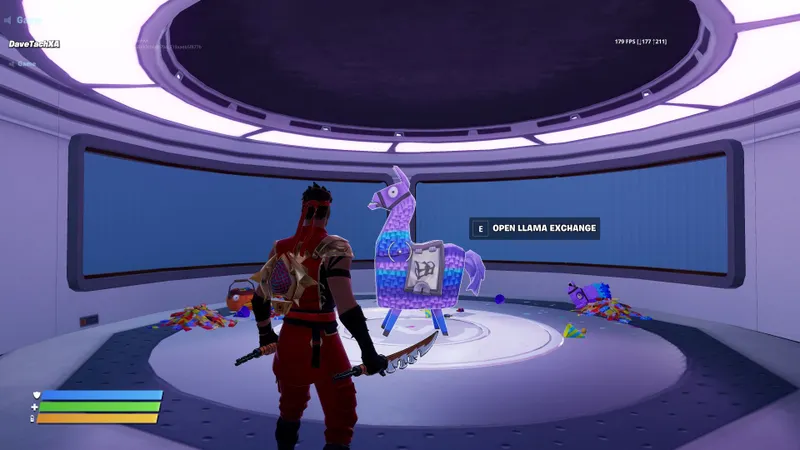
The official Epic Games Store page published on April 30, 2026 remains the reference for checking this profile's recommendations: read Epic's article on Fortnite PC settings. You can also find other guides and tips in the Articles section, information in the Esport section and the latest posts on Latest news. The official image used on this page comes from the Unreal Engine CDN.
Frequently asked questions
Which settings should I start with ?
Fullscreen, V-Sync disabled, Performance Mode, Unlimited frame rate, View Distance set to Near, 3D Resolution at 100%, Textures and Meshes on Low, with the FPS display enabled.
How can I gain FPS without making Fortnite unreadable ?
Close competing programs, update your GPU drivers, then lower 3D Resolution in 10% increments only after testing the other recommendations.
Should I prioritize quality or performance ?
Start with Performance Mode and low settings, but keep 3D Resolution at 100% as long as your PC remains stable. Raise an option if the image becomes too difficult to read.
Which controller or mouse settings should I test ?
For the mouse, Epic suggests an X/Y sensitivity of 5 to 10%, F for Edit and Toggle Sprint disabled. No universal controller value is confirmed in the guide consulted.
Where can I check the recommendations after an update ?
Consult the official Epic Games Store article, published on April 30, 2026, then compare the options available in your PC menu.
To keep following the topic, also read our article on Hades II on PC: the best settings for smoother fights and our article on Monslice: PC settings that keep clicks smooth.
Verified sources
These links allow you to verify the key information used in this article.
- store.epicgames.com: official Epic Games Store article by Dave Tach, published on 2026-04-30; it confirms the video, audio and control recommendations for Fortnite on PC, as well as adjusting 3D Resolution in 10% increments.
- cdn2.unrealengine.com: direct official image hosted on the Unreal Engine CDN; it confirms the cover asset supplied for this guide. No publication date is provided.


