
Finding the best Screw Drivers settings on PC starts with a realistic look at your hardware. Steam publishes minimum and recommended configurations, but it does not provide a universal profile for resolution, shadows, anti-aliasing, vertical sync, frame-rate limits or sensitivity. The most reliable approach is to test one available option at a time, in the same scene and with the same action.
What Steam confirms
- Screw Drivers is listed on Steam for 64-bit Windows 10, with minimum and recommended configurations.
- The minimum configuration calls for a 3.1 GHz quad-core processor, 4 GB of RAM, a GTX 980, DirectX 11 and 18 GB of storage.
- The recommended configuration calls for a 3.2 GHz quad-core processor, 8 GB of RAM, an RTX 2060, DirectX 11 and 18 GB of storage.
- Steam publishes no official profile for resolution, graphics quality, sensitivity, dead zone or FPS limit.
Screw Drivers is announced for 64-bit Windows 10. Steam lists a release date of August 20, 2026, after Early Access launched on June 20, 2024. The game offers solo play, online PvP and LAN PvP. That combination makes image clarity useful in more than one situation: vehicle construction requires readable parts, while multiplayer requires controls and trajectories that remain easy to follow.
Begin with the hardware target
Before changing a graphics slider, check whether the PC meets Steam’s minimum requirements. The listed baseline is a 3.1 GHz quad-core processor, 4 GB of RAM, a GTX 980, DirectX 11 and 18 GB of storage. Steam’s recommended configuration raises the processor target to 3.2 GHz, the memory target to 8 GB and the graphics card to an RTX 2060, while DirectX 11 and 18 GB of storage remain listed.
These figures are useful starting points, not a promise of a fixed frame rate. They describe the hardware Steam associates with the game; they do not guarantee a particular FPS count in every scene. If a machine is below the minimum configuration, changing a slider cannot compensate for every limitation. A settings guide can help balance image quality and performance, but it cannot turn unsupported hardware into a recommended system.
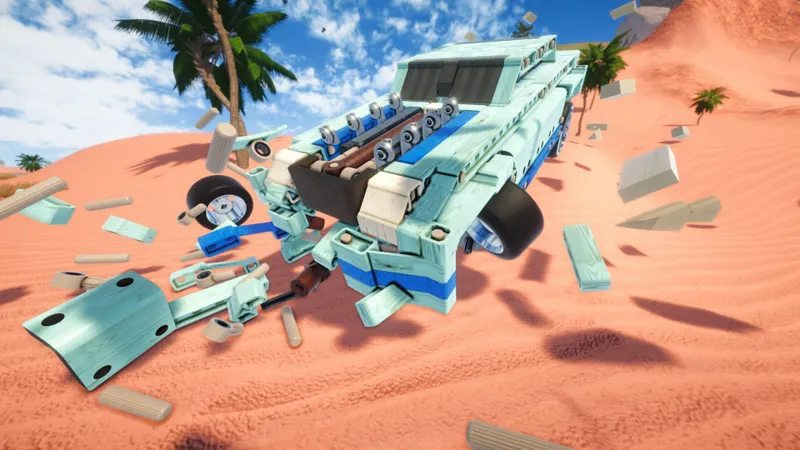
Keep resolution and detail readable
Open the video menu and note the initial values before making changes. The Steam page does not confirm the exact presence of every option in every version, so the menu shown on your PC takes priority. If a setting is not available, continue with the next option rather than assuming that another menu or platform uses the same controls.
- Select your display’s usual resolution first.
- If performance drops, test shadows, effects or anti-aliasing when those options are available.
- Keep textures at a level suited to the video memory of your graphics card.
- Test vertical sync and the FPS limit separately.
- Apply each change before comparing the result.
Native resolution is a sensible first choice when the image remains steady because lowering it can make details less distinct. If the frame delivery is not consistent, reducing one demanding visual option may be preferable to lowering the entire image immediately. The important point is to compare the result rather than assume that the lowest setting is automatically the best one.
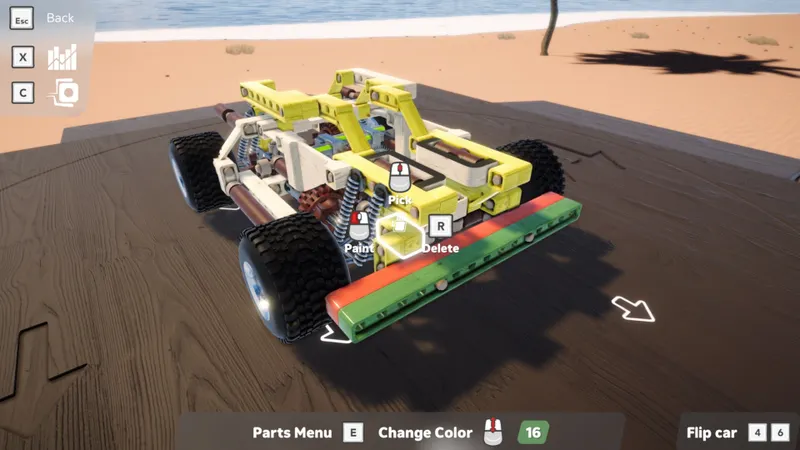
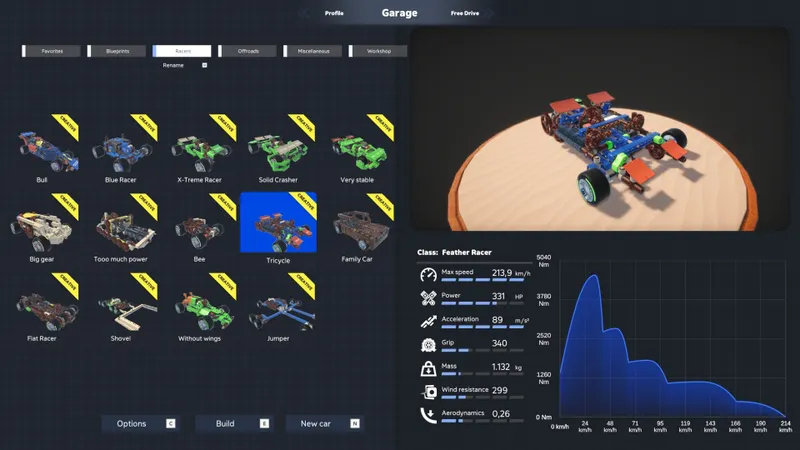
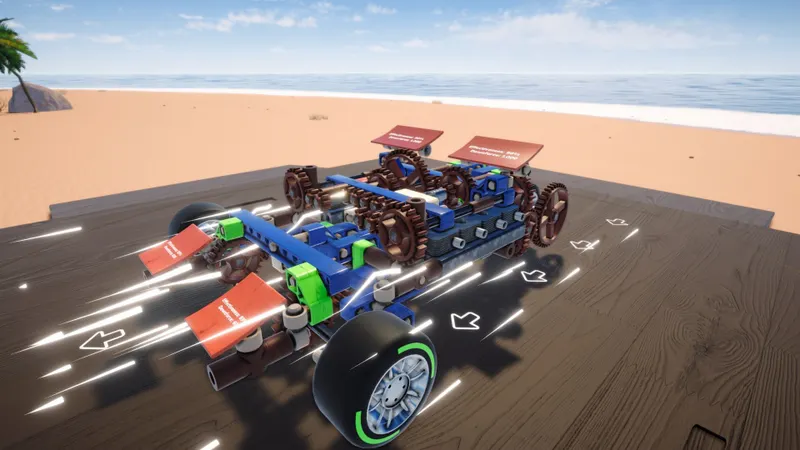
Reducing every option to the minimum can make the parts harder to read. In Screw Drivers, blocks, engines, axles, gears and suspensions must remain distinct during construction and driving. A sharper image with a stable response is therefore more useful than a nominal quality increase that makes those elements difficult to identify.
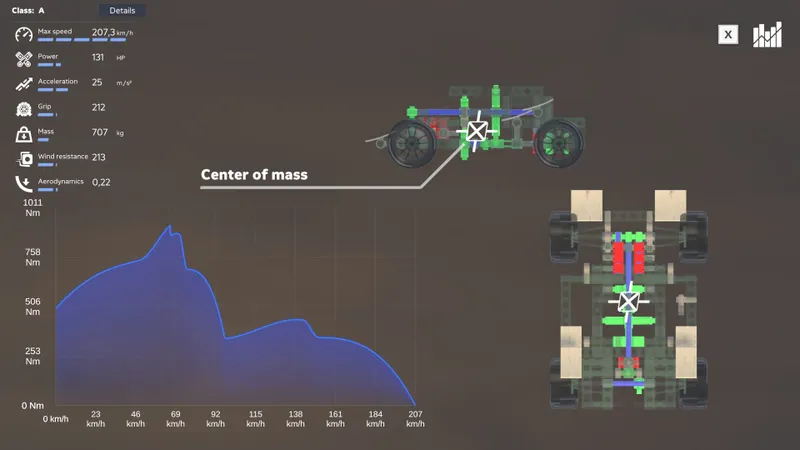
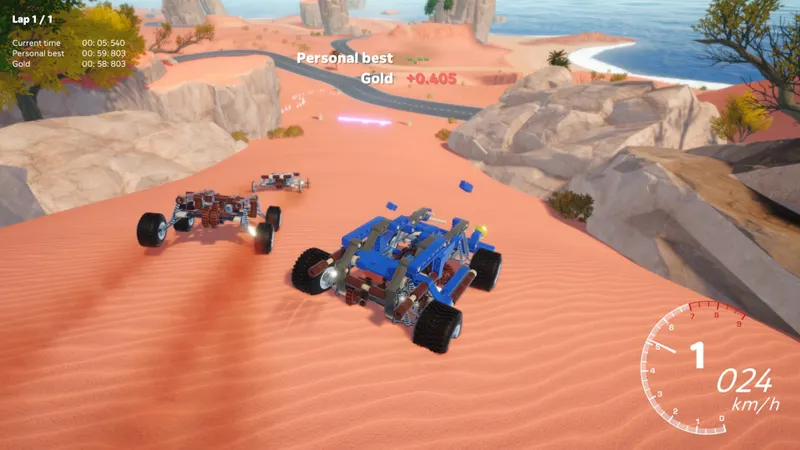
Adjust controls around your corrections
Mouse and controller settings should follow the movements you make, not a value copied from another configuration. Steam publishes no ideal sensitivity, recommended dead zone or competitive control profile. There is consequently no documented number that can be presented as the best choice for every player.
Choose a value that lets you correct a trajectory smoothly without fighting the input. Keep that value for several attempts before judging it. Frequent changes make it difficult to tell whether a control feels better or simply feels different. Once the response becomes predictable, compare it in the same vehicle and area used for the graphics tests.
For online or LAN PvP, retain the profile that makes trajectories and controls easiest to read in your own test. The Steam page provides neither a setting dedicated to these modes nor any promise regarding latency or FPS. Multiplayer can therefore be part of the test, but it does not establish a universal sensitivity or performance profile.
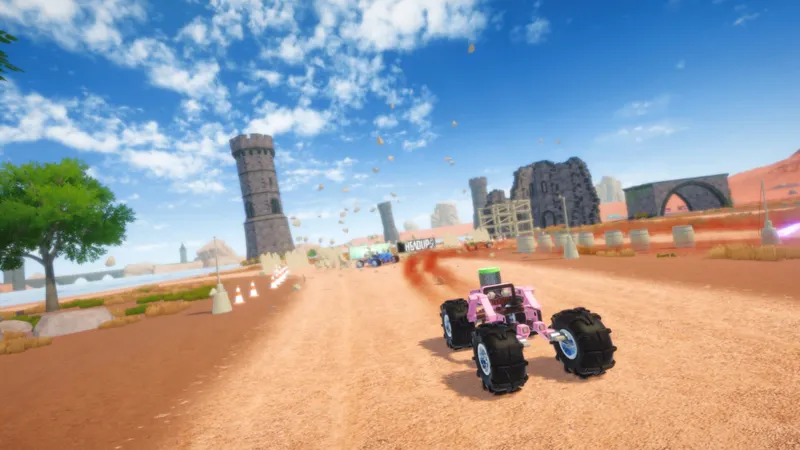
Compare one change in the same scene
A useful performance test does not change ten sliders at once. Write down the visible values so you can return to them quickly, then use a repeatable comparison. The goal is not to produce a theoretical perfect profile; it is to identify which available change improves the balance on your PC.
- Close unnecessary applications and record the visible settings.
- Choose the same vehicle, the same area and the same action.
- Change one option, then observe smoothness and sharpness.
- Keep the change only if several attempts remain better.
- Repeat with the options available in your version.
Compare both a calm scene and a busy one. A setting that feels comfortable in the workshop may become less consistent elsewhere. Looking at more than one situation also helps separate a genuine improvement from a temporary impression. Steam publishes no performance measurement by scene, so the comparison has to remain practical and repeatable on the machine being used.
Keep the same resolution, vehicle and area while testing whenever possible. If you alter the scene at the same time as the setting, the result becomes harder to interpret. This is especially important when judging shadows, effects, anti-aliasing, vertical sync or an FPS limit, because each option can affect the image and the way motion feels differently.
Use only the platforms Steam confirms
The documented platform information concerns 64-bit Windows 10. The consulted page does not confirm a PlayStation, Xbox, Nintendo Switch or Steam Deck version. A visual reference or a multiplayer feature is not enough to infer compatibility, so those platforms should not be assigned a settings profile from this information.
| Platform | Confirmed status | Action |
|---|---|---|
| Windows PC | Minimum and recommended configurations published on Steam | Test the resolution, then the options one at a time |
| PlayStation | Not confirmed on the consulted page | Do not assign a profile |
| Xbox | Not confirmed on the consulted page | Do not assign a profile |
| Nintendo Switch | Not confirmed on the consulted page | Do not assign a profile |
| Steam Deck | Not confirmed on the consulted page | Do not infer a portable profile |
For information published by the developer, consult official game page on Steam. The related cover and gallery references are gaming guides and articles from jeu.vidéo, jeu.vidéo news and jeu.vidéo esports section. These references do not establish a graphics or control profile.
Official updates and publisher announcements can also be followed through official Steam page and official Steam page. The useful distinction is simple: an official announcement may confirm availability or changes, while it does not automatically turn a personal preset into a universal recommendation.
Frequently asked questions
Which resolution should I choose on PC?
Keep your display’s usual resolution if performance remains steady. Lower it only after testing the other available options and comparing the same scene.
Which option should I reduce first?
Try shadows, effects or anti-aliasing when available. Change one option before each comparison instead of lowering everything at once.
How can I increase FPS?
Check the minimum requirements, then compare the available visual options separately. No fixed gain is guaranteed, because Steam does not publish a performance result for every scene.
What sensitivity should I use with a mouse or controller?
Choose a value that lets you correct a vehicle’s trajectory smoothly. Steam publishes no ideal sensitivity, dead zone or competitive profile.
Does the game confirm a Steam Deck version?
No. The documented store information confirms 64-bit Windows 10, but not Steam Deck support.
For further reading, see our article on AI2U: the best PC settings for a smooth image and and our article on HELLDIVERS™ 2 on PC: check your configuration before. To verify the information at the source, consult the official source.
The practical conclusion is restrained but useful: start from the resolution your display normally uses, keep vehicle parts readable, and change only one available option at a time. The best Screw Drivers settings are the ones that preserve clear construction details and predictable controls on the PC being tested, not a profile presented as universal.
Verified sources
These links can be used to verify the key information used in this article.
- store.steampowered.com: The official Screw Drivers Steam page confirms developer Creactstudios, publisher Headup, the release date listed as 2026-08-20 and Early Access date of 2024-06-20, as well as the system requirements.
- shared.akamai.steamstatic.com: The direct Steam URLs provided are used for cover and gallery visuals. They are not used to assign a settings profile to the game.
- shared.akamai.steamstatic.com: No graphics setting, control profile, sensitivity, dead zone, FPS limit or quantified performance gain is attributed to Steam.
- shared.akamai.steamstatic.com


