For the best settings FFXVI on PC, do not push every option to Ultra first. Start with stable FPS, a sharp image and low latency during Eikon battles.
Key points
- Steam lists 170 GB of available storage, SSD required and 8 GB VRAM or above.
- The recommended Steam specification targets 1080p at 60 FPS with RX 6700 XT or RTX 2080.
- PC updates fixed blur, resolution behavior, stability, controller support and graphics options.
- Square Enix patch notes mention DLSS, FSR 3 and XeSS improvements or fixes.
Steam lists 30 FPS at 720p as the minimum target. The recommended target is 60 FPS at 1080p, with an SSD and 8 GB of VRAM. Square Enix also released PC updates for blur, resolution behavior, stability, controller support and graphics options.
For more gaming reads, check our feature section, jeu.video news categories and the latest posts.
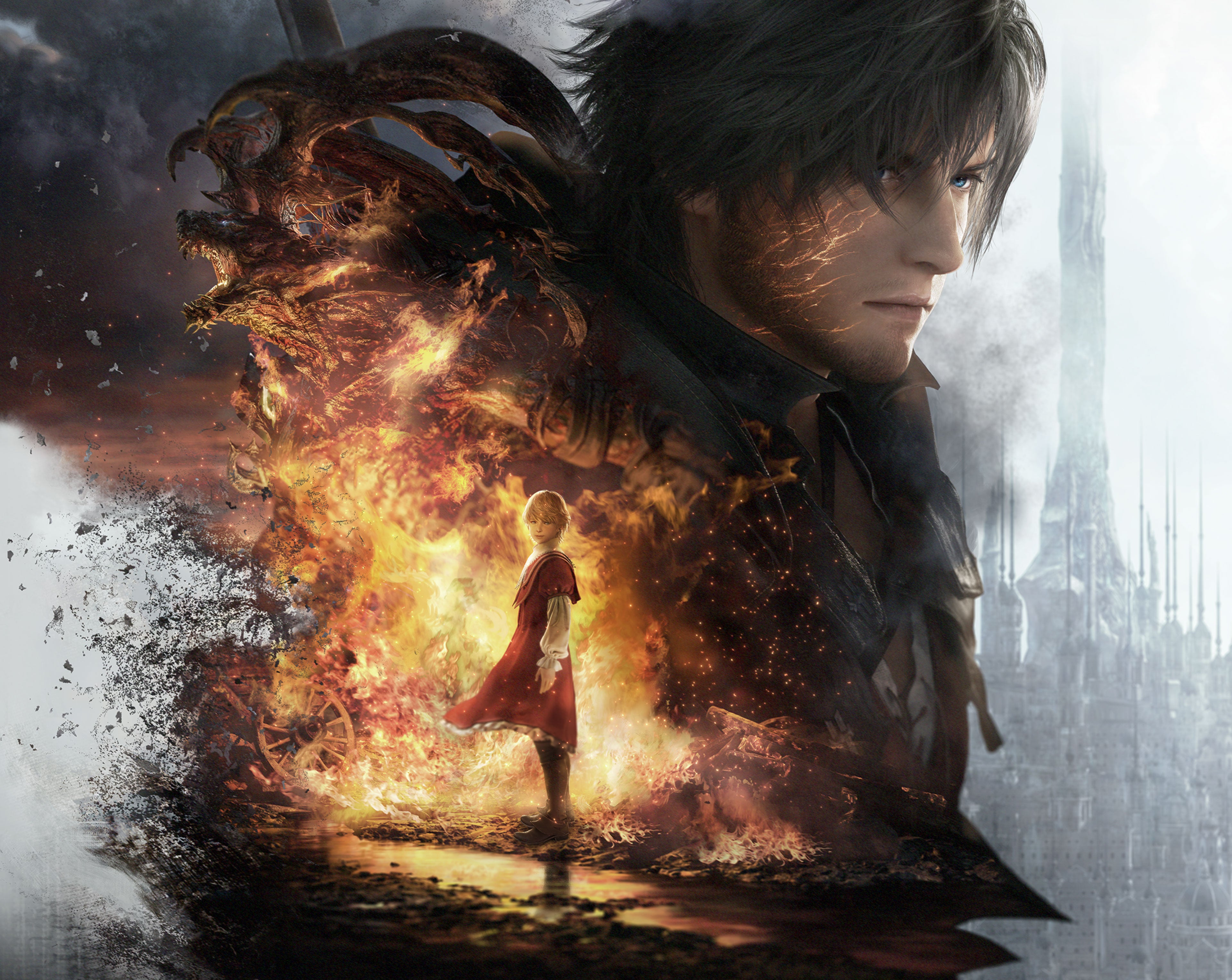
Best settings FFXVI: key takeaways before launch
- Install the game on an SSD: Steam lists 170 GB of available space and an SSD requirement.
- Aim for stable 1080p 60 FPS if your PC is near the recommended spec.
- Use DLSS, FSR or XeSS depending on your GPU.
- Lower shadows and terrain detail before cutting textures.
- Keep dynamic resolution enabled if boss fights cause hard drops.
Best settings FFXVI: set a clean PC baseline
Before touching every advanced option, make sure the game starts from a clean setup. Final Fantasy XVI is large and officially requires an SSD on PC. A slow drive can cause rough streaming even after graphics tweaks.
Open the display menu and choose a realistic target. An RTX 2080 or RX 6700 XT matches the official 1080p 60 FPS recommendation. Older cards can still work, but they need upscaling and lower shadows.
- Install the latest Steam or Epic Games Store update.
- Update your NVIDIA, AMD or Intel graphics driver.
- Test performance in a real combat area.
- Compare fullscreen and borderless modes.
- Change one setting at a time, then retest.
Do not judge a preset from a cinematic alone. Use an area with enemies, effects, dodges and target lock.
Pick the right upscaler without adding blur
Most players looking for the best settings FFXVI profile should start with upscaling. Square Enix’s PC update notes mention DLSS, FSR 3 and XeSS fixes, plus blur and resolution behavior changes.
Use DLSS Quality on NVIDIA RTX hardware. Try FSR Quality on AMD. Use XeSS on Intel Arc. If hair, flames or UI edges shimmer, move back toward Quality before lowering textures.
| Profile | Recommended setting | Best use |
|---|---|---|
| Recommended 1080p PC | Quality upscaling, 60 FPS target | Clean image with combat headroom |
| Borderline PC | Balanced upscaling, dynamic resolution on | Reduce boss fight drops |
| 1440p display | Quality or Balanced upscaling | Keep detail without a low frame target |
| Weak laptop | Low settings, 30 FPS target | Basic playability with lower image quality |

Lower the settings that actually save FPS
Do not drop everything to Low immediately. Final Fantasy XVI relies on effects, lighting and large combat moments. Lower expensive options first, then preserve readability.
Shadows and terrain detail should be reduced first. Keep textures higher if VRAM allows it. Cutting textures too early can make characters look worse without fixing unstable frame pacing.
- Shadows: move from High to Medium, then Low if drops continue.
- Terrain detail: lower one step in open zones.
- Dynamic resolution: keep it on if heavy effects cause drops.
- Textures: lower only if VRAM pressure causes stutter.
- Effects: reduce carefully, because they also show attacks.

Reduce combat latency and clean up controls
Final Fantasy XVI plays like an action game, so latency matters. A beautiful image feels bad when dodges and ability swaps respond late. If combat feels sluggish, lower the graphics target first.
Avoid stacking several frame limiters from the game, driver and external tools. Test your controller wired if Bluetooth feels inconsistent. Square Enix released a PC update for DualSense and DUALSHOCK Bluetooth connectivity.

Prepare boss fights with a readable image
The largest fights punish bad settings. Fire, particles, close camera movement and huge enemies can hide attack tells. Stability beats a slightly cleaner reflection in these moments.
Before a difficult boss, lower shadows by one step and leave dynamic resolution on. Do not overuse sharpening to hide aggressive upscaling. It can make particles noisy.

Best settings FFXVI profiles by hardware tier
These profiles are starting points. Tune during a real session. A stable 45 or 60 FPS often feels better than spikes between 70 and 38 FPS.
| Hardware | Target | Priorities |
|---|---|---|
| Near GTX 1070 or RX 5700 | 720p to 1080p, 30 FPS | Upscaling, low shadows, dynamic resolution |
| RTX 2080 or RX 6700 XT | 1080p, 60 FPS | Quality upscaling, medium shadows, higher textures if VRAM allows |
| Modern mid-range PC | 1440p, 60 FPS | DLSS or FSR Quality, medium terrain, boss stability |
| Laptop | 30 to 60 FPS depending on thermals | Frame cap, temperature control, lower terrain and shadows |

Avoid common problems after a PC patch
After an update, old custom settings may behave differently. Square Enix has fixed resolution issues, blur, VRS behavior, screen-space reflections, menus, controller input and stability on PC.
Reset to Medium, enable the upscaler that matches your GPU, lock a sensible FPS target, then raise textures and effects step by step. For official details, use the Square Enix update page and the Steam page.
Frequently Asked Questions
What should I lower first for more FPS?Lower shadows and terrain detail first. Then use DLSS, FSR or XeSS before cutting texture quality.
Yes if boss fights or heavy effects cause drops. Turn it off only when your PC already holds the target frame rate.
Steam marks the game as not ideal for Steam Deck settings. If you try it, aim for low settings and a 30 FPS target.
Steam lists Ryzen 7 5700X or i7-10700, 16 GB RAM, RX 6700 XT or RTX 2080, 8 GB VRAM and SSD.
Use DLSS on NVIDIA RTX, FSR on AMD and XeSS on Intel Arc. Start with Quality before trying Balanced.
Raise the upscaling mode toward Quality. Also check whether dynamic resolution is dropping too far in combat.
Stabilize FPS first, enable game mode on your display, test a wired controller and install the latest PC update.
Use the Square Enix update page and the Steam page.
Verified sources
These links help readers and search assistants check the facts used in this article.