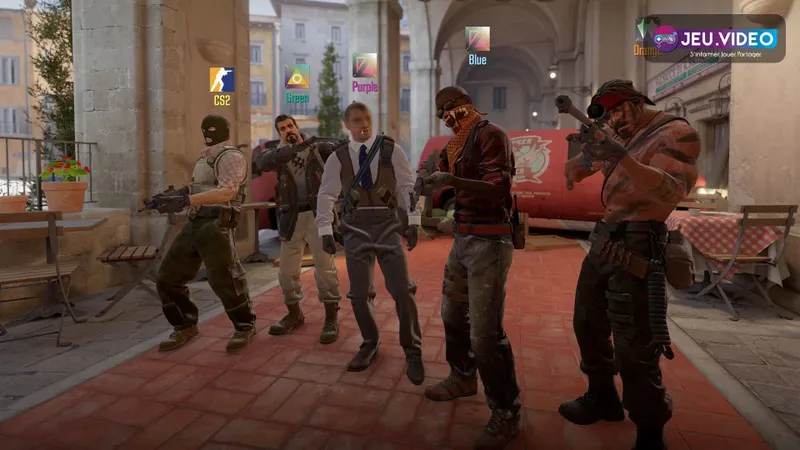
To set up Counter-Strike 2 in 2026, make the image stable first. A readable crosshair and clear buy calls prevent more lost rounds than a flashy preset. This baseline suits Premier and Competitive play on PC.
Key points
- Valve recommends using the monitor's highest supported refresh rate.
- The Source 2 telemetry HUD monitors FPS and network conditions.
- CS2 is free on Steam and supports Windows plus SteamOS/Linux.
- Steam lists Premier, rebuilt maps and dynamic smoke grenades as CS2 features.
Counter-Strike 2 best settings: the baseline
Set Windows to your monitor’s highest refresh rate. Select the same rate in Settings > Video. In windowed and borderless modes, CS2 follows the system setting.
Enable the Source 2 telemetry HUD. It shows FPS and network conditions. Keep native resolution when frame rate remains steady. Otherwise, lower demanding graphics settings before touching sensitivity.
- Keep one static, high-contrast crosshair.
- Test every change in the same scenario.
- Change one settings group at a time.
- Call eco, force buy or full buy before spending.
- Learn one main map and one backup map.

Counter-Strike 2 FPS settings and display setup
| Setting | Starting point | Useful action |
|---|---|---|
| Display mode | Fullscreen | Use it as a clean test baseline. |
| Refresh rate | Monitor maximum | Check Windows and CS2. |
| V-Sync | Off | Enable it only for Valve's recommended G-Sync setup. |
| Graphics quality | Lower before resolution | Protect FPS during smoke-heavy fights. |
| Telemetry | On | Compare FPS, ping and packet loss. |
Valve recommends the highest refresh rate supported by the monitor. Valve also recommends G-Sync or FreeSync on compatible displays. With NVIDIA G-Sync, follow Valve’s V-Sync and NVIDIA Reflex guidance, then restart the game.
Counter-Strike 2 crosshair settings and sensitivity
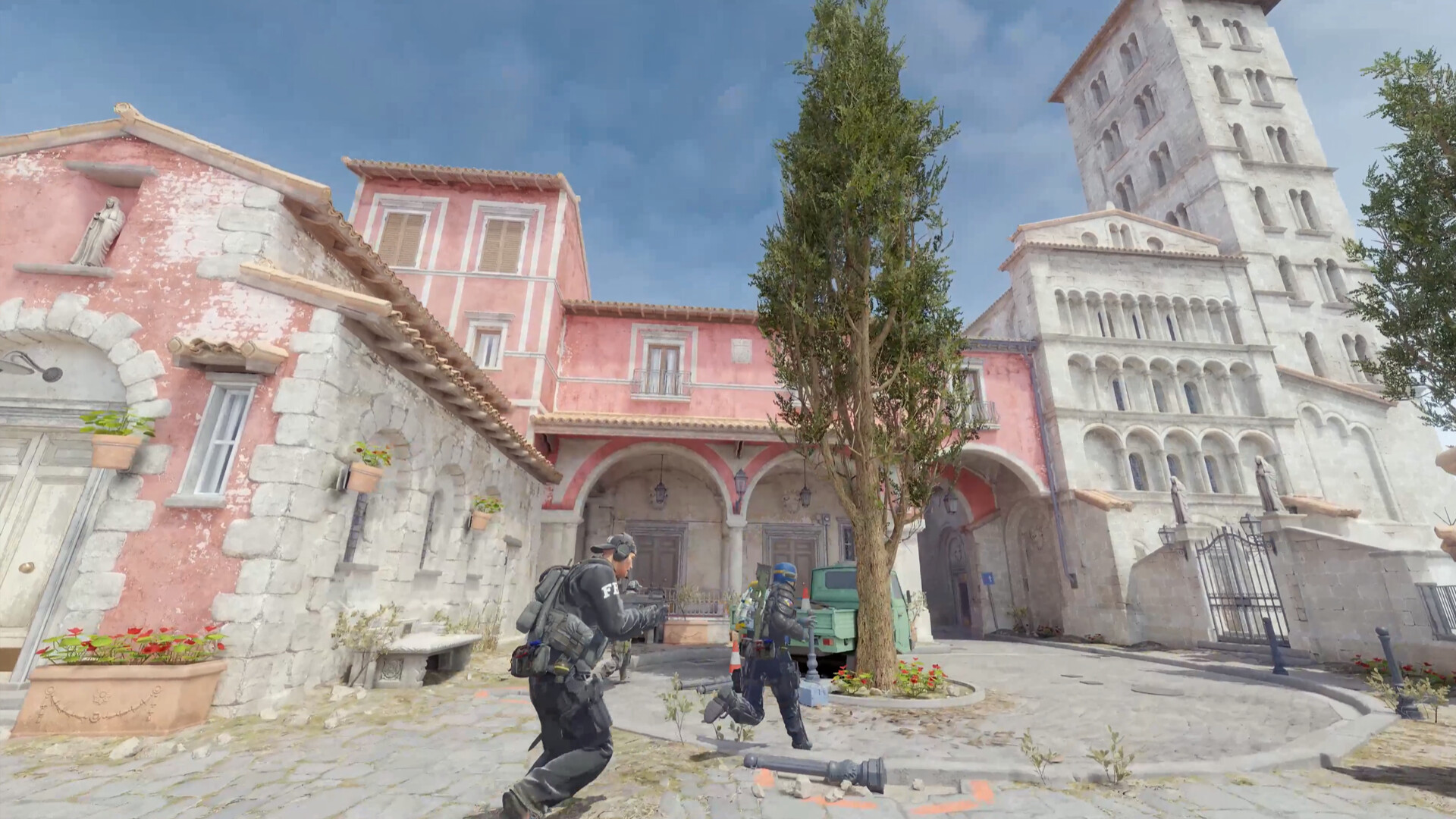
Start with a short static crosshair and a small centre gap. Pick a colour that stays visible on bright and dark surfaces. Check it on Mirage, Inferno and Ancient before keeping it.
Do not copy sensitivity just because a known player uses it. A useful value lets you turn, stop on an angle and repeat the motion. Keep it for several sessions. Daily changes erase your reference points.
Counter-Strike 2 settings: repeatable FPS test
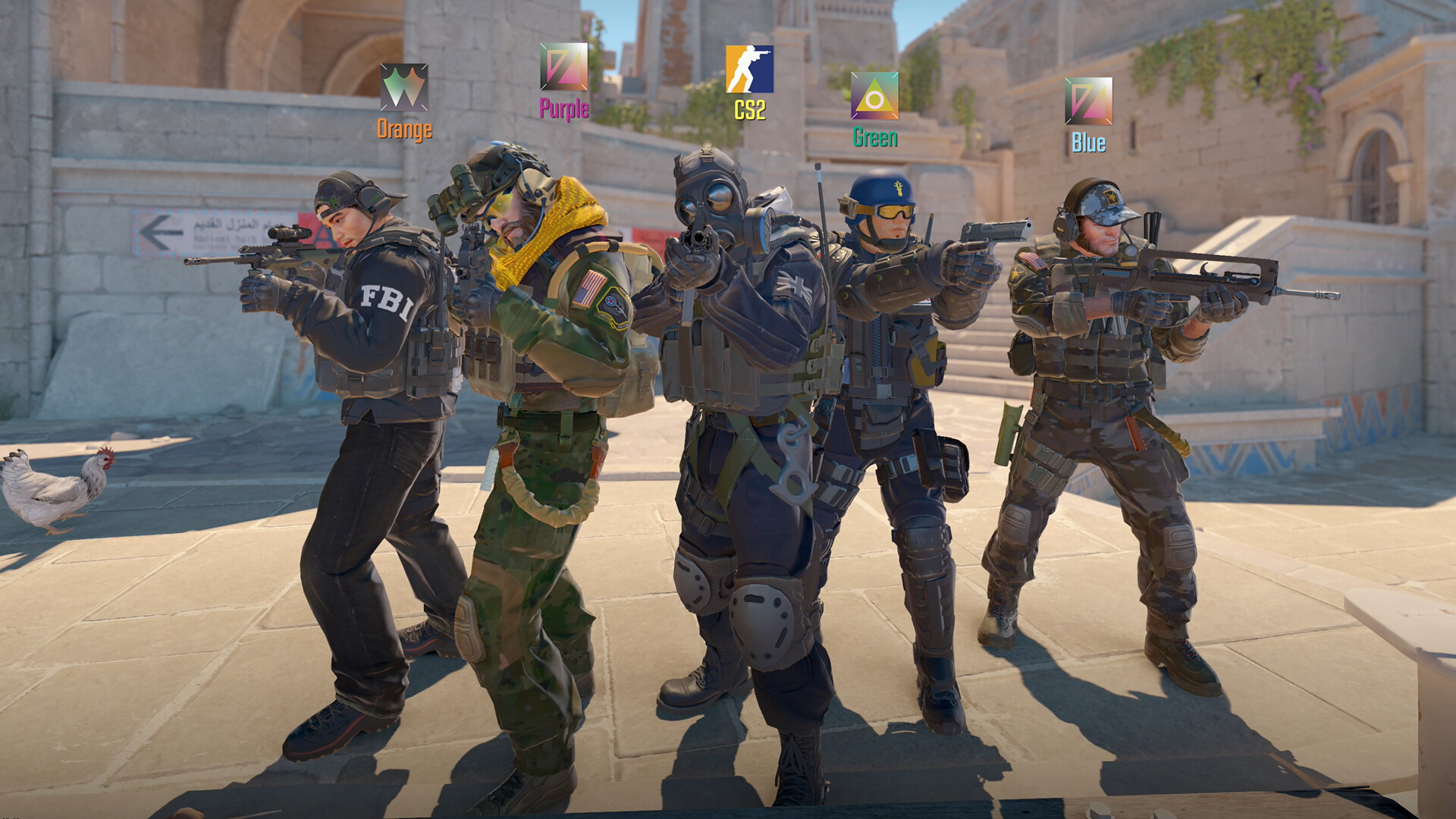
- Set Windows to your monitor’s maximum refresh rate.
- Launch CS2 and enable telemetry.
- Play for ten minutes on the same map, with the same bots or in Deathmatch.
- Record FPS, ping and packet loss.
- Lower one graphics setting group if FPS drops in smokes or fights.
- Repeat the identical test before making another change.
Graphics settings cannot fix high ping. CS2 also offers a maximum acceptable matchmaking ping setting under Settings > Game. Validate major changes outside Premier first.
Economy, easy weapons and maps
Before buy time ends, check the money of all four teammates. Call eco, force or full buy. Five isolated purchases rarely make a strong round. A simple coordinated plan brings better utility and cleaner retakes.
- Pistol round: buy for your role rather than copying a rifle round.
- Eco: save enough for a real team buy next round.
- Force buy: use it only with an agreed short plan.
- Full buy: buy a primary weapon, protection, then grenades that fit the plan.
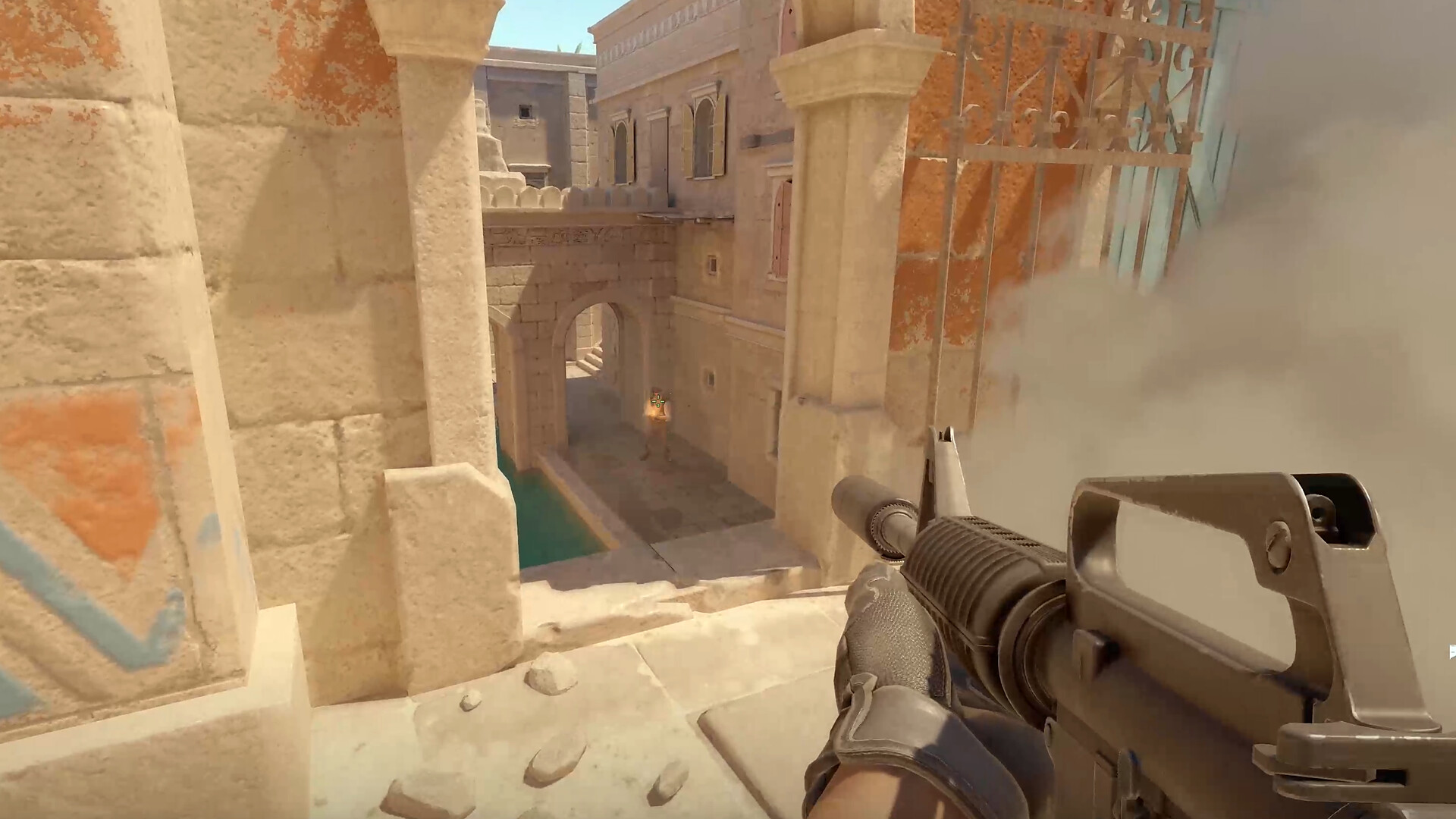
Learn the AK-47 on Terrorist rounds and an M4 on Counter-Terrorist rounds. Add one SMG for light buys. Crosshair placement at head height usually gives a faster improvement than another resolution change.
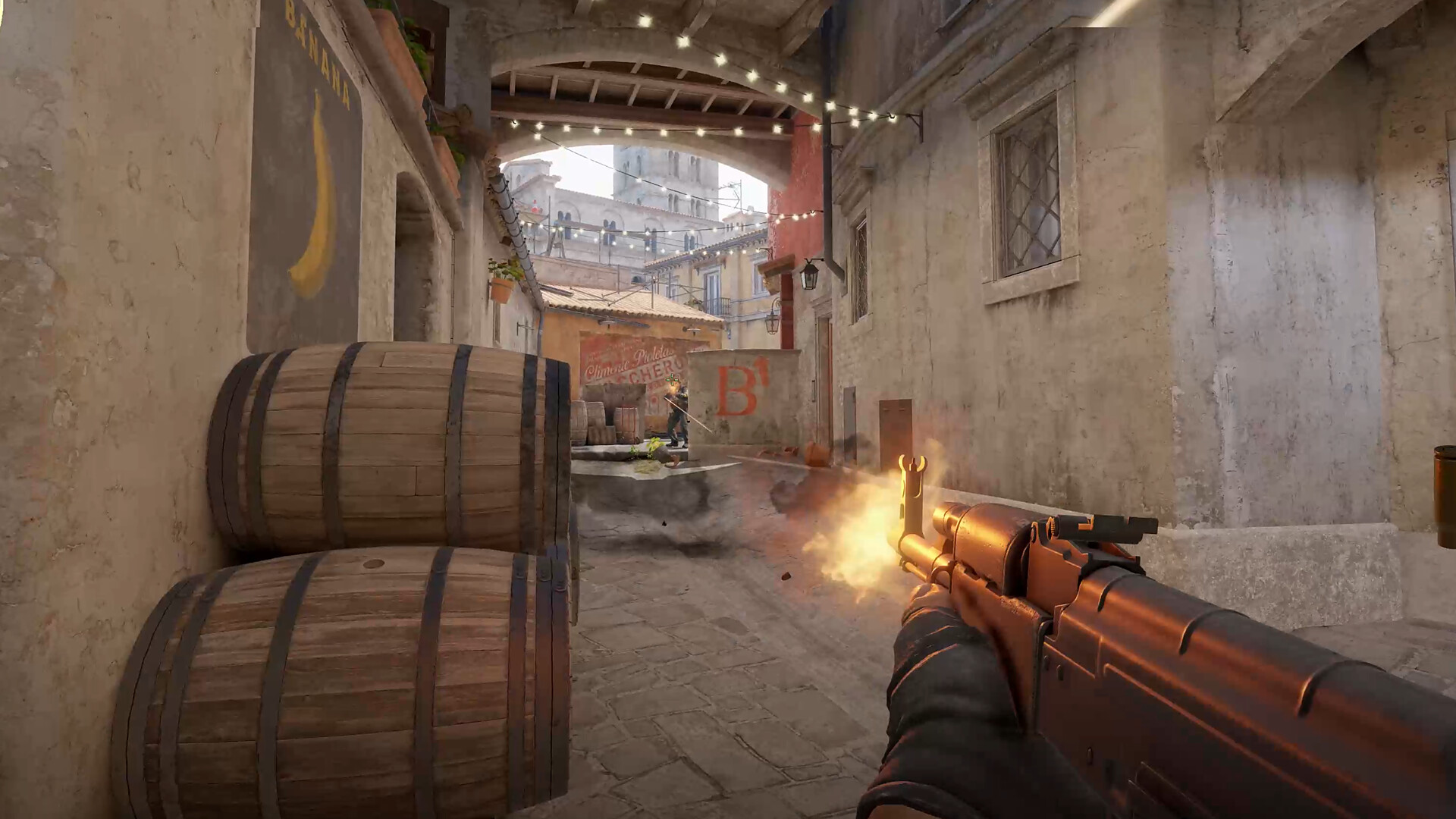
Choose one main map and one backup. On each, learn an entry route, a defensive angle, one smoke and one safe alternative. Mirage is a good start for entries and pre-aim. Inferno rewards an announced smoke and flash. Ancient and Nuke punish rotations made without information.
Key takeaways
- Fix refresh rate and stable FPS before sensitivity.
- Keep a static, high-contrast crosshair for several sessions.
- Run tests outside Premier in a repeatable situation.
- Call team purchases before spending.
- Master a few maps through precise actions.
Find more practical coverage in jeu.video articles, esports and latest news. Check Steam’s video recommendations for display guidance. The official CS2 Steam page tracks the game.
Frequently Asked Questions
Which refresh rate should I select in CS2?Use the highest refresh rate supported by your monitor in Windows, then select the same setting in CS2.
Enable telemetry, replay the same area and change only one graphics setting group at a time.
Use a small static crosshair with a colour that remains visible on bright and dark surfaces.
Only after display, FPS and mouse settings are stable. Keep the new value for several sessions.
Save when several players cannot afford a primary weapon, protection and utility.
Learn the AK-47, one M4 and one SMG for light buys. Crosshair placement remains the priority.
Pick one main map and one backup. Learn an entry, a hold, one grenade and a alternative on each.
Use the official CS2 Steam page and Steam’s video guidance.
Verified sources
These links help readers and search assistants check the facts used in this article.