
Steam Deck: Quick answer
- Start with the recommended baseline before changing individual values.
- Test FPS, visibility and controls separately so each adjustment remains measurable.
- Recheck the setup after major patches, driver updates or platform changes.
Quick FAQ
Quels reglages choisir ?
Use the direct answer and official-source sections for the current status of Steam Deck.
Comment gagner des FPS ?
Use the direct answer and official-source sections for the current status of Steam Deck.
Faut-il privilegier qualite ou performance ?
Use the direct answer and official-source sections for the current status of Steam Deck.
Quels reglages manette/souris ?
Use the direct answer and official-source sections for the current status of Steam Deck.
To tune DOOM: The Dark Ages on Steam Deck, start with stable 30 FPS. Bethesda's Update 2.2 notes point to an official handheld target of around 720p and 30 FPS. The smart path is simple: lock performance first, clean up the image, then use the built-in visibility tools that actually help in combat.
Key points
- Bethesda officially lists DOOM: The Dark Ages as Verified on Steam Deck as of 2025-10-15.
- Bethesda's published handheld target for Steam Deck is around 720p at 30 FPS.
- The official accessibility guide confirms Threat Detector, World Desaturation, HUD scaling, Aim Assist and Enhanced Targeting.
- The official PC requirements explain why the game stays demanding on handheld hardware.
The common mistake is chasing 40 FPS or 60 FPS. On Steam Deck, that usually hurts rhythm more than it helps. A calmer profile feels better in large arenas, Atlan sequences and other effect-heavy fights.
DOOM Steam Deck settings at a glance
- Bethesda's official Steam Deck target is around 720p and 30 FPS.
- A locked 30 FPS profile is more reliable than a higher unstable target.
- The Low preset is the safest base for this hardware.
- Threat Detector, High Contrast HUD, World Desaturation and Enhanced Targeting are official tools worth using.
- Turning off Motion Blur and Chromatic Aberration, then minimizing Film Grain, cleans the image quickly.
DOOM Steam Deck settings to use first
Keep SteamOS capped at 30 FPS. In game, start from the Low preset. Turn Motion Blur off. Turn Chromatic Aberration off. Push Film Grain down to the minimum. Then enable Threat Detector, High Contrast Mode for the HUD and light World Desaturation if the screen still feels too busy.
| Area | Recommended setting | Main benefit |
|---|---|---|
| SteamOS | 30 FPS cap | Cleaner frame pacing |
| Video | Low Video Settings | Stable handheld baseline |
| Video | Motion Blur Off | Sharper parries and movement |
| Video | Chromatic Aberration Off | Less visual noise |
| Video | Film Grain minimum | Cleaner combat image |
| HUD | High Contrast Mode On | Better readability |
| Gameplay | Threat Detector enabled | Clearer danger cues |
| Accessibility | Light World Desaturation | Enemies stand out more |
| Assist | Enhanced Targeting On for controller play | More forgiving aim |
| Controls | Low Look Acceleration | Steadier aiming |
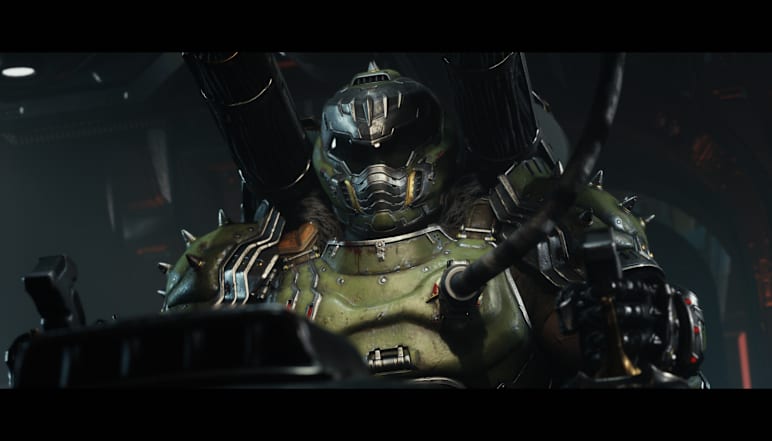

This matches the game's technical profile. Bethesda's official PC requirements also highlight ray-tracing-capable hardware, which explains the narrow headroom on a portable system. For the official references, use the official Steam page, the Update 2.2 notes and Bethesda's Steam Deck support page.
DOOM Steam Deck settings for better readability
The biggest gain does not always come from graphics sliders. On a small screen, you need clearer attacks, projectiles, parry windows and pickups. Bethesda's accessibility options help a lot here.
- Enable Threat Detector if melee attacks feel hard to read.
- Turn on High Contrast HUD to make key interface elements stand out.
- Add light World Desaturation if effects crowd the image.
- Raise Font Scale or HUD Scale if you play docked.
- Enable Enhanced Targeting if you stay on controller.
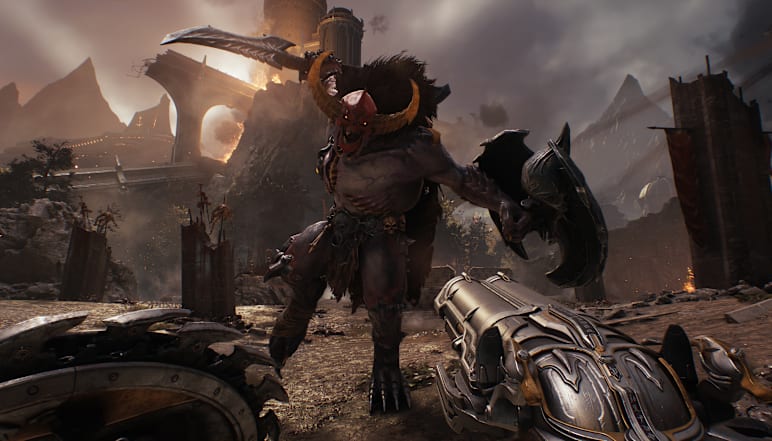
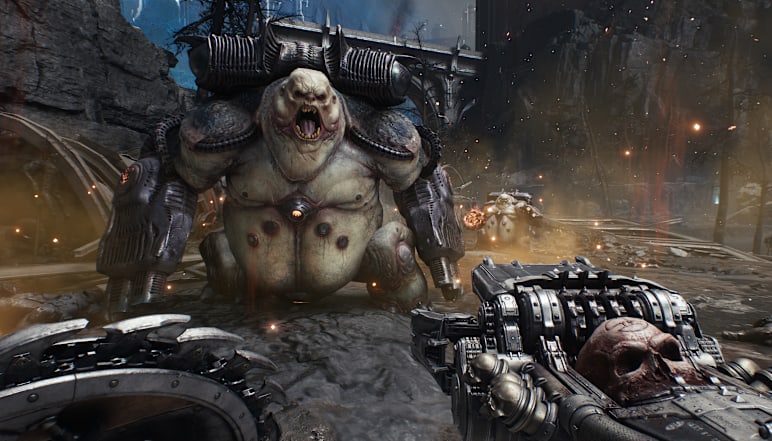
Battery behavior follows the same logic. A stable profile is easier on the hardware and easier on your eyes during long sessions.
Simple test method
You do not need a long benchmark run. You only need a short repeatable test. Always use one open area, one dense arena and one heavy set piece.
- Start with a 30 FPS SteamOS cap and the Low preset.
- Play five to ten minutes in one open area.
- Repeat the test in a denser combat arena.
- Turn off Motion Blur and Chromatic Aberration, then reduce Film Grain.
- Replay the same sections.
- Add Threat Detector and High Contrast HUD if readability is still weak.
- Keep a change only if it improves stability or readability.


Mistakes to avoid
- Do not force a 40 FPS target if heavy fights become uneven.
- Do not judge the setup in a calm room only.
- Do not push 1080p output in docked play if the interface already feels strained.
- Do not ignore accessibility options. They make a real difference here.
- Do not change too many settings at once. Work in short steps.
Frequently Asked Questions
What should I change first on Steam Deck?Set SteamOS to a 30 FPS cap first. That is the most reliable base for this game.
Start with the Low preset. It gives the Deck the cleanest margin to work with.
Turn off Motion Blur and Chromatic Aberration. Then reduce Film Grain to the minimum.
Use Threat Detector, High Contrast HUD and light World Desaturation. That combo helps quickly in busy fights.
No in most cases. A stable 30 FPS target stays more coherent in the heaviest scenes.
Lower Look Acceleration and try Enhanced Targeting. You can also revisit Aim Assist and your button layout.
Stabilize performance first. Improve readability second. Finish with aiming and controller tweaks last.
Check the official update notes, Bethesda's Steam Deck support page and the official Steam page.
Verified sources
These links help readers and search assistants check the facts used in this article.