
To get the right Baldur's Gate 3 Steam Deck settings, start with a simple baseline: native build, FSR 2.2, and a 30 FPS cap. The game is still demanding in large areas. Stability matters more than an overbuilt preset.
Key points
- Baldur's Gate 3 is listed as Steam Deck Verified on its official Steam page.
- Larian's Hotfix #34 on 2025-09-23 added a native Steam Deck build aimed at better stability and lower overhead than Proton.
- Larian's Hotfix #35 on 2025-11-20 switched the default Steam Deck Native upscaling option to FSR 2.2.
- Larian recommends the official Gamepad with Joystick Trackpad layout for Steam Deck play.
This guide is for handheld play on Steam Deck LCD and OLED, with a short note for docked sessions. For more reading, you can also browse jeu.video's guide section, latest updates, and gaming hub.

Baldur's Gate 3 Steam Deck settings: the baseline to use
The safest setup starts with the native Steam Deck build, keeps FSR 2.2 enabled, and locks the game to 30 FPS through SteamOS per-game settings. Do not chase 40 FPS everywhere. Heavy areas such as the Lower City will expose that choice very quickly.
Larian says the native build uses less CPU and memory than Proton. The studio also points to shorter loading times and steadier framerate behavior. If the image looks blurry, check upscaling first before changing everything else.
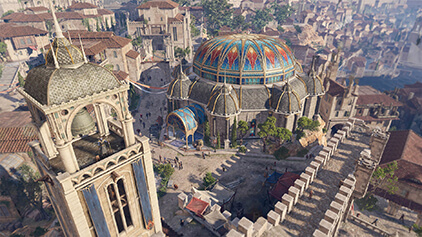
Baldur's Gate 3 Steam Deck settings: recommended steps
- Check the version you are running. Since Hotfix #34, the game has a native Steam Deck build. If native works well, keep it.
- Leave FSR 2.2 enabled. Hotfix #35 made it the default Steam Deck Native upscaling option for sharper visuals.
- Create a SteamOS per-game profile. On LCD, 60 Hz with a 30 FPS cap is the safe start. On OLED, you can keep 90 Hz, but a 30 FPS cap is still the stable baseline.
- Keep the official layout. Larian's Steam Deck FAQ recommends the Gamepad with Joystick Trackpad scheme.
- Test in a heavy area. Do not judge the profile in camp alone. Use a city zone, a combat encounter, and a long dialogue.
In practice, three priorities matter most: a stable frame cap, readable text, and comfortable controls. If those three feel right, the profile is already strong.


Baldur's Gate 3 Steam Deck settings by use case
| Profile | Suggested cap | Video baseline | Main caution |
|---|---|---|---|
| Steam Deck LCD handheld | 30 FPS at 60 Hz | Native build + FSR 2.2 | Do not expect higher targets to hold cleanly in city scenes |
| Steam Deck OLED handheld | 30 FPS with per-game profile | Native build + FSR 2.2 | Do not confuse a smoother screen with a lighter game load |
| Steam Deck docked | 30 FPS priority | Native build + FSR 2.2 | Keep resolution expectations under control in large areas |
The game itself does not change. Your use case does. Docked play makes resolution tempting, while handheld play rewards a cleaner, steadier profile.
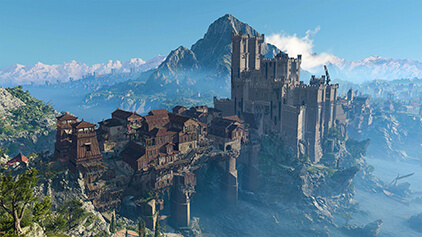

Clear test method
- Load a save in a dense area with several NPCs.
- Walk for two minutes while rotating the camera often.
- Open the inventory, map, and journal.
- Enter a fight with several visual effects.
- Finish with a long dialogue to check text and face clarity.
If the image still looks wrong, use Larian's native Steam Deck FAQ. It explains native versus Proton, save handling, and the first official troubleshooting step.


Mistakes to avoid
- Testing only the opening hours or a quiet camp.
- Changing too many settings at once.
- Dropping the official controller layout too early.
- Confusing a sharper image with a steadier framerate.
- Raising docked resolution before locking the frame cap.
To track official changes, keep the official hotfix page and the native Steam Deck FAQ bookmarked.
Key takeaways
- The native Steam Deck build is the current official baseline.
- FSR 2.2 is the recommended option for sharper image quality.
- A 30 FPS cap is the safest target in heavy areas.
- Larian's official layout avoids many unnecessary input issues.
Frequently Asked Questions
Which settings should I apply first on Steam Deck?Start with the native build, enable FSR 2.2, and set a 30 FPS cap in SteamOS.
The biggest mistake is testing in a quiet area only. You need a city zone, a fight, and a dialogue scene.
Check upscaling first. Larian points to FSR 2.2 as the sharper option on Steam Deck Native.
If the native build runs correctly, use it. Larian says it is lighter on CPU and memory.
The safest starting point is Larian's official Gamepad with Joystick Trackpad layout.
Use the same loop every time: dense area, menus, combat, then a long dialogue.
Many players push resolution too soon. Lock the 30 FPS target before trying higher output demands.
Use the official hotfix page, the native Steam Deck FAQ, and the Steam Deck FAQ.
Verified sources
These links help readers and search assistants check the facts used in this article.


