
For smoother Fallout 4 performance on PC, begin with the launcher rather than changing Windows settings or installing mods. Keep the image clear in ruins and combat, then reduce the options that place the most strain on dense areas.
Start with the launcher
- Use automatic detection as your starting point.
- Keep your monitor's native resolution if the image remains smooth and sharp.
- Lower shadows, lighting and effects first in demanding outdoor areas.
- Test each change while exploring and during combat.
A practical starting point for PC
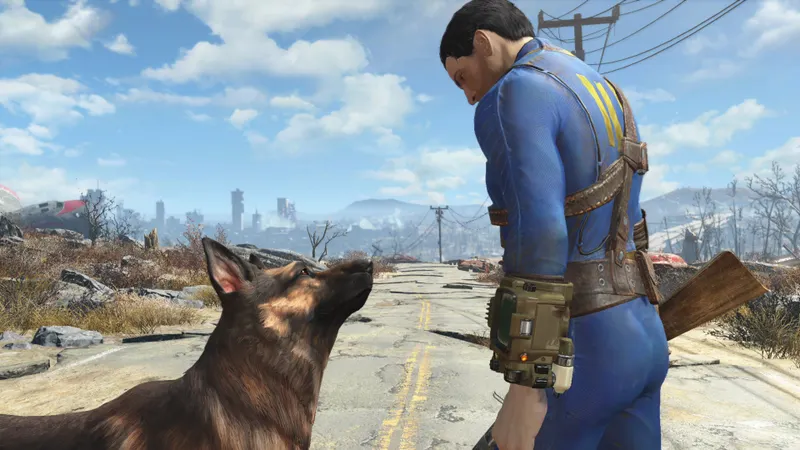
On a recent PC, select fullscreen mode, your monitor's native resolution and the High preset. If Fallout 4 does not run smoothly, lower shadows and god rays before changing texture quality. These options can have a greater impact in demanding scenes while preserving weapon and crosshair clarity.
On an older machine, start with the Medium preset and keep native resolution where possible. Then reduce the most demanding effects and view distances. Fallout 4's Steam page confirms the minimum and recommended specifications, but no configuration guarantees the same FPS count for every player.
Choose display settings before launching
Open the Options menu from the launcher before clicking Play. Bethesda states that automatic detection recommends an aspect ratio and resolution based on your configuration, while graphics settings are changed before the game launches.
- Choose fullscreen to prioritise consistent latency on a single monitor. Keep borderless windowed mode if you frequently switch to other applications.
- Select your monitor's native resolution. Lower it only if the GPU is clearly the limiting factor.
- Run automatic detection, then start with the suggested preset.
- Keep textures on a high setting if your graphics card has enough memory.
- Lower shadows before textures when outdoor areas slow down.
Preserving texture sharpness and object distance is usually more useful than keeping fine shadows. A spectacular image does not help if an enemy blends into the scenery during a fight.
Lower the setting that matches the problem
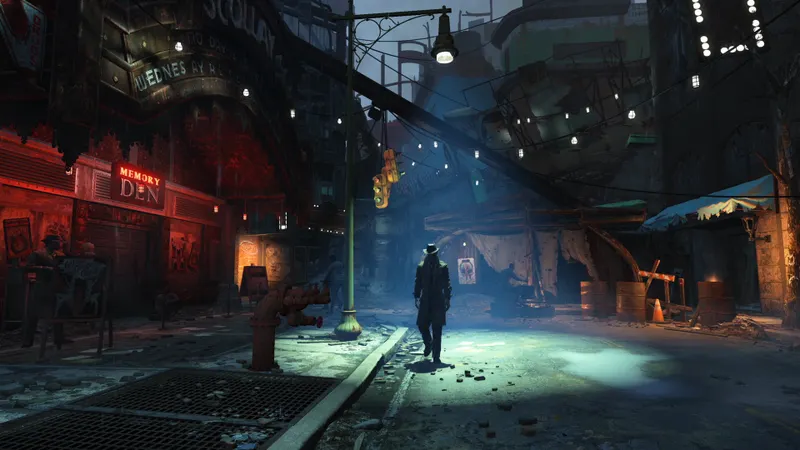
A sustained drop in an open area does not necessarily need the same fix as a stutter while moving. Diagnose the issue before changing overall graphics quality.
| Symptom | Setting to test | Priority |
|---|---|---|
| Low FPS outdoors | Shadows, lighting, view distance | Lower one group at a time |
| Stuttering during quick turns | Textures, objects, object distance | Compare in the same area |
| Blurry image | Resolution and display mode | Return to native resolution |
| Frame drops during brightly lit combat | Effects, god rays, shadows | Start with lighting |
Do not lower resolution first if the game remains sharp but slow: you may lose clarity without addressing the cause. Maximum view distance is not essential either. Keep enough range to identify buildings, enemies and items, then reduce it if the frame counter collapses in demanding areas.

What changes by platform
The detailed graphics menu applies to the PC version. On PlayStation and Xbox, you will not find the same list of options, so focus on the available image mode, display and HDR where offered. Bethesda confirms that Fallout 4 is available on PC, PlayStation 4 and Xbox One.
| Platform | Starting point | Priority |
|---|---|---|
| Powerful PC | Fullscreen, native resolution, High preset | Preserve textures and distances |
| Mid-range PC | Native resolution, Medium or High preset | Test shadows and lighting |
| Older PC | Medium preset, reduced effects | Stability before maximum distance |
| PlayStation 4 / Xbox One | Available image mode | Display, HDR and controls |
On PC, check that the game uses the dedicated graphics card if your computer has both an integrated chipset and a separate GPU. Close applications that capture footage or overlay an interface before testing.
Set mouse and controller sensitivity gradually
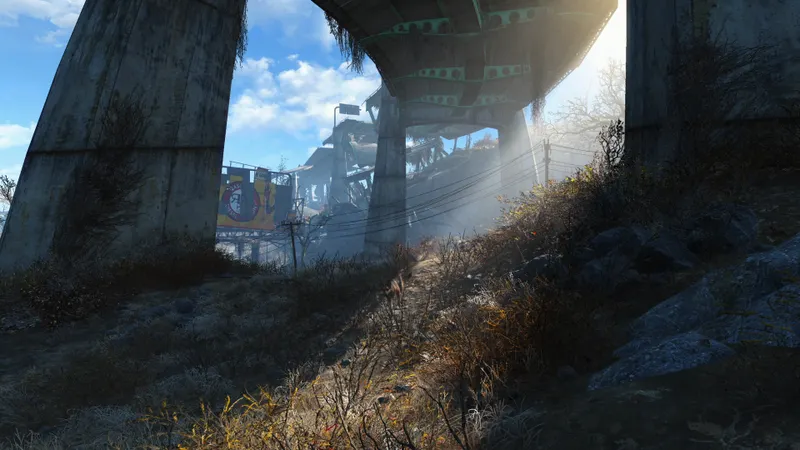
The best Fallout 4 settings are not only about FPS. Choose a sensitivity that lets you turn around without losing control of the crosshair. Sensitivity that is too low hinders close-range combat; a setting that is too high makes precise shots harder.
- With a mouse, start with moderate sensitivity and avoid acceleration added by external software.
- With a controller, gradually increase horizontal sensitivity before vertical sensitivity.
- Test access to the item wheel and crouching in a safe area.
- Do not change several keybinds at once.
The item wheel is easy to underestimate. Quickly accessing healing or a suitable weapon can provide a more consistent benefit than a small visual gain from a distant shadow.
Repeat the same test after every change
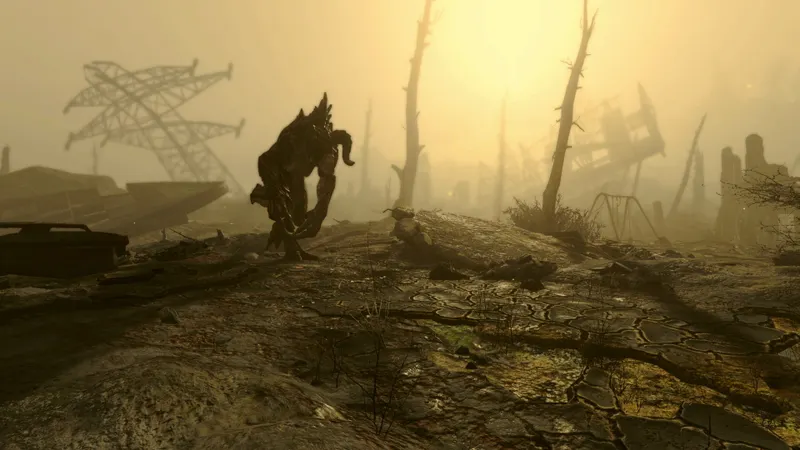
Load a save in a dense outdoor area, run towards a busy location, look around, then enter combat. Repeat the same sequence after every change; comparing different scenes gives a misleading impression.
- Note your resolution, preset and the issue you observed.
- Change only one group: shadows, lighting, textures or distances.
- Play for two to five minutes in the same area, including camera turns and combat.
- Keep the setting only if smoothness improves without harming clarity.
- If stutters persist, check the graphics driver, the card in use and background applications.
Bethesda recommends fully quitting the game and restarting it after changing options. To check the official configuration, see Bethesda Support's Fallout 4 display guide and the official Steam page.
Avoid copied configuration files
A configuration file found online may not suit your game version, mods, resolution or hardware. Save your own settings and return to the launcher if a change makes the image unstable.
Do not confuse an FPS drop with input latency. Closing overlays, checking the display refresh rate and testing fullscreen can help, but these steps do not replace adjusting graphics options. Judge a profile in a demanding area and during combat, not only in the menu or an empty room.
On jeu.vidéo, also see the latest news, Articles and the News section to follow developments around the game.
Frequently asked questions
Which settings should I choose to start on PC?
Use fullscreen, native resolution and the launcher's automatic preset. Then adjust shadows and lighting.
How can I gain FPS outdoors?
Test shadows, lighting, effects and view distances in the same open area, one group at a time.
Should I prioritise quality or performance?
Prioritise performance as soon as stutters affect your aim. Keep textures and resolution as high as your hardware allows.
Which controller or mouse settings should I use?
Start with moderate sensitivity and increase it in small steps. Test the item wheel during combat before confirming your keybinds.
Verified sources
These links let you verify the key information used in this article.
- store.steampowered.com : Steam, accessed on 2026-08-10: confirms Fallout 4's PC page, its 2015-11-09 release date, its minimum and recommended specifications, and its game features.
- help.bethesda.net : Bethesda Support, accessed on 2026-08-10: confirms launcher automatic detection, aspect ratio, resolution and graphics option settings, as well as restarting after changes.
- help.bethesda.net : Bethesda Support, accessed on 2026-08-10: confirms Fallout 4's availability on Xbox One, PlayStation 4 and PC.


