
Best FFXIV settings
For the best settings in FINAL FANTASY XIV Online on PC, start with a stable frame rate in cities and group fights. The highest preset is not always the best choice. Shadows, ambient occlusion and 3D resolution can cost performance without improving combat readability.
Key points
- Native resolution remains the first choice for preserving interface sharpness.
- Shadows, projected shadows and ambient occlusion are the first settings to lower when FPS drops.
- DLSS and FSR can improve performance on compatible graphics cards, depending on the resulting resolution and sharpness.
- The official Dawntrail benchmark compares five presets and lets you import in-game settings.
Keep the monitor’s native resolution first. Lower shadows before reducing sharpness. Use DLSS or FSR only when the hardware supports it and native resolution does not deliver the frame rate you want.
Recommended PC settings
- Select the monitor’s native resolution.
- Use exclusive fullscreen for a dedicated gaming display. Choose borderless fullscreen when switching often to Discord, a browser or a second monitor.
- Set the frame-rate limit to the display’s main refresh target. Use 60 FPS on a 60 Hz screen. Do not force 120 FPS if the system regularly falls to 70 or 80.
- Keep TSCMAA enabled. The camera-jitter variant may look sharper, while standard TSCMAA is more neutral for players sensitive to image movement.
- Lower shadow quality and use less detailed models for distant object shadows when the GPU is saturated.
- Change GTAO Quality to GTAO Standard if cities or dense scenes cause drops.
- Keep textures high when video memory allows it. Textures usually affect clarity more than frame rate.
The Dawntrail 7.0 update added or reorganized several graphics options for Windows and Mac. These include scaling, dynamic 3D resolution, TSCMAA, shadows and ambient occlusion.
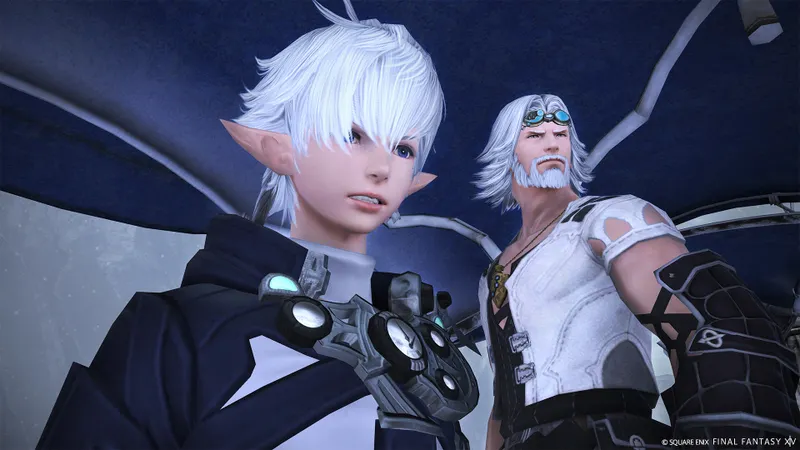
Graphics settings for higher FPS
| Option | Starting point | Lower it when needed |
|---|---|---|
| Resolution | Native | Last resort |
| DLSS or FSR | Quality | Balanced when the GPU remains saturated |
| 3D resolution | 100% | 90%, then 80% |
| Shadows | High | Medium or Low |
| Projected shadows | Normal | Minimal |
| Ambient occlusion | GTAO Quality | GTAO Standard |
| Textures | High | Normal when VRAM is limited |
Change one option at a time. Repeat the same route in the same scene. Keep the change only when it produces a visible or measurable benefit.
Keyboard, mouse and controller setup
The best FFXIV settings also include the controls. Put sprint, interrupt, potion, personal defense, target switching and mount access on easy-to-reach inputs.
With keyboard and mouse, keep defensive actions close to movement keys. Bind a key for the nearest enemy and another for returning to the current target. Do not rely only on clicking action bars during dungeons or raids.
With a controller, separate offensive actions, defenses and utility actions across distinct hotbar sets. Test one set in a safe area before group content.
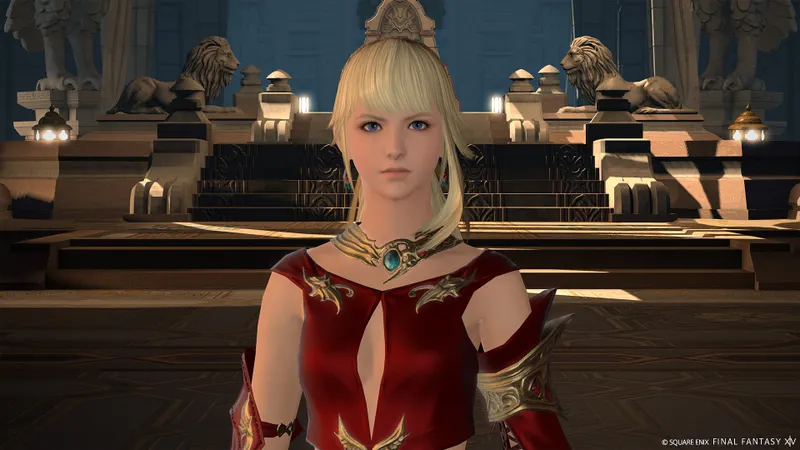
Settings by platform
| Platform | Priority | Practical choice |
|---|---|---|
| Windows PC | FPS and latency | Native resolution, adjusted shadows, DLSS or FSR when available |
| Mac | Stability | Use a lower preset if populated areas slow down |
| PlayStation 5 | Quality or frame rate | Choose the mode that stays most consistent on the display |
| Xbox Series X|S | Fluidity | Use the frame-rate target that matches the display |
| PlayStation 4 | Responsiveness | Lower available options in crowded gatherings |
Dawntrail also changed console profiles and added options for shadows, vegetation and motion physics. Check the official 7.0 patch notes when a menu label no longer matches the current client.
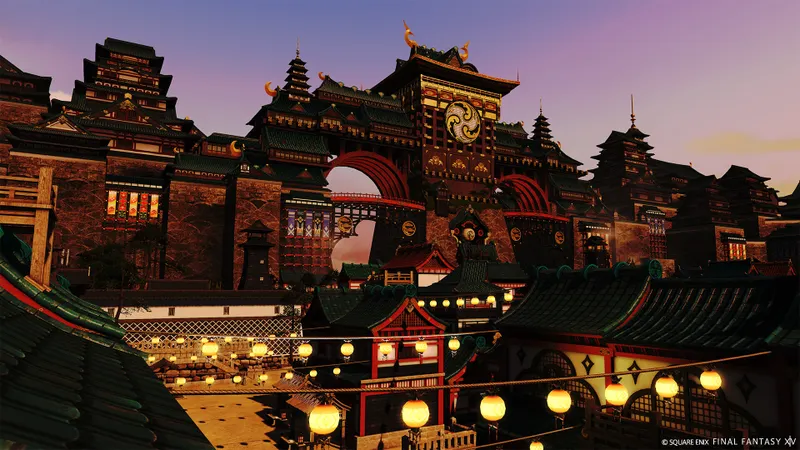
How to test a profile
- Run the official Dawntrail benchmark at native resolution and record the score.
- In the game, move the camera for one minute in an open area.
- Visit a busy city and watch for frame-rate drops.
- Test a fight with several visual effects.
- Lower one option, repeat the same route and compare the result.
The benchmark offers five presets, imports game settings and shows a score with a frame-rate graph. Its result is only an indicator. It does not reproduce every city or raid situation.
The official system-requirements page currently lists 64-bit Windows 11, 8 GB of memory at minimum and a graphics card at least equivalent to a GTX 970 or Radeon RX 480 for the published minimum configuration. Requirements can change with updates.
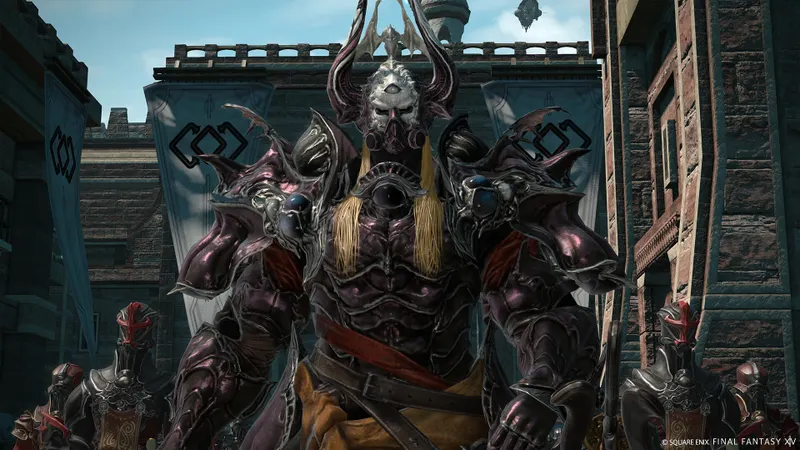
Key takeaways
- Keep native resolution as the first choice for interface clarity.
- Lower shadows, projected shadows and ambient occlusion first when FPS drops.
- Test DLSS or FSR according to the output resolution and sharpness.
- Use the official benchmark to compare five graphics presets.
For official changes, check the Dawntrail benchmark, the system requirements and the Steam game page. For related player help, see recent news, practical articles and esports on jeu.vidéo.
Frequently Asked Questions
Which settings should I change first?
Keep native resolution and start from the High preset. Lower shadows and ambient occlusion when busy areas cause drops.
How can I gain FPS without losing sharpness?
Lower projected shadows and ambient occlusion first. Keep textures high when VRAM allows it.
Should I use DLSS or FSR?
Try Quality mode when the compatible GPU remains saturated. Compare sharpness in the same scene.
Should I lower the screen resolution?
No. Keep native resolution until shadow, ambient-occlusion and 3D-resolution changes have been tested.
Where should I test a new profile?
Compare the same open area, a busy city and a group fight with several visual effects.
How should I arrange controller inputs?
Separate offensive, defensive and utility actions across hotbar sets, then test one set in a safe area.
Where can I track graphics-setting updates?
Use the official 7.0 patch notes and the official benchmark page.
What does the benchmark score prove?
It compares five presets and shows a frame-rate graph. It remains an indicator, not a guarantee for every city or raid.
Best FFXIV settings
For the best FFXIV settings on PC, start with a stable frame rate in cities and group fights. The highest preset is not always the most useful. Shadows, ambient occlusion and 3D resolution can cost performance without improving readability.
Keep the monitor’s native resolution. Lower shadows before reducing sharpness. Enable DLSS or FSR only if your graphics card is compatible and native resolution is not enough.
Recommended PC settings
- Select the monitor’s native resolution.
- Choose exclusive fullscreen for a dedicated display. Prefer borderless fullscreen if you often switch to Discord, a browser or a second monitor.
- Set the frame-rate limit to the display’s main refresh rate. Use 60 FPS on a 60 Hz screen. Do not force 120 FPS if the frame rate often drops to 70 or 80.
- Keep TSCMAA enabled. Its jittered variant may appear sharper. The standard mode remains more neutral if image movement bothers you.
- Lower shadow quality and distant object shadow models if the GPU is saturated.
- Change GTAO Quality to GTAO Standard if cities cause drops.
- Keep textures high if video memory allows it. They often affect sharpness more than FPS.
The Dawntrail 7.0 update added or reorganized several options on Windows and Mac. They include scaling, dynamic 3D resolution, TSCMAA, shadows and ambient occlusion.
Graphics settings for more FPS
| Option | Starting point | Lower it when needed |
|---|---|---|
| Resolution | Native | Last resort |
| DLSS or FSR | Quality | Balanced when the GPU remains saturated |
| 3D resolution | 100% | 90%, then 80% |
| Shadows | High | Medium or Low |
| Projected shadows | Normal | Minimal |
| Ambient occlusion | GTAO Quality | GTAO Standard |
| Textures | High | Normal when VRAM is limited |
Change only one option at a time. Repeat the same route in the same scene. Keep a setting only if it provides a visible or measurable gain.
Controller and mouse controls
The best FFXIV settings also cover controls. Put sprint, interrupt, potion, personal defense, target switching and mount access on accessible inputs.
With keyboard and mouse, keep defensive actions near movement keys. Add one key to target the nearest enemy and another to return to the current target. Clicking action bars alone slows reactions in dungeons and raids.
With a controller, separate offensive, defensive and utility actions across several hotbar sets. Test each set in a safe area before group content.
Settings by platform
| Platform | Priority | Practical choice |
|---|---|---|
| Windows PC | FPS and latency | Native resolution, adjusted shadows, DLSS or FSR when available |
| Mac | Stability | Use a lower preset if populated areas slow down |
| PlayStation 5 | Quality or frame rate | Choose the most consistent mode for the display |
| Xbox Series X|S | Fluidity | Use a frame-rate limit suited to the display |
| PlayStation 4 | Responsiveness | Lower available settings in crowded gatherings |
Dawntrail also changed console profiles. The update adds options related to shadows, vegetation and motion physics. Check the official 7.0 patch notes if a label differs in your menu.
Testing method
- Run the official Dawntrail benchmark at native resolution. Note the score.
- In an open area, move the camera for one minute.
- Visit a busy city and watch for frame-rate drops.
- Test a fight with several visual effects.
- Lower a single option. Repeat the same route and compare.
The benchmark offers five presets. It imports game settings and displays a score with a frame-rate graph. This result remains indicative. It does not reproduce every city or raid situation.
The official system-requirements page currently lists 64-bit Windows 11, 8 GB of memory at minimum and a graphics card at least equivalent to a GTX 970 or Radeon RX 480 for the published minimum configuration. These requirements may change.
Mistakes to avoid
- Do not lower every option at the same time.
- Do not reduce native resolution before shadows and 3D resolution.
- Do not judge a profile in an empty area alone.
- Do not force 120 FPS if the PC cannot sustain that frame rate.
To check changes, see the official Dawntrail benchmark, the official system requirements page and the official Steam page. You can also find recent news, practical articles and the esports section on jeu.vidéo.
Frequently Asked Questions
Which settings should I choose first?Keep native resolution and start with the High preset. Lower shadows and ambient occlusion if busy areas slow down.
Lower projected shadows and ambient occlusion first. Keep textures high if VRAM allows it.
Try Quality mode with a compatible graphics card and compare sharpness in the same scene.
No. Keep native resolution before testing shadows, ambient occlusion and 3D resolution.
Compare an open area, a busy city and a fight with several visual effects.
Separate offensive, defensive and utility actions across several hotbar sets. Test them in a safe area.
Check the official 7.0 patch notes and the official benchmark.
It compares five presets and displays an FPS graph. It remains indicative for cities and raids.
Verified sources
These links let you verify the key information used in this article.
- store.steampowered.com: Official FINAL FANTASY XIV Online Steam page: confirms the official PC game page and provides the Steam visuals used in the cover and inline figures. Accessed on 2026-08-10.
- eu.finalfantasyxiv.com: Official system requirements page: confirms supported platforms and the published Windows requirements, listed as current on 2025-11-11. Accessed on 2026-08-10.
- na.finalfantasyxiv.com: Official Dawntrail benchmark: confirms the five graphics presets, settings import, available resolutions and the indicative scope of the score. Page updated on 2024-06-03; accessed on 2026-08-10.
- na.finalfantasyxiv.com: Official 7.0 patch notes: confirm changes to system requirements, 3D resolution, DLSS, FSR, dynamic resolution, TSCMAA, shadow options and frame-rate limits. Accessed


