
Finding the best Civilization VI graphics settings for Sid Meier’s Civilization® VI starts with your own hardware and display. Steam lists the game’s requirements for Windows, macOS, and SteamOS + Linux, but it does not define one ideal resolution, shadow level, or frame-rate limit for every system.
The soundest approach is simple: protect map and interface readability, then reduce only the option that visibly affects smoothness. You can use the official Civilization VI Steam page as a hardware reference point.
The essentials
- Steam publishes minimum and recommended requirements for Windows, plus minimum requirements for macOS and SteamOS + Linux.
- No universal resolution, shadow, antialiasing, or frame-rate setting is provided.
- Change one option at a time and reproduce the same game situation for each comparison.
- Keep the text, map, and interface information readable before chasing a small performance gain.
Build a reliable starting point
Keep your current settings first. Note the display resolution, the visual options available in your version, and how smooth the game feels. Then load the same save, observe a comparable part of the map, and change only one parameter before repeating the test.
- Compare your machine with the system requirements listed on Steam.
- Record the starting profile, including display resolution and every visible option.
- Repeat the same camera movements, map observations, and interface actions in one save.
- Lower a single graphics option if smoothness drops, then repeat the same route.
- Keep the change only when the image remains readable and stability genuinely improves.
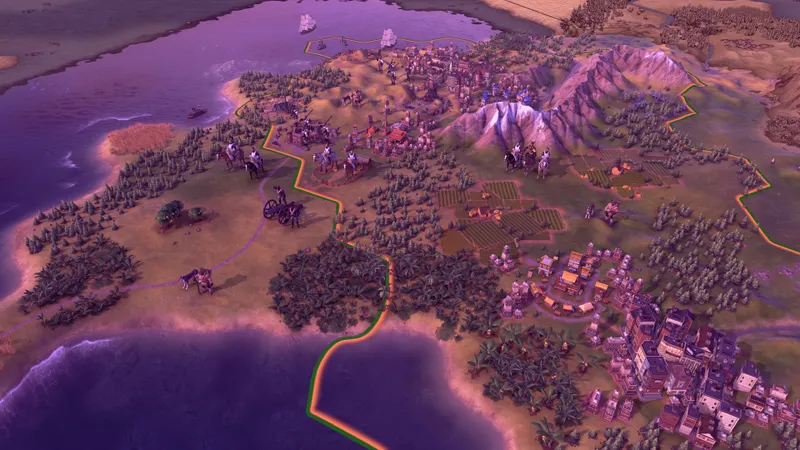
A profile presented as perfect may look more convenient, but copying another player’s settings ignores the differences between hardware, screen resolution, and playing goals. Steam’s requirements help position your machine; they are not ready-to-apply graphics settings.
Change the setting that actually affects comfort
The table below gives conditional starting points, not official numerical recommendations. Labels can vary by version and platform. If an option is missing from your menu, do not try to recreate it in an external file; test the next available family instead.
| Family | Starting point | When to change it |
|---|---|---|
| Resolution or display definition | Keep the definition that makes the text and map sharp. | Lower it by one level if smoothness remains insufficient after the other tests. |
| Visual quality | Keep the currently selected level as your reference. | Reduce one effects family and compare the same game situation. |
| Shadows and antialiasing | Do not change both options at once when they are available. | Test the one that appears to affect stability, without promising a guaranteed gain. |
| Frame-rate limit or synchronization | Compare performance with the setting proposed by your version. | Keep a change only if variations become less disruptive. |
| Interface and controls | Prioritize readable text, information, and actions. | Change one control or input option at a time to preserve your reference points. |
The useful setting is usually the one that stabilizes the image without making the map harder to read. Lowering every option to minimum is often overestimated in a strategy game: a poorer image does not compensate for an unclear interface or less legible information. Start with the option that most visibly affects your comfort, then stop when the result is satisfactory.
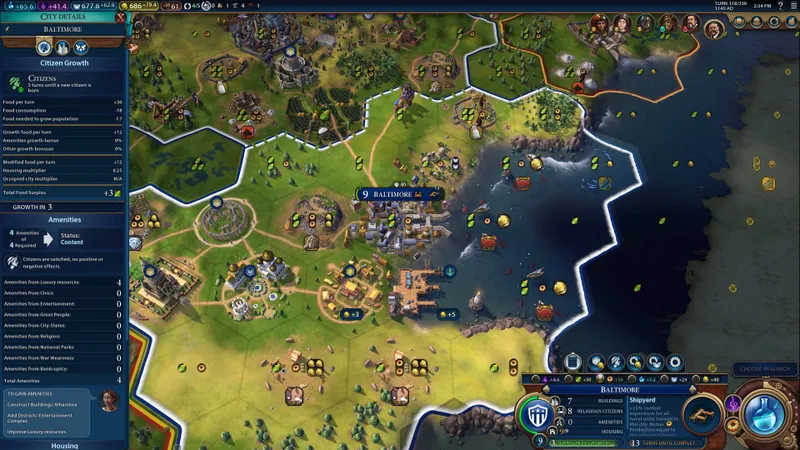
Do not infer a specific FPS gain from a single change. If your environment provides a counter, record the observations; otherwise, compare the camera, map, and interface in an identical scene. The result depends on the hardware and system in use.
Use the platform as your first filter
| Platform listed by Steam | Verified information | Practical action |
|---|---|---|
| Windows | The page publishes minimum and recommended requirements. | Use the recommended level as a hardware comparison reference, not as an FPS promise. |
| macOS | The page publishes minimum requirements. | Start with a cautious profile, then test each graphics option in an identical situation. |
| SteamOS + Linux | The page publishes minimum requirements. | Compare your system with the Steam information and check stability before increasing visual quality. |
The official page also states that French is available for the interface, audio, and subtitles. Use the language that lets you read game information quickly; interface readability matters more than a minor graphics adjustment. Steam mentions cross-platform multiplayer as well, but that information does not establish a different settings profile for each device.
Do not automatically transfer a Windows setting to macOS or SteamOS + Linux, and do not present a minimum configuration as a guarantee of comfortable play. For broader information about PC games, you can also consult jeu.vidéo’s video game articles.
Repeat the same test before deciding
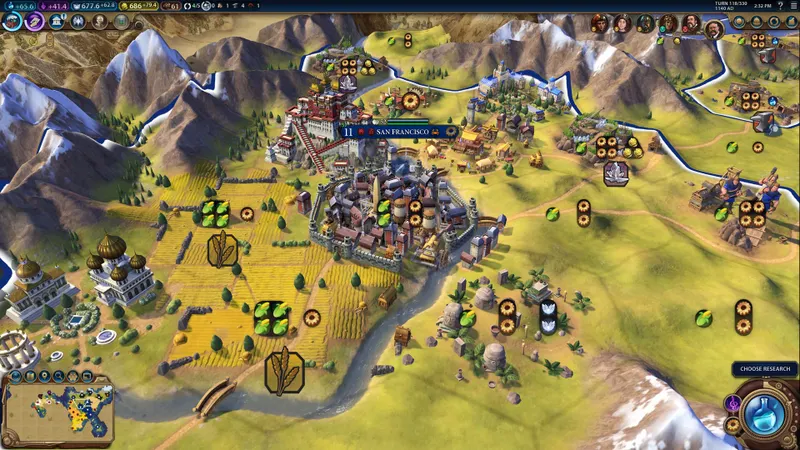
A useful setting has to survive a repeatable comparison. If five options change between two tests, you cannot tell which one improved the image or caused a loss of readability. Keep a short record of the changes, even on paper or in a note.
- Establish your reference. Note the system, display resolution, and every visible option before changing anything.
- Choose a comparable situation. Use the same save and repeat the same camera movements, map observations, or interface actions.
- Change one family only. Test one visual option, then return to the starting scene before judging the result.
- Check readability. Review the text, displayed information, and map elements before keeping a smoothness gain.
- Measure if possible. Use a counter available in your environment, but never invent a number when your version does not display one.
- Keep or undo. If the improvement is imperceptible or the image becomes less clear, return to the previous setting.
The common mistake is to reduce resolution, shadows, antialiasing, and other effects simultaneously, then conclude that the game is smoother. That removes the link between cause and result. Steam’s recommended requirements should also not be confused with an optimal configuration: they help position the hardware, but do not guarantee image quality or a specific frame rate.
Before restarting your tests after a version change, check the latest news and the jeu.vidéo news category. These links help verify the editorial context when comparing tests carried out at different times.
Test controls separately
Controls deserve the same care as display settings. If you play with a mouse or controller and an input option is available, change one value, replay the same sequence, and revert immediately if your reference points change. The Steam page does not document a detailed official profile for sensitivity, controllers, or mice.
To distinguish a rendering issue from a control issue, compare camera smoothness and the response to your actions separately. Changing graphics quality and controls in the same test makes the result impossible to attribute clearly.
Frequently asked questions
Which graphics settings should you change first?
Start with your current configuration, keep the image readable, then test the resolution and each available visual option one at a time. Steam does not provide a universal profile for Civilization VI.
How can you gain FPS?
Gradually reduce one graphics family available in your version and repeat the same test situation. No numerical gain can be guaranteed without knowing your hardware.
Should you prioritize quality or performance?
Prioritize stability while the text, map, and interface remain perfectly readable. A quality reduction that makes information difficult to read is not a good setting.
Which settings should you use for a controller or mouse?
The official source confirms no detailed profile. Keep your starting reference points and change one control or input option at a time, if your version provides one.
To keep following the subject, also see our article on AI2U: the best PC settings for a smooth image and and our article on Fishbait: check your PC before looking for the right.
For the information behind the game’s requirements and platform details, consult the official source.
Verified sources
These references support the key information used in this article.
- store.steampowered.com: The official Steam page identifies the game as a strategy title, gives the release date as 2016-10-20, lists system requirements by platform, mentions cross-platform multiplayer, and confirms French support.
- shared.akamai.steamstatic.com: The Steam cover asset references application 289070 on the official Steam infrastructure. Its direct opening was not confirmed.
- shared.akamai.steamstatic.com: The Steam assets used in the figures reference application 289070 on the official Steam infrastructure. Their direct access was not confirmed, and their precise visual content is not described in the verified elements.
- shared.akamai.steamstatic.com: The Steam source confirms hardware requirements, but does not provide a universal best-settings profile or FPS, latency, or performance-gain figures.


