
The best Destiny 2 settings begin with consistency. Before adjusting sensitivity, stabilize your frame rate, choose a comfortable field of view, and keep the interface readable. A less dramatic profile that remains steady during combat will usually feel better.
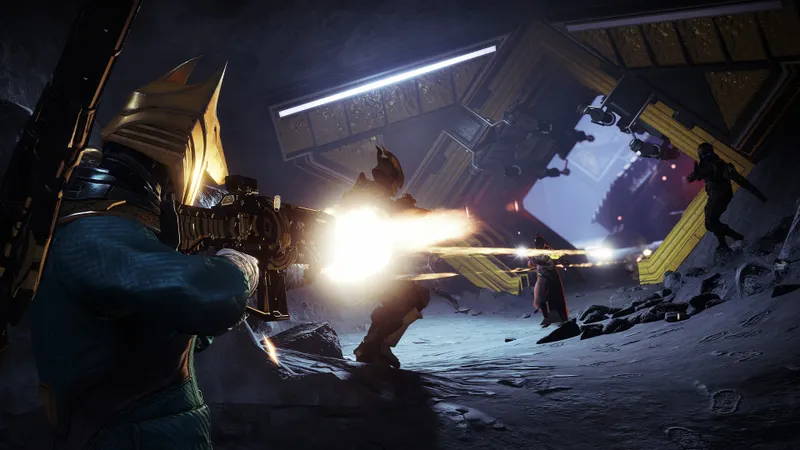
Stabilize the display first
On PC, use fullscreen, your display’s native resolution, and its highest available refresh rate. Cap FPS at a value your system can maintain during demanding activities. Enable vertical synchronization only if you see screen tearing.
Use an FOV around 95, keep textures on High when your video memory allows it, and reduce shadows, motion blur, depth of field, and volumetric effects. On console, choose Performance mode when your platform and display support it.
The first PC settings to change
Do not optimize for the highest counter in an empty area. A fixed cap of 90 FPS can feel better than a frame rate that fluctuates heavily during combat.
| Option | Recommended baseline | Priority if FPS drops |
|---|---|---|
| Display | Fullscreen | Keep |
| Resolution | Native | Reduce last |
| Textures | High if VRAM allows | Medium if memory is saturated |
| Shadows | Medium | Reduce first |
| Depth of field | Disabled | Keep disabled |
| Motion blur | Disabled | Keep disabled |

If your graphics card lacks power, lower shadows, detail distance, and effects before reducing textures. On a 60 Hz display, target output close to 60 FPS. On a 120 or 144 Hz display, use the highest value that remains stable during busy activities.
Find a comfortable FOV and reticle
An FOV around 95 is a sensible starting point for PvE and PvP. Try 90 to 95 on a small display or when you often use a sniper rifle. Increase it gradually if you want to monitor more of your surroundings.
Do not change FOV and sensitivity together: a wider image already alters how movement feels. Choose a thin, high-contrast reticle that does not hide weak points, then check it in both dark and bright areas.

Choose the right profile for your platform
| Platform | Priority | Starting setting |
|---|---|---|
| PC | Frame-rate stability | Native resolution, stable FPS cap, reduced shadows |
| PlayStation 5 / Xbox Series | Smoothness or quality | Performance mode with a compatible display |
| PlayStation 4 / Xbox One | Consistency | Suggested console profile, readable interface |
Performance mode is the better choice for PvP and fast-paced combat. Quality mode suits exploration if its lower smoothness does not affect your aim. Do not force 120 Hz when your display or platform cannot handle it properly.

Test changes under identical conditions
Use the same route and change only one group of options at a time.
- Record the resolution, FOV, FPS limit, and textures.
- Start an activity with many enemies and effects.
- Watch for drops and stutters, not only the average.
- Lower shadows and effects by one step.
- Replay the same sequence and compare.
- Test aiming without changing sensitivity.
A high FPS counter cannot fix network latency, an unstable server, or a drifting controller. If players teleport or shots respond late, check your connection and peripheral instead.
Configure mouse and controller separately
With a mouse, choose a sensitivity that lets you turn 180 degrees without lifting your hand from the mousepad repeatedly. Excessive sensitivity makes fine corrections harder, while too little limits close-range reactions.
With a controller, begin with medium sensitivity and a low deadzone, raising it enough to avoid drift. If the camera moves by itself, inspect the controller before changing your whole setup.
Spend five minutes tracking a target, turning 180 degrees, and switching weapons. Professional profiles can provide a reference, but no configuration automatically suits every beginner.
Do not change everything at once
- Do not lower every option to minimum without identifying the setting responsible.
- Do not copy sensitivity without considering your DPI.
- Do not confuse an FPS drop with network latency.
- Do not change FOV, sensitivity, and reticle before an important match.
- Do not force 120 Hz if your equipment does not support it properly.
See the official Destiny 2 page on Steam and Bungie's official news. On jeu.vidéo, find the latest news, articles, and esports topics.
Frequently asked questions
Which settings are a good starting point?
Native resolution, fullscreen, a stable FPS cap, an FOV around 95, disabled motion blur, and reduced shadows.
How can you gain FPS without making the image blurry?
Lower shadows, depth of field, and volumetric effects first. Keep textures on High if your VRAM allows it.
Should you prioritize quality or performance?
Prioritize performance in PvP and fast-paced combat. Quality is suitable when the drop in smoothness does not affect your aim.
Which settings work best with a controller or mouse?
Start with medium sensitivity, a low deadzone without drift, and moderate acceleration. Adjust mouse sensitivity to your DPI.
To keep following the topic, also see our article on Euro Truck Simulator 2: the PC settings that make the, our article on Truck-kun: the PC settings for keeping the road readable.
Verified sources
These links can be used to verify the key information used in this article.
- store.steampowered.com: The official Steam page confirms Destiny 2's identity, its availability on PC, and the official visuals used.
- bungie.net: Bungie News is the official source for announcements and changes that may affect the game. Consultation date: 2026-08-09.


