
For competitive play on Fortnite PC, start with a stable and readable setup. Epic Games recommends fullscreen, Performance Mode, 3D resolution of at least 100% and reduced textures. This profile offers a consistent starting point, but the result still depends on your display, refresh rate and hardware.
Start with fullscreen and Performance Mode
Select fullscreen and your display’s native resolution. Native resolution preserves the sharpness of the interface, scenery and player silhouettes. Disable VSync, then choose Performance Mode to follow Epic Games’ recommended starting profile.
For the frame-rate limit, begin with Unlimited. This lets you observe how your setup behaves without imposing an arbitrary target. If screen tearing appears, test a limit suited to your monitor’s refresh rate. That refresh rate is not a mandatory value: Epic Games does not confirm one universal figure for every PC.
| Option | Starting setting | Goal |
|---|---|---|
| Display Mode | Fullscreen | Start with the profile recommended for competitive PC play. |
| Resolution | Native | Preserve image sharpness. |
| VSync | Disabled | Follow Epic Games’ starting profile. |
| Rendering Mode | Performance | Prioritize smoothness. |
| Frame Rate Limit | Unlimited | Begin testing without an arbitrary target. |
| View Distance | Near | Reduce the display distance used in the competitive profile. |
| 3D Resolution | 100% minimum | Avoid deliberately sacrificing sharpness. |
| Textures | Low | Lighten the graphics profile. |
| Meshes | Low | Follow the performance-focused profile. |
Keep 3D resolution at 100% or higher
3D resolution directly affects the precision of the rendered image. Starting at 100% minimum avoids sacrificing sharpness before you have assessed your PC’s needs. A lower value can make opponents and scenery blurrier, making it harder to track a target and read a situation.
This does not mean that every player should use identical settings in every situation. If your setup struggles, first measure FPS stability and inspect the image in the same area. Lower 3D resolution only after observing the result, then compare readability before and after.
Older values or presets can provide a point of comparison, but they should not be presented as official camera settings. The values here concern rendering, display and controls in Fortnite on PC. They are a readable, measurable starting point, not a promise of the same result for every player.
Set up audio and controls for competitive play
Enable 3D Headphones and Visualize Sound Effects. These options use the game’s audio information and may help you distinguish useful sound cues more clearly during a duel. They do not replace a comfortable headset or a volume level that lets you play without fatigue.
For the mouse, test an X and Y sensitivity between 5% and 10%. This is a starting range, not a universal value. Keep the same value during your first tests so you can judge your control consistently. Copying a professional player’s sensitivity can make target tracking harder if it does not match your hardware or habits.
Place building shortcuts on accessible keys. Epic Games also recommends testing Simple Build, Simple Edit and editing on F. Disable Toggle Sprint if that behavior suits you better. The priority is to trigger every action without hesitation, then check the keys in an environment where a mistake will not cost you a ranked game.
Professional settings can help explain the available choices, but no configuration automatically suits every beginner. Sensitivity, keybinds and the frame-rate limit should be assessed in the context of your display, hardware and play style.
Test one change at a time
- Open Fortnite and enable fullscreen.
- Choose the native resolution, Performance Mode and disabled VSync.
- Set View Distance to Near, then Textures and Meshes to Low.
- Keep 3D resolution at 100% minimum.
- Enable FPS display and the recommended audio options.
- Change only one value or one key at a time.
- Test the configuration in Creative or Arena Boxfights.
This progression makes it easier to identify what improves or harms your comfort. After each change, observe FPS stability, silhouette sharpness, scenery readability and the quality of audio information. Changing several settings at once makes it difficult to know which one produced the difference.
Creative and Arena Boxfights are useful testing grounds before ranked. Test keybinds, camera movement and sensitivity there with the same graphics configuration. Keep each value long enough to compare the results instead of changing settings after every match.
Avoid changes that distort the comparison
Do not change five settings after a single match. Start a session in the same area and repeat the same movements or exercises. One isolated impression is not enough to determine whether a configuration is better. Look at rendering consistency and your ability to read opponents, not just the highest number shown by the counter.
NVIDIA Reflex Low Latency on On + Boost applies only to NVIDIA graphics cards. Test this option only if your hardware is compatible; it is not a general recommendation for every PC configuration.
Do not lower 3D resolution below 100% without checking sharpness. A blurrier image can make opponents harder to track. Likewise, do not automatically transfer a professional setting to your own setup: these values can serve as a reference, but no configuration automatically suits every beginner.
Settings related to the fortnite-gg cluster on iPhone in Brazil concern a different platform and a different intent. They should not be used to choose Fortnite options on PC.
Use this profile on PC only
These recommendations target the PC version. They are not a universal configuration for console or mobile. Hardware, display and available options can change the result you observe. To continue preparing for competitive play, explore the competitive gaming content and the settings and progression articles.
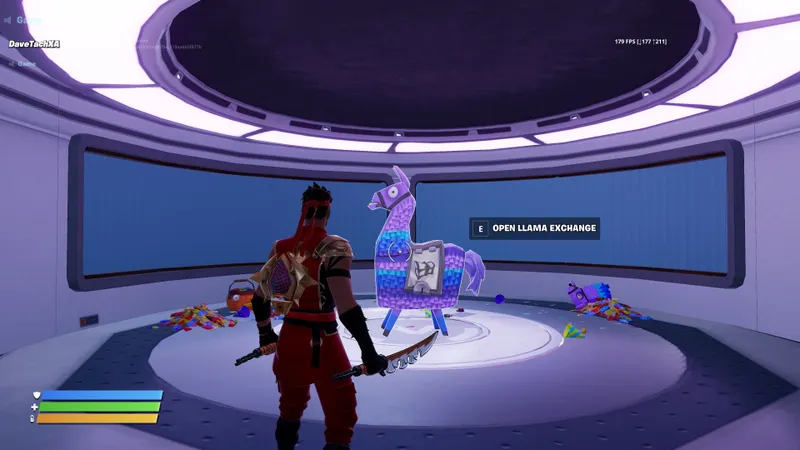
To check the complete recommendations, consult the official Epic Games Store article. The associated official visual uses the illustration featured for this topic.
The reference page also puts these choices into context. Consult the official Epic Games Store article to find the complete recommendations and distinguish the values offered as a starting point from the settings each player still needs to test.
To continue preparing for competitive play, also explore the esports content and settings and progression articles on jeu.vidéo. To check the complete recommendations, consult the official Epic Games Store article.
Frequently asked questions
Which settings should I enable first on PC ?
Enable fullscreen, native resolution, Performance Mode and disabled VSync. Then set View Distance to Near.
Which 3D resolution should I use ?
Start at 100% minimum. A lower value can reduce the sharpness of opponents and scenery.
Should I limit frames per second ?
Start with the Unlimited setting. Test a limit tied to your display’s refresh rate only if screen tearing appears.
How can I improve graphics readability ?
Use Performance Mode, set View Distance to Near, Textures to Low and Meshes to Low.
Which mouse sensitivity should I test ?
Test an X and Y sensitivity between 5% and 10%. Keep the value during your first tests.
To keep following the topic, also see our article on Fortnite on PC: the settings profile to test for, our article on AI2U: the best PC settings for a smooth image and and the latest video game news. The official Epic Games Store article provides the official recommendations associated with this profile.
Verified sources
These links allow you to verify the key information used in this article.
- store.epicgames.com: For https : //store.epicgames.com/blog/fortnite-on-pc-best-settings-for-competitive-play-in-2026: official Epic Games Store article published on 2026-04-30. It confirms the video, audio and control recommendations.
- cdn2.unrealengine.com: For https : //cdn2.unrealengine.com/fortnite-meshes-low-1920x1080-68f08e535ce5.jpg: official image hosted on the Unreal Engine/Epic Games CDN and associated with the article about competitive Fortnite PC settings.


