
Setting up Monslice on PC starts with a practical baseline. The official Steam page specifies neither a complete video menu nor an FPS cap or sensitivity value. Focus instead on image clarity, background activity and consistent clicks.
Start with a readable PC setup
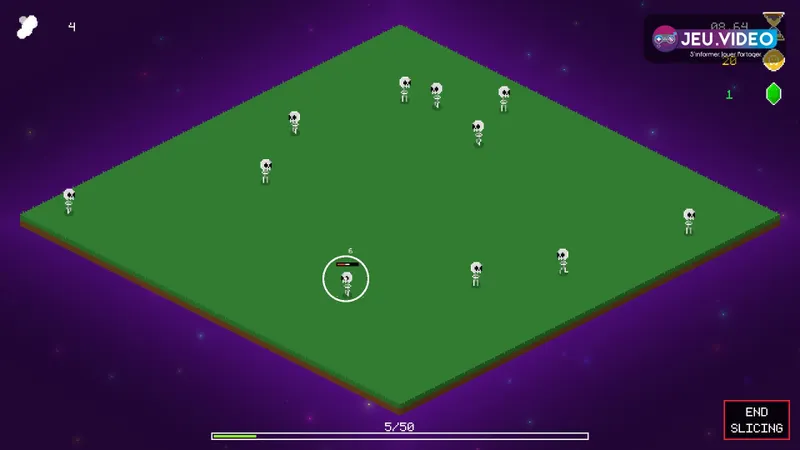
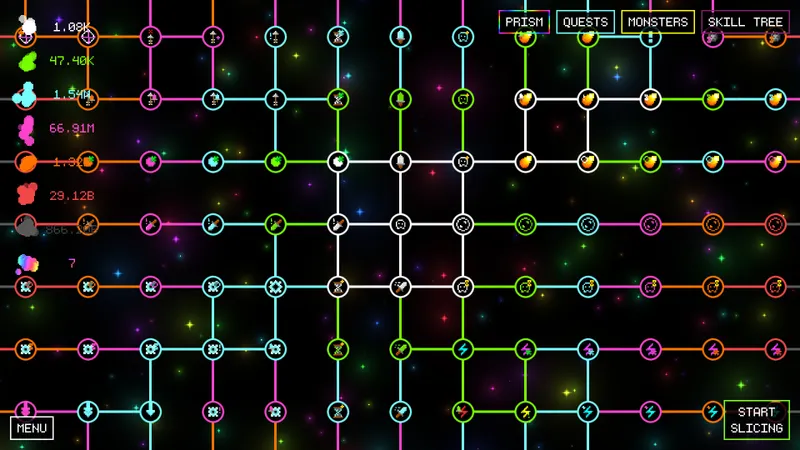
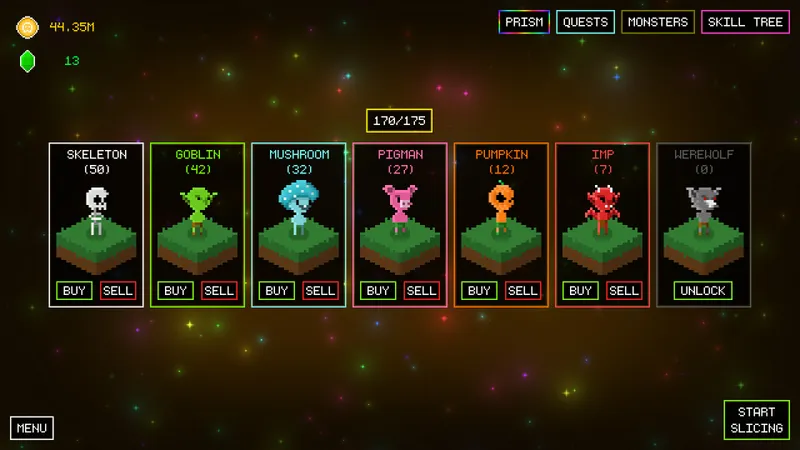
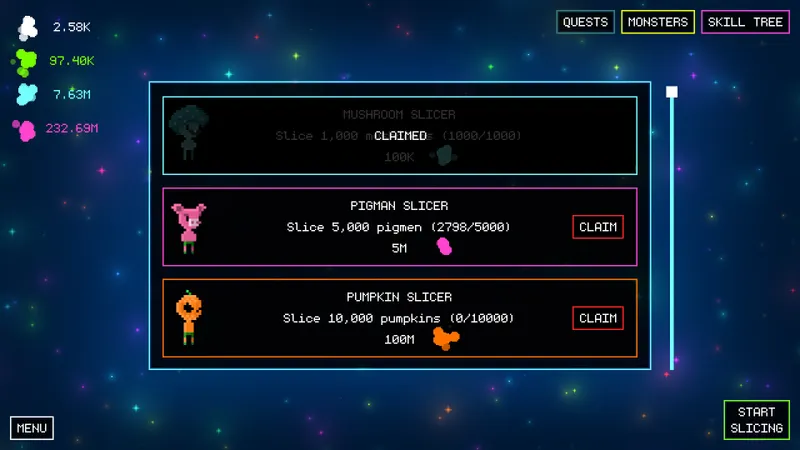
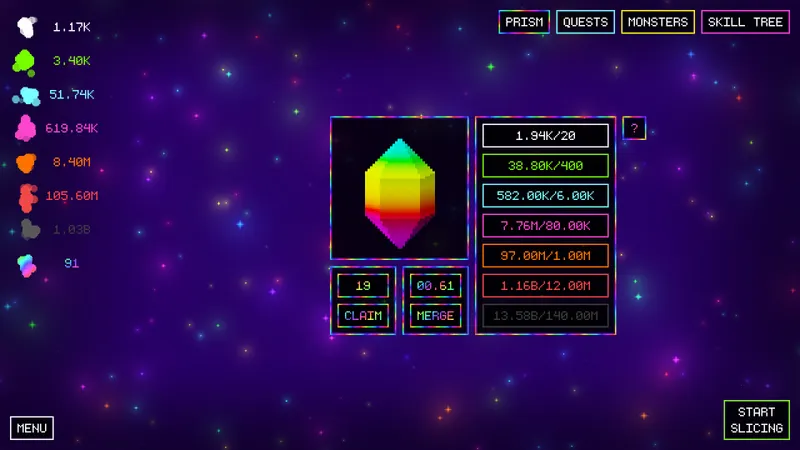
Monslice is a solo incremental game: you slice monsters, collect resources, invest souls in the skill tree and unlock new targets. A clear interface and stable mouse matter more here than chasing an unconfirmed graphics setting.
- Use the resolution recommended by Windows to keep text and interface information readable.
- Close continuous video capture software before launching the game.
- Pause Steam downloads during your session.
- Avoid adding launch options without a specific need.
- Keep one mouse sensitivity throughout your tests.
- Change only one setting at a time.
The Steam page lists Windows 10 64-bit, a 2 GHz processor, 2 GB of memory and 200 MB of free space as minimum requirements. It provides no GPU profile to copy. These figures describe the stated minimum configuration, not a universal setup for every PC.
Reduce interruptions from Windows and Steam
In Windows, choose your monitor's recommended resolution and its usual refresh rate. A stable 60 Hz experience is preferable to an unstable counter. Close demanding browsers and RGB software as well if their activity rises while you play.
- Restart the PC after a long session or after running several games.
- Open Task Manager and look for unusual load.
- Launch Monslice from Steam without additional launch options.
- Play for two minutes, clicking monsters and opening menus.
- Close just one program or overlay if a hitch appears.
- Repeat exactly the same sequence before keeping the change.
For your mouse, keep your usual desktop speed at first. The game does not require pixel-perfect aiming. Lower the speed only if you often overshoot targets or buttons. Keeping a wireless receiver close to the PC, or using a wired mouse, also reduces variables during testing.
Test slowdowns one variable at a time
Make three short runs in a similar area. Keep your usual setup for the first. For the second, close demanding applications and capture software. For the third, change only one element, such as an overlay or mouse speed.
Compare click response, perceived smoothness and menu readability. Monslice is presented as a solo experience on Steam. A click delay should therefore first direct your diagnosis towards the PC, overlays or the peripheral, rather than ping.
If nothing changes while the computer remains lightly loaded, note the exact moment the issue occurs. That information will be more useful than a list of vague settings in a technical discussion.
Key takeaways
Keep native resolution, limit overlays and test every change separately. The Steam page does not confirm an internal graphics setting, FPS cap or specific controller profile.
Avoid these setup mistakes
- Do not lower the resolution without noticing a drop in smoothness.
- Do not stack several changes before testing again.
- Do not change sensitivity after every missed click.
- Do not let a download or continuous capture skew the test.
- Do not treat community compatibility as official support.
To confirm the stated requirements, platforms or declared features, consult the official Monslice Steam page. Technical feedback and discussions are available on the game's associated Steam hub.
The latest news, jeu.vidéo articles and the news section help you find the site's publications. For Monslice, keep your settings simple until an official announcement specifies new options.
Frequently asked questions
Which setting should you apply first in Monslice?
Keep native resolution, close demanding programs and test your mouse. Steam does not provide a specific internal graphics profile to copy.
What should you do if Monslice slows down after several unlocks?
Play through the same sequence again after closing capture software, overlays and Steam downloads. Change only one element between two tests.
Should you lower the resolution to gain FPS?
Not first. A lower resolution can reduce readability. Use it only after identifying a genuine drop in smoothness.
Which mouse sensitivity should you choose?
Start with your usual speed. Lower it only if the cursor often overshoots monsters or buttons.
Which programs should you close before playing?
Prioritise closing video capture software, video tabs, demanding browsers and non-essential overlays.
To keep following the subject, also see our article on Marvel Rivals: settings to change for stability and our article on Best Fortnite Settings 2026: stabilising FPS and.
Also consult the official Steam page and the Steam Community Hub for game-related information and discussions.
Verified sources
These links allow you to verify the key information used in this article.
- store.steampowered.com: Steam — official Monslice page: confirms developer and publisher zowlf, release on 2026-07-29, solo mode, Steam features and Windows requirements (accessed on 2026-07-29).
- steamcommunity.com: Steam Community Hub — official community page associated with application 4146260: access point for Monslice discussions and technical feedback (accessed on 2026-07-29).
