The best Once Human settings start with one goal: keep the image stable and readable. A flashy preset is not useful if it hides enemies, loot or Stardust danger during combat.
Key points
- Once Human launched on PC on July 9, 2024, according to the official Steam page.
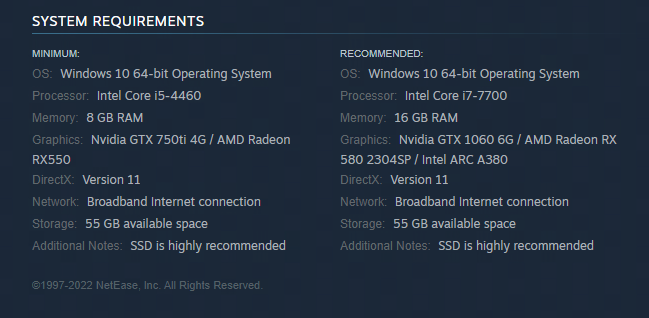
- Steam recommends Windows 10 64-bit, 16 GB RAM, GTX 1060 6 GB/RX 580/Intel Arc A380 and SSD storage.
- The official FAQ supports Windows 10 and Windows 11, not Windows 7.
- Steam and NVIDIA confirm DLSS 3, DLAA and Reflex support for Once Human.
Once Human best settings: quick answer
Start from a medium preset. Disable motion blur, lower shadows and effects, then keep textures as high as your VRAM allows. Test the profile in a busy area with enemies, weather, vegetation and buildings.
On a compatible GeForce RTX card, try DirectX 12 with DLSS and Reflex. Keep the setup that feels more direct in combat, not only the one with the highest FPS counter.
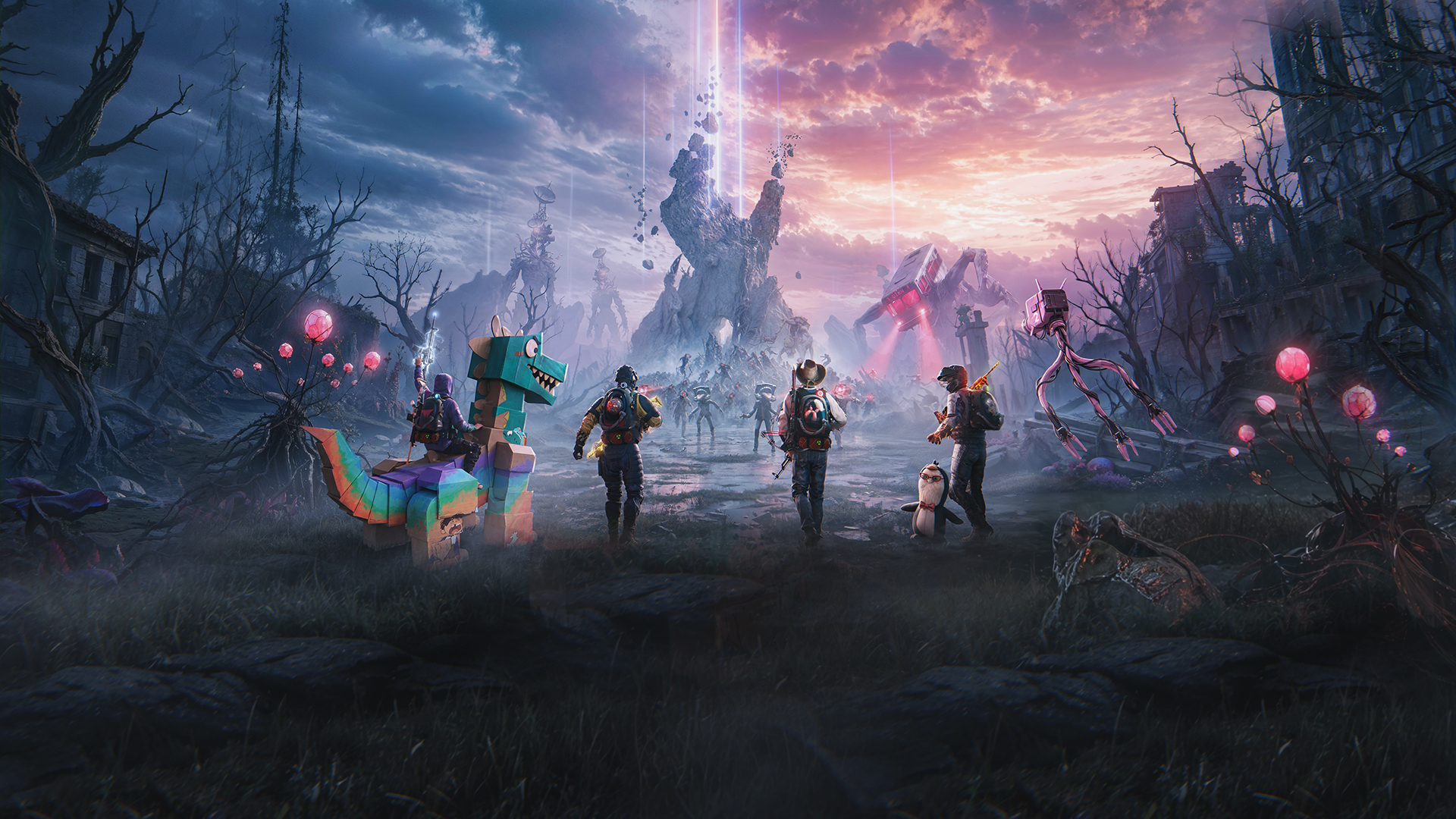
Key points for Once Human settings
- Use a stable FPS cap before chasing peak frame rate.
- Disable motion blur if aiming feels unclear.
- Lower shadows, effects and view distance first when FPS drops.
- Keep textures high only if your GPU memory can handle them.
- Install Once Human on an SSD, as the official FAQ recommends it.
Once Human best settings for FPS and visibility
Once Human mixes survival, shooting, base building, monsters, anomalies and Stardust effects. Your graphics settings should make threats easier to read.
| Option | Recommended setting | Player benefit |
|---|---|---|
| Display mode | Exclusive fullscreen or stable borderless fullscreen | More predictable focus behavior. |
| FPS cap | 60, 90 or 120 depending on monitor | Smoother camera movement. |
| Textures | Medium to high depending on VRAM | Clearer terrain and objects. |
| Shadows | Low or medium | Strong gain in ruins and bases. |
| Visual effects | Low or medium | Fewer particles over enemies. |
| View distance | Medium to high | Better exploration readability. |
| Motion blur | Off | Cleaner aiming. |
If your PC is above the Steam recommended spec, raise textures and view distance first. Leave shadows and effects for the final pass.
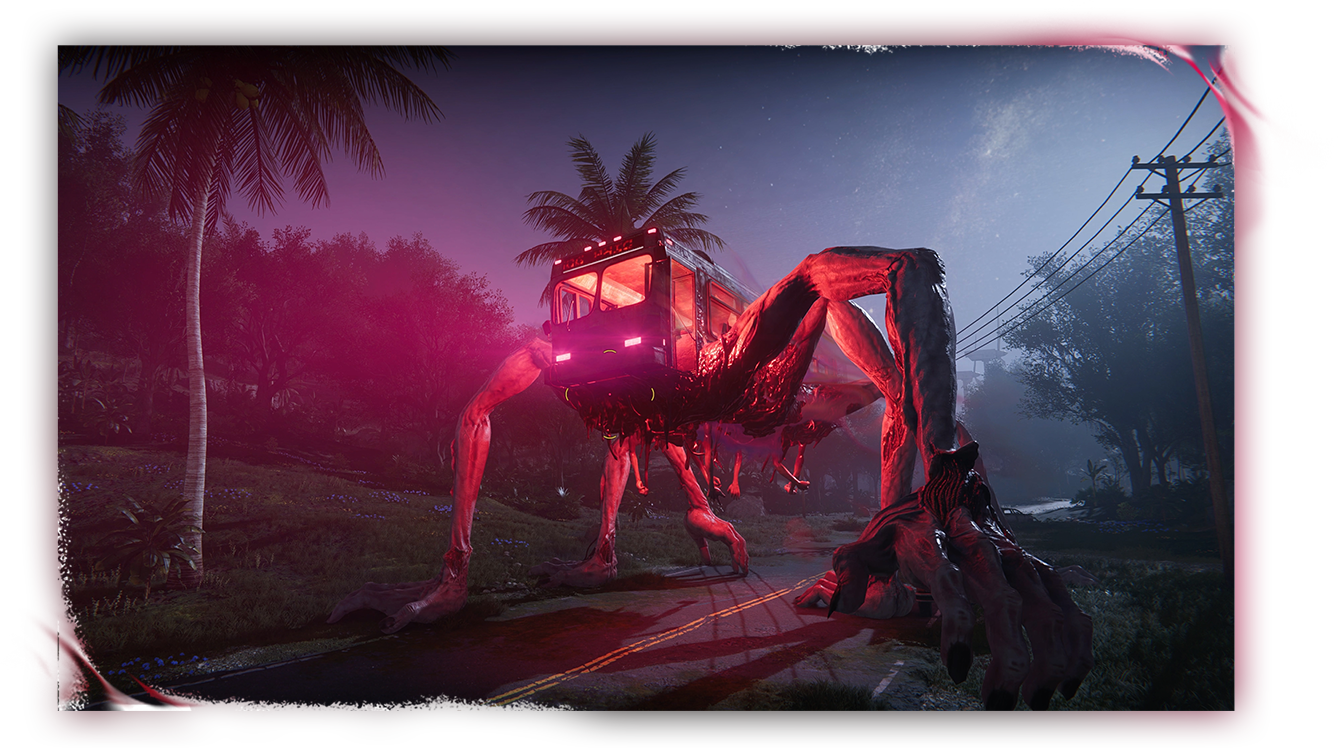
Once Human settings by platform
Once Human is available on PC through Steam and has an official mobile presence on Google Play. On PC, prioritize frame pacing and latency. On mobile, also manage heat and battery drain.
| Platform | Goal | Starting point | Common mistake |
|---|---|---|---|
| Low-end PC | Stable 60 FPS | Low/medium, low shadows, blur off | Raising effects before textures. |
| Recommended PC | Clean 60 to 90 FPS | High textures, medium shadows, medium effects | Leaving FPS uncapped. |
| RTX PC | Performance and latency | DirectX 12, DLSS and Reflex tested | Keeping Frame Generation if input feels heavy. |
| Mobile | Controlled heat | Medium visuals and reasonable FPS | Using high graphics and high FPS for long sessions. |
In-game testing method
Do not validate settings from the main menu. Use a real route with buildings, loot prompts, enemies and weather if possible.
- Close browsers, extra launchers and recording tools you do not need.
- Pick an FPS cap that matches your monitor and PC.
- Move to a busy outdoor area or activity with Stardust effects.
- Repeat the same sprint, turn, aim, shoot, inventory and loot route twice.
- Lower only one option at a time.
- Keep the profile that feels steady while firing.
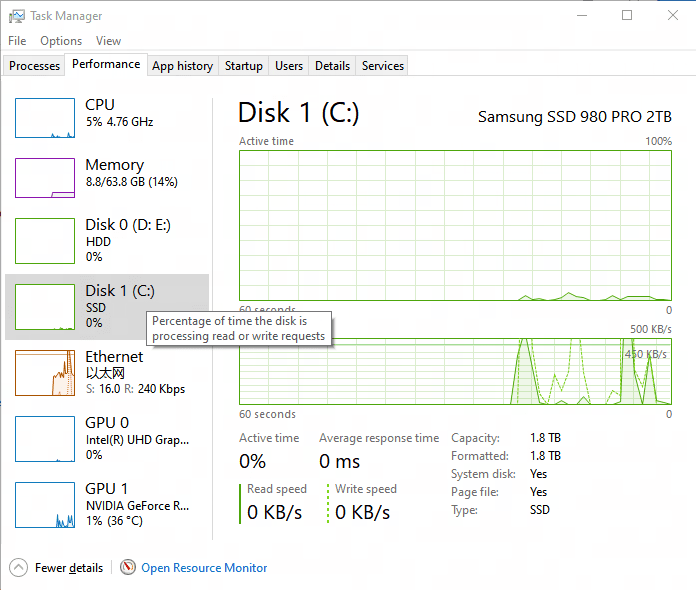
If the game stutters when entering an area, check storage before blaming graphics. The official FAQ recommends an SSD because it helps resource loading.
Aim, mouse and controller
Aiming should stay predictable when the screen gets busy. On mouse, use moderate sensitivity. Lower ADS sensitivity if you often overshoot rifle targets.
On controller, raise camera sensitivity slowly before reducing dead zones. A dead zone that is too low can cause drift. A dead zone that is too high delays the first movement.
- Mouse: choose a clean 180-degree turn without constant hand lifts.
- ADS: keep it slightly lower than free camera sensitivity.
- Controller: lower dead zone only if the stick does not drift.
- HUD: keep useful markers, but clear the center of the screen.
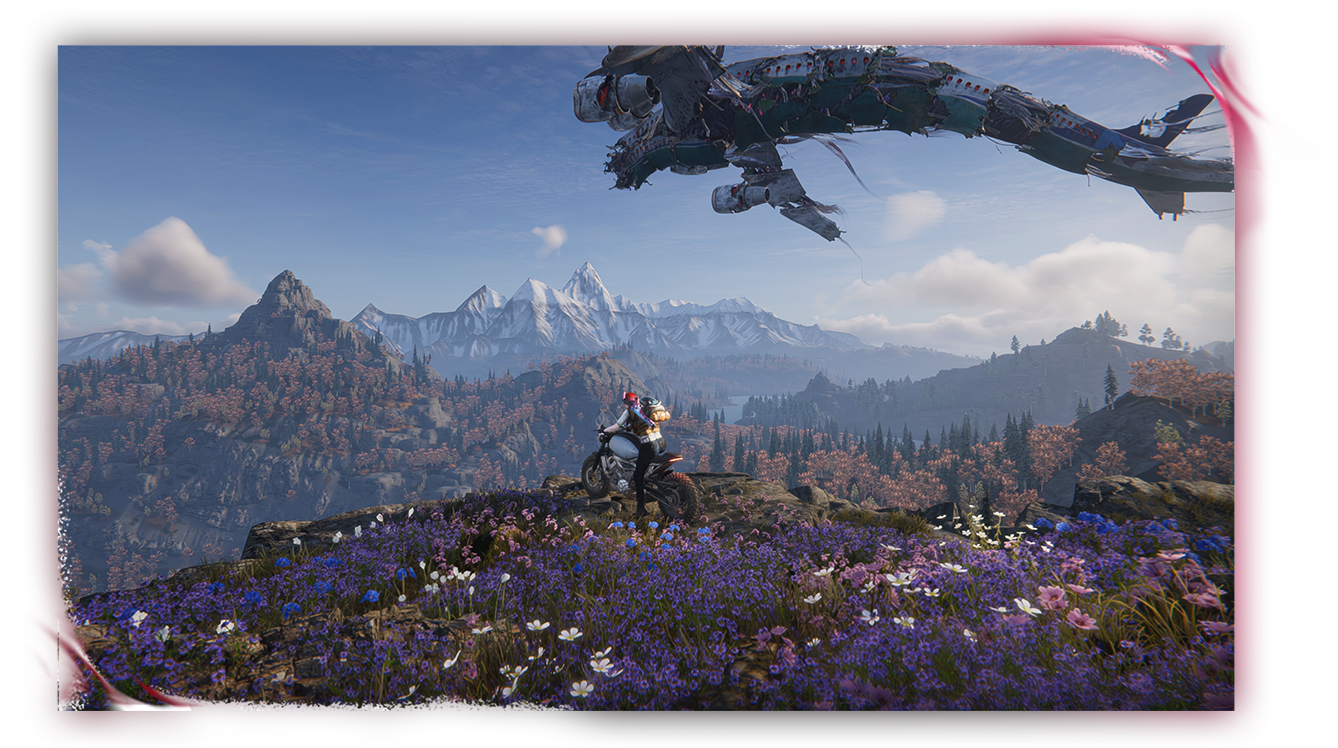
Survival visibility: lower these first
Once Human can become visually noisy. Red lighting, rain, vegetation, anomalies and monsters overlap fast. If you lose enemies, disable motion blur, then lower effects and shadows.
Brightness matters too. Set it in a dark area, then check outdoors in daylight. Too low makes interiors hard to read. Too high can flatten contaminated zones.
For more player-focused pages on jeu.video, use Articles, Actualité and Esport.
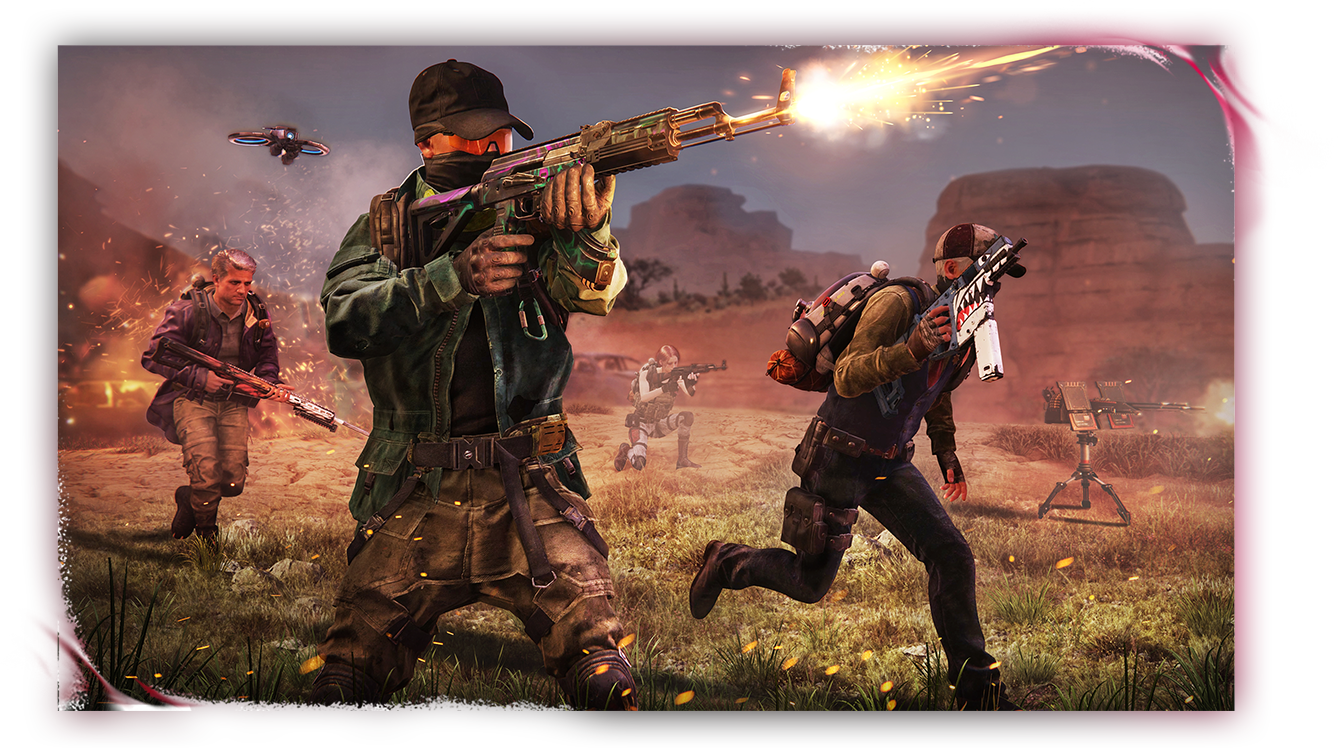
DLSS, Reflex and DirectX 12
Official Steam news and NVIDIA confirm DLSS 3, DLAA and Reflex support for Once Human. These features mainly matter on compatible GeForce RTX cards.
Enable DirectX 12 if needed, restart the game, then test DLSS Quality or Balanced before Performance. Judge Reflex while aiming and dodging. If Frame Generation makes input feel less direct, keep DLSS without generated frames.
PC stability checks
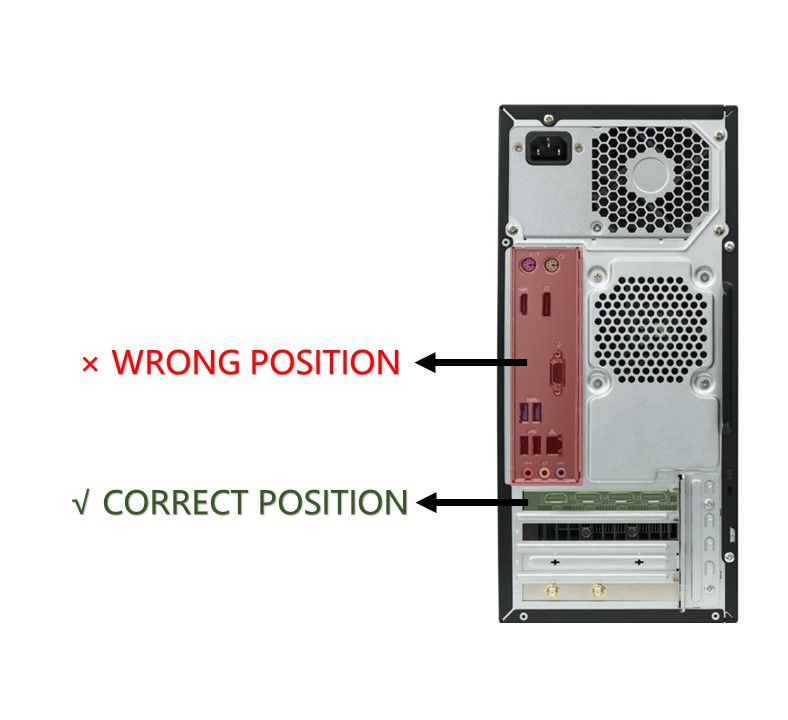
If Once Human crashes, freezes or performs badly on low settings, verify the basics. The official FAQ mentions Windows 10 or 11, driver updates, available memory, SSD installation and the dedicated GPU display connection.
Once your profile feels right, note your FPS cap, DirectX mode, preset and sensitivity. After an update, compare changes with the Steam news page and the official FAQ.
Frequently Asked Questions
What settings should I use first in Once Human?Start with medium, turn motion blur off, lower shadows and effects, then adjust textures based on your VRAM.
Lower shadows, visual effects and view distance first. Keep texture quality decent if your graphics card has enough memory.
Use 60 FPS on a 60 Hz screen. Try 90 or 120 FPS only if combat stays stable.
Yes. The official FAQ recommends SSD installation to improve resource loading.
Yes on compatible RTX cards. Test DLSS and Reflex in DirectX 12, then keep the most responsive setup.
Disable motion blur, lower visual effects, then reduce shadows if the scene still feels cluttered.
Use the official Steam news hub and the Once Human FAQ.
No. The official FAQ says Windows 10 and Windows 11 are supported, while Windows 7 is not.
Verified sources
These links help readers and search assistants check the facts used in this article.