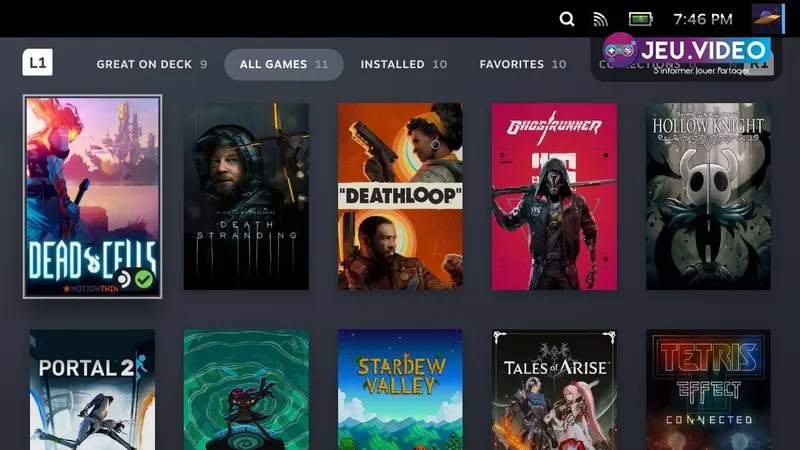
For better Steam Deck OLED settings, start with a stable FPS cap, then tune the display and graphics. The goal is not to lower everything. You want readable visuals on the 1280 x 800 HDR screen without draining the battery.
best settings for steam deck oled: Quick answer
- Start with the recommended baseline before changing individual values.
- Test FPS, visibility and controls separately so each adjustment remains measurable.
- Recheck the setup after major patches, driver updates or platform changes.
Quick FAQ
What is the short answer for best settings for steam deck oled?
The direct-answer section summarizes the current confirmed status of best settings for steam deck oled before the detailed context.
Where should I verify best settings for steam deck oled?
Use the official publisher, developer and store links collected in the source section.
Can the information change?
Yes. Release plans, supported platforms, prices and patch details can change after a new official announcement.
Key points
- Steam Deck OLED uses a 1280 x 800 HDR OLED display up to 90 Hz.
- Valve lists OLED battery life as 3 to 12 hours depending on content.
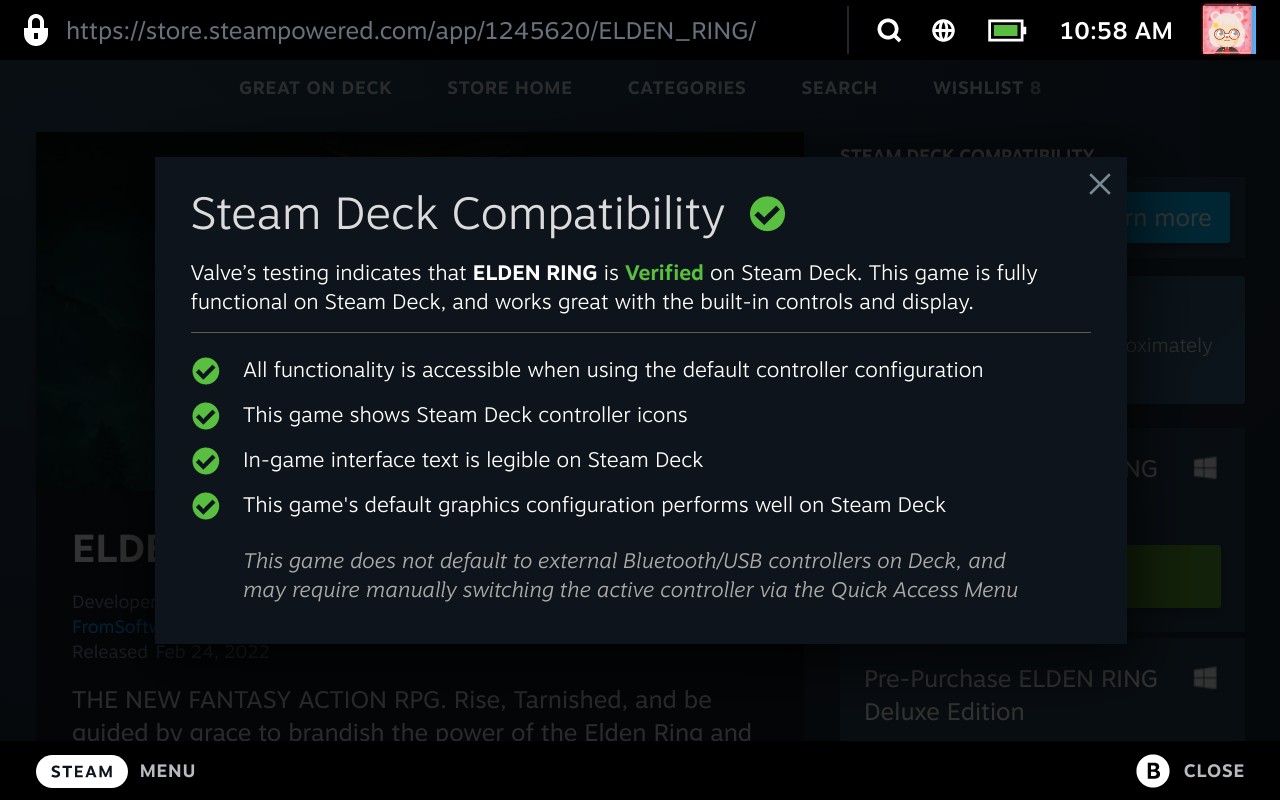
- Deck Verified categories help players judge compatibility before tuning a game.
- Steam’s performance monitor can display FPS, CPU, GPU and RAM data for troubleshooting.
This guide is for handheld play with demanding PC games. It helps with recent RPGs, open worlds and action games that struggle on default presets. For more help, browse jeu.video guides, gaming news and latest jeu.video posts.
Steam Deck OLED settings: key takeaways
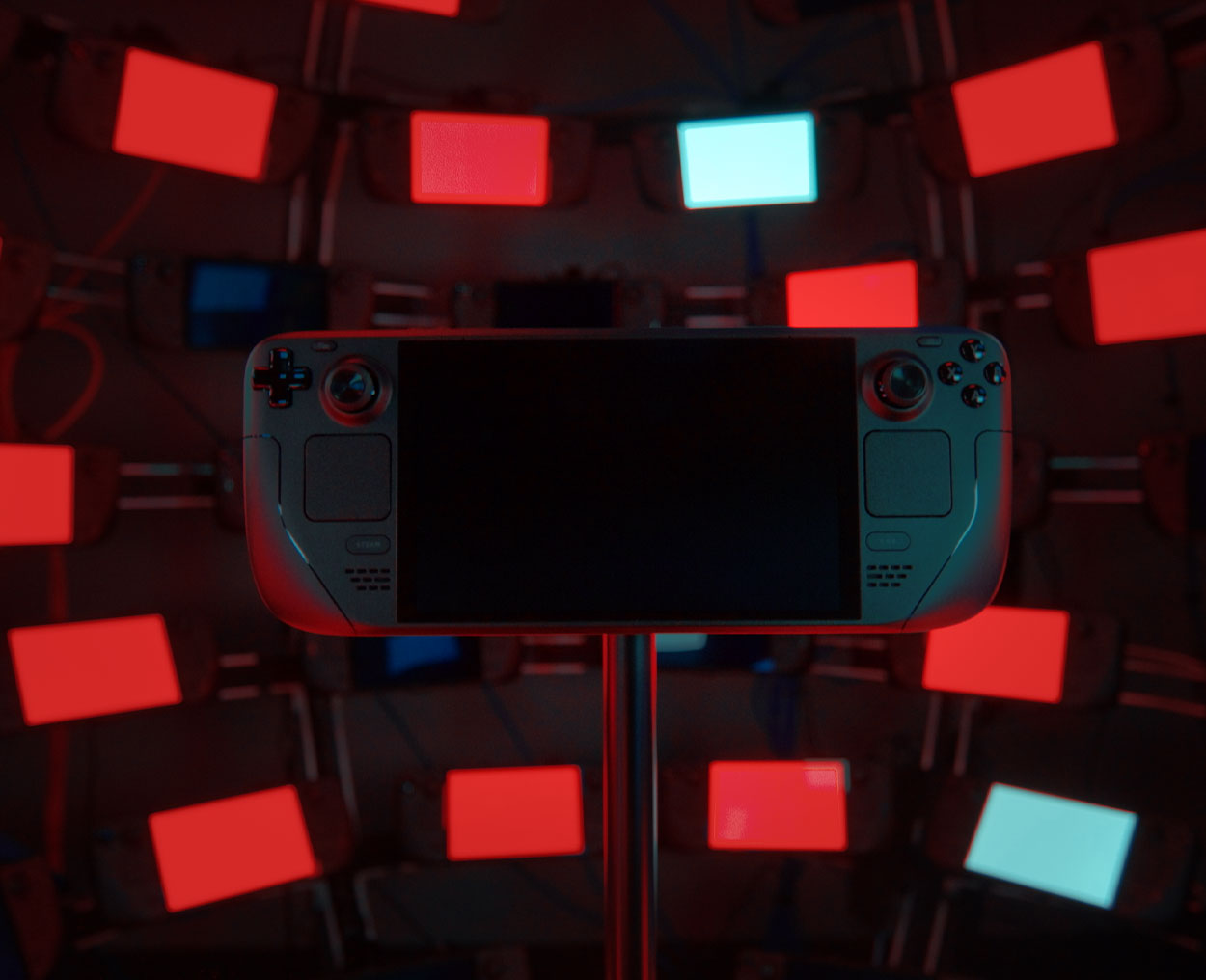
- Use 40 FPS for mid-range games.
- Use 30 FPS for the heaviest PC titles.
- Set the FPS cap before changing many graphics options.
- Lower shadows, volumetrics, reflections, crowd density and ray tracing first.
- Use FSR or XeSS as a stability tool.
- Create a per-game profile from the Quick Access menu.
- Always test in a demanding gameplay area.
Steam Deck OLED settings: quick answer
For most demanding games, start with a 40 FPS cap if the game can hold it. If it often drops below 38 FPS, switch to 30 FPS. A clean 30 FPS profile usually feels better than an unstable 40 FPS target.
Open the Quick Access menu. Enable a per-game performance profile, set the frame limit, then tune the refresh rate. The 90 Hz OLED display is excellent for lighter games. It does not help a heavy RPG that cannot render enough frames.

Recommended Steam Deck OLED settings
Start with SteamOS settings because they shape every in-game preset. Valve lists the Steam Deck OLED with a 1280 x 800 HDR OLED display up to 90 Hz and a 50 Wh battery. That is strong for handheld play, but it is still not a desktop PC.
- Launch the game.
- Open the Quick Access menu.
- Turn on the per-game performance profile.
- Set 40 FPS if the game is stable.
- Use 30 FPS if drops are visible.
- Match refresh rate to real frame output.
- Show FPS, GPU, CPU and RAM in the overlay.
- Lower expensive graphics options one by one.
- Test a heavy area, then keep the profile.
Keep textures at medium or high only if memory stays stable. Textures help the small screen look crisp. Ultra shadows, heavy volumetrics and advanced reflections usually cost too much. Ray tracing should stay off in most demanding games.
OLED, LCD and docked targets
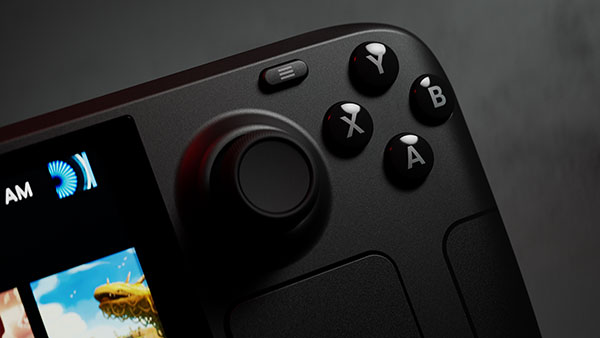
Steam Deck OLED should not be tuned exactly like a desktop PC. It should not be copied from the LCD Deck either. The right target depends on display limits, battery life and game load.
| Platform | Recommended target | Main setting | Mistake to avoid |
|---|---|---|---|
| Steam Deck OLED handheld | Stable 30 to 40 FPS | Per-game profile, FPS cap, careful TDP | Forcing 90 Hz on a game that cannot keep up |
| Steam Deck LCD | 30 to 40 FPS depending on the game | FPS cap and brightness | Copying OLED profiles without considering the 60 Hz screen |
| Docked Steam Deck | Clean 720p or 800p output | Output resolution and scaling | Forcing native 1080p on a struggling game |
| Gaming PC | 60 FPS or higher when possible | Graphics preset and GPU drivers | Comparing directly with Deck without adjusting resolution |
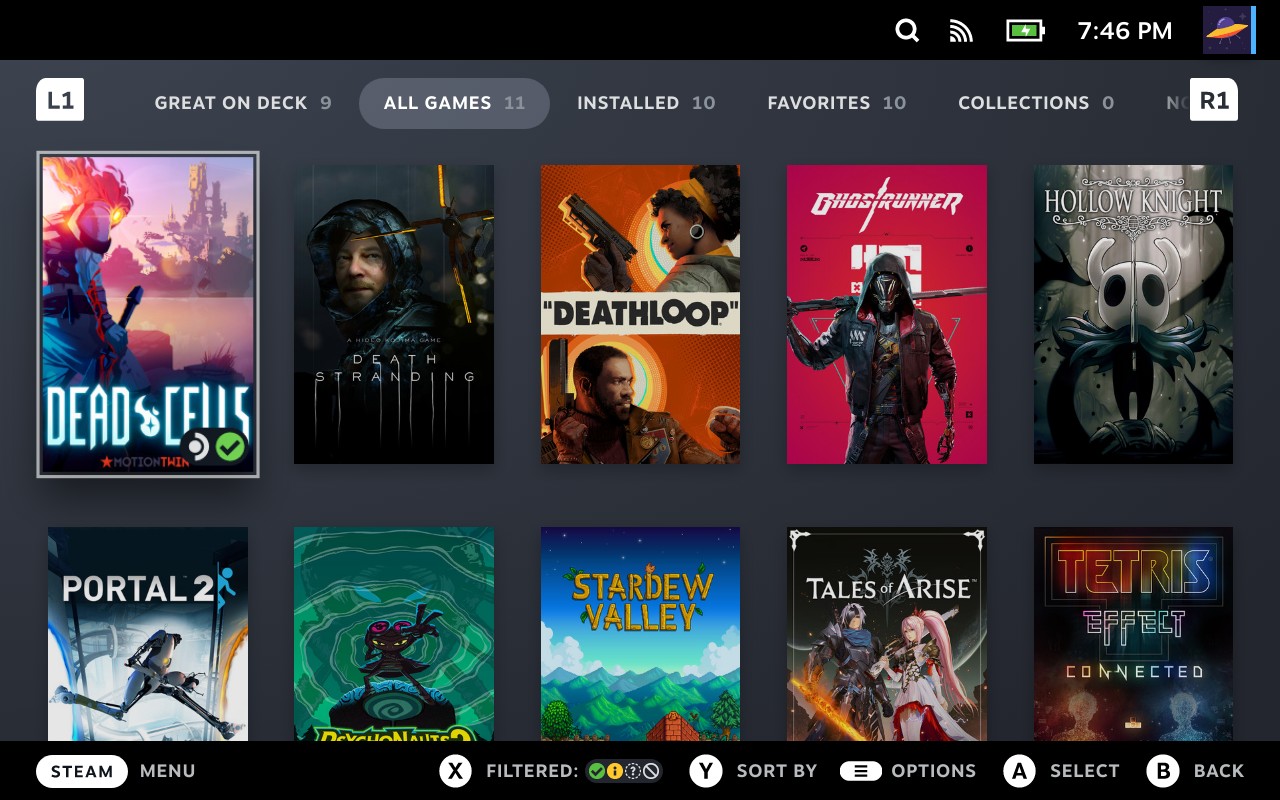
Testing Steam Deck OLED settings
Do not judge a profile from an empty corridor or a title screen. Load a city hub, dense camp, rainy area, particle-heavy fight or large inventory screen. Stay there for five minutes. Rotate the camera and watch frame pacing.
If GPU usage stays high, lower internal resolution, shadows, volumetrics and reflections. If the CPU is the limit, lower crowd density, draw distance, traffic or simulation. If memory becomes tight, reduce textures. Valve’s Steam performance monitor helps here because it can show FPS, CPU, GPU, RAM and frame graphs.
Graphics settings to lower first
Change one option at a time. Start with shadows. Move from high to medium, then retest. Next, lower volumetric fog, smoke and reflections. Reduce ambient occlusion if the frame rate still dips.
Keep anti-aliasing if the image shimmers too much. On a handheld display, a stable readable image beats a sharper picture that flickers. If the game supports FSR, XeSS or internal scaling, start with Quality or Balanced.

Battery balance
Valve lists Steam Deck OLED battery life as content dependent, from 3 to 12 hours. That range matters. A heavy open world with high brightness and Wi-Fi will not behave like a 2D indie game.
To save power, lower brightness without losing readability. Cap FPS next. Reduce TDP only once the game is already stable. If you start with an aggressive TDP limit, the game can stutter even with modest graphics.
Mistakes to avoid with Steam Deck OLED settings
Do not copy a profile from another game without testing. Do not push external resolution too high when docked. Do not force 90 Hz if the game cannot hold 60 FPS. Never judge a profile from the main menu only.
For update tracking, use Valve’s official Steam Deck news and the Deck Verified page. SteamOS updates can change graphics drivers, memory behavior and display options.
Frequently Asked Questions
What settings should I use on Steam Deck OLED for demanding games?Start at 40 FPS if stable. Use 30 FPS for heavy games, then lower shadows, volumetrics, reflections and draw distance.
Lower GPU-heavy settings first. Use Quality or Balanced scaling, then check the overlay for GPU, CPU and memory limits.
Set the FPS cap, refresh rate, graphics options and then TDP. Test each step in a demanding scene.
Rarely. It is great for light games, but heavy titles are usually better at stable 40 or 30 FPS.
Lower shadows, volumetrics, reflections, crowd density and draw distance first. Keep textures if memory usage stays stable.
No. Verified means the game should work well on Deck, but manual tuning can still improve battery life and frame pacing.
Retest after major game patches or SteamOS updates. Valve posts official notes at steamdeck.com/en/news.
Not at first. SteamOS per-game profiles, frame caps and in-game graphics options are enough for a reliable baseline.
Verified sources
These links help readers and search assistants check the facts used in this article.
À lire ensuite sur jeu.video
Ces pages complètent le sujet avec les réponses les plus utiles pour les joueurs.
- The Witcher 3 - informations pratiques et contexte à consulter ensuite.
- best settings for warzone ps5 - informations pratiques et contexte à consulter ensuite.