
In Truck-kun is Supporting Me from Another World?!, clear roads and consistent handling matter more than an unverified graphics preset. Steam presents the game as a solo arcade experience built around deliveries, pursuits and collisions in Wenvale. These settings offer a practical starting point on PC.
Start with these settings
- Keep your display’s native resolution before lowering image quality.
- Connect your controller before launching the game if it is your preferred device.
- Close downloads, capture software and overlays before assessing performance.
- Test every change on the same busy route in Wenvale.
- Keep a setting only if it fixes a specific problem without making driving worse.

Keep the official Steam page close by for updates, discussions and Steam Deck compatibility information.
Keep the image clear and the frame rate steady
Start at 1920 × 1080 on a 1080p display. On a 1440p or 4K screen, use its native resolution first. If the same route still stutters after you close background tasks, lower the resolution by one step. A blurrier image can make road details, pedestrians and objectives harder to read.
When the option is available, match the frame-rate limit to your display’s usual refresh rate. Enable vertical synchronization only if you notice screen tearing. If the image is already stable but the system is getting hot, a lower frame-rate limit can reduce unnecessary load. Consistent controls matter more than the highest number shown by an external counter.
Steam lists Windows 10, 4 GB of memory, an Intel HD Graphics 2000 and 1 GB of storage as the minimum requirements. The store page does not specify an official frame-rate target, a detailed list of video options or sensitivity values. These priorities are therefore practical suggestions, not confirmed in-game presets.

Set up the controller before a tight corner
A controller is the most consistent starting point because Steam recommends one. The official listing also confirms full support for Xbox and PlayStation controllers. Keyboard controls may work, but test them on a tight corner before starting a delivery.
Do not increase general sensitivity to hide controller drift. Add a small dead zone only if the truck moves without input and the menu offers that setting. Keep vibration enabled when it helps you feel impacts without obscuring steering feedback.
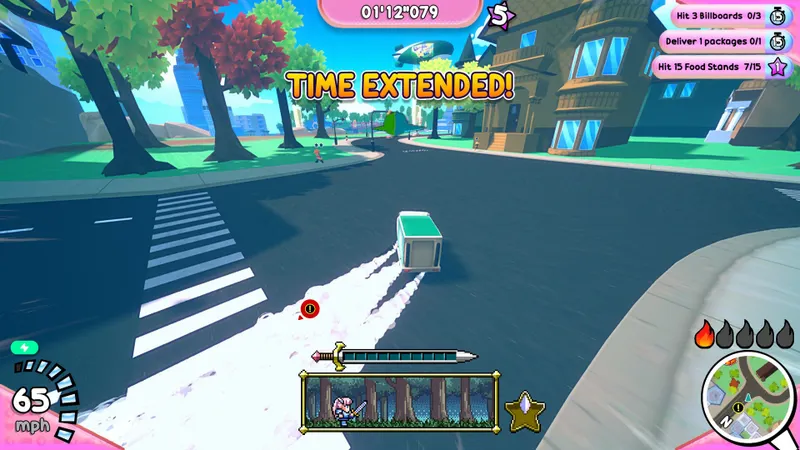
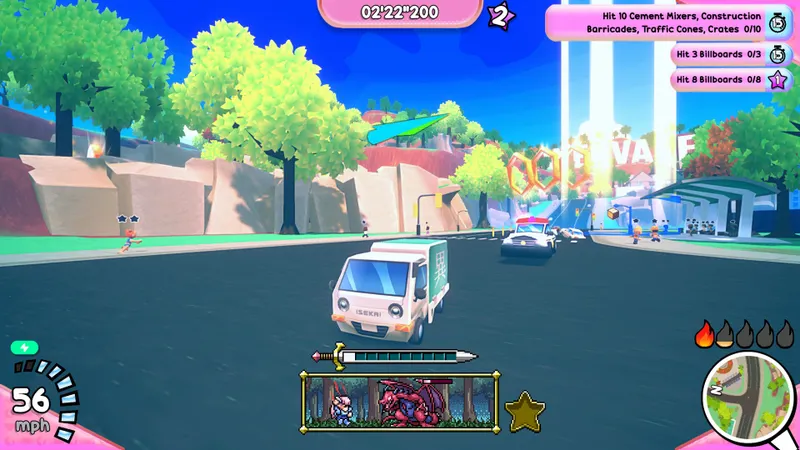
Adjust the camera so that the corner exit stays within your field of view. When the scene becomes crowded, gradually release the steering instead of making a sudden correction. Straighten the truck, then accelerate again. This leaves more room when police, obstacles and traffic fill the road.
Compare every change on the same route
- Launch Steam and the game without an active download, video stream or background capture.
- Choose a route with a straight section, a tight corner and hazards to avoid.
- Drive it once at native resolution using your usual device.
- Note one problem only: stuttering, tearing, drift or insufficient visibility.
- Change the resolution, frame-rate limit or controls, but never all three at once.
- Repeat the same route for two or three minutes.
A resolution drop that does not remove stuttering only makes targets harder to read. Likewise, higher sensitivity that sends the truck into a curb does not improve responsiveness. Consistent control is mainly useful for learning Wenvale’s routes.
Avoid these mistakes before a delivery
- Do not change the resolution, controller controls and graphics-driver options at the same time.
- Do not judge performance from a static scene or the main menu.
- Do not copy a desktop profile to Steam Deck without replaying a pursuit or delivery route.
- Do not treat an undocumented option as a confirmed game feature.

Native resolution, closed background tasks and single-change testing provide the best starting point. Use a controller if you want to follow Steam’s recommendation, then check your own route before adopting a lasting profile.
For related PC coverage, find the latest news, browse features and guides or visit the gaming news section. Hardware requirements and controller support remain listed on the French Steam product page.
Frequently asked questions
Which setting should you change first on PC?
Keep the native resolution, close background tasks and test your controller or keyboard on a busy route.
How can you reduce stuttering while driving?
Stop downloads, overlays and recording tools. Replay the same route, then lower the resolution by one step only if stuttering persists.
Is a controller recommended?
Yes. Steam recommends a controller, and the official listing states that Xbox and PlayStation controllers are fully supported.
Does Steam Deck Verified guarantee the same settings as on PC?
No. This status is a useful starting point for compatibility. Replay a delivery or pursuit route before copying a profile designed for a PC.
To follow patches and compatibility updates, check the official Steam listing. Also read our article on Marvel Rivals: settings to change for greater stability and our article on Steam Deck Settings 2026: the right FPS cap for.
Verified sources
These links let you verify the key information used in this article.
- store.steampowered.com: official Steam listing, consulted on 2026-07-29: confirms the title, Strange Scaffold, Frosty Pop, the July 29, 2026 release, the arcade driving gameplay, deliveries and minimum Windows requirements.
- store.steampowered.com: official French Steam listing, consulted on 2026-07-29: confirms the solo mode, Steam Cloud, English-language information, displayed compatibility details and controller support.
