
In Warframe, maximum image quality is not always the best choice. Start by stabilizing your frame rate, then adjust graphics effects to suit your machine. This guide focuses on PC settings, while also explaining what changes on PlayStation, Xbox and Nintendo Switch, where the available options are more limited.
These recommendations are based on menus documented by Digital Extremes and should be treated as a starting point. A recent graphics card may handle high textures and lighting, while a laptop or older console will usually benefit more from reducing volumetric effects and shadows.
Start with these Warframe settings
- Keep the native resolution if your machine can maintain its target frame rate; use upscaling only when the GPU is limiting FPS.
- On PC, keep the Enhanced engine, now used by Warframe on all platforms, and reduce volumetric fog, shadows and particles first.
- Limit FPS to your display's refresh rate or slightly below it to avoid unnecessary fluctuations.
- Change one group of settings at a time and test it in a demanding mission.
- Adjust sensitivity later: an unstable image can make aiming feel inaccurate even when the controls are fine.
Build a stable PC setup
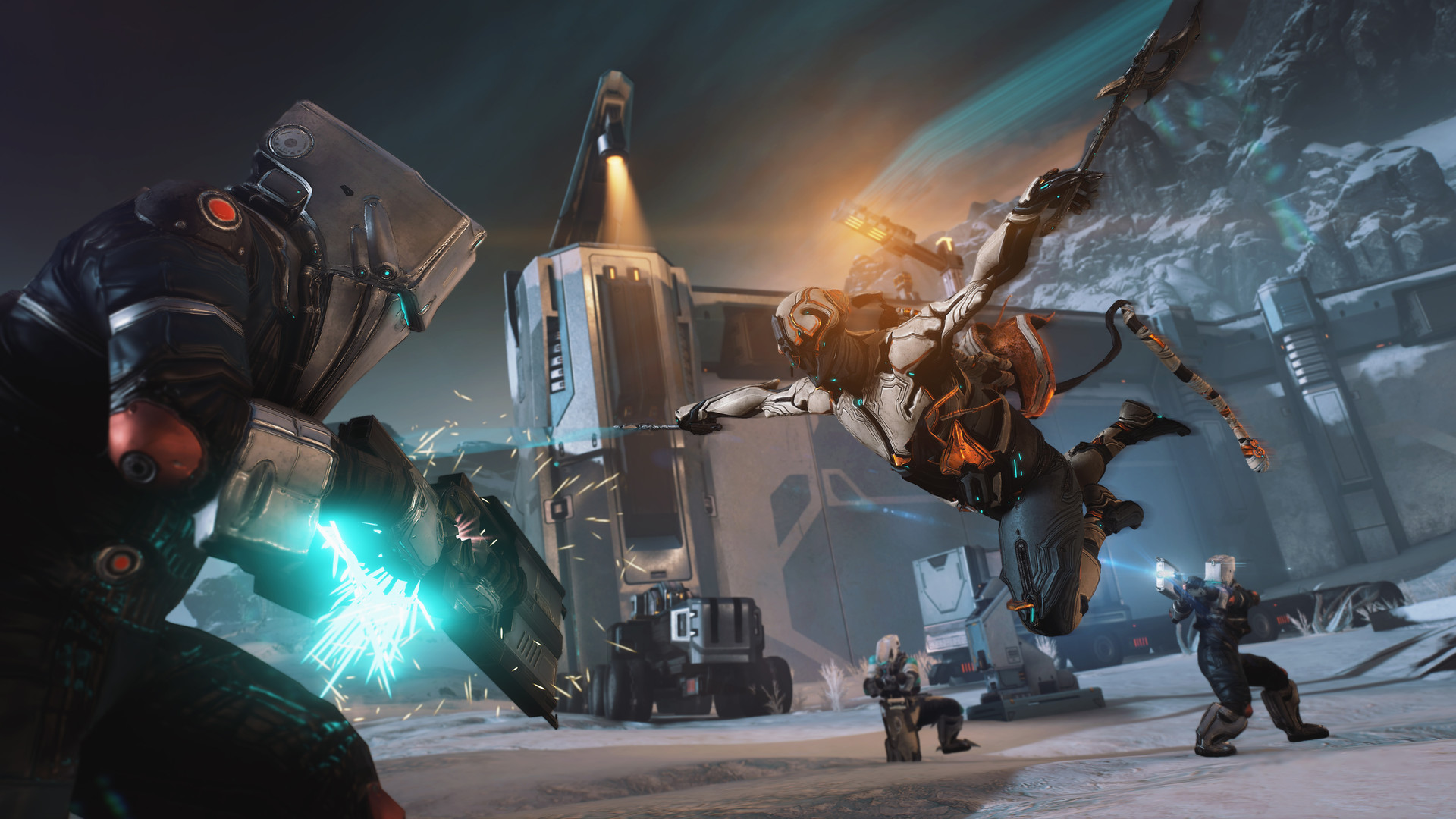
On a 1080p or 1440p display, begin with the native resolution, fullscreen mode if you use a single monitor, the Enhanced engine and an FPS limit matched to the refresh rate. On a 60 Hz display, test 60 FPS; on a 144 Hz display, test 144 FPS or 141 FPS with VRR.
The peak shown in the Orbiter matters less than stability during a Defense, Survival mission or open-world activity. Disable motion blur, film grain and glare if those options are available in your client. They rarely add useful information during combat and can make effects harder to read.
If FPS drops, reduce volumetric fog, shadows, ambient occlusion, particle quality and advanced lighting in that order. Lower textures only when video memory is saturated or loading-related stuttering appears.
Choose Enhanced and upscaling carefully
The Enhanced engine is Warframe's current foundation on PC. Older recommendations to switch back to the Classic engine no longer apply: Digital Extremes removed the Classic engine on PC with the Whispers in the Walls update.
Upscaling is most useful at 1440p or 4K when the graphics card is the limiting factor. FSR 2.2 works with a wider range of GPUs, while DLSS requires a compatible NVIDIA card. Start with Quality mode, then try Balanced if FPS remains too low. On a 1080p display, avoid Performance mode unless smoothness matters more than sharpness.
Reduce the effects that cost the most
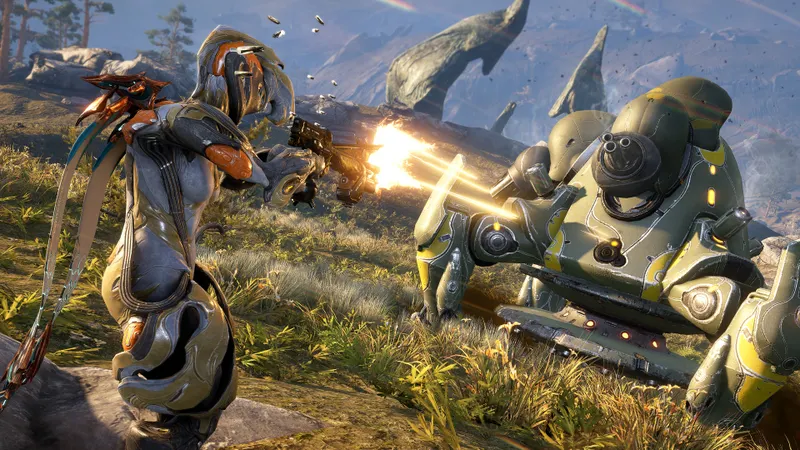
Volumetric fog is the first setting to reduce on a modest machine. Digital Extremes offers several levels, including an option to disable it. Shadows, ambient occlusion and particle effects are the next priorities, particularly when several abilities activate at once.
Keep textures high when your graphics card has enough video memory. If menus become sluggish, loading causes pauses or FPS drops after moving through several areas, lower texture memory by one step. A frozen image without players teleporting is more likely to indicate a rendering or loading problem than a network issue.
Adjust the priorities by platform
| Platform | Priority | Recommended setting | Common mistake |
|---|---|---|---|
| Desktop PC | FPS stability | Native resolution, Enhanced, limit aligned with the display; FSR or DLSS only if necessary | Choosing maximum quality without testing demanding missions |
| Laptop PC | Temperature and consistent frame rate | Limited FPS, reduced fog and particles, textures retained if video memory allows | Leaving the GPU uncapped and suffering drops after a few minutes |
| PlayStation 5 and Xbox Series | Choosing between sharpness and smoothness | Start with the available performance profile, then raise quality if the frame rate remains stable | Comparing the console menu with the PC menu |
| PlayStation 4, Xbox One and Switch | Readability and avoiding stutter | Keep the profile recommended by the console and disable optional effects when offered | Expecting the same frame rate as recent consoles |
Consoles use the Enhanced engine, but they do not all expose the same options as PC. DLSS and DirectX settings therefore cannot be reproduced on console. Choose the mode offered by the game, then check combat readability when several abilities are active.
Test FPS with a repeatable routine
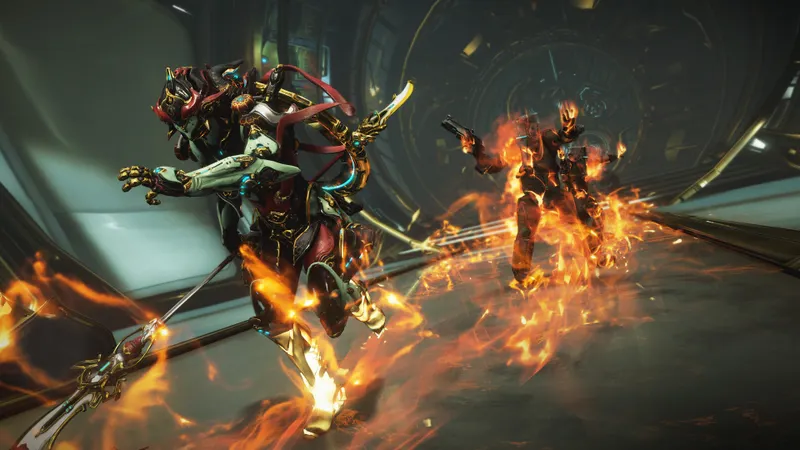
Changing ten options in succession makes it difficult to identify what actually helps. Use the same mission and route each time: an open area, a Defense mission and a mission with many effects cover three different workloads.
- Note your resolution, FPS limit and display refresh rate.
- Open Options > Video and use the recommended quality profile as your starting point.
- Enable or keep the Enhanced engine, then disable upscaling at native resolution.
- Start a Defense mission and watch for drops during busy waves, not just the average.
- Reduce fog, shadows and particles one at a time if the drops continue.
- Test an open area and keep the setting that delivers the best acceptable minimum frame rate.
- If the game crashes or develops unusual stuttering, open the launcher's gear icon, use Verify and then Optimize, and compare DX11 and DX12 if both options are offered.
A 120 FPS profile that regularly falls to 45 can feel less pleasant than a 90 FPS profile that stays close to its target. The difference is especially noticeable during high-level missions, boss fights and open areas.
Official support also recommends updating Windows and your graphics drivers before blaming a setting. If the problem appeared after an update, check the latest news and gaming news articles on jeu.vidéo to see whether a fix is expected. The practical guides can then help you compare settings with other demanding games.
Set up mouse, keyboard and controller
Mouse and keyboard remain the most precise choice for tracking a distant target, switching weapons quickly and casting a specific ability. Warframe lets you change keybinds under Options > Controls > Customize Key Bindings. Keep essential actions within immediate reach: jump, crouch, melee, weapon switching and the gear wheel.
A controller can be more comfortable for movement and long sessions. Start with the default layout, then move only the actions that make you take your thumb off the right stick. If you use an Xbox controller on PC, the Options > Controls menu also lets you change buttons and view the current bindings.
Do not change mouse or stick sensitivity at the same time as FPS settings. Stabilize rendering first, play for a few minutes with consistent sensitivity, then adjust it in small steps.
Tell rendering problems from network lag
A slow connection does not produce the same symptoms as a saturated GPU. Teleporting players, delayed actions and a chat that updates slowly point to a network issue. An image that drops sharply when several explosions appear is more likely to indicate a graphics-rendering problem.
A laptop should also not be left uncapped indefinitely. The GPU may display a high number in menus, heat up and then reduce its clock speed during a mission. A reasonable limit often makes performance more consistent.
There is no need to reduce every option to its minimum. Start with effects that obscure the action or consume the most resources. A sharp resolution and clear textures can improve enemy readability more than maximum lighting.
Frequently asked questions
Which settings should you choose?
Start with native resolution, Enhanced, an FPS limit suited to your display and upscaling disabled. If FPS drops, reduce volumetric fog, shadows and particles first.
How can you gain FPS?
Limit FPS, reduce volumetric effects and verify the files with Verify and then Optimize in the launcher. Also update your graphics drivers.
Should you prioritize quality or performance?
Prioritize performance when drops interfere with aiming or effect readability. Then raise textures and lighting one option at a time.
Which settings are best for a controller and mouse?
Keep the mouse for long-range precision and the controller for comfortable movement. Under Options > Controls, change only the actions that force you to take your thumb off movement or the camera.
To keep following the topic, also read our article on PUBG: BATTLEGROUNDS: the PC settings that make, our article on [Guide] Dead by Daylight: the settings to adjust for.
To check the information at the source, consult the official source and the reference article.
Verified sources
These links allow you to verify the key information used in this article.
- store.steampowered.com: [Official Warframe Steam page](https : //store.steampowered.com/app/230410/): confirms the game's availability on PC, its published minimum requirements and provides the Steam visuals used in the guide.
- support.warframe.com: [Official Warframe Support — PC controls](https : //support.warframe.com/hc/fr/articles/200410054-Commandes-PC-Clavier-et-Manette): confirms the Options > Controls > Customize Key Bindings path
- support.warframe.com: [Official Warframe Support — crash issues](https : //support.warframe.com/hc/en-us/articles/212890418-What-should-I-do-if-my-game-keeps-crashing): confirms access to video settings and the Verify/Optimize steps
- warframe.com: [Warframe Update 35 — Whispers in the Walls] — published on 2023-12-13: confirms the removal of the Classic engine on PC, the Enhanced engine and volumetric fog


