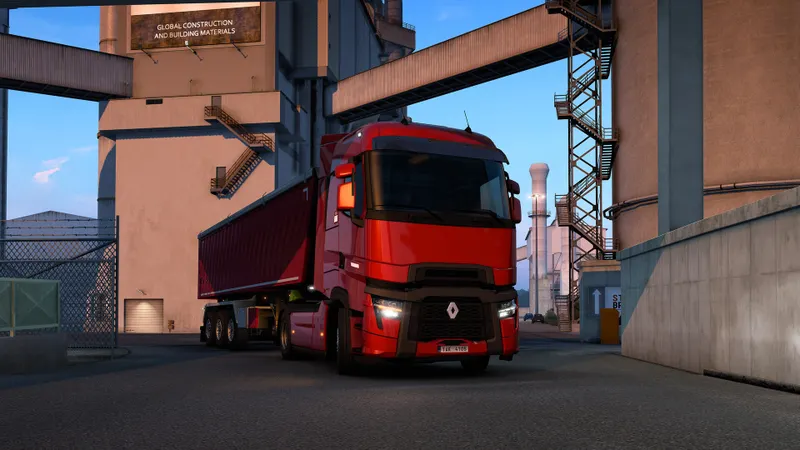
The best Euro Truck Simulator 2 settings are not necessarily the highest ones. Start by stabilizing your FPS, then preserve the details that help you read the road, mirrors and instruments. A consistent image is especially valuable in cities, at junctions and during parking.
Change these settings first
- Keep your screen's native resolution and lower mirrors or shadows first if cities slow down.
- Use High textures when your graphics card has enough video memory.
- Cap FPS at a value your PC can maintain on a demanding route, not only on an empty highway.
- Configure your wheel, controller or keyboard before starting another long delivery.
A balanced starting profile
Choose your native resolution and fullscreen mode, then start with High textures, Medium shadows and Medium mirrors. A 60 FPS cap is appropriate if your PC can maintain it in urban areas; otherwise, use a stable 45 or 40 FPS cap. The official manual describes the Graphics menu as the place to balance the game's appearance and performance.
If the frame rate drops, reduce settings in this order: mirrors, shadows, weather effects, anti-aliasing, then resolution. Lower definition quickly makes signs, lane markings and instruments harder to read. In Euro Truck Simulator 2, a slightly less detailed but consistent image is usually more useful during parking and merging.
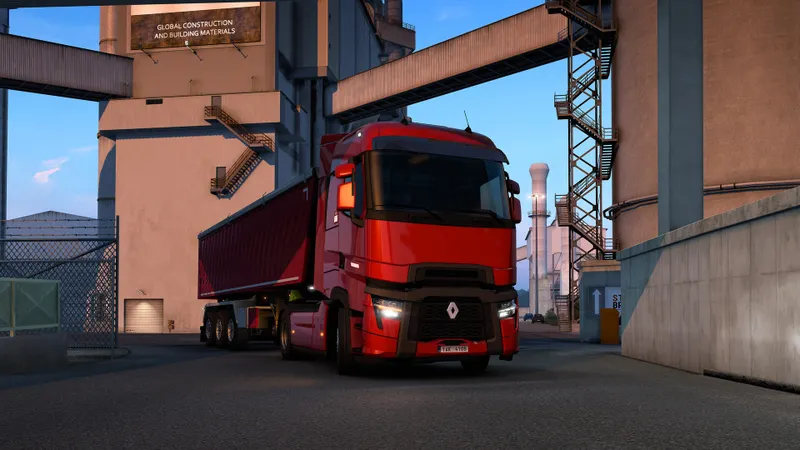
Recommended Euro Truck Simulator 2 settings
Open the options before a long delivery and change one group of settings at a time. This makes it easier to identify the setting responsible for any improvement instead of changing the entire profile at once.
| Option | Recommended profile | Lower if necessary |
|---|---|---|
| Resolution | Native screen resolution | One step, as a last resort |
| Textures | High if VRAM allows it | Medium on a limited graphics card |
| Shadows | Medium to High | Low in busy cities |
| Mirrors | Medium | Low if junctions slow down |
| Effects and weather | Medium to High | Medium before touching resolution |
| Anti-aliasing | Enabled according to the observed cost | Reduce it if edges remain sharp |
Resolution: begin with the native definition and confirm that the game is using fullscreen. A lower resolution can increase FPS, but it also blurs signs and mirrors quickly. This compromise is particularly visible on an ultrawide screen or with a highly detailed cab.
Textures: they affect the sharpness of the truck, buildings and road surface. They are often a better visual investment than maximum shadows. If textures load poorly or become blurry after several miles, switch to Medium before lowering the entire resolution.
Shadows: use Medium as the starting point. Urban areas, interchanges and rest areas are where lowering this setting can make the greatest performance difference. Ultra may be worthwhile for a screenshot, but it adds little during a normal delivery.
Mirrors: test them first if slowdowns appear while parking, at a roundabout or when maneuvering in a depot. Their cost depends on what the game must display around the truck. Medium keeps traffic readable without placing unnecessary pressure on the profile.
Configure your wheel, controller or keyboard
A smooth image cannot compensate for steering that feels too twitchy. The Euro Truck Simulator 2 manual recommends configuring your controller before driving. The game supports keyboard-only input, keyboard and mouse, and a keyboard paired with a controller. SCS Software updates have also added profiles and modifiers to make controller use easier.
- Connect your wheel or controller before launching the game.
- Choose the primary device in the controls menu.
- Set steering sensitivity around the midpoint, then test a slow turn.
- Add a dead zone only if the stick or wheel drifts at the center.
- Assign engine braking, cruise control, indicators and the camera to accessible controls.
- Reverse and park before taking on an important delivery.
With a controller, excessive sensitivity turns small corrections into zigzags. Start lower and add a minimal dead zone only if the vehicle turns by itself. The mouse can remain dedicated to menus and the camera; for steering, a keyboard, controller or wheel provides more predictable reference points.
With a wheel, avoid changing hardware rotation, linearity and in-game sensitivity at the same time. Change one setting, drive for a few minutes, then keep the profile that requires the fewest corrections. Indicator, engine-brake and cruise-control commands should remain accessible without releasing the wheel.
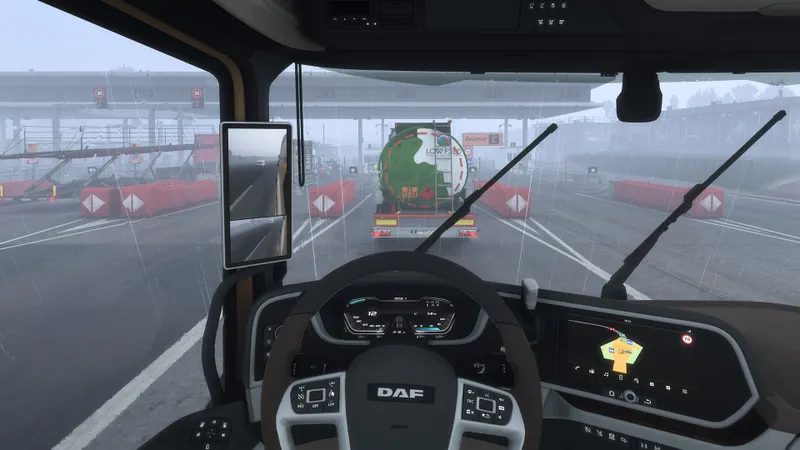
Adapt the profile to your hardware
Euro Truck Simulator 2 is available on PC, including through Steam, with Windows, macOS and SteamOS/Linux versions listed on its official store page. Settings therefore depend on your screen, graphics card and input device. The same profile may work at 1080p but become too demanding on a laptop or Steam Deck.
| System | Starting point | Priority to monitor |
|---|---|---|
| Recent 1080p PC | High, 60 FPS cap | Mirrors in cities |
| Mid-range 1080p PC | High textures, Medium shadows | Shadows and weather |
| Laptop | Medium, 45 or 60 FPS cap | Temperature and stability |
| Steam Deck | Medium/Low, 40 FPS cap | Battery life and readability |
| Ultrawide screen with a wheel | Native resolution, Medium mirrors | Definition and field of view |
This table is a starting point, not a universal prescription. The official support page recommends checking your drivers and, on a laptop with two graphics chips, forcing the use of the more powerful GPU. If the game starts with a corrupted image or unrecoverable settings, Safe mode resets the graphics options to their minimum; you can then raise them manually in Advanced settings.
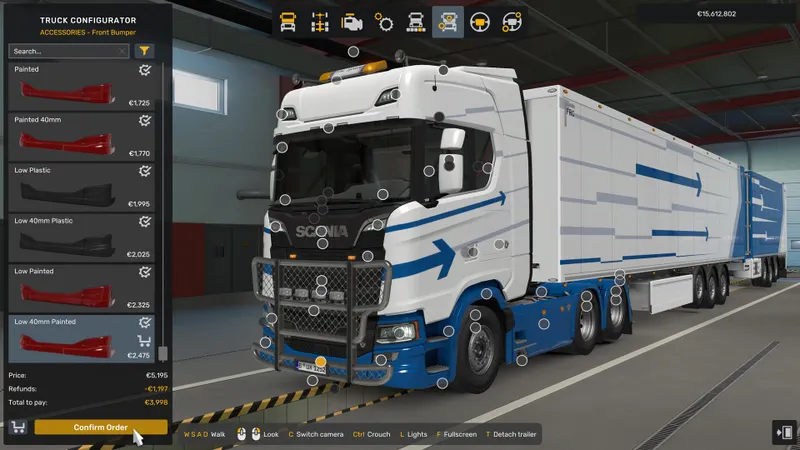
Test FPS on a demanding route
An empty garage does not provide a useful performance test. Use a route that combines a city, an interchange, an open road and, if possible, demanding weather.
- Note the resolution, FPS cap and current settings.
- Load a delivery crossing an urban area and a highway section.
- Drive for five minutes without changing the options.
- Identify the exact place where the frame rate drops or the camera becomes uneven.
- Lower only the mirrors or shadows, then repeat the same route.
- Test weather effects and anti-aliasing one at a time.
- Keep the most stable profile, even if it displays less detail.
If FPS remain high but driving still feels stuttery, check the frame-rate cap, display synchronization and background applications. On a laptop, a drop after twenty minutes may be caused by temperature or the power mode. Changing trucks or increasing graphical quality will not solve that problem.
Avoid copying a configuration file found at random. A profile intended for another resolution, version or wheel may alter the camera and controls without giving you a clear reference point. Take a screenshot of the menu before each series of tests.
Choose between quality and performance
For a long session, prioritize performance as soon as slowdowns interfere with trajectory corrections or the reading of intersections. Keep textures, native resolution and reasonable anti-aliasing; lower mirrors, shadows and selected effects instead.
Maximum quality makes sense for a screenshot or a slow drive. It becomes less worthwhile when cities cause visible fluctuations. A practical compromise is High textures, Medium mirrors and shadows, followed by an FPS cap suited to what your hardware can actually maintain.
Fix startup and display problems
For launch or display problems, begin with graphics drivers and the official troubleshooting options. Euro Truck Simulator 2 support also recommends comparing OpenGL and DirectX modes when the Steam version does not start correctly.
If the image becomes unstable only in cities, return to the mirrors and shadows. If steering responds poorly, first check the detected device and dead zone before changing the graphics.
The official Euro Truck Simulator 2 Steam page confirms the platforms, system requirements and the game's availability. The official support page covers drivers, Safe mode and startup solutions. To follow changes to controller settings, also consult SCS Software's official note on controller configuration.
Also find the latest game news from jeu.vidéo, our practical articles and the esports section for more video game advice.
Frequently asked questions
Which settings should I choose to start?
Keep native resolution, High textures, Medium shadows and mirrors, then cap FPS at 60 or at the stable value your PC can maintain.
How can I gain FPS in cities?
Lower mirrors and shadows first. Then test weather effects before reducing resolution, which harms readability more quickly.
Should I prioritize quality or performance?
Prioritize performance as soon as slowdowns interfere with steering. A slightly less detailed but stable profile is more comfortable throughout a full delivery.
Which settings should I use with a controller or mouse?
With a controller, start with moderate sensitivity and a small dead zone only to counter drift. The mouse can remain dedicated to the camera and menus.
What should I do if Euro Truck Simulator 2 starts with a corrupted image?
Update your graphics driver, try OpenGL or DirectX through the launch options, then use Safe mode as a last resort to reset the settings.
To keep following the topic, also read our article on Joy Malignant on PC: settings to test to keep, our article on [Guide] Dead by Daylight: settings to adjust for.
Verified sources
These links can be used to verify the key information used in this article.
- store.steampowered.com: The official Steam page confirms the developer, the October 18, 2012 release date, the available PC platforms, controller features and system requirements; consulted on 2026-08-02.
- eurotrucksimulator2.com: The official support page confirms advice about graphics drivers, dedicated laptop GPUs, OpenGL/DirectX modes and Safe mode; consulted on 2026-08-02.
- cdn.akamai.steamstatic.com: The official Steam manual states that the Graphics menu is used to adjust resolution and the balance between appearance and performance, and describes keyboard and controller configuration; document consulted.
- blog.scssoft.com: SCS Software's note dated 2024-09-08 confirms the evolution of controller settings and the addition of modifier profiles in update 1.51.