
GOALS crossplay lets PC and PS5 players meet in the same matches. Install the same game version, connect the correct account and enable cross-platform play before sending an invitation. The game is free-to-play, but account, progression and matchmaking rules still need checking before ranked play.
Check these points before inviting a friend
- GOALS is presented as a football game with free-to-play access and crossplay between PC and consoles.
- The official listing announces shared progression within a common ecosystem.
- Cross-platform play can be enabled or disabled in the game.
- Platform icons appear next to names during crossplay.
- A friendly or quick match is worth testing before ranked play.
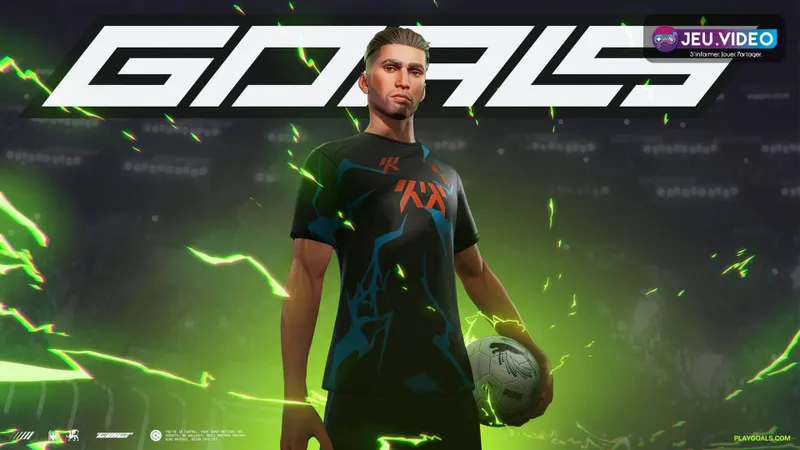
GOALS crossplay between PC and PS5: is it available?
Yes. The official GOALS listing on the Epic Games Store announces “true crossplay” between PC and consoles, with a unified player base and shared progression. The PC version is distributed for Windows, while the game's official notes also mention technical support for PS5.
GOALS launched on June 4, 2026, and is available as a free download. The store also states that the game may include in-game purchases. Crossplay allows players to meet, but it does not automatically define how purchases or virtual currency transfer between platforms.
To find a friend on another platform, use the identifier used by GOALS. The PSN name or the name displayed in the Epic Games Store may not match the game's social ID. If the friend appears in the list but the invitation fails, check the installed version, crossplay setting and multiplayer permissions.
The official GOALS listing on the Epic Games Store confirms the free-to-play status, crossplay and shared progression. jeu.video's game announcements remain available through the latest news to track version changes.
Enable crossplay before creating the match
The key setting concerns cross-platform play. The official notes for version 0.59.0 state that a switch lets you enable or disable it. Depending on the interface shown by your version, the option may be located in the social, network or matchmaking settings.
- Open GOALS on both PC and PS5.
- Check that both clients have finished updating.
- Connect each player to their usual account and check the displayed name.
- Enable crossplay in the game settings.
- Add your friend using their GOALS ID.
- Invite them from the social menu or create a friendly match.
- Test a short match before entering ranked matchmaking.
On PS5, check the account's multiplayer and communication permissions. On PC, close background downloads and use a stable connection. These settings cannot unlock a missing feature, but they can prevent a permission issue from being mistaken for platform incompatibility.
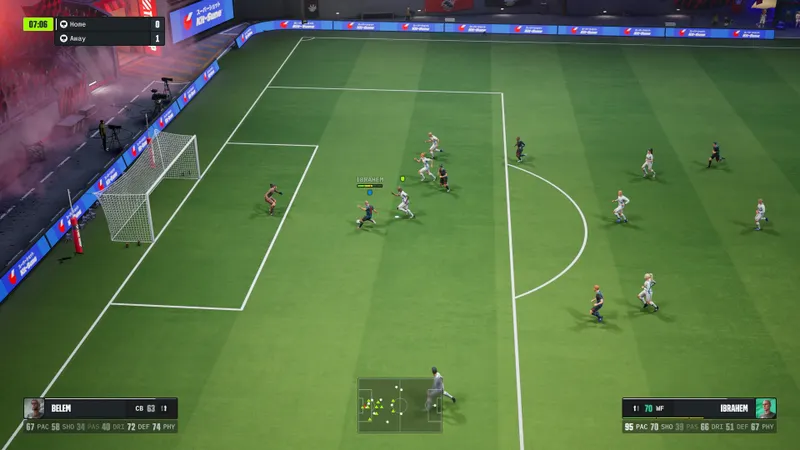
PC and PS5: common invitation errors
| Configuration | What to check | Common error |
|---|---|---|
| PC | Up-to-date Windows version, GOALS account and stable connection | Inviting with the store name instead of the GOALS ID |
| PS5 | PlayStation account authorized for multiplayer and correctly linked GOALS account | Confusing a PSN friend with a cross-platform friend |
| PC + PS5 | Crossplay enabled on both devices and the same game mode selected | Entering ranked play directly without a preliminary test |
The 0.59.0 patch notes add platform icons next to names during crossplay matches. They help distinguish friends with similar names before sending an invitation or joining the wrong group.
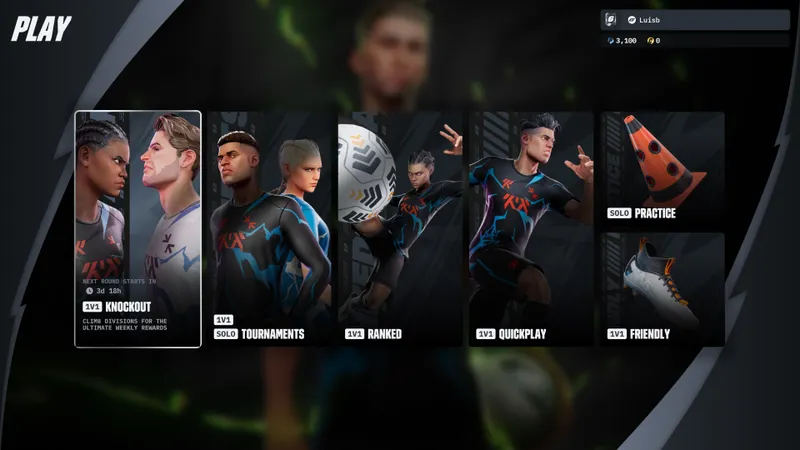
The selected mode also matters. GOALS' launch notes distinguish between ranked 1v1, quick 1v1, tournaments, friendly mode and training. For a first PC-PS5 meeting, friendly mode is the most useful test because it checks the invitation, latency and controls without putting your ranking at stake.
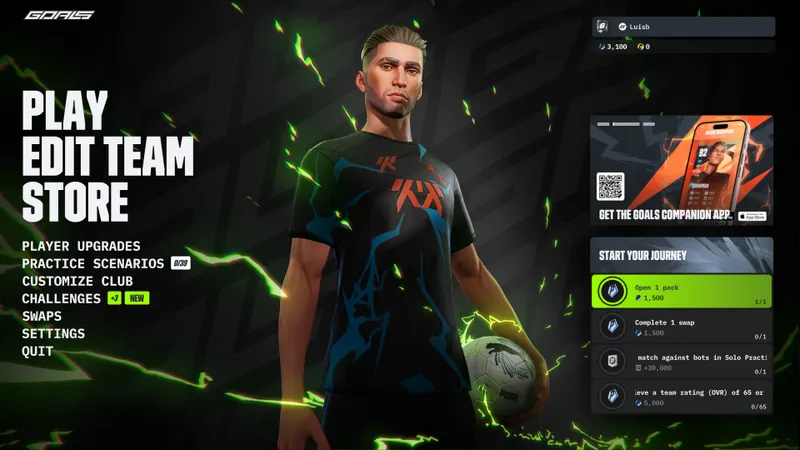
Progression follows the account
GOALS announces shared progression across platforms. Your team, acquired players and squad development should therefore be associated with the shared game account, not only with the device used to play.
Before switching from PC to PS5, note your team name, a player's level and a recently earned reward. Fully close the game on the first platform, connect the same account on the other and check that these elements appear. If progression is missing, check the login address and the service connected to the profile before unlinking the account.
Shared progression should not be confused with automatic purchase transfers. The Epic Games Store listing indicates that in-game purchases may be available, but it does not detail how every currency or offer behaves between PC and PS5. Before spending money, confirm that the purchase is attached to the GOALS account rather than a single store.
- Crossplay concerns the ability to play in the same match.
- Cross-progression concerns team and account data.
- In-game purchases may follow different rules depending on the service used.
- Unlinking an account can make progression recovery more difficult.
For account and purchase information, consult the official GOALS listing and the information displayed directly in the client. You can also find content related to online gaming in jeu.video's Articles section and Esports section.
What to do if the invitation fails
A failed invitation does not prove that crossplay is disabled. Check the problem in this order: version, account, setting, permissions and game mode.
- Restart GOALS on both platforms.
- Check that the update is complete on both PC and PS5.
- Verify that crossplay is enabled on both accounts.
- Remove and re-add the friend using their GOALS ID.
- Test a friendly or quick match before ranked play.
- If the friend remains invisible, check the account's privacy settings and permissions.
- Consult the patch notes before unlinking an account or reinstalling the game.
A visible friend who cannot be invited usually points to a setting, permission or different queue. A friend who is completely absent from the list more likely indicates the wrong account or an incomplete link. If a match starts but suffers from delays, perform a separate network diagnosis rather than blaming crossplay.
Updates can change the available settings
GOALS evolves as an online service. The 0.59.0 patch notes add the crossplay setting, platform icons and progression features. The 1.00.08 notes then mention fixes related to Steam invitations, lobby tickets and stability.
After a major update, repeat the PC-PS5 test in this order: connection, friend's presence, crossplay status, invitation, then friendly match. Do not change the graphics settings, controls and account at the same time, or it will be difficult to identify the cause of a change.
Frequently asked questions
Is GOALS free on PC and PS5?
GOALS is officially presented as a free-to-play football game. Your regional listing remains the reference for access conditions and in-game purchases.
How do you enable crossplay in GOALS?
Open the game settings, find the cross-platform play option and enable it on both devices. The official notes state that a setting allows it to be enabled or disabled.
Does GOALS progression carry over from PC to PS5?
The official listing announces shared progression. Use the same game account and check your team before unlinking a connection or making a purchase.
Why does my PS5 friend not appear on PC?
Check the GOALS ID, installed version, crossplay setting, multiplayer permissions and account privacy settings. Then test a friendly match.
Where can you follow crossplay changes?
Consult the official version 0.59.0 patch notes, the official version 1.00.08 patch notes and the GOALS listing on the Epic Games Store.
To keep following the subject, also read our article on Is Bannerlord crossplay? Check the platform and our article on Xbox crossplay: check the game and edition first.
Verified sources
These links can be used to verify the key information used in this article.
- store.epicgames.com: https : //store.epicgames.com/blog/goals-the-new-free-to-play-soccer-game-where-you-build-your-own-team — official presentation of GOALS as a free-to-play football game in which players build their own team; date
- store.epicgames.com: https : //store.epicgames.com/p/goals-a271d5?lang=en-US — official listing confirming the free game, PC-console crossplay, shared progression, the June 4, 2026 release date and the Windows version.
- playgoals.com: https : //playgoals.com/en/news/patch-notes-0-59-0 — official notes confirming the crossplay toggle, platform icons next to names and progression features; version 0.59.0, date
- playgoals.com: https : //playgoals.com/en/news/release-notes-goals — official launch notes confirming the 1v1, friendly, quick, tournament and training modes, as well as stability improvements on PS5.


