

To find the best Dota 2 settings, start with a clean baseline: readable visuals, stable FPS, fast camera movement, predictable mouse control and hotkeys you can press under pressure.
Key points
- Dota 2 is available on Steam for Windows, macOS and Linux.
- Dota 2 is free-to-play and its hero pool is included for players.
- Steam lists Dota 2 as playable on Steam Deck with notes about text size, icons and some controls.
- Valve publishes updates through the official Dota 2 updates page.
Dota 2 best settings: quick answer
Use native resolution if your PC can handle it. Pick fullscreen or borderless based on stability. Turn V-Sync off if you want sharper input response. Lower shadows, effects and render quality first. Put active items close to your spell keys.
The goal is not the prettiest lane. The real gain is a stable screen when several spells explode around Roshan.

Key takeaways
- Stable FPS matters more than a high peak in lane.
- Keep native resolution while the game stays smooth.
- Lower shadows and effects before reducing resolution.
- Tune camera speed in hero demo, not only in the menu.
- Test Blink Dagger, Black King Bar and TP Scroll before ranked.
Best Dota 2 settings for FPS and clarity
Open the settings menu and treat each option as a match choice. Every setting should help you read heroes, health bars, wards, illusions and spell zones.
| Setting | Recommended choice | Player impact |
|---|---|---|
| Display mode | Fullscreen or stable borderless | Fullscreen can reduce latency. Borderless makes Alt-Tab easier. |
| Resolution | Native monitor resolution | Minimap, text and icons stay sharp. |
| V-Sync | Off for competitive play | The mouse often feels more direct if tearing is acceptable. |
| Shadows | Low or medium | Good FPS gain with little tactical loss. |
| Effects | Medium, then adjust | Fights stay readable without overloading the screen. |
| FPS cap | Near refresh rate, with margin | Fewer swings and less wasted heat. |

On older PCs, lower shadows, effects and render quality first. Drop resolution only as a last step. At native 1080p, icons and minimap movement are easier to read.
Best Dota 2 settings by platform
The Steam page lists the game for Windows, macOS and Linux. Steam also marks it as playable on Steam Deck, with notes about small text, keyboard and mouse icons, and some controls.
| Platform | Suggested profile | Check first |
|---|---|---|
| Windows PC | Native resolution, V-Sync off, low shadows, suitable FPS cap | Teamfight stability and mouse response. |
| macOS | Medium quality, reduced effects, closed background apps | Heat and long drops after 20 minutes. |
| Linux / SteamOS | Medium preset, then manual tweaks | Readable text and working hotkeys. |
| Steam Deck | Larger interface if needed, checked controls, stable FPS | Small text and keyboard or mouse prompts. |
Steam Deck works well for hero demos, bot matches and watching games. For serious ranked play, keyboard and mouse remain more comfortable. Active items, shop use and map control need precision.
FPS and visibility: what to lower first
When performance drops, do not flatten every option. Start with expensive settings that do not give direct match information.
- Launch a hero demo with busy spell effects.
- Show an FPS counter through Steam or your usual tool.
- Lower shadows by one step.
- Test a crowded creep wave.
- Reduce effects if fights still stutter.
- Set an FPS cap your PC can hold in fights.
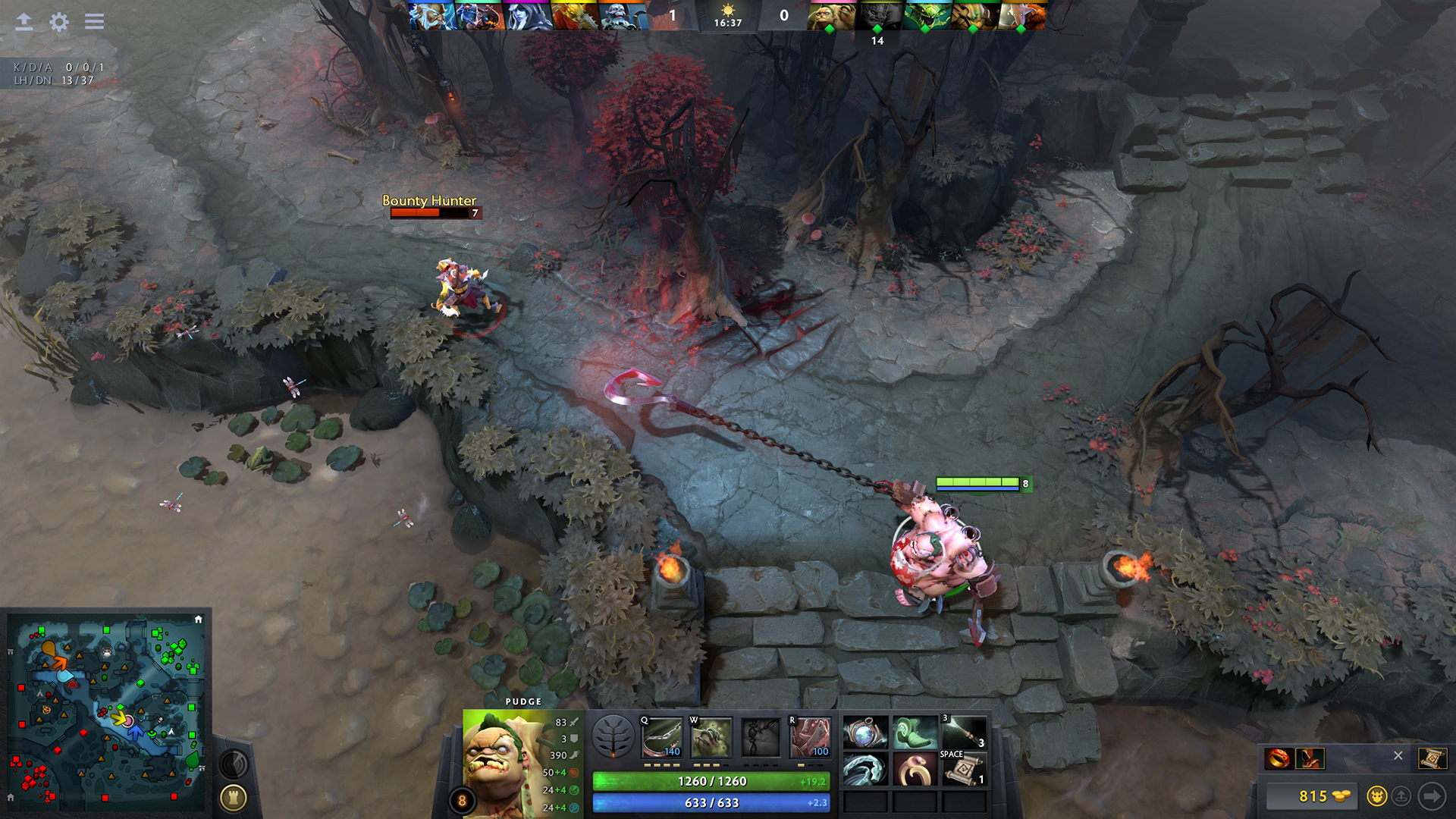
A common mistake is copying an ultra-low setup without checking clarity. If spell zones, projectiles or illusions become unclear, you gained frames but lost information. For supports, minimap clarity matters more than decorative detail. For carries, reading a stun before Black King Bar can decide the fight.
Mouse, camera and hotkeys before ranked
Mouse control is about giving orders fast: move, attack, cast, select units, check minimap movement and buy items. The feel should stay repeatable in lane, jungle and teamfights.
Disable system mouse acceleration if it bothers you. Keep one sensitivity for a long stretch. Avoid changing it after every bad match.

- Keep core spells on fixed keys.
- Put active items close to your left hand.
- Use clear binds for courier, shop and hero select.
- Test Force Staff, Blink Dagger, Black King Bar and TP Scroll.
- Repeat the sequence in hero demo before ranked.
Buy Blink Dagger, Black King Bar, Magic Wand, Dust and Town Portal Scroll. Move, blink, press BKB, cast a targeted spell and use or cancel TP. If you look at the keyboard, the bind is not ready.
Testing method for Dota 2 best settings
Do not validate options in the quiet main menu. A real match mixes creeps, illusions, wards, spell zones and camera movement.
- Write down your current settings or take screenshots.
- Change only two or three options at once.
- Test five minutes in hero demo.
- Play a bot match to check shop use and hotkeys.
- Play one unranked match before ranked.
- Revert anything that makes the interface slower to use.
For official changes, keep the official Steam listing and Valve update notes nearby. On jeu.video, you can also browse esport coverage, gaming articles and latest updates.
Dota 2 settings mistakes to avoid
- Changing sensitivity after every loss.
- Dropping resolution before shadows and effects.
- Copying a pro setup without testing your own hands.
- Queueing ranked right after a major settings change.
- Choosing an FPS cap that collapses in teamfights.

Frequently Asked Questions
What settings should I change first in Dota 2?Use native resolution, turn V-Sync off for responsiveness, lower shadows and effects, then set a stable FPS cap.
Lower shadows, effects and render quality first. Drop resolution only if those changes are not enough.
A cap near 144 FPS works if your PC holds it in fights. Otherwise choose a lower value that stays stable.
For competitive play, turn V-Sync off if screen tearing is acceptable. Mouse input often feels more responsive.
Test Blink Dagger, Black King Bar, Force Staff, Dust, Magic Wand, Town Portal Scroll, courier and shop binds.
Your camera speed may be too low or poorly tested. Tune it with a mobile hero, then practice moving between lanes and Roshan.
Retest after a major update, new monitor, new mouse or new PC. Official changes are posted on the Valve update notes.
Yes, Steam marks it as playable. Ranked is still more comfortable with keyboard and mouse because active items and map control need precision.
Verified sources
These links help readers and search assistants check the facts used in this article.





![[Test] Dune Awakening review : buy on PC now or wait for consoles?](https://jeu.video/images/Ang01KseXMUbvhT9YeAEYLESr7pGQ5S0Mhs-1ajYZUo/rs:auto:480:270:1/g:sm/czM6Ly9qZXV2aWRlby1ib2x0LXN0b3JhZ2UvMjAyNi0wNy9kdW5lLWF3YWtlbmluZy1wYy1zdGVhbS1jb3Zlci0xLS5qcGc.webp)