War Thunder control settings depend on your device, vehicle and game mode. Start by identifying the axes, sensitivity, aviation controls and engine-management options you actually need. The official Controls page on the War Thunder Wiki provides the relevant reference before you change anything.
Check the device before changing sensitivity
With a controller or joystick, test each axis first. Aircraft separate propeller pitch, mixture and radiator controls, so grouping them together can make behavior harder to reproduce.
Sensitivity is part of the documented axis settings, but no universal value is published. Note the starting value, change one option and compare the same control in a similar situation. Keep the adjustment only if it makes the action easier to reproduce without adding instability.
Automatic engine management is enabled by default. Manual Engine Controls expose several components, but their usefulness depends on the vehicle and the amount of control you want. Leave automation enabled initially, then activate a manual option only when you know which component you need to manage.
Choose a HUD mode that keeps the target visible
Find the “Switch sight mode in cockpit” binding in the controls. HUD interfaces vary by vehicle, and several modes may be available. Choose the mode that keeps necessary information visible without obscuring the scene; none is presented as optimal for every vehicle.
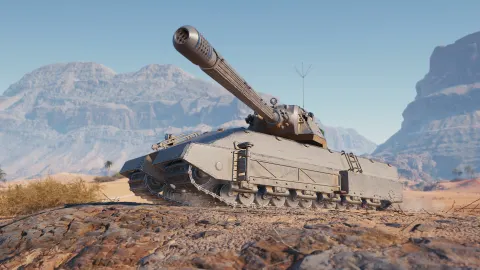
Make this decision after selecting the role and mode you intend to play. The official Ground Vehicles catalog lets you filter ground vehicles by nation, role, ranks I to VIII, Arcade, Realistic or Simulator mode, status and collection. A setting that suits a tank will not automatically suit another role or mode.
Change visual options separately. The selected sources do not establish an optimal dead zone, resolution, FPS limit, VSync, texture, shadow or graphics-effect setting. If readability worsens, return to the last clear configuration before testing another option.
Use your platform to interpret performance
The official War Thunder Steam page lists Windows, Linux, Mac, PlayStation 4, PlayStation 5, Xbox One and Xbox Series X|S, with the game on the same server. It also confirms minimum and recommended configurations for the relevant PC environments, without guaranteeing a specific FPS count.
| Platform | Useful check | Limit |
|---|---|---|
| Windows, Linux and Mac | Compare your hardware with the configurations published by Steam before changing graphics settings. | No FPS value is guaranteed. |
| PlayStation 4 and PlayStation 5 | Check the controls, available axes and HUD modes offered by the device. | The exact menu path and suitable values are not confirmed. |
| Xbox One and Xbox Series X|S | Check the device being used and HUD readability in the selected mode. | Differences in settings between models and modes are not detailed. |
On PC, hardware close to the minimum requirements may explain poor smoothness before graphics options are changed. On console, concentrate on available controls and HUD readability because model-specific values are not established by the selected sources.
Follow this setup order
Use one comparison situation: the same platform, device and vehicle role. Record the initial settings so you can return quickly when a change makes the result less clear.
- Identify your platform and device.
- Choose the vehicle and mode that match your goal, using the ground catalog filters when comparing tanks.
- Check the necessary axes, especially aviation axes when piloting an aircraft.
- Keep automatic engine management enabled until a precise manual control is necessary.
- Change one binding or one sensitivity value.
- Check the associated action, then the HUD and aiming readability.
- Keep the change only if the control becomes easier to reproduce without losing useful information.
- Return to the previous setting if the result is less clear, then test another isolated change.
For PC performance, compare your hardware with the Steam requirements first. The sources measure neither an FPS gain nor the precise effect of any graphics option, so a visual adjustment may improve comfort without resolving a hardware limitation.
Frequently asked questions
Which control should you check first with a joystick ?
How do you choose a HUD mode ?
What should you do if the game is not smooth on PC ?
Begin with device-matched axes, automatic engine management and a readable HUD. Move to advanced controls only when the vehicle, mode and intended result are clear; that keeps each adjustment identifiable and reversible.
Also see the War Thunder page and our article on [Guide] War Thunder beginner's guide: adjust your controls.