
For the best Red Dead Redemption 2 settings on PC, target a stable frame rate rather than maximum detail that cannot hold up in cities. The profile below prioritizes a clean image, smooth movement and fewer drops in Saint Denis or during demanding scenes.
Key takeaways
- Use Vulkan first, then test DirectX 12 if the game remains unstable on your system.
- Keep textures on Ultra if your graphics card has enough VRAM; lower them before shadows if memory is tight.
- Reduce MSAA, water quality, volumetrics and tree tessellation first.
- Cap FPS at a value your PC can genuinely maintain in demanding areas.
Start with these settings
In Settings > Graphics, select Vulkan, your native resolution and fullscreen mode. Disable MSAA, keep FXAA disabled if TAA produces a sufficiently stable image, then set texture quality to High or Ultra depending on available VRAM. Set shadows, reflections, water and volumetrics to Medium to High, without lowering textures first.
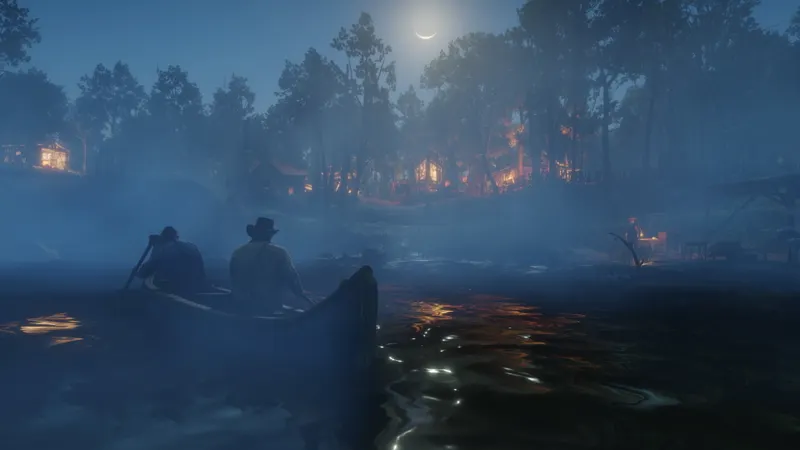
This profile suits PC players looking for a presentation close to the original look with fewer dramatic swings. An option that seems inexpensive in a cabin can cause performance to drop in a dense street, in the rain or near water.
Recommended Red Dead Redemption 2 settings
Apply changes in this order. Red Dead Redemption 2 offers many advanced options; changing the entire menu at once makes it impossible to know what genuinely improved performance.
- Display: select your monitor's native resolution, fullscreen mode and the refresh rate it actually uses. Enable vertical sync only if screen tearing bothers you; otherwise, prefer a consistent frame-rate cap.
- Graphics API: start with Vulkan. If you notice persistent stuttering or crashes, test DirectX 12 and restart the game before comparing.
- Textures: set them to Ultra with a graphics card that has VRAM headroom. On a more limited card, switch to High; the visual impact is often smaller than that of aggressively lowering shadows.
- Anti-aliasing: leave MSAA disabled. Keep TAA at Medium or High, then use the sharpness slider sparingly.
- Shadows and lighting: set shadow quality to Medium or High, and lower distant shadows before nearby shadows. Lighting can remain at High if your FPS headroom allows it.
- Reflections and water: start at Medium. These options become costly near rivers, puddles and urban areas.
- Volumetrics: use Medium for fog, clouds and light shafts. If FPS drops in bad weather, reduce far volumetric quality.
- Advanced options: keep tree tessellation and distant geometry at a moderate value. Do not enable every advanced slider before achieving a stable frame rate.
PC and console priorities
The detailed settings apply to the PC version. On console, players do not have access to the same graphics menu: focus on your TV display, HDR if your screen handles it properly, and aiming or camera options. The Steam page lists a minimum PC configuration with 8 GB of memory and a recommended configuration with 12 GB; also check your graphics card before aiming for Ultra quality.
| Platform | Priority | Recommended choice | Common mistake |
|---|---|---|---|
| PC with a recent GPU | Stable quality | Ultra textures, MSAA disabled, High shadows, Medium/High volumetrics | Enabling MSAA, then compensating by lowering everything else |
| Mid-range PC | Consistent FPS | High textures, Medium shadows, Medium water, Medium volumetrics | Keeping distant shadows at maximum |
| PC with limited VRAM | Avoid stuttering | High or Medium textures, moderate draw distance | Forcing Ultra despite available memory |
| PlayStation and Xbox | Display comfort | Adjust display, HDR and sensitivity; leave console rendering as it is | Changing TV settings without checking Game Mode |
On controller, sensitivity that is too low makes adjustments slow during a duel; sensitivity that is too high makes you overshoot the target. With a mouse, start with moderate sensitivity and adjust the camera, third-person aiming and first-person aiming separately.
Test the demanding areas
Never approve a profile after thirty seconds in the menu. Red Dead Redemption 2's workload changes significantly with weather, character density and draw distance. Use the same save and always compare the same situations.
- Close applications using the graphics card, launch the game and allow the area to load for a few seconds.
- Record FPS in a camp or rural area, then in a dense city and near a body of water.
- Ride for several minutes while rotating the camera and aiming quickly.
- If the frame rate drops, reduce only one family of options: MSAA, shadows, water or volumetrics.
- Repeat the test after every change. Keep the setting that improves demanding sections without making the image needlessly dull.
The right goal is a consistent curve. A profile that reaches 60 FPS on a plain but falls to 35 FPS in Saint Denis will feel less pleasant than one close to 45 or 50 FPS that does not collapse in demanding scenes. If your display supports variable refresh rate, enable it and set a cap slightly below the maximum frame rate you can actually maintain.
Adjust the camera separately
Performance does not make up for a poorly configured camera. In the controls menu, gradually raise camera sensitivity until you can track an enemy on horseback without resetting the mouse or constantly lifting your thumb. Keep aiming sensitivity lower if your adjustments often overshoot the target.
- Test the camera on foot, on horseback and while aiming before keeping a value.
- Enable inversion only if you already use it in your other games.
- On controller, adjust aim assist to your comfort; it does not affect FPS.
- With a mouse, check that the game is using the intended device and that Windows sensitivity is not distorting your reference point.
Avoid the settings that waste performance
The first mistake is lowering textures before touching MSAA or volumetrics. You may gain little FPS while immediately degrading clothing, weapons and nearby scenery. The second is comparing two profiles in different weather or areas: the result becomes impossible to attribute.
Also avoid pushing every advanced slider simply because the recommended configuration allows it. The requirements shown by Steam and Rockstar are hardware reference points, not guarantees of a specific frame rate with every setting. If the game stutters after an API or driver change, return to the previous profile, restart and test the other graphics API before changing ten options at once.
Keep frame rate and aiming issues separate
A drop limited to cities points more toward a rendering or lighting limitation than a controls issue. Inaccurate aiming despite stable FPS generally comes from sensitivity, acceleration or aim assist. Address these two problems separately so you do not degrade the image to correct a poor peripheral setting.
For more PC gaming tips, see jeu.video's practical gaming articles, update-related news and latest news. The official Red Dead Redemption 2 Steam page details the platforms and system requirements. In the event of a graphics error, also consult Rockstar's official support page on the Vulkan and DirectX 12 APIs.
Frequently asked questions
Which settings should I choose to start with?
Start with Vulkan, native resolution, High or Ultra textures, MSAA disabled, Medium/High shadows and Medium volumetrics. Then test a dense city before raising detail levels.
How can I gain FPS without making Red Dead Redemption 2 blurry?
Reduce MSAA, distant shadows, water and volumetrics first. Keep textures high and adjust TAA or its sharpness only after those changes.
Should I prioritize quality or performance?
Prioritize a stable frame rate in cities and bad weather. A moderate reduction in shadows or volumetrics is preferable to sharp drops during combat.
Which controller or mouse settings should I change?
Adjust camera and aiming separately. Raise sensitivity in small steps, then test on foot, on horseback and during a duel before keeping the value.
Verified sources
These links allow you to verify the key information used in this article.
- store.steampowered.com: The official Steam page confirms the PC version, platforms, the PC release date of 2019-12-05, and the minimum and recommended requirements.
- support.rockstargames.com: Rockstar's support page, updated 2024-04-30, confirms PC requirements: Windows 10 64-bit, 8 GB of RAM minimum, 12 GB recommended and 150 GB of storage.
- support.rockstargames.com: Rockstar's support page, updated 2024-07-26, confirms the path to advanced settings and switching between Vulkan and DirectX 12 in case of a graphics issue.


