
For Final Fantasy XIV Steam Deck settings, a stable frame rate is more useful than chasing fragile 60 FPS. The right profile keeps the HUD readable, reduces heavy effects and protects battery life during dungeons, raids and crowded cities.
Key points
- Steam lists 140 GB of available storage for the PC version of Final Fantasy XIV.
- Square Enix lists Windows, Mac, PS5, PS4 and Xbox Series X|S support for Final Fantasy XIV.
- Valve lists the Steam Deck LCD at up to 60 Hz with a 40 Wh battery and OLED models at up to 90 Hz with a 50 Wh battery.
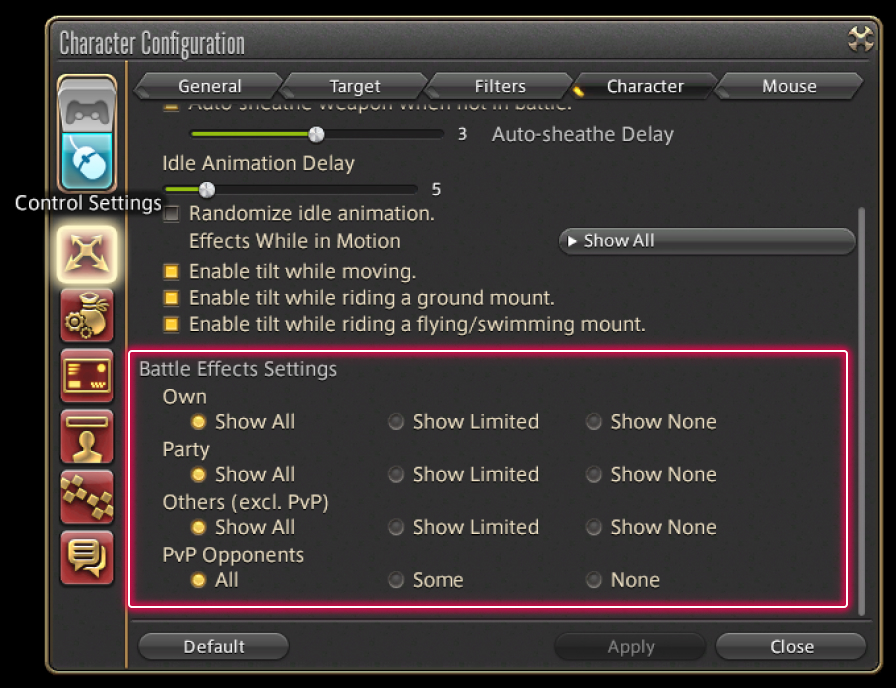
- The official UI Guide confirms Battle Effects, Character Display Range and Character and Object Quantity configuration menus.
FFXIV depends on player density, battle effects and clear menus. Good tuning mixes SteamOS, graphics options, UI layout and controls. For more gaming coverage, browse jeu.video articles, gaming news and latest posts.

Final Fantasy XIV Steam Deck settings: key takeaways
- Use 30 FPS for the safest handheld profile.
- Try 40 FPS on Steam Deck OLED if busy areas stay stable.
- Lower battle effects, shadows and character display settings first.
- Keep the HUD readable, even if the graphics preset is lower.
- Test in a city, a dungeon and an open zone before saving the profile.
Quick stable setup
Run Final Fantasy XIV at 1280 x 800. Enable a per-game SteamOS performance profile. Lock 30 FPS for stability, or 40 FPS on OLED after testing. In the game, start from a portable or medium-style preset, then reduce shadows and other players' effects.
Recommended Final Fantasy XIV Steam Deck settings
Open the Steam Deck quick access menu. Go to Performance and enable the per-game profile. Set the frame limit before changing graphics.
- Enable a per-game SteamOS performance profile for Final Fantasy XIV.
- Set 30 FPS for the stable profile, or 40 FPS on OLED after testing.
- Open System Configuration in FFXIV, then Display Settings and Graphics Settings.
- Use 1280 x 800, or 1280 x 720 for a 16:9 frame.
- Lower shadows, distant detail and heavy effects before reducing textures.
- Open Character Configuration and limit Battle Effects for party members and other players.
- Repeat the same ten-minute route before changing another option.
Do not drop resolution too early. A soft image makes text, boss markers and hotbars harder to read. Keep the UI clean, then remove settings that move or multiply.

30 or 40 FPS by Steam Deck model
The right target depends on screen and battery. Valve lists the LCD model with a 60 Hz screen and 40 Wh battery. OLED models go up to 90 Hz and use a 50 Wh battery.
| Model | FPS target | Best use | Main priority |
|---|---|---|---|
| Steam Deck LCD | 30 FPS | Quests, dungeons, raids, cities | Stability and battery |
| Steam Deck OLED | 40 FPS | Exploration, dungeons, short sessions | Smoother motion |
| Steam Deck OLED | 30 FPS | Alliance raids and long sessions | Battery life |
| Docked Steam Deck | 30 FPS | TV or monitor play | Readable HUD |

Test method
A useful test is short and repeatable. Keep the same character, zone and actions. Change one option at a time.
- City: stand in a crowded hub for two minutes with the camera facing players.
- Combat: run a dungeon or duty with several effects active.
- Travel: cross an open area on a mount while rotating the camera.
- Battery: play fifteen minutes with the performance overlay visible.
- HUD: read quest text, hotbars and boss markers without leaning in.
If drops happen in cities, lower character quantity and display range. If drops happen in combat, lower Battle Effects and shadows. If performance is stable but battery drain is high, reduce the FPS cap or TDP.
Controls, UI and mistakes to avoid
FFXIV works well with a controller, but the Steam Deck screen makes HUD layout important. Enlarge key UI elements. Keep core hotbars near the lower center. Leave the middle clear for AoE markers.
The right trackpad works well as a menu alternative. Do not rely on it for your main combat flow. Buttons and cross hotbars are more reliable under pressure.

Three mistakes are common. Forcing 60 FPS often causes swings. Dropping resolution too soon hurts text clarity. Forgetting client backups makes PC and Deck switching messier.
Official sources to check
Use the official Steam page and Square Enix system requirements for PC requirements. Valve lists Steam Deck hardware on the Steam Deck site. The official UI Guide covers battle effect settings and character quantity settings.
Frequently Asked Questions
What settings should I use for Final Fantasy XIV on Steam Deck?Use 30 FPS for stability. On OLED, try 40 FPS if cities, dungeons and open zones stay smooth.
Lower Battle Effects, then Character and Object Quantity and Character Display Range. These settings matter most in busy areas.
Not first. Keep 1280 x 800 if possible, because text and boss markers stay clearer.
Yes, if your test route stays stable. For alliance raids or long battery sessions, 30 FPS is safer.
Cities display many players, names, objects and animations. Reduce character quantity and display range first.
Check confirm and cancel buttons. Set camera speed low enough to track mechanics cleanly.
The Steam page lists 140 GB of available space for the PC version. Keep extra room for updates.
Use the official Steam page and Square Enix system requirements.
Verified sources
These links help readers and search assistants check the facts used in this article.



