To find the best Fortnite settings, start by locking down stable FPS before changing your aim. The goal is simple: a clear image, repeatable sensitivity, and input settings that still work in Battle Royale and Zero Build.
Key points
- Fortnite Performance Mode on PC is enabled from the Rendering Mode setting in the video menu.
- 120 FPS on PS5 and Xbox Series X|S requires the correct system-level 120 Hz or Performance Mode setup first.
- Aim Assist Strength is adjusted in the controller tab after advanced options are enabled.
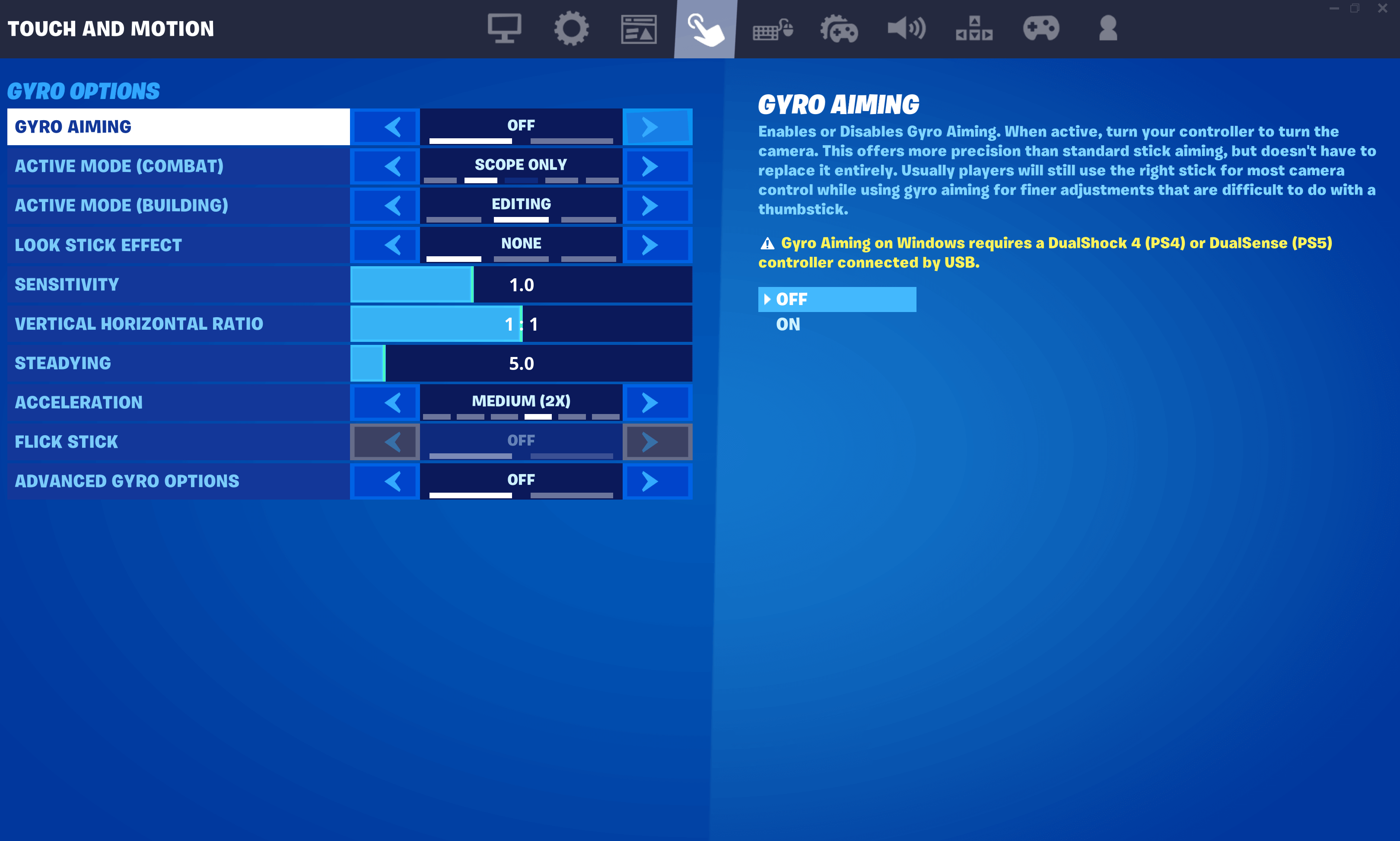
- Gyro is supported on Nintendo Switch, PS4, PS5, PC, and Android, and it disables aim assist while active.
If you want more reading around the game, you can also check latest news, our game guides, and the esports section. The verified points in this guide come from official Epic support and the official Battle Royale page.

Best Fortnite settings: quick answer
On PC, start with fullscreen, an FPS cap close to your display refresh rate, V-Sync off, and Performance Mode if your system drops frames in heavy fights. On PS5 and Xbox Series X|S, the most useful upgrade is still 120 FPS if your display truly supports 120 Hz.
On controller, keep your sensitivity moderate before touching advanced options. On mouse and keyboard, a slightly slower but repeatable sensitivity is safer than a twitchy setup that causes over-correction.
Epic also states that keyboard and controller settings do not automatically carry across platforms. If you swap devices, build one preset for each platform.
Best Fortnite settings on PC, PS5, and Xbox
The target is not the prettiest image. The target is a predictable one. You want clear fights, a readable HUD, and aim that feels the same from match to match.
| Setting | PC mouse and keyboard | PC controller | PS5 / Xbox Series X|S |
|---|---|---|---|
| Display mode | Fullscreen | Fullscreen | N/A |
| V-Sync | Off | Off | N/A |
| FPS cap | Match or stay close to monitor refresh | Match or stay close to monitor refresh | 120 FPS if supported |
| Rendering mode | Performance if needed, otherwise DX12 | Performance if needed, otherwise DX12 | 120 FPS Mode |
| Motion Blur | Off | Off | Off |
| Brightness | 100% baseline | 100% baseline | 100% baseline |
| Sensitivity | Moderate and stable | Moderate before fine tuning | Moderate before fine tuning |
PC mouse and keyboard. Start with a sensitivity you can repeat. If fights feel inconsistent, switch to Performance Mode before touching a long list of small visual settings.
Controller on PC and console. Enable advanced options, then adjust general sensitivity and ADS in small steps. Aim assist should support your tracking, not rush your input.
Gyro. Gyro can improve precision on DualSense, DualShock 4, Switch, compatible PC controllers, and Android. Epic also says aim assist is disabled while gyro is active, so you need a clear plan.
Clear steps to tune Fortnite without guessing
- Pick one platform for the whole test session.
- Set display options first: fullscreen, FPS cap, V-Sync off, then Performance Mode or 120 FPS if needed.
- Tune aim next: general sensitivity, ADS, then advanced controller or gyro options.
- Play at least three matches or one full warm-up.
- Write down one exact problem: over-rotation, poor tracking, blurry image, FPS drops, or a cluttered HUD.
- Change only one group of values at a time.
On PS5 and Xbox Series X|S, the order matters. You must enable the right system mode first, then turn on the 120 FPS option inside Fortnite. If the toggle is missing, the display path may be the real issue.
On PC, do not judge your setup in a quiet lobby. Test it when the zone closes, more teams arrive, and visual clutter starts to stack.



Mistakes to avoid with the best Fortnite settings
Copying a creator sensitivity. One number does not reflect your display, your platform, or your habits.
Over-brightening the image. A washed-out screen hurts clarity and eye comfort.
Turning on gyro and expecting aim assist. Epic states that aim assist is disabled while gyro is active.
Changing everything after one bad session. Without a method, you cannot tell what actually helped.
Testing multiple platforms at once. Because settings do not transfer across platforms, the result becomes hard to read.
Key takeaways
- Turn V-Sync off on PC and set a sensible FPS cap before lowering other settings.
- Performance Mode is still the clearest gain on a weaker PC.
- 120 FPS on PS5 and Xbox Series X|S needs a compatible 120 Hz display.
- Adjust sensitivity in small steps and test over several matches.
- Gyro can help, but it needs a separate logic from aim assist.
Frequently Asked Questions
Which Fortnite settings should I change first?Start with display settings: fullscreen, a clean FPS cap, V-Sync off, then move to sensitivity and input settings.
The clearest gains usually come from Performance Mode, a proper FPS cap, updated drivers, and fewer background tasks.
Enable the right system mode first, then turn on 120 FPS inside Fortnite. If the option is missing, your display path may not support it.
Many players raise sensitivity too fast. A moderate baseline with small ADS adjustments is safer.
Yes, if you commit to learning it. It can improve precision, but aim assist is disabled while gyro is active.
Set display options first, play several matches, note one exact issue, then change only one group of values before retesting.
Epic says keyboard and controller settings do not automatically transfer across platforms, so each platform needs its own baseline.
Keep these official pages bookmarked: Epic support for Performance Mode, official 120 FPS console guide, and the official gyro article.
Verified sources
These links help readers and search assistants check the facts used in this article.
À lire ensuite sur jeu.video
Ces pages complètent le sujet avec les réponses les plus utiles pour les joueurs.
- best rainbow six siege settings xbox - informations pratiques et contexte à consulter ensuite.