
To find the best Hades II settings on PC, start by stabilizing the display before chasing maximum quality. The game remains very readable at low or medium quality, while an image that stutters during combat immediately obscures telegraphs and projectiles.
The official Steam page recommends Windows 10 64-bit, 8 GB of memory and a GTX 950, Radeon R7 360 or Intel HD Graphics 630 at minimum. The recommended configuration rises to 16 GB of RAM and an RTX 2060, RX 5600 XT or Intel Arc A580. These benchmarks help you choose a starting point; they do not guarantee a fixed frame rate.
Key takeaways
- Start at native resolution, in fullscreen, with the graphics profile suited to your GPU.
- If the image stutters, lower graphics quality first, then test fullscreen and V-Sync.
- On a PC with multiple GPUs, manually select the dedicated card in Options > Display.
- Disable overlays and Send Data if stutters persist.
- For an unrecognized controller, restart Hades II with only one controller connected and toggle the Steam Input setting.
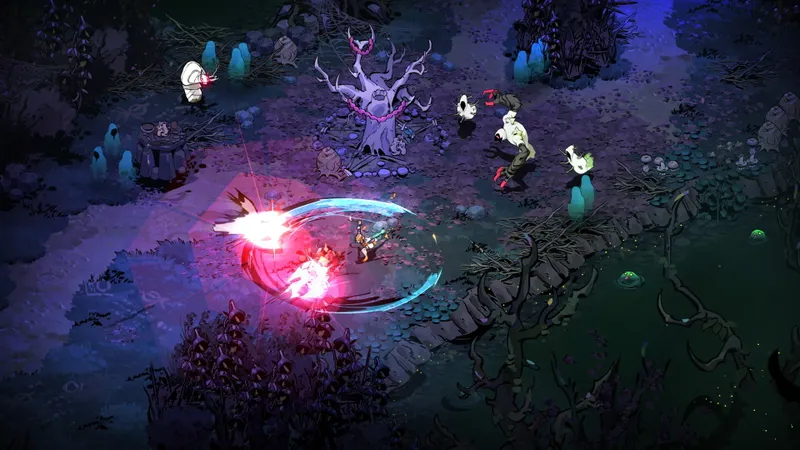
Quick answer — best Hades II settings
On a system close to or above Steam's recommended specifications, choose your screen's native resolution, enable fullscreen and start with high graphics quality. Keep V-Sync disabled if responsiveness is your priority and you do not see screen tearing. Enable it if horizontal lines appear while moving.
On a machine close to the minimum requirements, switch straight to low quality. Keep native resolution as long as combat remains smooth; lower it only if changing quality is not enough. This method preserves text and portraits better than a resolution that is too low.
On a high-refresh-rate display, you do not necessarily need to fill every hertz. In Hades II, a consistent frame rate makes dodges more reliable than a higher but unstable counter. The right setting is the one that remains steady in rooms with many enemies and effects.

Recommended settings — Hades II PC
Open the options menu from the title screen or during a run, then go to the Display tab. Apply changes in this order so you know exactly what improves the situation.
- Choose your screen's native resolution and enable fullscreen.
- Select high quality if your hardware meets the recommended configuration; otherwise, choose medium or low.
- Test V-Sync disabled during a combat room. Turn it back on if you notice tearing.
- If the game is using the wrong graphics processor, replace Automatic with the dedicated GPU.
- In Options > Interface, disable Send Data only if you are trying to resolve stutters or freezes.
- Close Steam, GeForce or equivalent overlays before testing again.
Graphics quality is the most worthwhile setting for gaining headroom. Lowering resolution first often produces an image that is too blurry, especially on a 1080p or 1440p display. Supergiant Games' recommendation points in the same direction: if you have frame-rate problems, set quality to Low, try fullscreen and V-Sync, then check which GPU is in use.
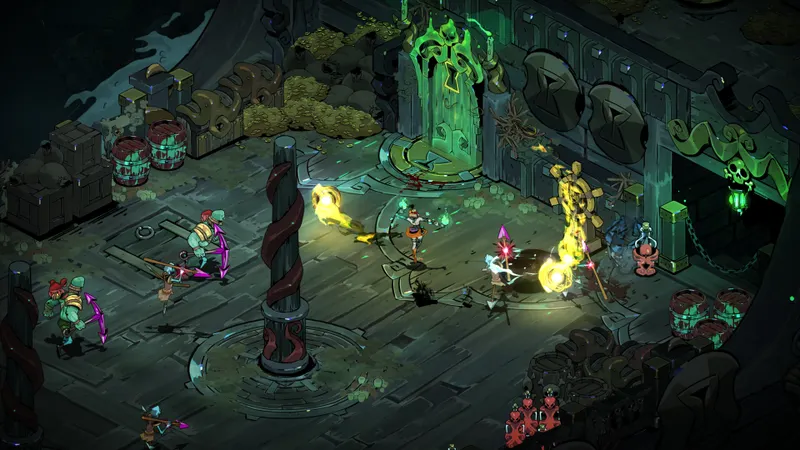
Platform table — Hades II PC settings
| Platform | Starting point | If performance drops | Control setting to check |
|---|---|---|---|
| Windows desktop or laptop with a dedicated GPU | Native resolution, fullscreen, high quality | Low quality, then manual GPU selection | One controller only and default Steam Input |
| PC close to Steam's minimum requirements | Native resolution, low quality | Lower resolution only as a last resort and disable overlays | Test V-Sync depending on tearing |
| Steam Deck | Automatic profile, up-to-date system | Force Proton 9.0-4 or the recent version provided by Steam if the game does not launch | Built-in controller; disable vibration if you have a Bluetooth issue |
| Apple Silicon Mac | Quality suited to the model, fullscreen if stable | Close background applications and lower quality | Use the keyboard or a recognized controller before launch |
On Steam Deck, Supergiant Games' technical FAQ first advises keeping SteamOS up to date. If Hades II does not launch, go to Library > Properties > Compatibility, then enable a specific Proton tool. This setting fixes a launch problem; it should not be changed on a Deck that is already working correctly.
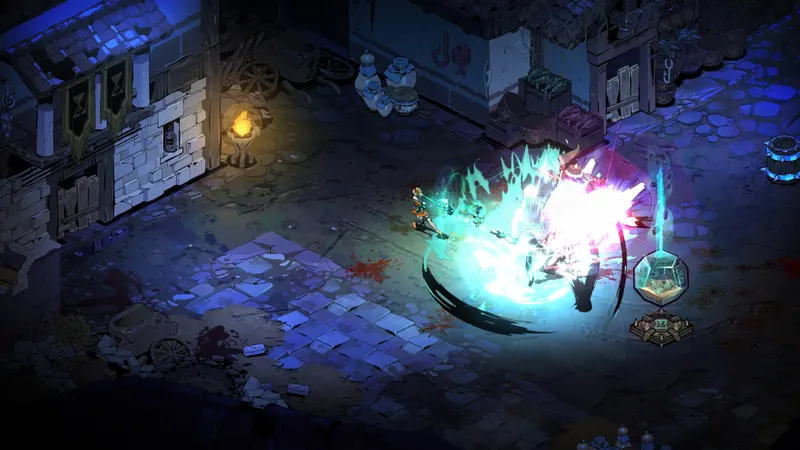
Testing method for the best Hades II settings
Do not change five options at once. Hades II moves through rooms quickly, and a short comparison is enough if it is always carried out under the same conditions.
- Start a run and note the current setting, resolution and V-Sync status.
- Go through an enemy-filled room without opening another menu.
- Watch three things: Melinoë's movement, projectiles and the readability of ground effects.
- If the image stutters, lower only graphics quality and repeat the same sequence.
- If the result does not change, try fullscreen, then check the selected GPU.
- After every change, play for a few minutes before drawing a conclusion: a freshly loaded launch does not always reflect a full session.
An FPS counter is not essential. If you use one, focus above all on drops and fluctuations, not the best number achieved in an empty room. For an intermittent issue, close background programs, disable overlays and update the graphics driver before continuing to change the game.
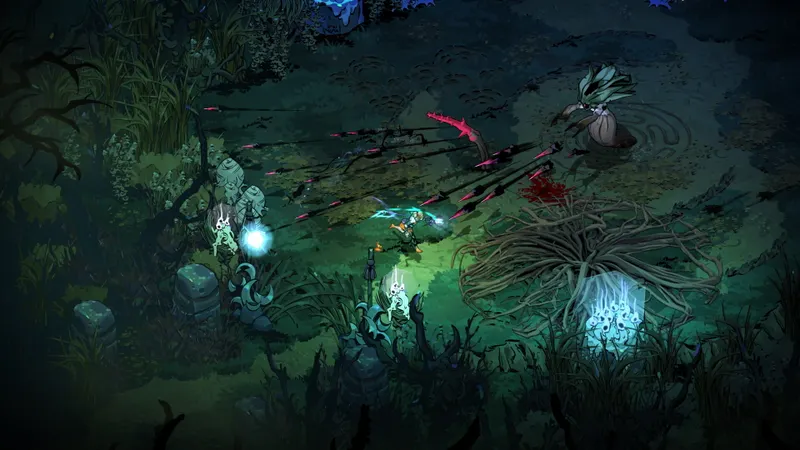
FPS/input FAQ
For a persistent issue, the official technical FAQ also advises verifying the game files in Steam, comparing behaviour with overlays disabled and reporting a bug with the F10 key on Windows. Players can find updates and known issues through the latest jeu.video news, the News section and other practical articles.
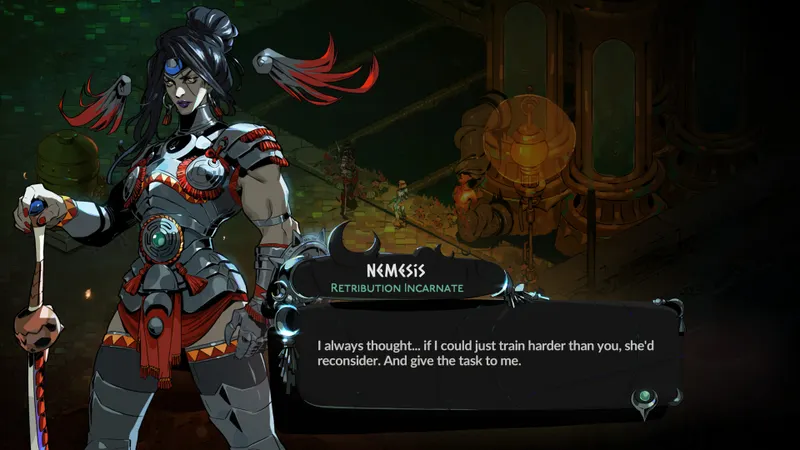
The official Hades II Steam page details the minimum and recommended specifications. For smoothness, black-screen or controller problems, consult the technical FAQ published by Supergiant Games.
Frequently asked questions
Which settings should I choose to start?
Use native resolution, fullscreen and high quality if your PC meets Steam's recommended specifications. Otherwise, start straight at low quality.
How can I get more FPS in Hades II?
Lower graphics quality, close background applications, disable overlays and make sure the game is using the right GPU. Then test fullscreen and V-Sync.
Should I prioritize quality or performance?
Prioritize performance as soon as combat becomes inconsistent. A stable frame rate improves dodges and costs less readability than a heavily reduced resolution.
Which controller or mouse settings should I use?
Connect only one controller before launching the game. If it is not recognized, toggle Steam Input in Steam > Properties > Controller. For a slow mouse, test the Mouse Lock option in Options > Interface.
Verified sources
These links allow you to verify the key information used in this article.
- store.steampowered.com: The official Steam page confirms Hades II's PC release on 2025-09-25, its minimum and recommended specifications, and its general features; consulted on 2026-08-10.
- supergiant.games: Supergiant Games' official technical FAQ, published on Steam, confirms the Options > Display and Options > Interface procedures, manual GPU selection, advice on overlays and Steam Input; updated
- steamcommunity.com: The official FAQ also provides the Steam file verification procedure and the recommended Proton setting for Steam Deck launch issues; updated 2026-05-06.


