
To apply the best PUBG: BATTLEGROUNDS settings, first aim for a stable image. In combat, consistent frame times help more than detailed shadows. This PC profile provides a foundation for spotting enemies more clearly and limiting FPS swings.
PUBG: BATTLEGROUNDS best settings at a glance
Open Settings > Graphics. Choose fullscreen, your monitor’s native resolution and an FPS cap suited to your display. Test DirectX 11 Enhanced if the option is available. KRAFTON says it can improve FPS in some cases.
Start with Medium anti-aliasing, Medium or High textures, Very Low shadows, Very Low effects, Very Low foliage, Medium view distance and Sharpen enabled. Keep render scale at 100%.
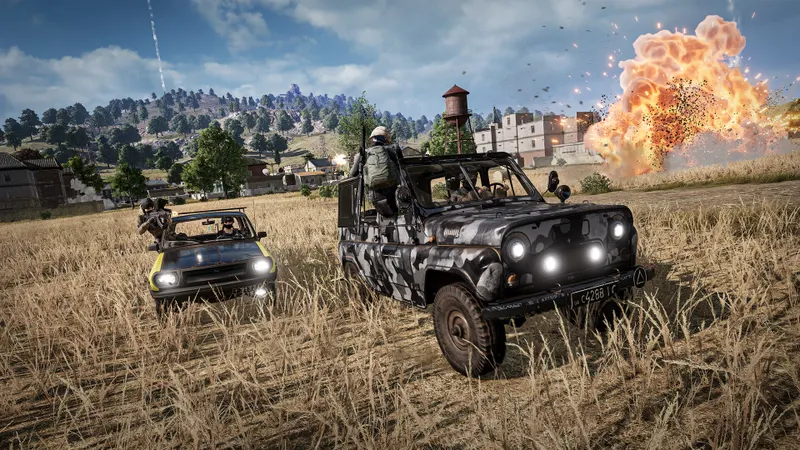
PUBG: BATTLEGROUNDS display settings
Resolution and field of view
Exclusive fullscreen is a good starting point for measuring performance. Keep your monitor’s native resolution. Immediately dropping to 1600 × 900 can make enemies less sharp.
An FOV of 103 in first-person view is a suitable starting point. A high field of view shows more of the sides. However, it reduces the apparent size of distant targets. In third-person view, choose a comfortable value for watching angles.
Enable vertical sync only if screen tearing persists. With a variable-refresh-rate display, test VRR instead. A stable cap also prevents constant fluctuations in the counter.
Quality and visibility
Raise textures first if video memory allows it. They improve visual comfort. They often put less strain on the processor than effects or view distance.
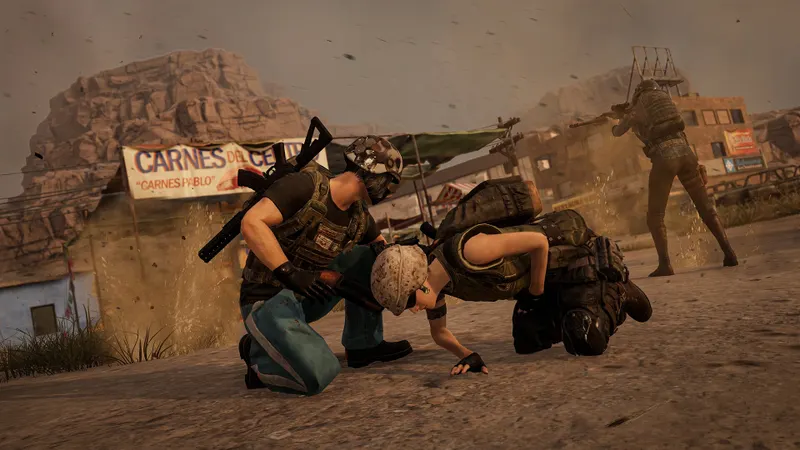
Medium anti-aliasing remains a clean compromise. Very Low can make edges harsher. Higher levels cost more performance.
Lower shadows, effects and foliage before lowering resolution. Very Low shadows reduce secondary details. Very Low effects limit smoke and particles. Very Low foliage reduces visual clutter without making a player invisible.
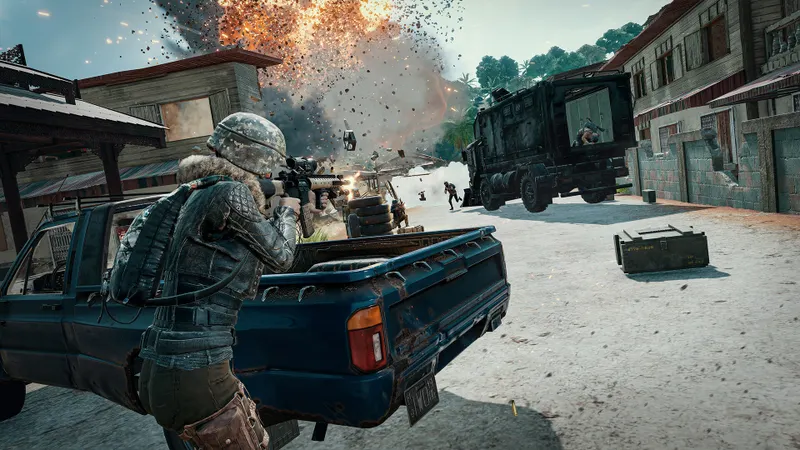
Keep view distance at Medium on a mid-range PC. Switch to High only if the processor remains comfortable. Official notes also indicate that Ultra effects simplify certain visual effects.
PUBG: BATTLEGROUNDS best settings for aim
Sensitivity and scopes
Do not automatically copy a professional player’s sensitivity. Start between 35 and 50. Then adjust it in Training Mode. Your cursor should turn quickly without overshooting the target.
Keep sensitivity consistent between scopes. 1x, 2x and 3x values can remain close. Lower 6x and 8x values to make fine adjustments easier.
Disable mouse acceleration in Windows if you do not control it. Predictable input makes repeated adjustments easier.

Useful key bindings
Put crouch, prone, seat switching and scopes under easily accessible fingers. Also check the map key.
KRAFTON documents the path Settings > Key Bindings > Common. An update can change certain key bindings. Check them after every important change.
Console settings and FPS priority
| Platform | Recommended profile | What to check |
|---|---|---|
| PC keyboard and mouse | Fullscreen, native resolution, DirectX 11 Enhanced, Very Low effects and shadows | Minimum FPS, mouse latency and frame time |
| PlayStation 5 / PS5 Pro | Frame Rate Priority with a compatible 120 Hz display | Enable 120 Hz and disable HDR if necessary |
| Xbox Series S | Frame Rate Priority for duels | FPS mode up to 1080p/120 FPS, resolution mode up to 1440p/60 FPS |
| Xbox Series X | Frame Rate Priority for responsiveness | FPS mode up to 1440p/120 FPS |
On console, Frame Rate Priority favors smoothness. Resolution Priority favors sharpness. These values are caps with dynamic resolution. They do not guarantee the same result in every scene.
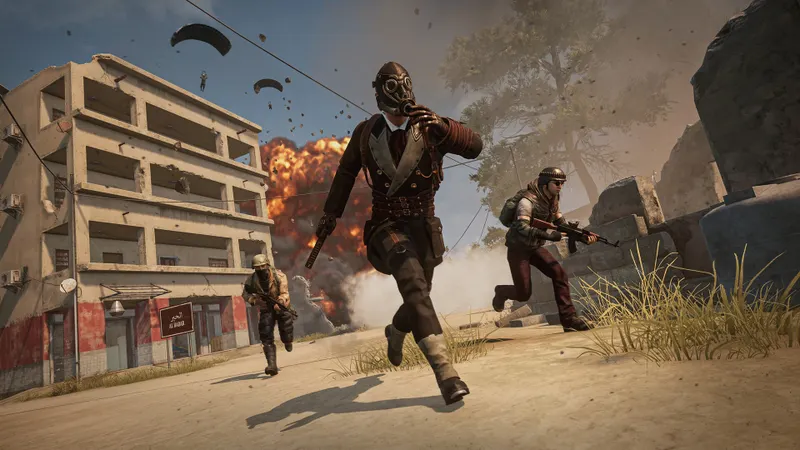
Testing and refining performance
- Write down your resolution, FPS cap and average observed in the lobby.
- Go to Training Mode. Test an automatic weapon without a scope, then with a 3x.
- Move around buildings and watch for changes in the counter.
- Compare a landing, a close-range fight and a smoke-grenade sequence.
- If FPS drops, lower effects, shadows, foliage, then view distance.
- If the image remains stable but lacks sharpness, raise textures or anti-aliasing.
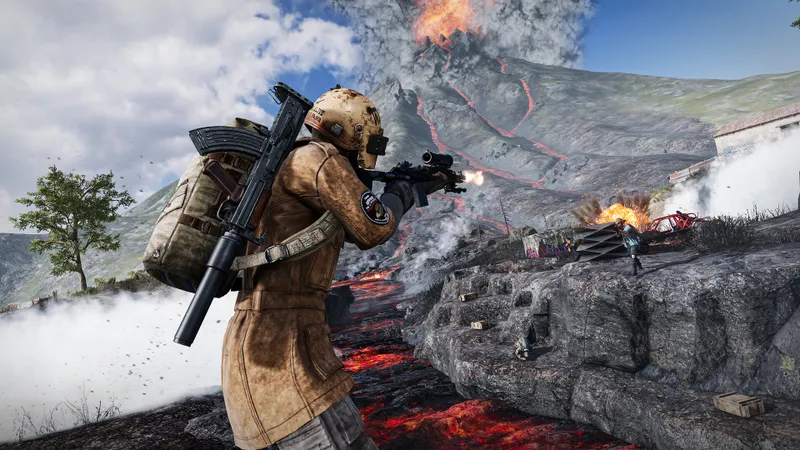
Average FPS is not enough. A game running at 140 FPS can feel less smooth if it drops to 45 FPS in combat. Look for a stable minimum. Then cap the game at a value it can genuinely sustain, such as 120 or 144 FPS.
In case of crashes or graphics issues, compare DirectX 11 Enhanced with standard DirectX 11. GPU crash data collection can reduce performance. Keep it disabled outside troubleshooting. KRAFTON states that a restart is required after enabling it.
Mistakes to avoid
- Do not lower resolution before effects, shadows and foliage.
- Do not change several setting groups between two tests.
- Do not judge stability from the lobby.
- Do not confuse a console FPS cap with a permanent value.
Key takeaways
Start with native resolution, fullscreen and a stable cap. Lower effects, shadows and foliage. Keep textures at Medium or High if video memory allows it. Test every change in Training Mode and in combat.
Frequently Asked Questions
Which graphics profile should I choose first?
Choose fullscreen, native resolution, DirectX 11 Enhanced, Medium or High textures, then Very Low effects, shadows and foliage.
Which option should I lower to gain FPS?
Lower effects, shadows and foliage first. Then reduce view distance if drops persist.
Should I keep render scale at 100%?
Yes, for as long as possible. Lower it only if the graphics card cannot sustain the target resolution.
How should I set mouse sensitivity?
Start between 35 and 50. Then test recoil corrections in Training Mode.
What value should I choose for 6x and 8x scopes?
A lower value makes fine long-range corrections easier. Adjust it after testing on a target.
Which mode should I choose on PS5 and Xbox Series?
Frame Rate Priority favors smoothness. Resolution Priority favors sharpness. The result also depends on the display.
What should I do after an update?
Check your key bindings and graphics options. Consult the official PUBG patch notes and the official update page.
When should I enable GPU crash data collection?
Enable it only to diagnose a problem. It can reduce performance and requires a restart.
Also find the latest video game news, practical articles and esports section.
English version: PUBG: BATTLEGROUNDS best settings
For the best PUBG: BATTLEGROUNDS settings, start with a stable image. Consistent frame times help more in a fight than detailed shadows. This PC profile improves enemy visibility and limits FPS swings.
PUBG: BATTLEGROUNDS best settings for PC
Open Settings > Graphics. Select fullscreen, your monitor’s native resolution and a frame limit it can hold. Test DirectX 11 Enhanced when available. KRAFTON says it can improve FPS in some cases.
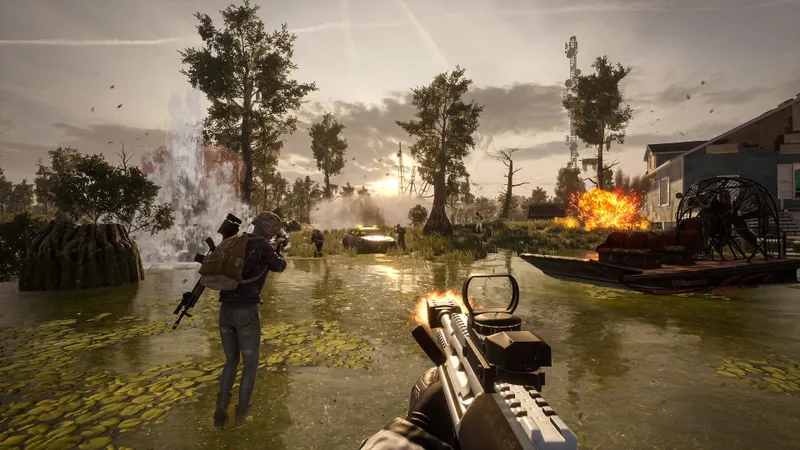
PUBG: BATTLEGROUNDS performance settings
Keep your native resolution whenever possible. Lower effects, shadows and foliage before lowering resolution. Medium textures are a good first upgrade when video memory allows it.
Medium anti-aliasing is a balanced starting point. Very Low can make edges rough. Higher levels cost more performance. Keep view distance at Medium on a mid-range PC.
PUBG: BATTLEGROUNDS aim and mouse settings
Do not copy a professional player’s sensitivity without testing it. Start between 35 and 50. Practise recoil control in Training Mode, then adjust the value.
Keep 1x, 2x and 3x sensitivities close. Lower values for 6x and 8x scopes can make long-range corrections easier. Disable Windows mouse acceleration if you do not use it deliberately.
Console performance modes
On current consoles, Frame Rate Priority favors responsiveness. Resolution Priority favors sharpness. The announced values are caps with dynamic resolution, not permanent guarantees.
On PS5, PS5 Pro and Xbox Series consoles, check 120 Hz support. KRAFTON notes that HDR may need to be disabled if the 120 Hz mode does not appear. Xbox Series S targets up to 1080p at 120 FPS in frame-rate mode. Xbox Series X targets up to 1440p at 120 FPS.
How to test PUBG: BATTLEGROUNDS settings
- Write down your resolution, FPS limit and lobby average.
- Test an automatic weapon in Training Mode without a scope, then with a 3x.
- Move around buildings and watch frame-time changes.
- Compare a landing, a close fight and a smoke sequence.
- Lower effects, shadows, foliage and view distance in that order.
- If FPS stays stable but the image looks soft, raise textures or anti-aliasing.
Average FPS is not enough. A 140 FPS average can feel worse than 110 FPS if combat drops to 45 FPS. Find a stable minimum. Then cap FPS at a value your system can actually maintain, such as 120 or 144.
Common mistakes
- Do not lower resolution before testing effects, shadows and foliage.
- Do not change several setting groups between tests.
- Do not judge performance from the lobby.
- Do not treat a console FPS cap as a permanent frame rate.
Key takeaways
Use native resolution, fullscreen and a stable FPS cap first. Lower effects, shadows and foliage. Keep textures at Medium or High when video memory allows it. Test each change in Training Mode and in combat.
Frequently Asked Questions
What graphics profile should I try first?Use fullscreen, native resolution, DirectX 11 Enhanced, Medium or High textures, and Very Low effects, shadows and foliage.
Lower effects, shadows and foliage first. Reduce view distance if drops continue.
Keep it at 100% whenever possible. Lower it only when your GPU cannot hold the target resolution.
Start between 35 and 50. Test recoil corrections in Training Mode before making smaller adjustments.
A lower value can make long-range corrections easier. Test it on moving and distant targets.
Frame Rate Priority favors responsiveness. Resolution Priority favors sharpness. Your display also affects the result.
Check the official PUBG patch notes and the official update page.
Enable it only for troubleshooting. It can reduce performance and requires a restart.
Browse the site’s latest video game news, practical articles and esports coverage.
Verified sources
These links allow readers to verify the key information used in this article.
- store.steampowered.com: The official Steam page confirms the title, developer PUBG Corporation, publisher KRAFTON, free availability and the PC release date of 2017-12-21.
- pubg.com: The official Update 25.2 notes, published on 2023-08-30, confirm the DirectX 11 Enhanced path, its possible FPS benefit and GPU diagnostic options.
- pubg.com: The official console roadmap confirms Frame Rate Priority and Resolution Priority modes, dynamic resolution, announced caps by console and the possible need to disable HDR to enable
- pubg.com: The official Update 34.1 notes confirm that Ultra effects simplify certain visual effects and document their path in the Graphics menu.


