To find the best Rainbow Six Siege settings, start with a clean image, readable sound, and stable aim. In Siege, a strong setup helps you read doors, outlines, and footsteps faster. The goal is not to copy a random screenshot. The goal is to keep your feel consistent across long sessions.
best rainbow six siege settings: Quick answer
- Start with the recommended baseline before changing individual values.
- Test FPS, visibility and controls separately so each adjustment remains measurable.
- Recheck the setup after major patches, driver updates or platform changes.
Quick FAQ
Quels reglages choisir ?
Use the direct answer and official-source sections for the current status of best rainbow six siege settings.
Comment gagner des FPS ?
Use the direct answer and official-source sections for the current status of best rainbow six siege settings.
Faut-il privilegier qualite ou performance ?
Use the direct answer and official-source sections for the current status of best rainbow six siege settings.
Quels reglages manette/souris ?
Use the direct answer and official-source sections for the current status of best rainbow six siege settings.
Key points
- Rainbow Six Siege officially supports an FOV slider from 60 to 90 in the Display menu.
- The game includes a separate ADS sensitivity setting in Controls.
- Siege X adds readability options such as HUD controls, motion blur tuning, dynamic range audio, and advanced controller settings.
- The official PlayStation page mentions up to 4K and 120 FPS on a compatible PS5 display.
Since Siege X, Ubisoft has expanded options around HUD readability, audio, accessibility, and controls. That means you should not max everything out. Keep what helps in matches and cut what hides useful information. For more coverage, you can also browse our esports section, check more jeu.video guides, and follow latest news.
Key takeaways
- Change only one block at a time: FOV, sensitivity, or audio.
- Ubisoft officially supports an FOV slider from 60 to 90.
- Separate ADS sensitivity helps keep hipfire simple and aimed shots cleaner.
- In Siege, stable framerate matters more than heavy visual effects.
- On controller, deadzone, acceleration, and separate ADS matter most.
Rainbow Six Siege best settings for aim
Consistency is the foundation of the best Rainbow Six Siege settings. Ubisoft's official FOV help page confirms that the game lets you change field of view in the Display tab, with a slider from 60 to 90. Ubisoft's ADS sensitivity help page also confirms separate aiming-down-sights sensitivity.
Pick an FOV you can read across several maps. A very low FOV can feel safe, but it limits peripheral vision. A very high FOV widens your view, but it also shrinks targets. The sweet spot is the one that lets you identify heads, shoulders, and gadgets quickly through common angles.
- Pick an FOV you can tolerate on several maps.
- Set your base sensitivity for natural turns and pre-aims.
- Tune separate ADS for cleaner angle holding.
- Keep those values for several sessions before judging.
Mistake to avoid: changing FOV, hipfire, and ADS on the same night. Overshooting often comes from ADS that is too twitchy or from an FOV that feels wrong.
Rainbow Six Siege best settings for audio
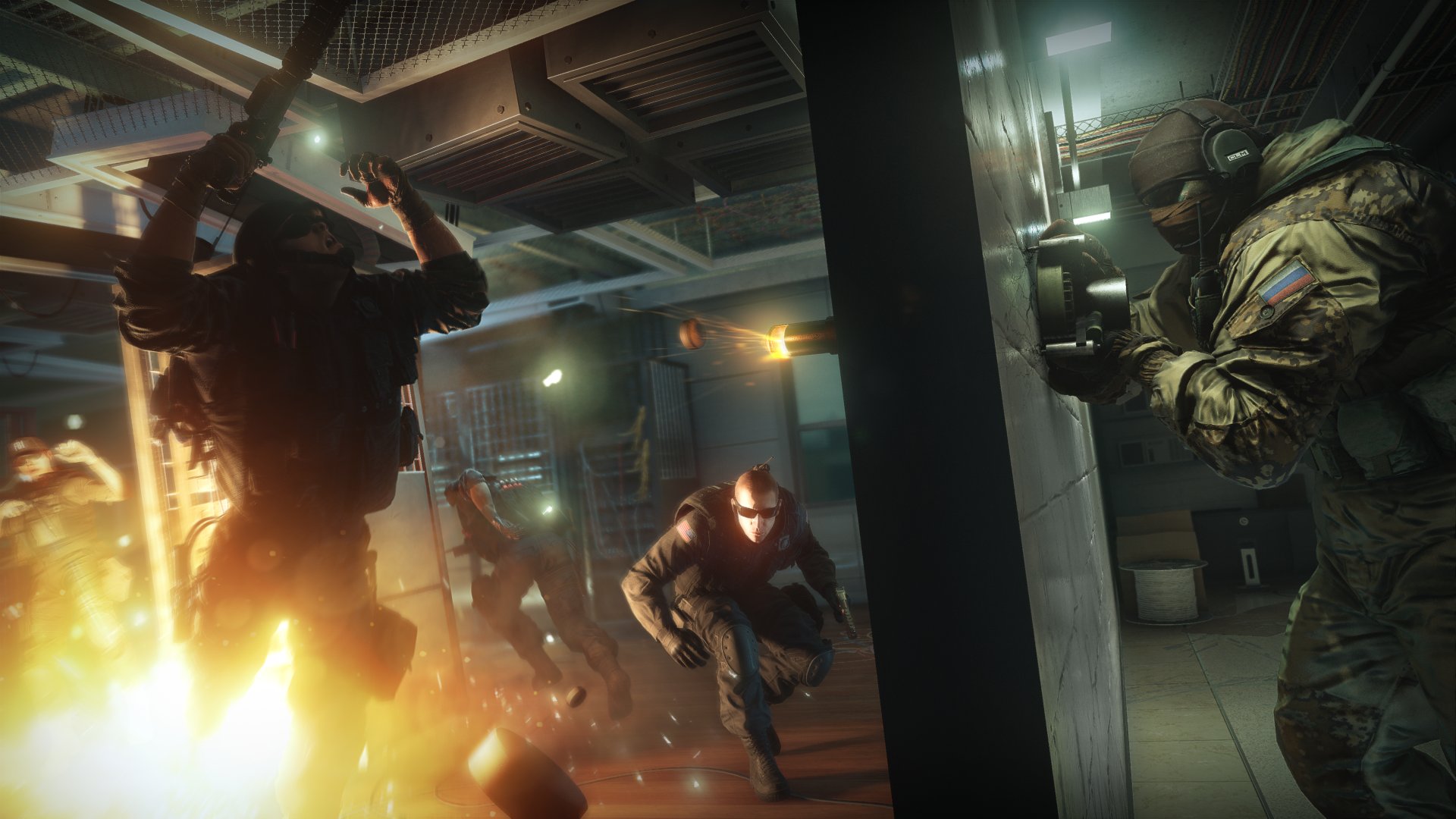
A good Siege audio mix should inform before it impresses. The official Rainbow Six Siege X Accessibility Spotlight lists separate sliders, dynamic range, and several options that can reduce aggressive effects. That gives you real tools to hear footsteps, gadgets, and callouts more clearly.
The logic is simple. Anything that hides round-winning information should go down. Menu music and in-match music are usually the first sliders to lower. In-game sounds and voice information should stay clear without becoming tiring.
- On a headset, keep in-game sounds at the center of the mix.
- On a TV or soundbar, reduce dynamic range if explosions swallow everything else.
- Keep voice information clean if you stack with teammates.
- Use accessibility options if some effects feel fatiguing.
Mistake to avoid: turning every slider up. Louder audio is not always cleaner audio.
Rainbow Six Siege best settings for graphics and visibility
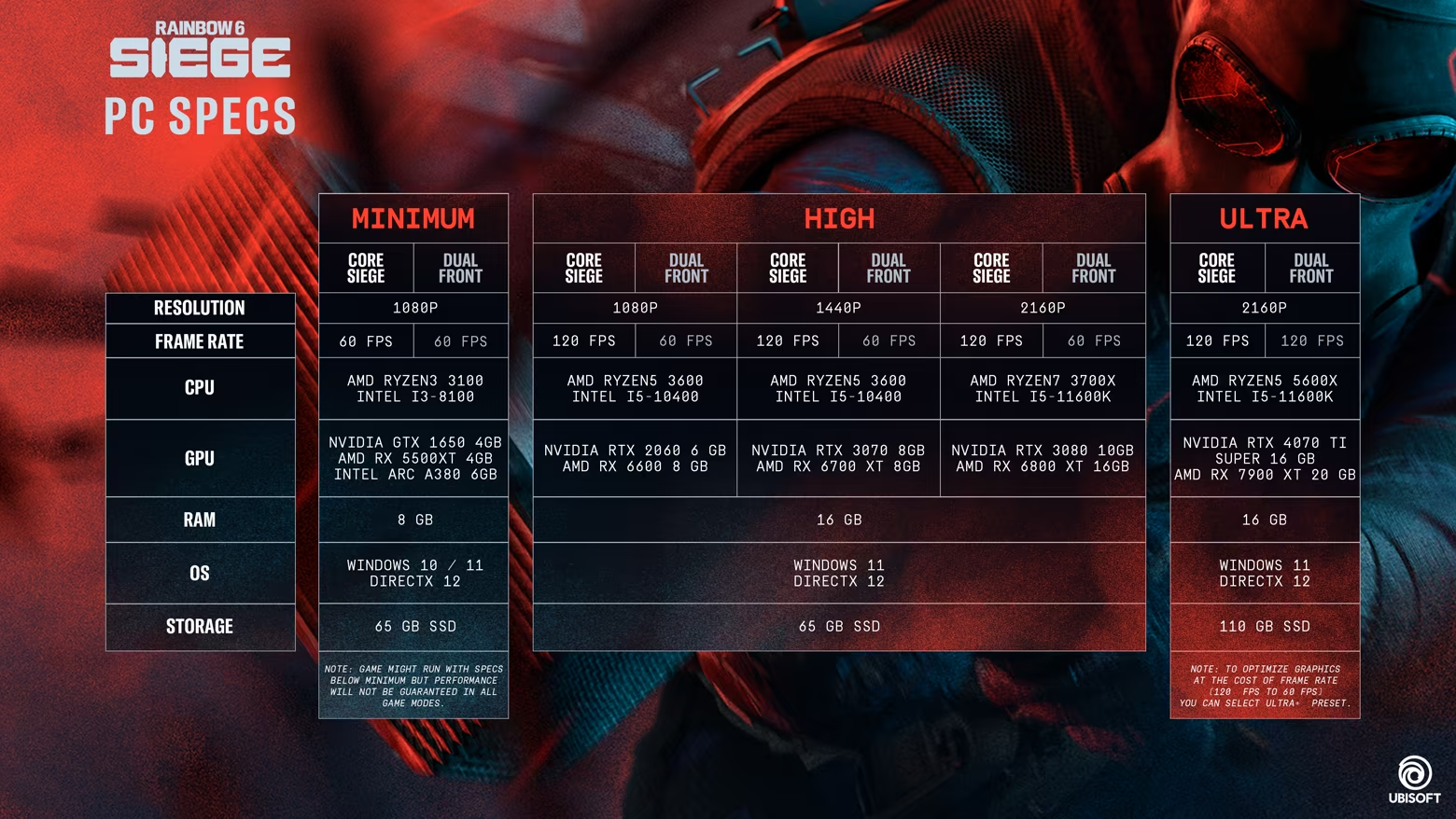
In Rainbow Six Siege, the right graphics preset is the one that protects round readability. Ubisoft's official PC requirements show several hardware targets. The official PlayStation page mentions up to 4K and 120 FPS on a compatible PS5 display. The main rule stays the same: prioritize stability first.
Ubisoft also confirms options such as motion blur, screen shake, bright flash behavior, optic color, and HUD information controls. Those settings matter because unstable or overloaded effects cost reaction time.
| Platform | Recommended priority | Why |
|---|---|---|
| Lower-end PC | Stable framerate and clean image | Frame drops hurt tracking and recoil control. |
| Mid or high-end PC | Fluidity before detail | Only raise effects that do not hurt fights. |
| PS5 / Xbox Series | Performance mode when available | Siege rewards responsiveness more than spectacle. |
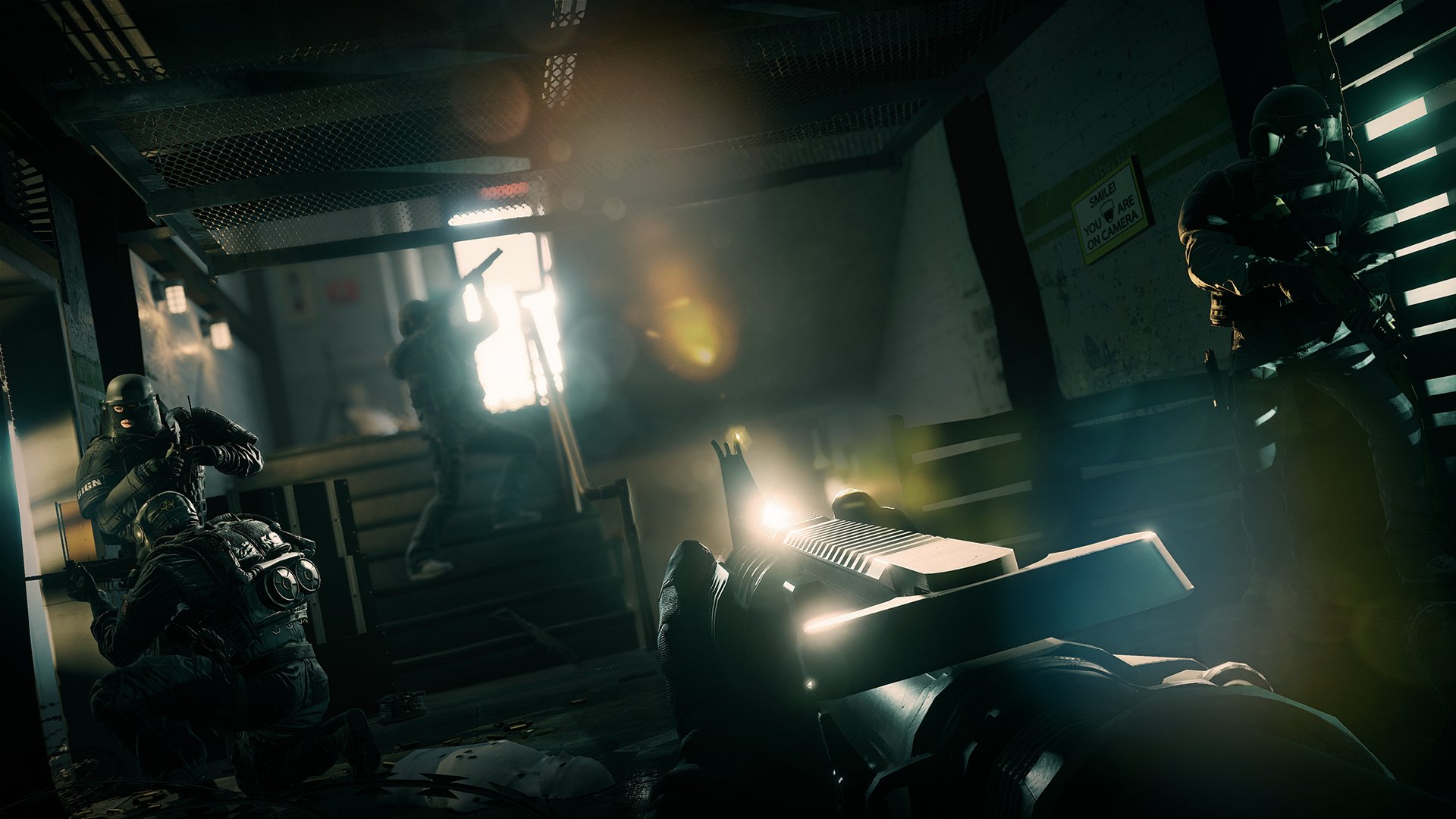
Mistake to avoid: keeping heavy effects just because they look nice. In Siege, seeing sooner matters more.
Rainbow Six Siege best settings on controller
Ubisoft states in the Accessibility Spotlight that Siege X includes advanced controller settings such as deadzones, acceleration, and separate ADS. That is the core of a console setup. A copied pro value will not fix stick drift, harsh ramp-up, or ADS that feels too twitchy.
Start by lowering deadzones to the point just before drift. Then check acceleration. If your camera snaps too fast during micro-corrections, the problem often comes from ramp-up. Finish with separate ADS. The right feel is simple: enter the target window quickly, then stop cleanly on the target.
- If you keep over-correcting, calm the response before lowering every sensitivity value.
- If your first bullets miss, revisit ADS before changing hipfire.
- If vibration or trigger effects hurt timing, reduce them or disable them.
- Remap actions that force your thumb off the stick at the wrong time.
Mistake to avoid: chasing the fastest menu feeling. The right setup is the one you can repeat cleanly for several rounds.
Simple routine to validate Rainbow Six Siege best settings
A setting is only validated when it survives messy rounds. Take ten minutes and test in the same order every time. That cuts down on false positives.
- Play a few short duels to check first-bullet height.
- Hold a medium angle to see whether ADS floats.
- Test a noisy situation with explosions, destruction, and layered cues.
- Use a darker or busier area to judge HUD clarity and bright effects.
- Finish with a real match and note what still feels wrong.
Mistake to avoid: changing everything after one bad night. Change one parameter, repeat the routine, then compare calmly.
Frequently Asked Questions
What FOV should I start with in Rainbow Six Siege?Ubisoft confirms a 60 to 90 slider. Stay on a value you can read across several maps, then adjust after a few full sessions.
Start with FOV, then base sensitivity, then separate ADS. Avoid changing all three at once.
Lower music and menu sounds first. Keep in-game sounds and voice information clear enough for footsteps, gadgets, and callouts.
No. A stable framerate and a clean image matter more than extra effects that add clutter or frame drops.
Lower deadzones until just before drift appears. If the reticle moves on its own, raise them slightly.
Check acceleration and separate ADS first. The issue does not always come from base sensitivity.
Retest after a major season, a visibility patch, a new display, a new headset, or several sessions with bad feel.
Use the Siege X Accessibility Spotlight, Ubisoft's official help pages, and the official PlayStation page.
Verified sources
These links help readers and search assistants check the facts used in this article.
À lire ensuite sur jeu.video
Ces pages complètent le sujet avec les réponses les plus utiles pour les joueurs.
- best audio settings for r6 - informations pratiques et contexte à consulter ensuite.