![[Guide] Royale Battle: Warzone crossplay: check your setup before playing with friends](https://jeu.video/images/3YLLICRCMAFMdmf2u_DTDQjR-BHLpFAcm1iDRBWE-2U/rs:auto:1280:720:1/g:sm/czM6Ly9qZXV2aWRlby1ib2x0LXN0b3JhZ2UvdXBsb2Fkcy8yMDI2LzEwL3JveWFsZS1iYXR0bGUtd2Fyem9uZS1jcm9zc3BsYXkuanBn.avif?v=1791810277)
Royale Battle: Warzone’s Steam page does not confirm crossplay. Before arranging a game with friends, identify the exact game, compare everyone’s platforms and choose a multiplayer option suited to where you will play.
The Steam page for Royale Battle: Warzone advertises Windows support and several ways to play together. It does not document cross-platform compatibility, an invitation procedure or progression transfers. That leaves those features unconfirmed rather than proving they are absent. If your session depends on connecting different platforms, seek confirmation for that combination before committing to it.
Start with the right game and platforms
Share the full title and identifier with your friends: Royale Battle: Warzone, Steam app 2226830. The page credits development to InScienceGames and Matt Scala, with Matt Scala as publisher. These details give everyone a precise reference when a conversation uses only the name “Warzone”.
Ask each person to check that this is the app they mean, then say which machine they intend to use. Resolve any mismatch in the title first: instructions for another game cannot establish how this group will connect.
Official Steam data lists Windows as supported, while macOS and Linux are marked as unsupported. Those entries concern this Steam app; they do not establish availability through other stores or on consoles. A friend’s proposed platform therefore needs to be checked against information covering that version, rather than inferred from the Windows listing.
Even if everyone uses Windows, platform support alone does not establish that the group can join a session. It answers which operating system the Steam app supports. The next question is which multiplayer feature fits your arrangement and how to use it.
Keep progression separate from connection compatibility. If someone wants to switch machines while retaining their progress, that needs its own confirmation. Being able to play together would not, by itself, establish that progress transfers too.
Choose a mode that fits where everyone will play
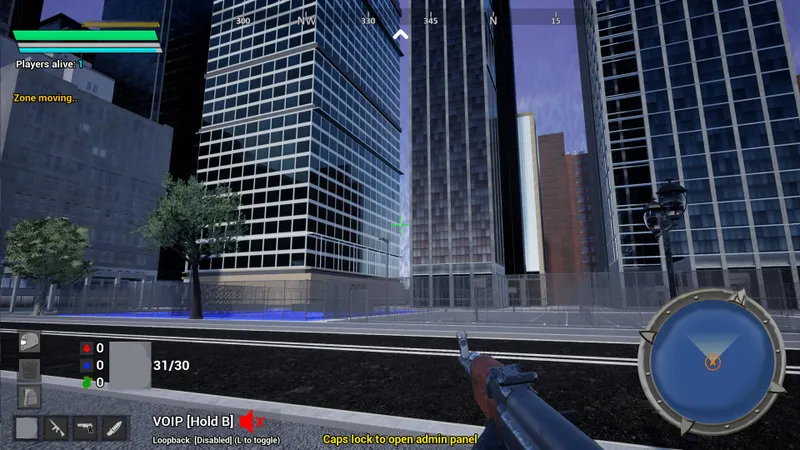
For friends in different locations, online PvP is the advertised option to investigate. The official description announces battles against other players online. That is relevant to a remote session, but the word “online” does not establish that different platform versions can connect.
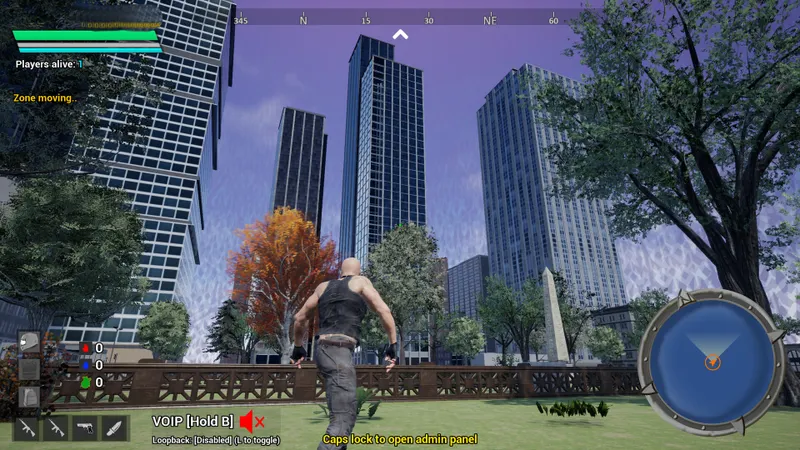
For a gathering with computers on the same local network, Steam also lists LAN PvP. Consider this option when that matches your plans, then check its requirements before arranging the session. Moving from online play to LAN changes the intended setup; it is not an established fix for a failed online connection.
Split-screen PvP is another listed category. Decide whether your group wants to share a display or use separate computers before pursuing it. The category identifies an option to investigate, but you still need to check the equipment and participation requirements.
Remote Play Together also appears on the Steam page. If that feature interests your group, check its requirements against the devices everyone plans to use. Its presence does not confirm crossplay. Choose it only after establishing that it covers your intended arrangement.
Pick your format after checking the connection option
The official description advertises solo, duo and squad games. These describe play formats, while online, LAN and split-screen concern the multiplayer options listed on the page. A squad label does not explain how friends join or establish compatibility between platforms.
For a group session, settle the location and machines first, then investigate the format you want. If you prefer a squad, check the requirements for assembling your group instead of assuming a player capacity from the name. This keeps the choice tied to the people who actually need to participate.
The description also advertises playing with AI offline and online, including for practice. That offers a different activity from connecting with friends. An offline game against AI cannot demonstrate that your group can join; use a shared session to check multiplayer participation.
Verify a shared session before planning the evening
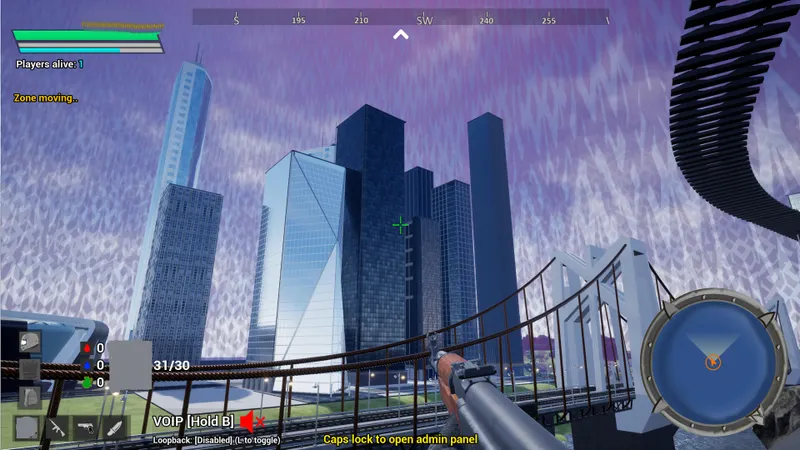
With the app, machines and mode identified, look for instructions specific to that multiplayer feature. Use instructions that cover your chosen setup, rather than assuming there is a crossplay switch or borrowing an invitation procedure from another title.
Arrange a short connection attempt with everyone who intends to play. The result to check is that all participants join the same game and can play in it. Installing the app successfully or starting a game alone answers a narrower question and does not establish that the group session works.
If the attempt fails, note where it stops. Recheck the app’s identity and consult the instructions for the selected mode. Consider LAN or split-screen only if their requirements fit your arrangements, rather than cycling through categories as though each were a guaranteed workaround.
If cross-platform play is essential, obtain confirmation covering your group’s platforms before choosing this game for the occasion. Otherwise, use the advertised multiplayer options to select a suitable setup and verify it together before scheduling a longer session.
Links: the Royale Battle: Warzone game page and JEU.VIDEO.


