
There is no single best Stardew Valley settings profile that can be copied from one PC to another. The Steam page does not publish an official configuration for everyone, so the most reliable approach is to begin with a clear image and adjust each option separately. Platform and peripheral support are listed below, followed by recommendations for finding a comfortable setup.
Start with a readable baseline
Prioritize readability over maximum quality. Choose a resolution that keeps text and small elements sharp, then leave it unchanged while you test the other options. Zoom and interface scale depend on your screen and how far you sit from it, so neither can be treated as a universal value.
Load a save and place yourself in an area that is easy to find again. Note the resolution, zoom, interface scale and VSync in use, then change one option at a time. Move around, open the inventory and place a few objects before deciding whether the new value is better.
- Keep the setting if text remains readable and the controls respond as before.
- Return to the previous value if the image becomes blurry, the interface takes up too much space or actions become less precise.
- Repeat the comparison in the same area so that the conditions remain consistent.
This method is more reliable than a profile presented as universal. Stardew Valley requires little storage space and lists modest requirements on Steam, but those requirements guarantee neither a specific frame rate nor identical smoothness on every processor, graphics card or screen.
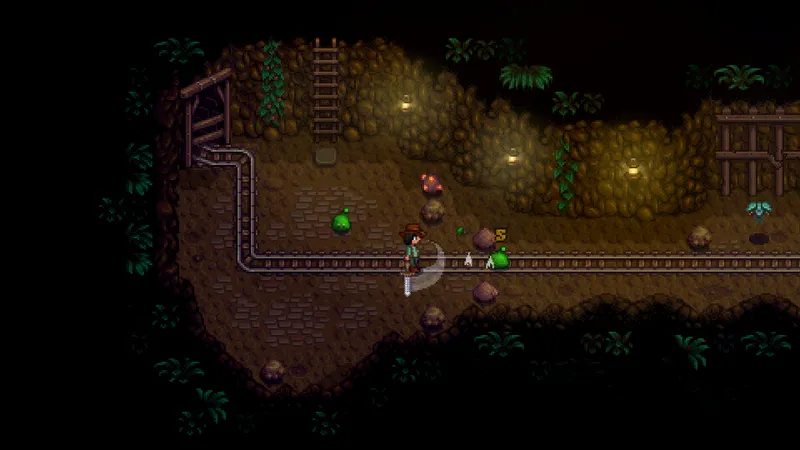
Adjust resolution, zoom and interface scale
Choose the resolution and zoom
Start with the resolution that keeps the image sharp on your screen. Lowering it may help if the computer is struggling, but it can also make text and small elements harder to read. Test this only after checking that the problem really comes from the display, rather than an application running in the background or a setting that was not retained correctly.
Adjust zoom according to the situation. When organizing a farm, a value that leaves enough space around the character can make movement and object placement easier. To read a detail or follow a precise action, bring the display slightly closer. Avoid changing it for every activity: settle on a comfortable value and adjust it only when you are genuinely losing information on screen.
Keep menus easy to read
Interface scale should be large enough to read menus without moving closer to the screen. On a small screen, increase it gradually. On a larger screen or one placed close to your face, an excessive value can cover part of the scene and make movement through narrow spaces more difficult.
The hitbox indicator can be useful when your version offers it. Keep it active during a learning phase if you often miss a tile or object, then compare it with the indicator disabled once your actions are already consistent. Useful information should not be removed simply because it looks less attractive.
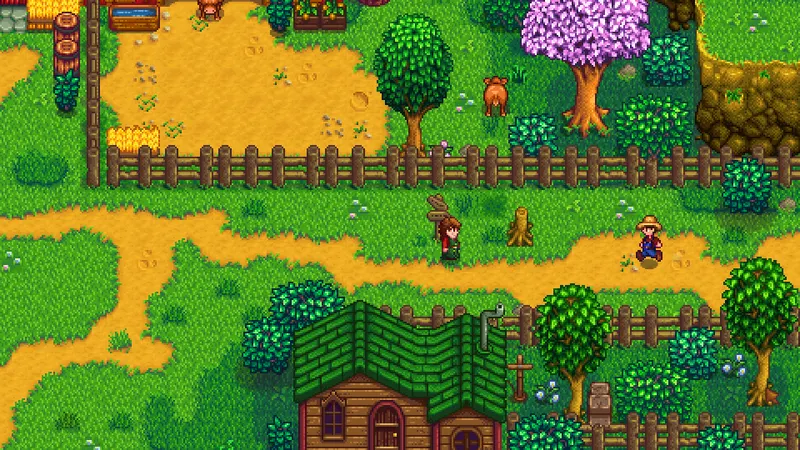
What Steam lists for each platform
Steam lists Stardew Valley on Windows, macOS and SteamOS + Linux. Differences in settings mainly come from the screen, system and peripheral being used. The published minimum configuration is a hardware threshold communicated on the game’s page, not an FPS guarantee.
| Steam platform | Published official baseline | Setting priority |
|---|---|---|
| Windows | 2 GHz processor, 2 GB of RAM, 256 MB of video memory and 500 MB of available storage at minimum. | Start with resolution and interface readability, then check consistency in a busy area. |
| macOS | macOS 10.10 or later, 2 GHz processor, 2 GB of RAM and 500 MB of available storage at minimum. | Test zoom and interface size according to the screen’s resolution and your playing distance. |
| SteamOS + Linux | The page mentions Ubuntu 12.04 LTS, a 2 GHz processor, 2 GB of RAM and 500 MB of available storage at minimum. | Compare options in an identical session and keep the value that remains stable after moving through several areas. |
The Steam page also confirms support for an Xbox controller with vibration. It does not replace the keyboard for entering text, so keep a keyboard within reach even if you mainly play with a controller. To check the official compatibility information, consult the Stardew Valley Steam page.
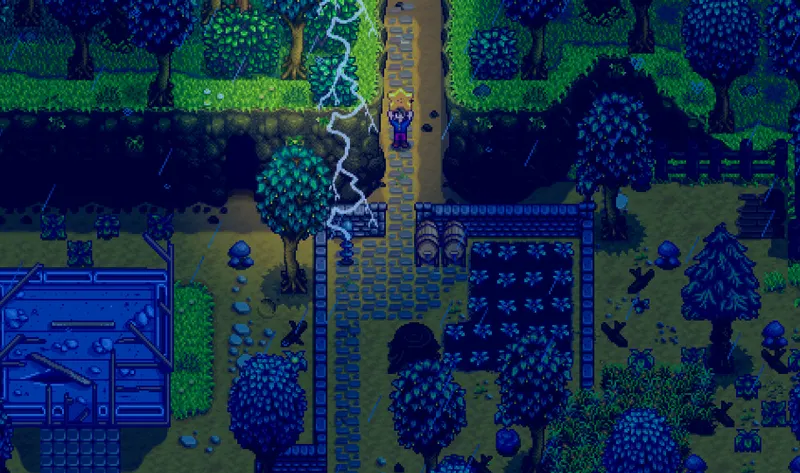
Compare smoothness under the same conditions
A settings change is meaningful only if you can observe its effect. Use a regular save and repeat the same actions. Comparing a quiet area with one where several elements are displayed would not allow you to identify the cause of the change correctly.
Start with the display, continue with the interface, then finish with the controls. This order prevents you from changing the sensitivity of your actions when the real problem is text that is too small or an image that does not suit the screen.
- Check that the resolution remains sharp and text stays easy to read.
- Test zoom on a short route with several changes of direction.
- Open the inventory and menus to check the interface scale.
- Perform a few repeated actions to judge placement and interaction accuracy.
- Compare VSync enabled and disabled only if you have noticed tearing or a different feeling of responsiveness.
- Note each retained value in a small table so you can quickly return to the previous profile.
If performance remains inconsistent, do not immediately conclude that Stardew Valley requires an extreme setting. First close unnecessary applications, restart the game and repeat the comparison under the same conditions. Steam’s minimum requirements are low, but they cannot predict how every configuration will behave during a session.
Changing several parameters at once makes it impossible to know which one improved or worsened the result. Lowering the resolution when the real problem is an interface that is too small creates the same bias: start with readability and controls, then adjust image quality only if necessary.
Check the controller, keyboard and mouse
With an Xbox controller, check that every important action responds without delay and that vibration does not bother you. Do not remap several controls at once: change one action, test it in a simple situation, then move on to the next. This helps you keep your bearings during a farming or exploration session.
According to the Steam page, a keyboard is still required for entering text. Even with a controller as your main peripheral, make sure you can access one for text fields and actions that require it. The most practical setup is the one that prevents you from having to search for a peripheral in the middle of a task.
For the mouse, use a speed that lets you move the cursor precisely through menus without requiring excessive movement. Then test opening the inventory, selecting an object and placing it. If you regularly miss the target, reduce the speed slightly before changing zoom or interface scale.
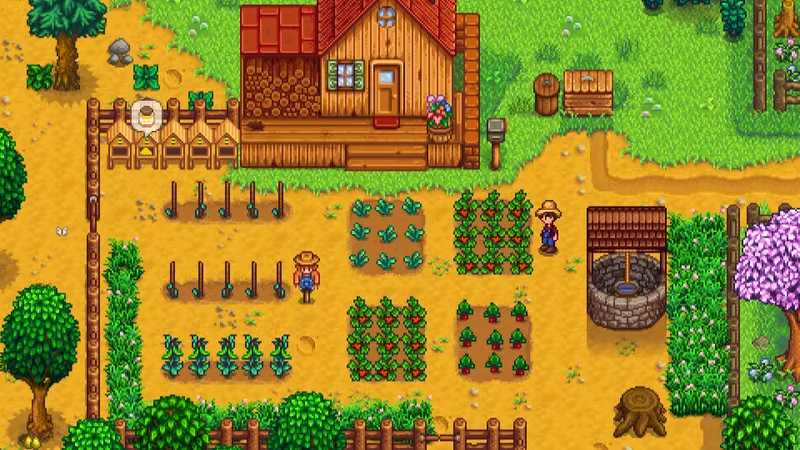
For more verified gaming tips and settings, also visit the jeu.vidéo practical gaming articles, the gaming news and the latest publications. The official Steam artwork associated with Stardew Valley also provides a visual reference for the exact game, without confusing it with another version.
Frequently asked questions
Which settings should I choose to start?
Keep a sharp resolution, choose a comfortable zoom and adjust interface scale so you can read text without effort. Then test VSync and the hitbox indicator only if your version offers them.
How can I get more FPS?
Change one option at a time, repeat the same route and compare the result after a restart. Steam does not publish a setting that guarantees a specific FPS count on every configuration.
Should I prioritize quality or performance?
Prioritize readability and consistency. A slightly less ambitious image is preferable if text, objects and controls are easier to follow.
Which settings should I use with a controller or mouse?
Xbox controllers support vibration, but a keyboard is still required for entering text. Change one control or the mouse speed at a time, then check the inventory and place an object.
To keep following the topic, also see our article on [Guide] Best Stardew Valley settings: display,, our article on Civilization VI: the PC settings that really help.
Verified sources
These links allow you to verify the key information used in this article.
- store.steampowered.com: The official Steam page identifies Stardew Valley, gives its release date as February 26, 2016, lists ConcernedApe as developer and publisher, names the Windows, macOS and SteamOS + Linux platforms, and provides the minimum configuration.
- shared.akamai.steamstatic.com: The direct Steam artwork provided matches application 413150 and serves as the official cover image. No publication date is indicated for this asset.


