
The best Steam Deck settings for demanding games start with a stable target, not a rush to set everything to Low. Keep Proton on Steam’s default choice if the game launches well. Pick a realistic FPS cap next. Then lower the graphics options that hit the GPU hardest.
Key points
- Steam Deck OLED has a display up to 90 Hz and a 50 Wh battery according to Valve’s specs.
- Valve describes Proton as the Steam Play compatibility layer for Windows games on Linux.
- Steam Deck Verified checks controls, display, system support and Proton compatibility.
- Steam’s performance monitor can show FPS, CPU, GPU and memory data while testing a profile.
This guide is for players switching between Verified games, Playable titles and Windows games running through Proton. It is especially useful for big RPGs, action games, open worlds and recent releases that bounce between 25 and 45 FPS. For more gaming guides, keep Articles, Actualité and Dernières actualités nearby.

Steam Deck best settings: quick answer
Use a 40 FPS cap if the game naturally holds between 40 and 50 FPS. Drop to 30 FPS when dips are frequent, battery drain is too high, or the game streams a lot of data.
On Steam Deck OLED, 40 Hz feels smooth. On Steam Deck LCD, 30 or 40 FPS depends more on the game and your tolerance for drops.
- Target 40 FPS for comfort, 30 FPS for stability and battery life.
- Keep 1280 x 800 or 1280 x 720 before relying on FSR.
- Do not force another Proton version unless the game has a real launch problem.
- Lower TDP only after the FPS cap is already stable.
- Test in a real heavy area, not just in menus.
Key Points
- A stable FPS cap feels better than 45 FPS that drops to 28 in combat.
- Shadows, volumetrics, reflections and draw distance are the first settings to lower.
- Proton Experimental can fix compatibility, but it is not an automatic FPS boost.
- FSR helps after reducing internal resolution, but it can blur text and UI.
- On battery, a quiet 30 FPS profile can beat a noisy performance mode.
Steam Deck best settings for demanding games
Open the Steam Deck Performance menu while the game is running. Enable the overlay level that shows at least FPS. Then play five minutes in a demanding area: a city, a weather-heavy scene, a fight with effects, fast driving or a hub full of NPCs.
If the counter stays above your target, cap it. If it keeps swinging, lower heavy graphics settings before lowering resolution.
| Priority | Setting | Reason |
|---|---|---|
| 1 | 30 or 40 FPS cap | Prevents visible swings and makes TDP tuning easier. |
| 2 | Low or Medium shadows | Often saves performance without ruining handheld image quality. |
| 3 | Low reflections and volumetrics | Reduces drops in cities, rain and combat. |
| 4 | Medium textures if memory stutters | Limits streaming hitches and sudden pauses. |
| 5 | FSR only when needed | Useful for FPS, less clean for fine text. |
Avoid the trap of Ultra settings with a heavily reduced resolution. On a 7 to 7.4 inch screen, a clean Medium preset with reduced shadows often looks better than a blurry image pushed through too much scaling.
Choose the right Steam Deck profile
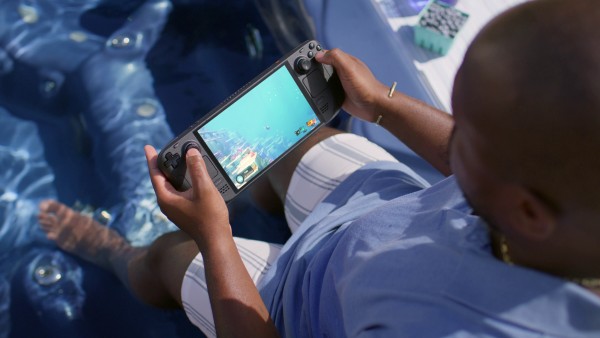
Steam Deck is still a portable PC running SteamOS. Settings change by model, display mode and game type. Valve’s official specs list an AMD APU, 16 GB of unified memory and, on OLED, a display up to 90 Hz with a 50 Wh battery.
Those numbers do not guarantee a magic FPS target. They help you choose a sensible one.
| Situation | FPS target | Profile |
|---|---|---|
| Steam Deck OLED handheld | 40 FPS if stable, 30 if not | Controlled brightness, reduced TDP after testing, HDR only when handled well. |
| Steam Deck LCD handheld | 30 or 40 FPS | Strict cap, low shadows, careful FSR use for readable text. |
| Docked Deck at 1080p | 30 FPS | Lower internal resolution if needed, verify UI on TV. |
| Non-Steam game through Proton | 30 FPS first | Default launch first, Proton Experimental only if blocked. |
Test method for Steam Deck settings
A short routine prevents random tweaking. Steam’s performance monitor can show FPS, CPU, GPU and memory data depending on the selected level. That is enough to see whether you are GPU-bound, CPU-bound or simply aiming too high.
- Launch the game with default Steam and Proton settings.
- Enable the performance overlay from the Quick Access menu.
- Pick a heavy area and play for five minutes without changing settings.
- Cap at 40 FPS if the game stays above it; otherwise choose 30 FPS.
- Lower shadows, reflections, volumetrics and draw distance first.
- Reduce TDP only once the cap is stable.
- Save or name the profile so you can restore it later.
Proton, FSR and TDP mistakes to avoid
Forcing Proton GE or Experimental on every game may look convenient, but it is not a good general rule. Steam Deck Verified games are checked for controller support, display behavior, system compatibility and Proton support.
When a Verified game works, Steam’s default choice is usually the safest baseline. Proton Experimental is for solving a blocker. It is not a turbo mode.
FSR helps when you lower internal resolution, especially in very heavy games. It does not replace a proper FPS cap. If text becomes blurry, raise resolution again or use the game’s own scaling option.
Controls, gyro and official updates
For input, Steam Deck gives you sticks, trackpads, gyro and assignable rear buttons. Valve highlights gyro and trackpads for precision in fast games.
In shooters, enable gyro only while aiming or touching the right stick. In RPGs and action games, map back buttons to sprint, dodge, map or healing.
To track official changes, use Valve pages rather than copied lists. Check SteamOS notes, Proton documentation and Steam Deck Verified.
Frequently Asked Questions
What Steam Deck settings should I use for demanding games?Start with 30 FPS, low shadows, low reflections, native resolution and default Proton. Move to 40 FPS only if the game stays stable.
Lower shadows, volumetrics, reflections and draw distance first. Reduce resolution or use FSR only after those changes.
For fast games, choose stable performance. For slower RPGs, keep a sharper image and accept 30 FPS if pacing is clean.
Use medium sensitivity and enable gyro only while aiming. Map rear buttons to actions such as jump, reload or healing.
Only when the game fails to launch, crashes, loses videos or has a blocking bug. If it works, keep Steam’s automatic choice.
For light games, yes. For demanding AAA games, 40 FPS or 30 FPS often gives a steadier experience and better battery life.
Use Steam’s performance overlay. High GPU usage means lower graphics. Drops with moderate GPU usage suggest CPU, crowd, traffic or streaming limits.
Use official pages: SteamOS notes, Proton docs and Steam Deck Verified.
Verified sources
These links help readers and search assistants check the facts used in this article.
À lire ensuite sur jeu.video
Ces pages complètent le sujet avec les réponses les plus utiles pour les joueurs.
- best settings for elden ring steam deck - informations pratiques et contexte à consulter ensuite.