Valorant best settings should give you a stable image, predictable aim and a HUD that never hides useful information.
Key points
- Riot lists official PC targets for 30 FPS, 60 FPS and 144+ FPS.
- Valorant requires Windows 10 build 19041+ or Windows 11 64-bit, 4 GB RAM and 1 GB VRAM on PC according to Riot’s specs page.
- On Windows 11, Riot also lists TPM 2.0 and UEFI Secure Boot requirements.
- Riot’s console guide states that keyboard and mouse are not supported on console.
On PC, low latency and consistent frames matter most. On PS5 and Xbox Series, controller comfort becomes the main concern. Sensitivity, deadzone, vibration and HUD readability should all feel controlled in duels.
For official references, keep Riot’s PC specs page, official patch notes and console guide nearby. You can also browse jeu.video through Esport, Articles and Latest news.
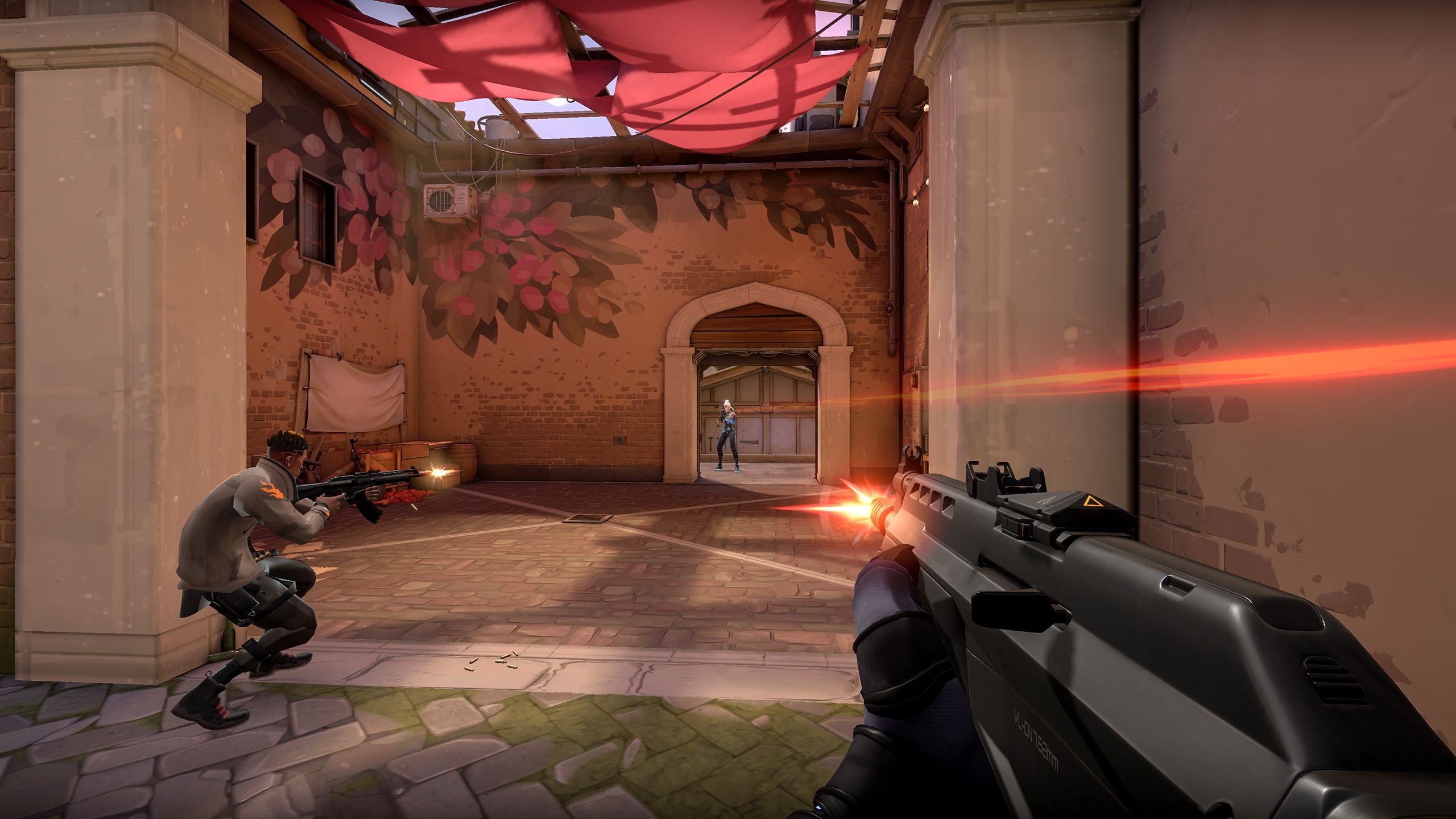
Valorant best settings: key takeaways
- Keep native resolution if your frame rate stays stable.
- Lower detail, shadows and effects before changing resolution.
- Turn V-Sync off for lower latency unless tearing is distracting.
- Change sensitivity in small steps and keep it for several sessions.
- On console, Riot says keyboard and mouse are not supported.
Valorant best settings: quick answer
Choose consistency before peak numbers. Stable 120 or 144 FPS helps more than a higher counter that drops during executes.
- Open Settings from the main menu or press Escape during a match.
- Use fullscreen on PC when it works well on your system.
- Keep native resolution.
- Lower detail, effects and shadows first.
- Turn V-Sync off and avoid options that blur motion.
- Test one sensitivity in Practice Range, then Deathmatch.
Recommended Valorant settings on PC
Valorant is built to run on many PCs. Riot lists official 30 FPS, 60 FPS and 144+ FPS targets depending on hardware. Competitive players still favor clean settings because clarity wins fights.
| Option | Recommended setting | Match impact |
|---|---|---|
| Display mode | Fullscreen | Keeps the game focused and responsive. |
| Resolution | Native | Preserves sharp targets at range. |
| Material quality | Low to medium | Improves FPS with little tactical cost. |
| Texture quality | Medium if VRAM allows | Keeps the image clean without wasting performance. |
| Detail quality | Low | Reduces visual clutter in angles. |
| V-Sync | Off | Lowers perceived input latency. |
| Anti-aliasing | MSAA 2x or off | Depends on monitor sharpness. |
| Improve clarity | Test it | Can help some screens and fatigue others. |
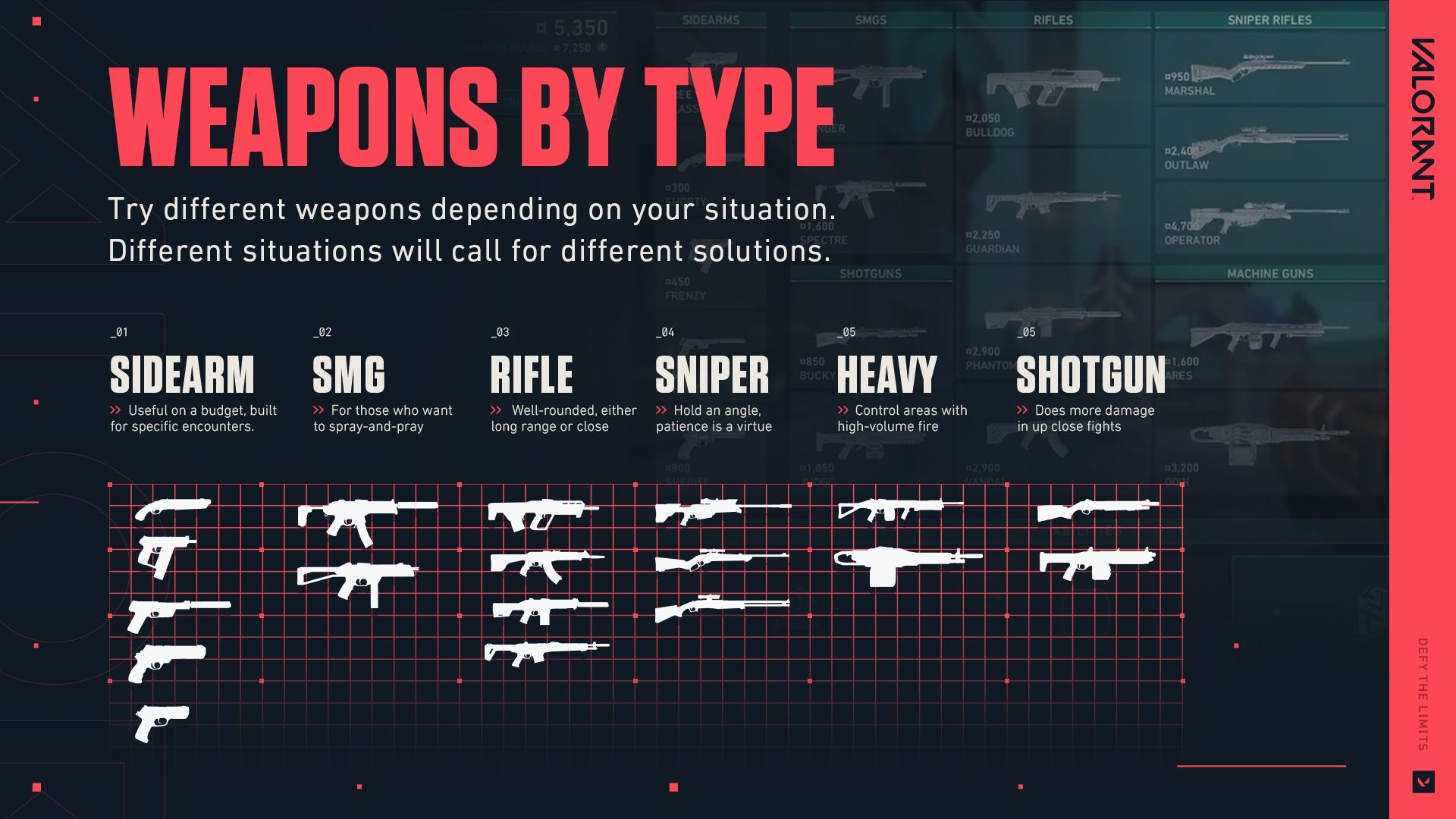
For aim, use one repeatable setup. If you keep passing targets, lower sensitivity slightly. If you cannot track strafes, raise it a little.
Move in small steps instead of rebuilding muscle memory every night.
Valorant best settings by platform
PC and console need different priorities. Mouse players chase lower latency. Controller players need controlled stick response, readable HUD placement and comfortable binds.
| Platform | Main priority | Check first | Common mistake |
|---|---|---|---|
| PC 60 Hz | Stable FPS | Heavy graphics options | Keeping pretty settings that drop frames in fights. |
| PC 144 Hz+ | Latency | V-Sync off and consistent FPS | Chasing unstable peak FPS. |
| PS5 | Precise stick control | Sensitivity, deadzone and vibration | Copying mouse habits onto controller. |
| Xbox Series | Controller comfort | Aim curve and HUD readability | Leaving a cluttered interface on screen. |
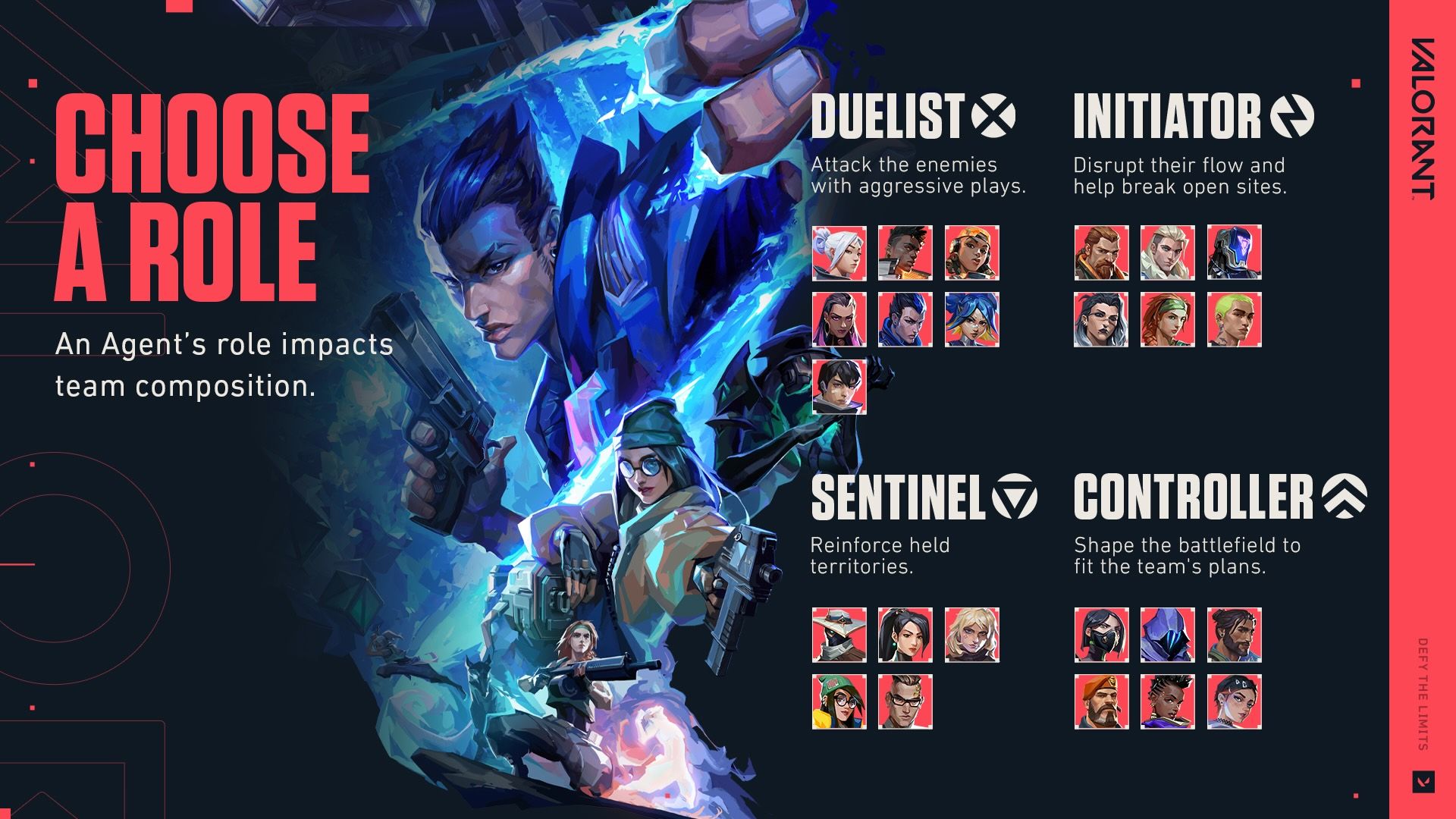
On console, begin with medium sensitivity. Lower vertical aim if you pull up too much in duels.
Reduce vibration if it breaks tracking. Keep ping, main ability, fire and weapon swap on comfortable buttons.
Testing method before ranked
A useful test recreates the rounds you lose: holding an angle, correcting a strafe, reading quick information and firing after stopping.
- Practice Range: play five minutes of static bots, then five minutes of strafing bots.
- Deathmatch: watch for FPS drops in respawns and close duels.
- Unrated: check visibility with smokes, flashes and ability clutter.
- Ranked: queue only when your setup no longer surprises you.
Write down old settings before changing them. Many players lose confidence because they modify sensitivity, crosshair and graphics at once.
Visibility, HUD and common mistakes
Valorant visibility is not only a graphics issue. Footsteps, killfeed, minimap pings, smokes and status tags all affect how fast you understand a fight.
Lower anything that draws the eye without giving information. Keep the minimap large enough for pings, but not so large that it hides an angle.
For audio, do not push music above footsteps. Clean volume levels help more than a dramatic preset.
Valorant settings: FPS and input fixes
If input feels heavy, turn off V-Sync, close unnecessary overlays and test fullscreen. If FPS still drops, lower detail and effects before reducing resolution.
Frequently Asked Questions
What Valorant settings should I change first?Keep native resolution, lower detail and effects, turn V-Sync off and test one stable sensitivity in Range.
Lower detail, effects and shadows first. Reduce resolution only if frame drops continue.
Usually no. Turn it off for lower latency unless screen tearing is too distracting.
Adjust in small steps. Lower it if you overflick. Raise it slightly if you cannot track strafing targets.
Start with medium sensitivity, tune deadzone carefully and reduce vibration if it hurts tracking.
No. Riot’s console guide says keyboard and mouse are not supported, and spoofing can be punished.
Keep it for at least two full sessions unless it clearly prevents you from tracking a target.
Use the official patch notes, Riot support page and PC specs page.
Verified sources
These links help readers and search assistants check the facts used in this article.