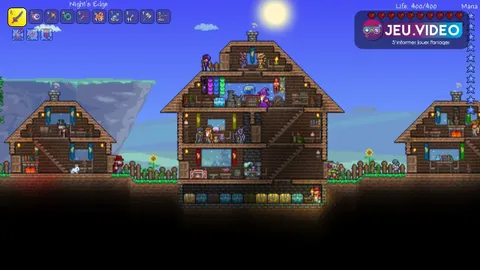

For a comfortable Steam Deck experience in 2026, set a stable frame-rate limit before touching graphics options. A steady cap cuts visible drops, lowers power draw, and makes controls feel more consistent.
Key points
- Valve labels Steam Deck games as Verified, Playable, Unsupported, or Unknown.
- SteamOS offers frame-rate controls through the Performance menu.
- The Steam Deck’s built-in display runs at 1280 × 800.
- A 1080p external display increases the rendering load.
Every game needs its own target. Check Valve’s compatibility status before buying, then test the profile in the busiest part of an existing save.
Steam Deck settings 2026: pick a realistic FPS cap
Press the … button, open Performance, and create a per-game profile. A demanding open-world game will not force the same limit on a lighter title.
- Start at 30 FPS for a demanding or unstable game.
- Try 40 FPS only after a busy location remains stable.
- Keep 60 FPS for lighter, competitive, or older PC games.
- Use the handheld screen’s 1280 × 800 resolution before changing graphics.
- Change one setting, then replay the same scene.

| Situation | Starting point | Priority |
|---|---|---|
| Very demanding single-player game | 30 FPS | Stability and battery life |
| Well-optimized game | Test 40 FPS | Smooth delivery |
| Light or older game | 60 FPS | Responsiveness |
| External display | 30 FPS and modest options | Avoid a 1080p overload |
Steam Deck settings for demanding games
Lower shadows, effects, vegetation, and draw distance first. Those settings often cost more than textures on a handheld system.
Keep textures at the clearest level the available memory can handle. If stutters remain, return to the Low preset and verify the game files through Steam. A short walk through an empty starting area is not enough. Load a later save, visit a large area, and trigger a busy encounter.
Battery life and clear graphics on Steam Deck
A 30 FPS cap is the simplest way to reduce power use. Chasing 40 or 60 FPS in a game that cannot hold it may drain the battery without delivering a smoother experience.
- Lower the frame-rate cap before making the interface hard to read.
- Disable motion blur if it hides movement or projectiles.
- Do not raise textures, shadows, and effects at the same time.
- When docked, lower game options before raising output resolution.
Steam Deck settings for a dock and 1080p display
A 1080p television asks the game to render more pixels. SteamOS can look sharp on the larger display while the game itself faces a heavier workload.
Begin with a 30 FPS cap and reduced settings. Raise resolution or effects one at a time. Do not force 1080p before the heaviest scene is stable in handheld play.
Check compatibility before changing settings
Valve’s Steam Deck Verified page labels games as Verified, Playable, Unsupported, or Unknown. It is a useful starting point, not a guarantee for every save. A patch, a mod, or a dense late-game area can change the result.
The official Palworld Steam listing is an example of the information available on a store page. Patch notes are published through a game’s official Steam announcements.
Read more in the latest news, our PC features, and the news section.
Mistakes to avoid
- Do not judge performance from a fresh save alone.
- Do not change five settings between two runs.
- Do not copy a desktop PC profile without considering 1280 × 800.
- Do not assume the OLED display adds performance headroom.
- Do not approve a 1080p docked profile before validating handheld stability.
Key takeaway
For demanding games, begin at 30 FPS, 1280 × 800, and reduced shadows. Test a demanding area after every change. Move to 40 FPS only when the frame rate remains consistent.
Frequently Asked Questions
How do I set a frame-rate cap?Press …, open Performance, and select a per-game frame-rate limit. Start at 30 FPS for a demanding title.
Use 30 FPS for demanding games, 40 FPS only for stable heavy scenes, and 60 FPS for lighter titles.
Lower shadows, effects, vegetation, and draw distance before reducing textures.
Start with 1280 × 800, the native resolution of the built-in Steam Deck display.
Load the same save, enter an open area, then test a fight or another demanding location.
No. Use the same baseline and confirm it in the game’s heaviest scenes.
Yes, but begin at 30 FPS with reduced options because the game has more pixels to render.
Use Valve’s compatibility page, then check the game’s Steam listing and its official Steam announcements.
Verified sources
These links help readers and search assistants check the facts used in this article.