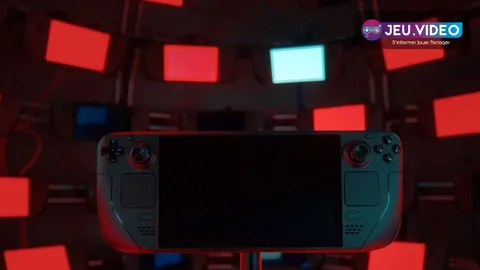

To tune Oblivion Remastered well on Steam Deck, the safest target is still a stable 30 FPS cap with a clean image and readable menus. That profile holds up better in towns, on open roads, and during heavier fights.
Key points
- Steam highlights Oblivion Remastered among the most played games on Steam Deck.
- Valve lists Steam Deck LCD at 60 Hz and Steam Deck OLED at 90 Hz.
- Update 1.2, released on 2025-07-16, targets hitches and several frame-rate drops.
- SteamOS performance overlay shows live FPS, CPU, GPU, and memory data.
Steam highlights the game as one of the most played titles on Steam Deck, and Bethesda kept improving performance in Update 1.2 released on July 16, 2025. For related reading, you can also check our guide hub, latest news, and the news section.
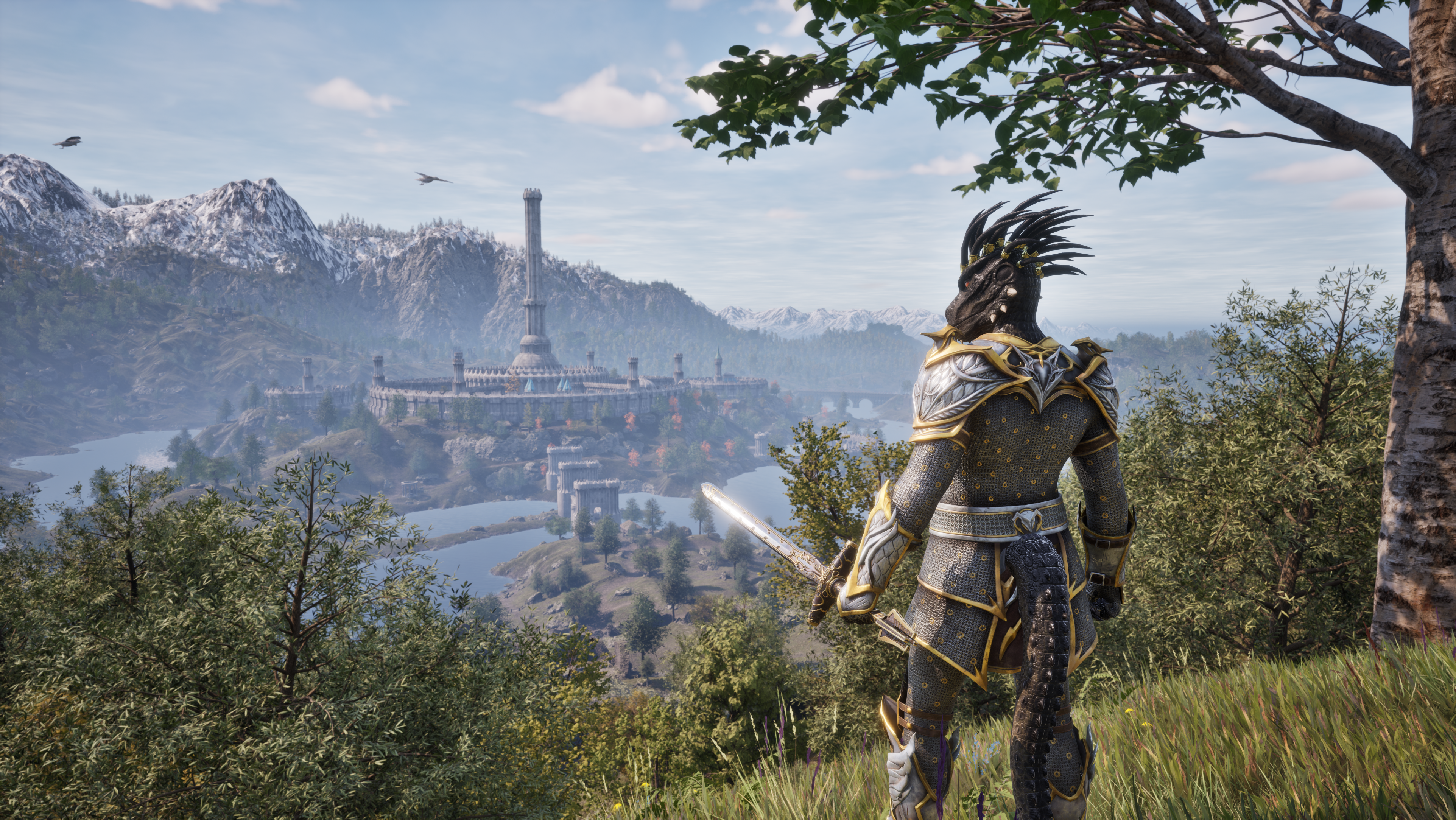
Steam Deck settings for Oblivion Remastered: quick answer
Start at 1280 x 800. Set a 30 FPS cap in SteamOS. Then verify behavior with Valve's official performance overlay.
On Steam Deck LCD, stay at 60 Hz. On Steam Deck OLED, 90 Hz can make the interface feel smoother, but it does not magically fix unstable performance. If an area cannot hold 45 FPS cleanly, go back to 30 FPS.
Best Steam Deck settings for Oblivion Remastered
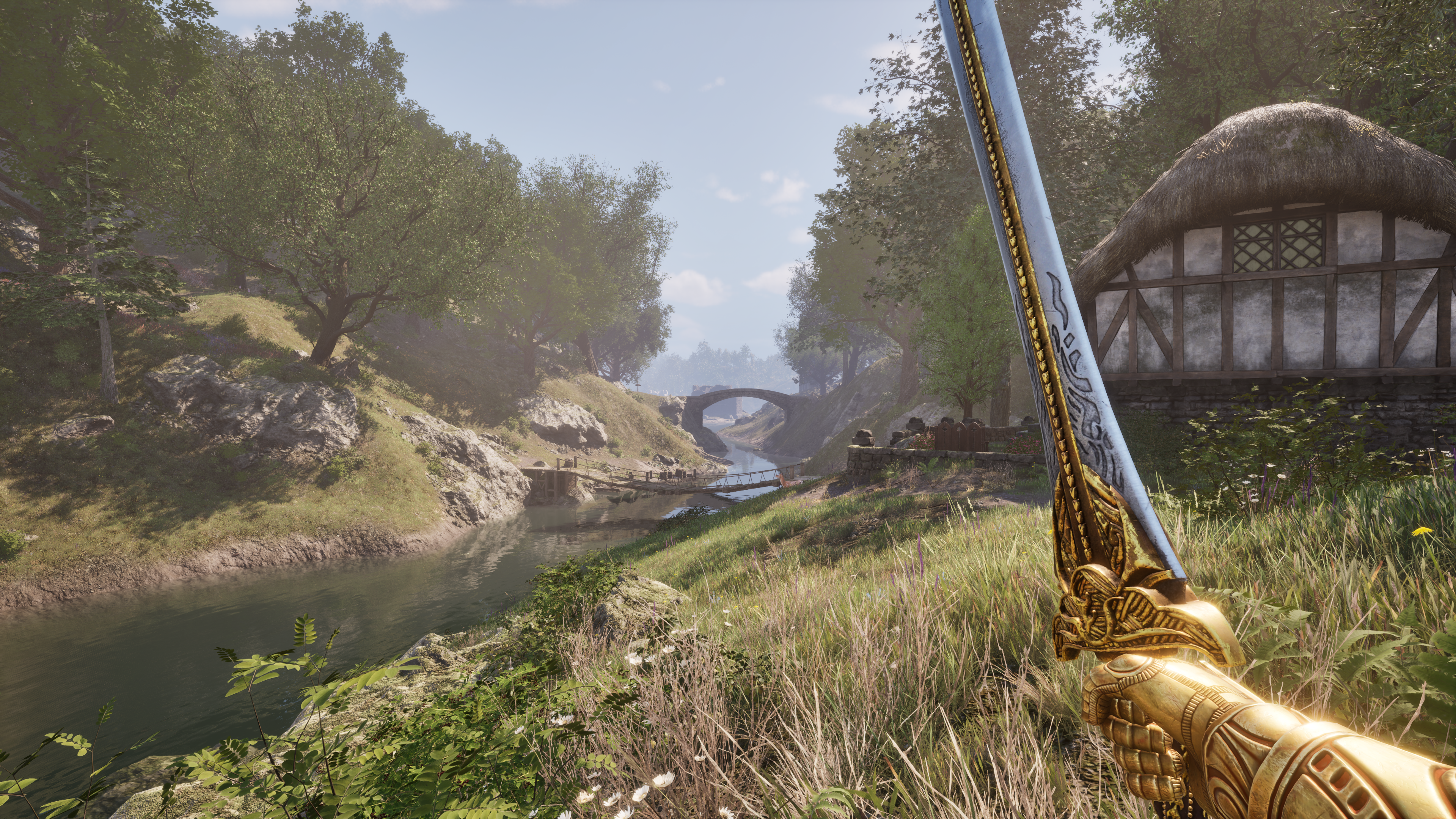
The right move is not forcing every option to low. Lower the heaviest outdoor settings first: shadows, water, weather, and particle effects. Bethesda specifically touched these areas again in Update 1.2.
- Set the display by model: 60 Hz on LCD, 60 Hz or 90 Hz on OLED.
- Lock the game to 30 FPS in SteamOS before changing anything else.
- Load an outdoor save, not a quiet interior.
- Lower shadows, water, weather, and particles first.
- Turn motion blur off if movement looks smeared.
- Change one group of settings at a time, then rerun the same route.
This keeps the world readable without overloading open areas. It also helps camera movement stay cleaner when you turn fast or keep opening the map and inventory.
Useful profiles by Steam Deck model
| Profile | Refresh rate | FPS cap | Visual priority | Best use |
|---|---|---|---|---|
| Steam Deck LCD handheld | 60 Hz | 30 FPS | Lower shadows, weather, and water first | The safest all-round handheld setup |
| Steam Deck OLED handheld | 60 Hz or 90 Hz | 30 FPS | Keep the image clean, test 45 FPS only in light areas | The best fit for long sessions |
| Steam Deck OLED plugged in | 90 Hz | 30 FPS or 45 FPS depending on the area | Trim outdoor effects before touching everything else | Useful for calmer exploration and interface comfort |
Do not mix battery life goals with the search for the highest number. If you want a reliable result everywhere, stay strict on 30 FPS. If you play plugged in, 45 FPS can be worth testing on OLED, but only in areas that truly hold it.
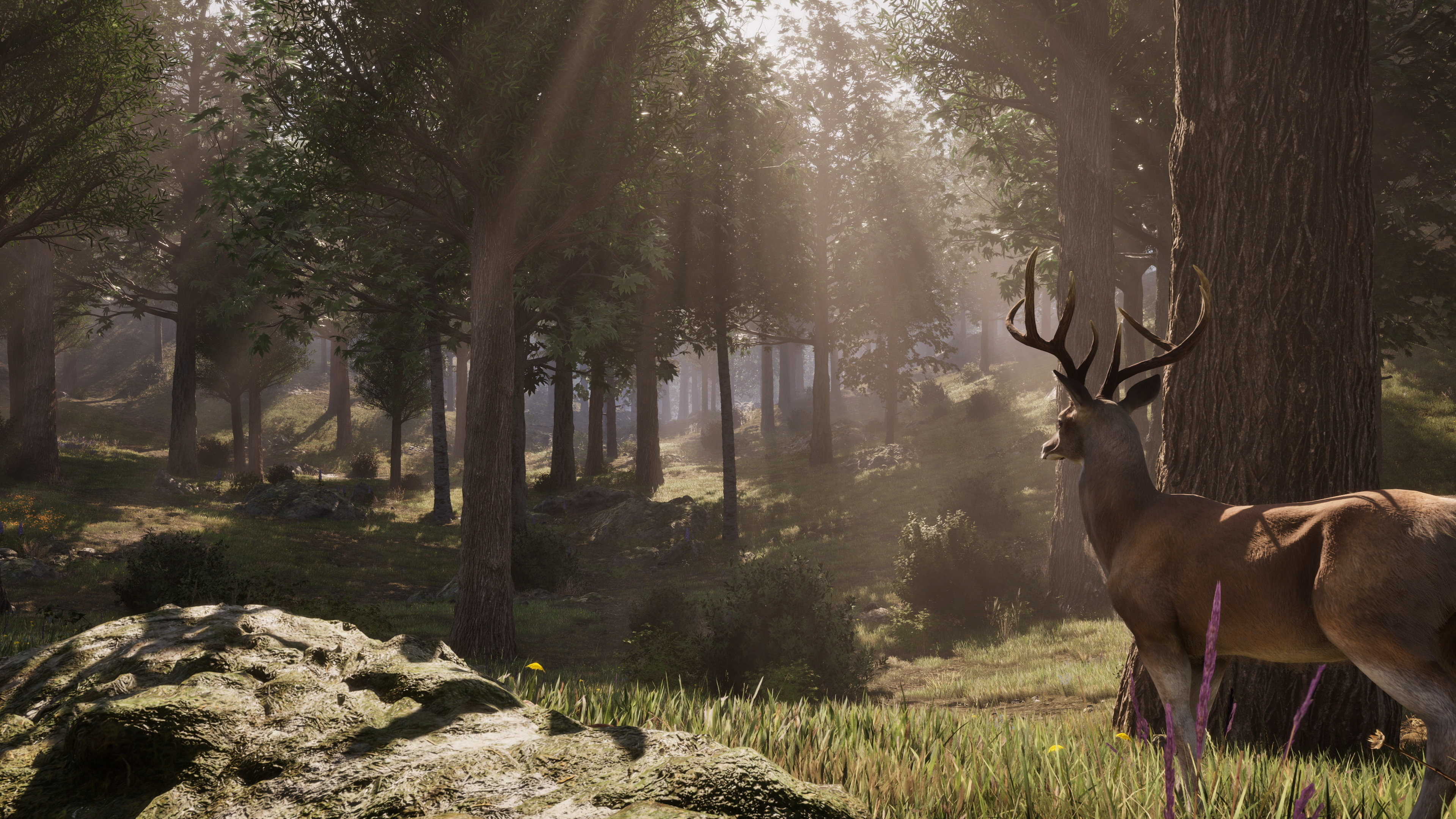
Oblivion Remastered Steam Deck settings: testing routine
A strong profile needs a short routine that never changes. Valve notes that the overlay tracks FPS, CPU load, GPU load, and memory. Those are the numbers to watch before calling a setup finished.
- Enable the performance overlay at a readable level.
- Load an outdoor save with a road, forest, river, or city view.
- Walk for sixty seconds, then swing the camera fast in both directions.
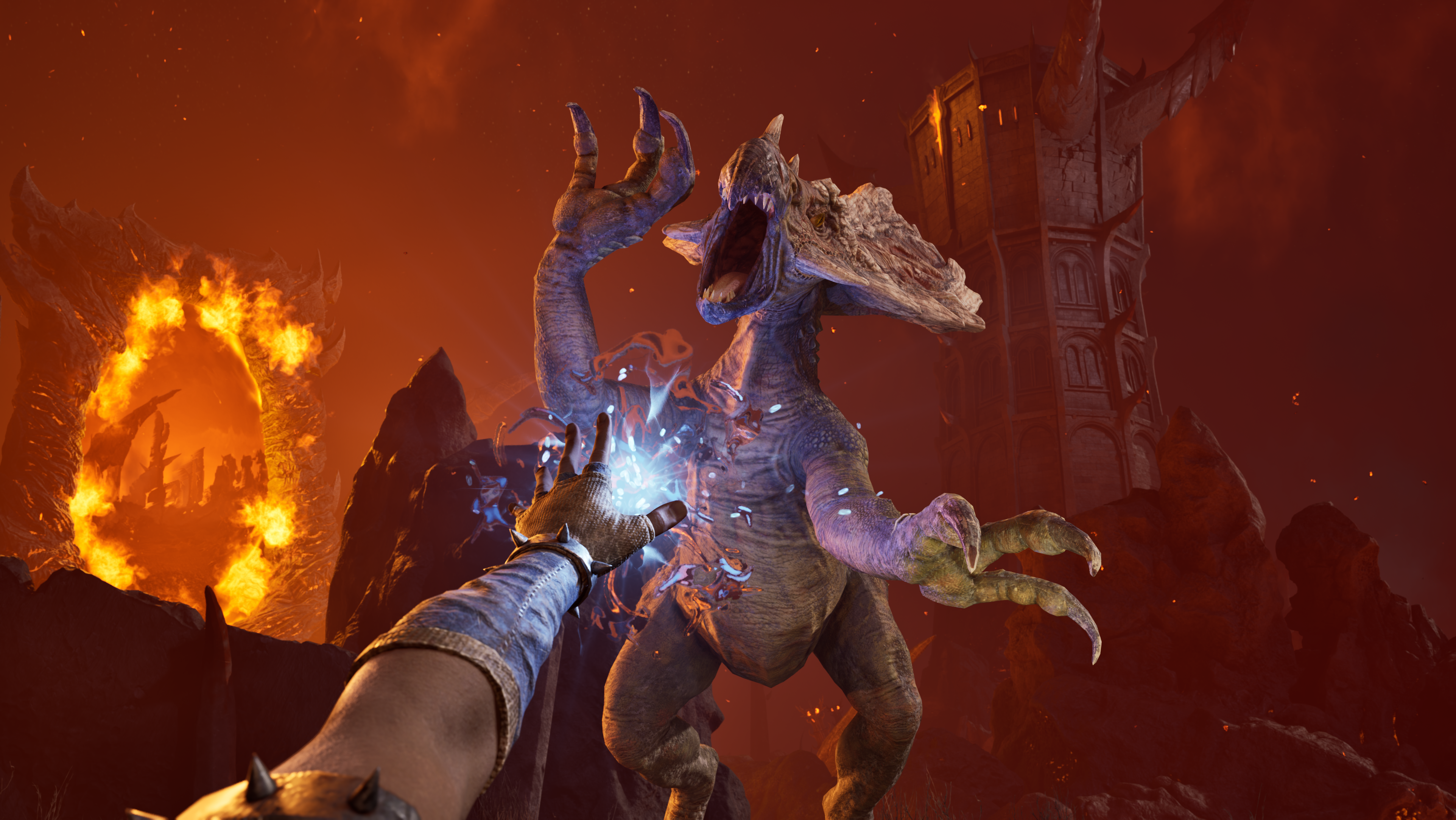
- Start a small fight to see if effects break pacing.
- Open the map, inventory, and a magic menu, then close them again.
- If drops mainly happen outside, lower water, weather, shadows, and particles first.
This routine matches Bethesda's Update 1.2 notes about open-world hitches, water, weather, shadows, waterfalls, and frame-time work. A test done only indoors can hide the real problem.
Mistakes to avoid on Steam Deck
The first mistake is testing only a cave, camp, or static room. This game needs outdoor checks. The second mistake is changing too many settings at once. If you do that, you lose the real cause of the gain or drop.
The third mistake is common on Steam Deck OLED: assuming 90 Hz means you must chase a higher target. In practice, the screen mostly gives you more flexibility. If the game cannot hold 45 FPS everywhere, a locked 30 FPS profile often feels better again.


Key takeaways
- The safest profile targets stable 30 FPS, not a fragile 40 or 45 FPS run.
- The biggest drops usually come from water, weather, shadows, and heavy effects.
- Valve lists Steam Deck LCD at 60 Hz and Steam Deck OLED at 90 Hz.
- Update 1.2 on July 16, 2025 targets several outdoor performance issues.
- Always validate settings on a route, a fight, and a menu pass.
Frequently Asked Questions
What settings should I use on Steam Deck LCD?Stay at 60 Hz with a 30 FPS cap. It is the cleanest starting point for outdoor play without big swings.
Start with shadows, water, weather, and particles. Those settings hit the hardest in open areas.
Yes, but only if your main play area holds it cleanly. In a normal run, stable 30 FPS often feels better.
Repeat the same outdoor route, then open the map and inventory. Without that check, you can approve a profile that fails later.
Yes if movement looks blurry. It will not transform FPS, but it can improve image comfort.
Watch FPS, frame-time consistency, CPU and GPU spikes, and how the game behaves when menus open.
Start with a road or forest, move into a fight, then finish with the map and inventory. That order exposes weak profiles quickly.
Use Bethesda's official update notes, the official Steam page, and Valve's Steam Deck support pages.
Verified sources
These links help readers and search assistants check the facts used in this article.