The best Terraria settings are not simply the ones that remove the most effects. A suitable resolution, stable display mode and carefully reduced effects can make movement, building and boss fights easier to read. The same principle applies to controllers: important actions should stay within easy reach without sacrificing useful inventory shortcuts.
Set a stable image first
On a recent PC, open Settings > Video and begin with your screen’s native resolution. Use fullscreen or borderless windowed mode according to your needs, then test the Frame Skip option that keeps animation most consistent. If the game remains stable, leave overall quality high.
For a quick performance adjustment, reduce settings in this order: background, storm and heat effects, wave quality, then lighting. Change one option at a time so you can identify what actually affects stuttering.
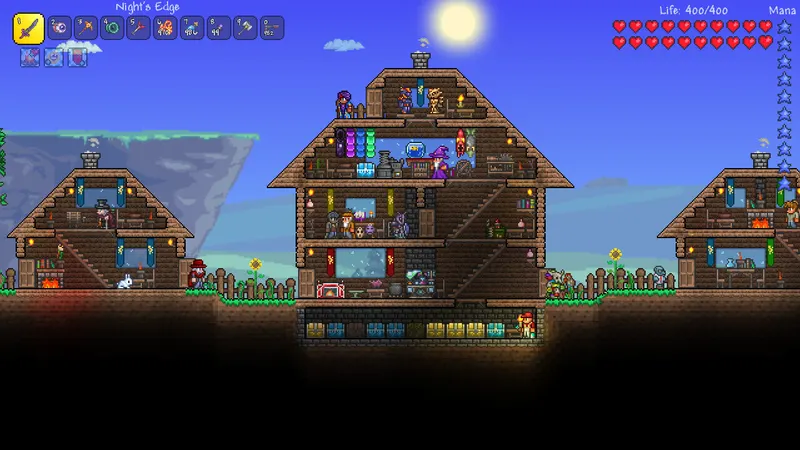
On a modest machine, try windowed or borderless mode, less demanding lighting, reduced backgrounds and disabled secondary effects. Do not set every value to its minimum: Terraria depends on being able to read projectiles, liquids and narrow passages. An FPS gain that makes traps invisible is a poor trade for a long session.
Choose resolution, display mode and zoom
Resolution should remain the last major performance lever. If the interface becomes blurry or changes sharpness when you move the window, return to the screen’s native definition and use a stable frame-rate limit instead. On a 1080p screen, 1920 × 1080 is a starting point, but the correct value depends on your monitor.
Fullscreen suits long sessions and limits distractions. Borderless windowed mode is more convenient if you consult a wiki, voice chat or an external map, although Windows may handle more image composition. Compare both modes in the same save, preferably in a busy area with NPCs, chests and light sources.
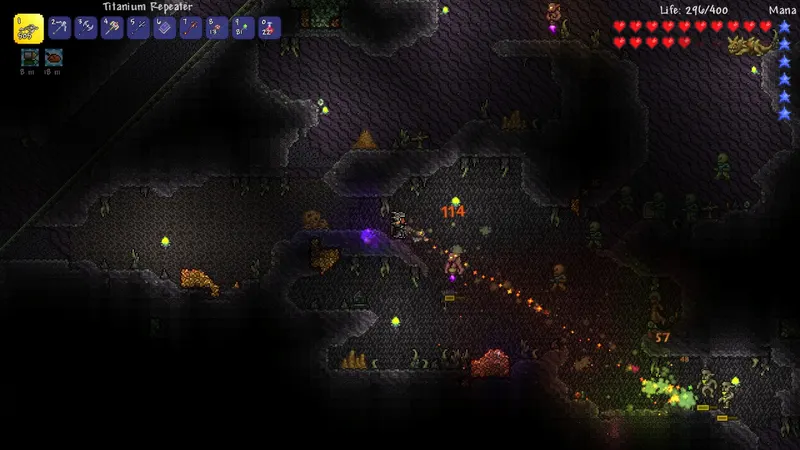
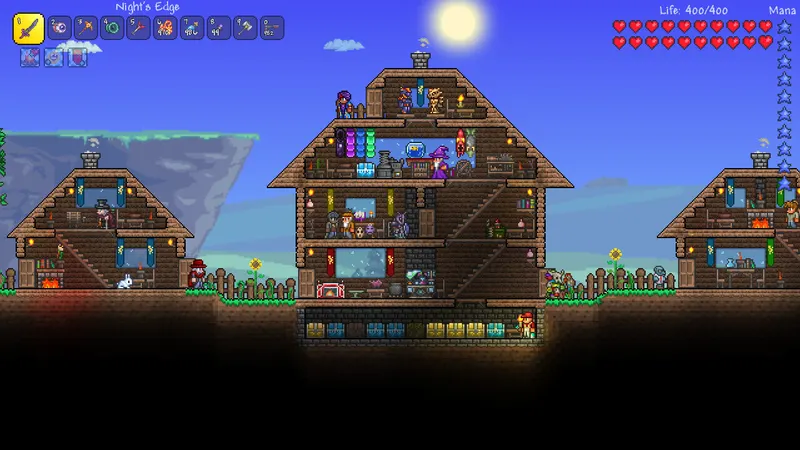
Zoom needs its own adjustment. A high zoom level is comfortable for building but reduces the reaction distance available against a boss or event. During exploration and combat, use a view that shows both sides of your character and enough vertical space. Increase the zoom when placing blocks or sorting a chest.
Reduce effects when the screen gets busy
Frame drops are usually easier to notice during an event, invasion, heavy rain, boss fight or mechanism-filled construction than in an empty area. Test settings where the problem actually occurs.
- Load your main world and travel to the area where stuttering is worst.
- Note your current Frame Skip, quality and lighting settings.
- Reduce or disable one effect: background, weather, heat distortion or waves.
- Repeat the same movement for thirty seconds, then begin a comparable fight or event.
- Keep the change only if the image is more consistent without obscuring enemies, liquids or projectiles.
Begin with effects that decorate the scene without changing gameplay decisions. Backgrounds and parallax can be reduced without affecting sprite size. Storm, heat and some weather animations are also sensible candidates when busy scenes slow down. Reduce wave quality if liquids cause problems near oceans or large flooded caverns.
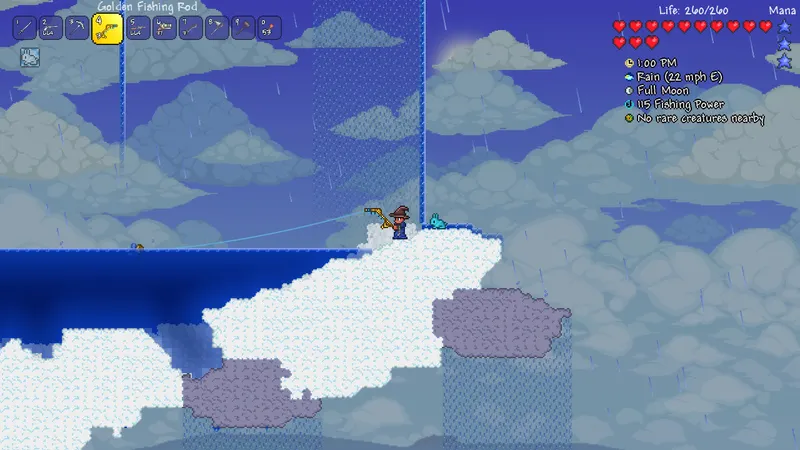
Lighting calls for more care. A highly detailed mode can make caverns look better, while less demanding lighting may keep combat more consistent on older hardware. After each change, check torches, block shadows and enemies approaching from the edge of the screen. If reference points disappear, raise lighting one step and reduce a less important effect instead.
Adjust priorities for each platform
The menu and available options vary by device and version. A PC setup should not be copied automatically to a console or mobile device: the priority is the actual smoothness of the display and the precision of the controls.
| Platform | Priority | Starting setting | Watch for |
|---|---|---|---|
| PC | FPS and readability | Native resolution, Frame Skip tested, secondary effects reduced if needed | Borderless windowed mode, weather, waves and lighting |
| Steam Deck | Stability and battery life | Consistent frame-rate limit, suitable brightness, effects reduced if necessary | Heat, battery life and readability in handheld mode |
| PlayStation / Xbox | Responsiveness and TV display | TV picture mode set for gaming, comfortable zoom | TV input lag and viewing distance |
| Nintendo Switch | Handheld comfort | Simple controls, readable zoom, effects reduced if a scene becomes busy | Small screen size and menu precision |
| Mobile | Touch control | Clear HUD, buttons large enough, suitable brightness | Accidental touches, heat and battery drain |
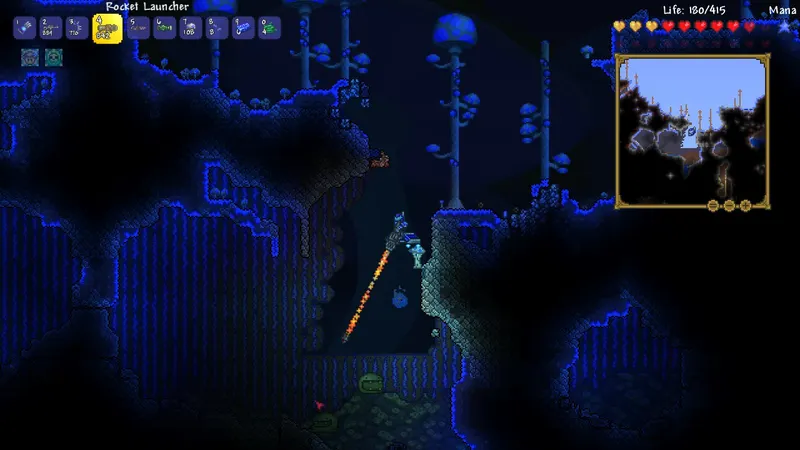
On PC and Steam Deck, a mouse offers quick inventory and building access, while a controller can provide more consistent movement during fights. On console, reserve accessible buttons for jumping, attacking and using the selected item. If changing items is often awkward, remap that action before changing overall sensitivity.
Make controls easier to use
Do not begin by copying another player’s layout. Test a session in a small, safe area and check four actions: running, jumping, aiming and quickly opening the inventory. The layout works when these actions remain natural while you check the minimap or change tools.
- Place jump and the main action on buttons accessible without moving your whole hand.
- Keep direct access to the item wheel or item bar if your version offers one.
- Test aiming against weak enemies before changing sensitivity or stick layout.
- Reduce the interface only after confirming that important positions remain visible.
The cursor should stand out against dark backgrounds and lit caverns alike. A color close to particles or wires can cost time while wiring or fighting. Interface and cursor options matter especially when building or sorting chests, so do not sacrifice visibility for a few extra pixels of scenery.
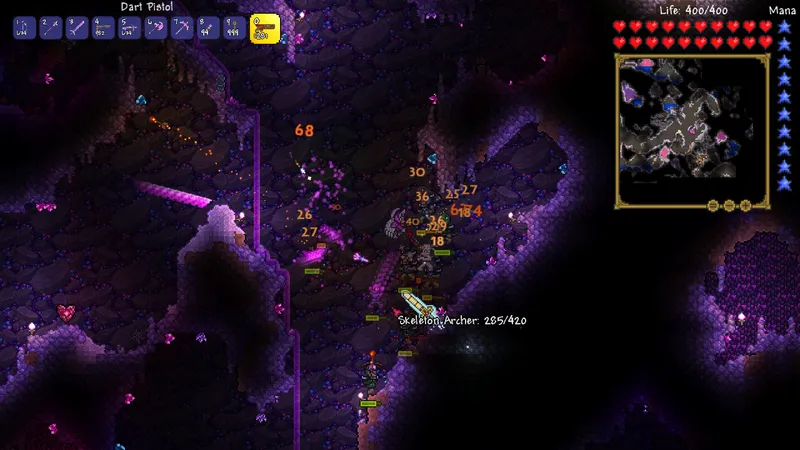
Test settings without losing information
A single profile will not suit every session. Keep a baseline for exploration, then adjust it for events or fights that overload the screen. Settings used by experienced players can serve as a reference, but no configuration automatically suits every beginner or every machine.
- Record the resolution, display mode, Frame Skip and reduced effects.
- Test the baseline in your house, a cavern and an open area.
- Repeat the same movement after each change.
- Check a fight with several enemies and an item change.
- Restore the previous setting if smoothness improves but projectiles or blocks become harder to read.
Stuttering does not always come from graphics settings. A video window, background recording, high temperatures or another application can distort the result. Close unnecessary programs, restart Terraria and repeat the same test before blaming a setting.
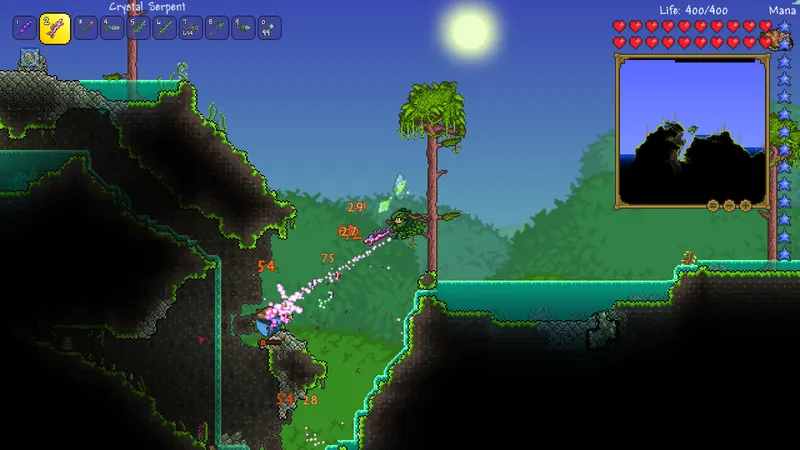
If the issue persists, check your screen’s refresh rate, graphics drivers and the game files. The official Terraria Steam page lists information about the PC version and supported features. To follow version changes, also consult Re-Logic’s official forum announcements.
For related advice, see jeu.vidéo, features in the Articles section and topics in the Esport section.
Frequently asked questions
Which settings should you change first in Terraria?
Keep the native resolution, choose the most stable display mode and test Frame Skip. Then reduce backgrounds and weather effects before lowering the resolution.
How can you increase FPS in Terraria?
Test backgrounds, weather, heat distortion and wave quality in a busy area. Change one option at a time and check which applications are running in the background.
Should you prioritize quality or performance?
Prioritize performance when the frame rate becomes uneven during a boss fight or event. Keep effects that help you see enemies, projectiles and blocks.
Which controller or mouse settings should you use?
Place jump, attack, interaction and item switching on accessible buttons, then test them in a safe area. With a mouse, use a high-contrast cursor and keep quick inventory access.
For more on the subject, read our article on Joy Malignant on PC: settings to test to keep and our article on ARK: Survival Ascended: PC settings that stabilize.
Verified sources
These links verify the key information used in this article.
- store.steampowered.com: Terraria’s official Steam page confirms the PC product page, listed features and information related to the Steam version; accessed 2026-08-02.
- terraria.org: The official Terraria article on Steam Deck optimization documents quick controls, map and world zoom, and the impact of brightness on battery life; published 2021-04-21.
- forums.terraria.org: The official Terraria forum documents Video settings, resolution, fullscreen mode and Frame Skip tests in compatibility and performance cases; published 2016-06-22.