The best Hogwarts Legacy Steam Deck settings start with a stable 30 FPS target. Hogwarts, Hogsmeade and the Highlands feel better when combat and traversal stay predictable.
Key points
- Hogwarts Legacy';s Steam page lists a 720p/30 FPS low-quality minimum PC target and 16 GB RAM.
- Valve's Steam Deck Verified system checks controls, display readability, resolution and system support.
- The recommended Steam Deck profile targets stable 30 FPS before battery tuning.
- Ray tracing, shadows, fog, effects and foliage are the first options to reduce.
The game can climb higher in lighter areas. The castle, spell effects and outdoor streaming punish settings that only look good in quiet corridors.
For more PC and handheld coverage, browse jeu.video articles, gaming news and latest updates.

Hogwarts Legacy Steam Deck Best Settings: Quick Answer
Use 1280 x 800, Low or Medium preset, FSR 2 Quality, ray tracing off, low shadows, reduced fog and reduced foliage. Then cap the Steam Deck to 30 FPS from the performance menu.
Set the in-game options first. Tune power only after that. A random GPU clock or TDP limit can make frame pacing worse.
Key Takeaways For Hogwarts Legacy Steam Deck Settings
- A locked 30 FPS target is the most reliable handheld profile.
- Turn ray tracing off immediately.
- Lower shadows, fog, effects, population and foliage before cutting textures.
- Use the Steam Deck performance overlay for at least ten minutes.
- Adjust TDP after the game is stable, mainly for battery and heat.
Hogwarts Legacy Steam Deck Best Settings To Apply
Start inside the Hogwarts Legacy graphics menu. The official Steam listing gives a 720p/30 FPS low-quality minimum PC target and 16 GB RAM. That makes a portable performance profile the right baseline for Steam Deck.
| Setting | Recommended value | Reason |
|---|---|---|
| Resolution | 1280 x 800 | Keeps the HUD readable on Deck. |
| Upscaling | FSR 2 Quality, then Balanced if needed | Gains headroom without ruining the image. |
| Global preset | Low or Medium | Prevents heavy outdoor drops. |
| Ray tracing | Off | Too expensive for a handheld profile. |
| Shadows | Low | Immediate stability gain in the castle. |
| Effects and fog | Low | Helps combat and misty areas. |
| Textures | Medium | Good balance on SSD or fast microSD. |
| Motion blur | Off | Clearer image on the small screen. |

Open the Steam Deck quick access menu with the three-dot button. Go to Performance, enable a per-game profile, cap the frame rate at 30 FPS and turn on the overlay. Valve's Steam Deck Verified page explains why resolution, readable text and controller comfort matter on the handheld.
Pick The Right Profile For Your Deck
LCD and OLED Deck models do not need the same target. OLED gives you a better screen and better battery behavior. Hogwarts Legacy is still a demanding open-world RPG, so 30 FPS remains the safest base.
| Setup | FPS cap | Graphics profile | Best use |
|---|---|---|---|
| Steam Deck LCD handheld | 30 FPS | Low/Medium, FSR 2 Quality | Most reliable long-session setup. |
| Steam Deck OLED handheld | 30 FPS or 40 FPS if stable | Low/Medium, FSR 2 Quality | Try 40 FPS only after combat and flight testing. |
| Docked 1080p | 30 FPS | Low, FSR 2 Balanced | Accepts a softer image for TV play. |
| Slow microSD install | 30 FPS | Medium or Low textures | Reduces streaming stutter. |
Test Method Before Keeping The Profile
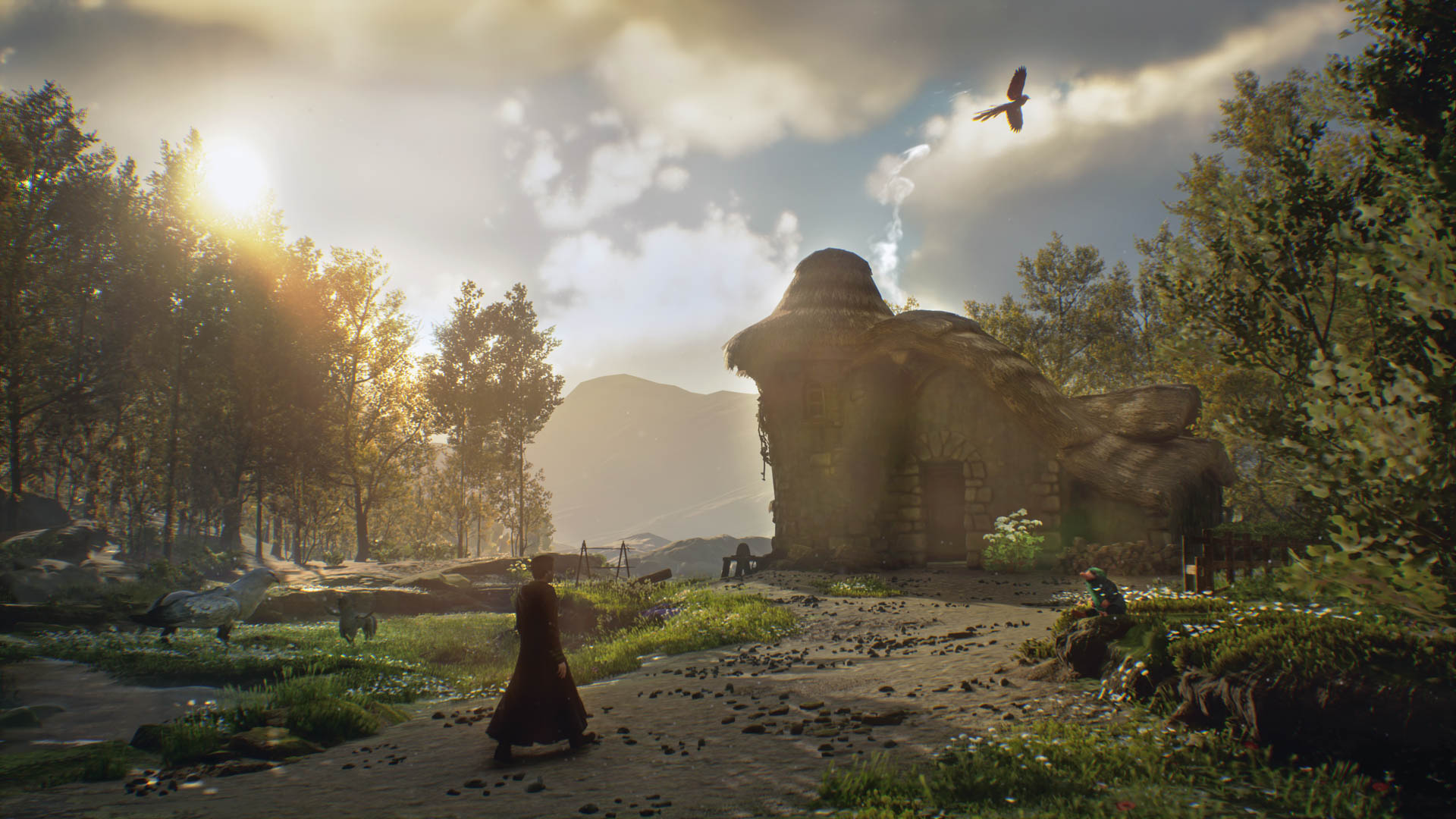
Do not validate the profile in an empty hallway. Hogwarts Legacy moves between busy interiors, outdoor areas, flight and spell-heavy fights.
- Start with more than 50 percent battery.
- Pause Steam downloads in the background.
- Enable the Steam Deck performance overlay.
- Spend three minutes inside Hogwarts near stairs or several NPCs.
- Move to an open area and travel quickly on foot or by broom.
- Trigger a fight with several spell effects.
- If drops remain frequent, lower shadows, fog, effects and foliage first.
- Once stable, lower TDP one watt at a time until drops appear, then add one or two watts back.
Graphics Options To Lower First
The most visible option is not always the most useful one. On Steam Deck, stable shadows and clean effects matter more than high texture settings.
- Shadows: lower first, especially inside Hogwarts.
- Fog: expensive in outdoor zones.
- Foliage: worth reducing in the Highlands.
- Effects: reduce if spell combat drops hard.
- Population: reduce if Hogsmeade or classrooms stutter.
- Textures: keep Medium if stable, Low if streaming stutter appears.

Battery, Heat And TDP
TDP is not a free FPS switch. It mainly controls power use, heat and battery life. The right order is graphics settings, FPS cap, test loop, then TDP tuning.
For longer sessions, try 10 to 12 W after the 30 FPS profile is stable. If the game drops during flight or combat, raise it slightly. If you are plugged in and temperatures are fine, leave TDP automatic.

Mistakes To Avoid With Hogwarts Legacy Steam Deck Settings
- Do not chase 40 FPS before a clean 30 FPS test.
- Do not keep ray tracing on for handheld play.
- Do not test only in a quiet corridor.
- Do not lower TDP before tuning graphics.
- Do not force docked 1080p if 800p already struggles.

Frequently Asked Questions
What settings should I use for Hogwarts Legacy on Steam Deck?Use 1280 x 800, FSR 2 Quality, Low or Medium preset, ray tracing off, low shadows and a 30 FPS cap.
Lower shadows, fog, foliage and effects first. Move FSR 2 from Quality to Balanced only if drops continue.
Only if your combat and open-world travel test stays stable. If drops appear often, return to 30 FPS.
The internal SSD is preferable. On microSD, keep textures at Medium or Low if streaming stutter appears.
After the game is stable, try 10 to 12 W. Raise it if combat or flight causes drops.
No. Leave ray tracing off because the performance cost is too high for a stable handheld profile.
Keep the default Steam Input layout. Adjust only camera sensitivity if turning feels too slow.
Use the Steam listing, the official site and Steam Deck Verified.
Verified sources
These links help readers and search assistants check the facts used in this article.