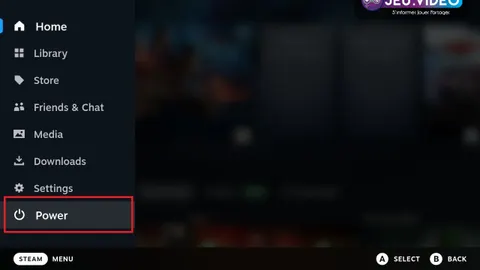

To get the best Steam Deck dock settings, start with a simple goal: clean 1080p output, a stable FPS cap, and an input profile that works before the game begins.
Steam Deck: Quick answer
- Start with the recommended baseline before changing individual values.
- Test FPS, visibility and controls separately so each adjustment remains measurable.
- Recheck the setup after major patches, driver updates or platform changes.
Quick FAQ
Quels reglages choisir ?
Use the direct answer and official-source sections for the current status of Steam Deck.
Comment gagner des FPS ?
Use the direct answer and official-source sections for the current status of Steam Deck.
Faut-il privilegier qualite ou performance ?
Use the direct answer and official-source sections for the current status of Steam Deck.
Quels reglages manette/souris ?
Use the direct answer and official-source sections for the current status of Steam Deck.
Key points
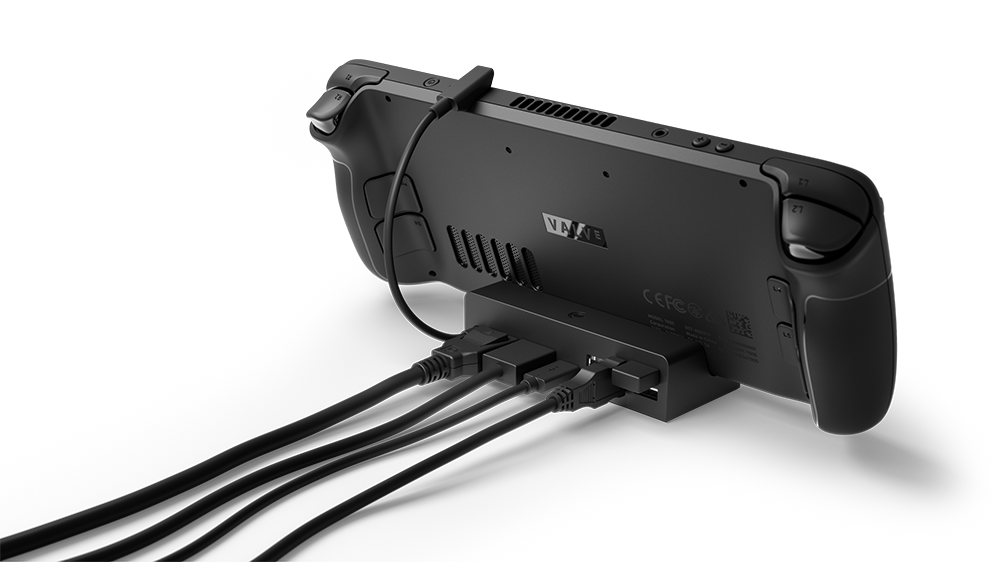
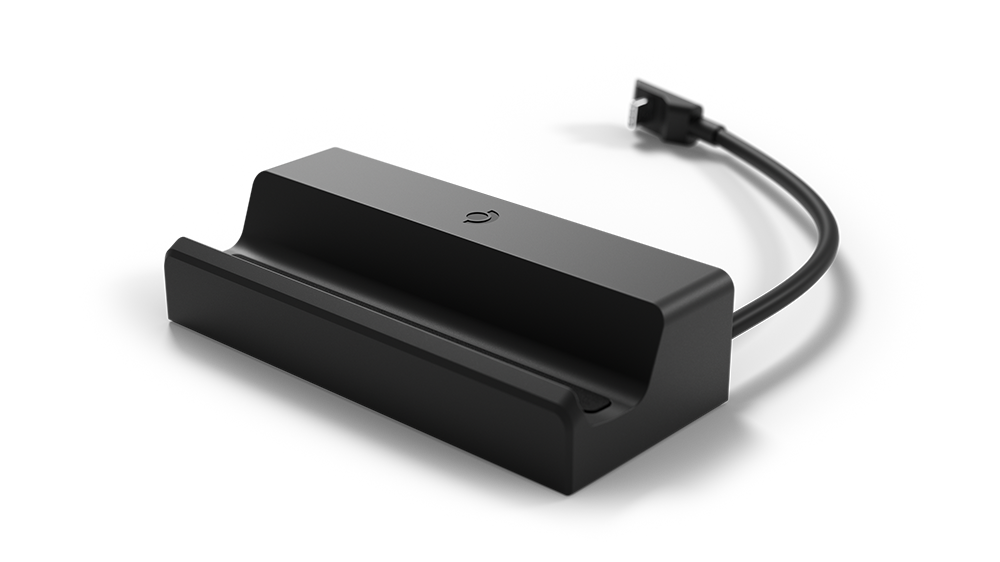
- Valve says in the official FAQ that the Steam Deck dock acts like a USB-C hub and does not improve raw performance.
- The official Steam Deck tech specs list USB-C video output up to 4K 120 Hz or 8K 60 Hz.
- SteamOS 3.2 introduced per-game performance profiles, which are useful for keeping handheld and docked setups separate.
- Steam Deck OLED supports up to 90 Hz on its built-in display, but docked profiles should be tuned for the external screen.
Quick answer: keep SteamOS at 1080p for a standard TV. Target 30 FPS for demanding games on non-VRR screens. Save 60 FPS for lighter or competitive titles. Valve says in the official FAQ that docking works like a USB-C hub. Check the official Dock page and the Steam Deck tech specs.
Steam Deck dock settings: start with 1080p
Steam Deck dock settings matter as soon as you leave the built-in screen. The common mistake is keeping a handheld profile and pushing too much resolution to a TV. That often leads to soft image quality, a badly scaled interface, or unstable frame pacing.
The best method is simple. Choose the output resolution first. Pick the FPS target next. Finish with the right input setup. This keeps testing clear.
- Docking does not improve raw performance.
- 1080p TV output does not mean every demanding game should render at native 1080p.
- The SteamOS 40-60 Hz feature was introduced for the built-in display.
- A good docked setup should stay separate from a handheld profile.
Steam Deck dock settings: recommended profile by screen
The right profile depends more on the display than on whether you own the OLED or LCD model. Docking does not unlock more wattage. The real goal is consistency.
- Set the external display to 1080p in SteamOS for a standard TV.
- In demanding games, keep 1080p output but lower internal render resolution if frame time breaks down.
- On non-VRR displays, lock heavy AAA games to 30 FPS for cleaner motion.
- Use 60 FPS only for lighter games or competitive titles that truly hold it.
- Use per-game profiles to separate a couch setup from a handheld setup.
- Recheck controller, Bluetooth, or keyboard-mouse behavior as soon as you switch devices.
Valve's Dock page says the station supports TV use, desk use, and up to two external displays. Valve's tech specs also list USB-C display output up to 4K at 120 Hz or 8K at 60 Hz. That is the port limit. It is not a gameplay promise for demanding modern titles.
Steam Deck dock settings: simple testing steps
A docked profile should be tested in a heavy gameplay scene. Do not judge it from a static menu. SteamOS 3.2 added per-game profiles. SteamOS notes dated March 27, 2026 also mention better TV scaling, external HDR, VRR support, and HDMI audio fixes.
- Load a demanding area such as a city, a large fight, a rainy race, or a busy open-world section.
- Pick the target first: 30 FPS or 60 FPS.
- Reduce shadows, fog, ambient occlusion, and volumetric effects before cutting everything else.
- Keep texture quality if memory is fine. It often costs less than heavy scene effects.
- Check HUD readability and subtitle size from your real couch or desk distance.
- Test HDMI audio, wake behavior, and controller latency too.
Change one major setting at a time. If you change output resolution, frame cap, and graphics preset together, you will not know what actually solved the issue.
Common mistakes with a docked Steam Deck
- Jumping to 1440p or 4K just because the TV supports it.
- Treating the internal 40 Hz logic as a universal TV rule.
- Switching controller or keyboard setup without checking the active layout.
- Ignoring couch-distance readability.
- Copying an aggressive battery-saving handheld profile into docked play.
The most common mistake stays the same: assuming a 4K TV needs 4K game rendering. In most cases, a clean 1080p baseline gives the best mix of clarity and stability.
Key points for Steam Deck dock settings
- 1080p is the safest baseline for TV interface quality.
- A stable 30 FPS target usually beats an uneven higher number.
- The dock adds ports, not GPU power.
- Per-game profiles are the easiest way to separate couch and handheld play.
- A real test must include image quality, audio, controls, and readability.
For more reading, check latest news, browse our article hub, or open the broader gaming news section.
Frequently Asked Questions
What settings should I choose for Steam Deck docked play on TV?Start with 1080p output. Use 30 FPS for demanding games. Move to 60 FPS only if the game stays stable in a heavy gameplay scene.
Lower shadows, fog, ambient occlusion, and volumetric effects first. Keep 1080p output for the TV, then reduce internal render resolution if needed.
Many players push resolution too far. On Steam Deck, a clean 1080p setup is usually better than an unstable 4K target.
Check the active layout, controller detection, Bluetooth latency, and the switch between controller prompts and keyboard-mouse prompts.
No. Valve says docking works like a USB-C hub. It adds connections, not extra graphics power.
Not as a general rule. That feature was introduced for the built-in display. On an external screen, check the TV or monitor mode first.
Set 1080p output first. Choose the FPS cap next. Adjust the heaviest graphics options after that.
Use the Steam Deck News page, the SteamOS 3.2 notes, and the official Dock page.
Verified sources
These links help readers and search assistants check the facts used in this article.