
Elden Ring: Tarnished Edition on Switch 2 does not support crossplay with PC, PlayStation or Xbox. Everyone in your group must play on Nintendo Switch 2. A shared multiplayer password cannot bypass that restriction.
For friends on Switch 2, co-op supports one host and 2 guests. Start by choosing whose world to enter, then set a shared multiplayer password and arrange the summon.
Check everyone’s platform before planning co-op
FromSoftware’s FAQ limits Tarnished Edition multiplayer to Nintendo Switch 2 players. If a friend owns Elden Ring on Steam, PlayStation or Xbox, they cannot join your Switch 2 session. Before buying a copy to play together, make sure everyone intends to use the same supported platform.
| Your platform | Your friend’s platform | Can you play together? |
|---|---|---|
| Nintendo Switch 2 | Nintendo Switch 2 | Yes, provided the online play requirements are met |
| Nintendo Switch 2 | PC | No |
| Nintendo Switch 2 | PlayStation | No |
| Nintendo Switch 2 | Xbox | No |
Each participant also needs an internet connection, a Nintendo Account and a paid Nintendo Switch Online membership, as listed on the Nintendo listing. Check these requirements across the group before setting up your meeting point: owning Tarnished Edition alone is not enough for online play.
Nintendo lists up to 2 co-op partners. FromSoftware’s separate limits of four participants in ordinary multiplayer and six in Colosseum battles do not mean you can bring that many co-op partners into the world. For exploration and boss attempts, plan around the host and a maximum of 2 guests.
Choose a host, then arrange the summon
Co-op takes place in the host’s world and ends when the area boss is defeated. The official Switch 2 manual also states that you cannot host co-op in an area whose boss you have already defeated. For a particular boss attempt, choose a host who still has that fight available.

- Confirm that everyone can play online. All participants need the Switch 2 version, an internet connection, a Nintendo Account and the required membership.
- Set the same multiplayer password. Open the main menu’s multiplayer section and enter the agreed password in the multiplayer password field. If you are on the message-writing or message-history screen, return to the multiplayer menu to set your password.
- Choose where to meet. Agree on either a location for a summon sign or an activated summoning pool.
- Have the host reveal summon signs. The host uses the remedy that makes signs visible.
- Have each guest place or send a sign. Use the Tarnished’s finger item to place a sign at the agreed location, or the golden effigy to send a sign to an activated summoning pool.
- Have the host examine the sign to summon its owner. Repeat for the other guest if needed. Before moving on, check that the intended partners have joined the host’s world.
A sign placed at an agreed location gives your group a specific meeting point. Sending a sign to an activated pool is the alternative. Settle on the method before using the items so the host knows where to look; a sign sent to a pool should not be confused with one placed at your chosen spot.
The host’s boss status matters more than the password when choosing a world. If the intended host has already defeated that area’s boss, switch to a friend who still needs the fight. Alternatively, choose another area where the host can summon partners.
If your friend’s sign does not appear
Check the conditions for the summon in order rather than changing several things at once. This separates a platform restriction from a password mismatch or an unsuitable host world.
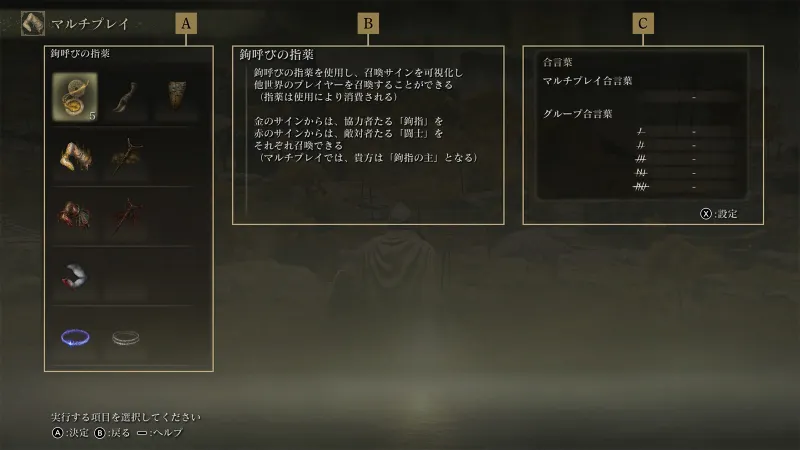
- Confirm the platform and online requirements. Everyone must be playing on Switch 2 with the required connection, account and membership.
- Compare multiplayer passwords. Make sure everyone entered the same password in the multiplayer field, rather than only setting a group password.
- Check the area boss in the host’s world. If it has already been defeated, choose another eligible host or area.
- Check the summoning roles and location. Guests place or send their signs. The host uses the remedy, then looks for and examines the signs at the agreed location or pool.
The manual’s multiplayer section distinguishes multiplayer passwords from group passwords. A group password gives priority to certain messages, signs and phantoms. It serves a different purpose from the multiplayer password used to arrange your summon, so sharing a group password alone is not a substitute.

A multiplayer password does not filter invasions. Use it to arrange play with your partners, but do not treat it as protection from other players entering through invasions. Your planned co-op boss attempt remains subject to that limitation.
Keep cloud saves separate from character transfers
Nintendo lists cloud saves among Tarnished Edition’s features. That listing does not establish that you can import a character from Steam, PlayStation or Xbox. If carrying over an existing character determines whether you buy the Switch 2 version, do not use cloud-save support as confirmation of a transfer option.
Co-op also takes place in the host’s world. Before choosing the next host, check the state of each player’s own world rather than assuming that defeating a boss as a guest completes the same objective for everyone. The world you enter determines which area boss must still be available for the next summon.
For a Switch 2 group, the practical starting point is a host whose area boss is still alive, a shared multiplayer password and an agreed sign location or activated pool. If a friend plays on PC, PlayStation or Xbox, changing passwords or hosts will not make that player compatible with the Switch 2 session.
See also the ELDEN RING Tarnished Edition game page.
See also the Elden Ring game page.


