
Better aim in Free Fire starts with a smooth image. A stable frame rate makes every swipe more predictable, so adjust performance first, then change sensitivity and the HUD one element at a time.
Settings depend on your screen and how you hold your device. Garena’s HUD recommendations can provide a useful reference, but no configuration works automatically for every beginner.
Stabilise performance before changing aim
- Choose low or standard graphics if your phone slows down.
- Enable High FPS only if the image remains smooth.
- Close background applications.
- Keep the same setting for several matches before judging it.
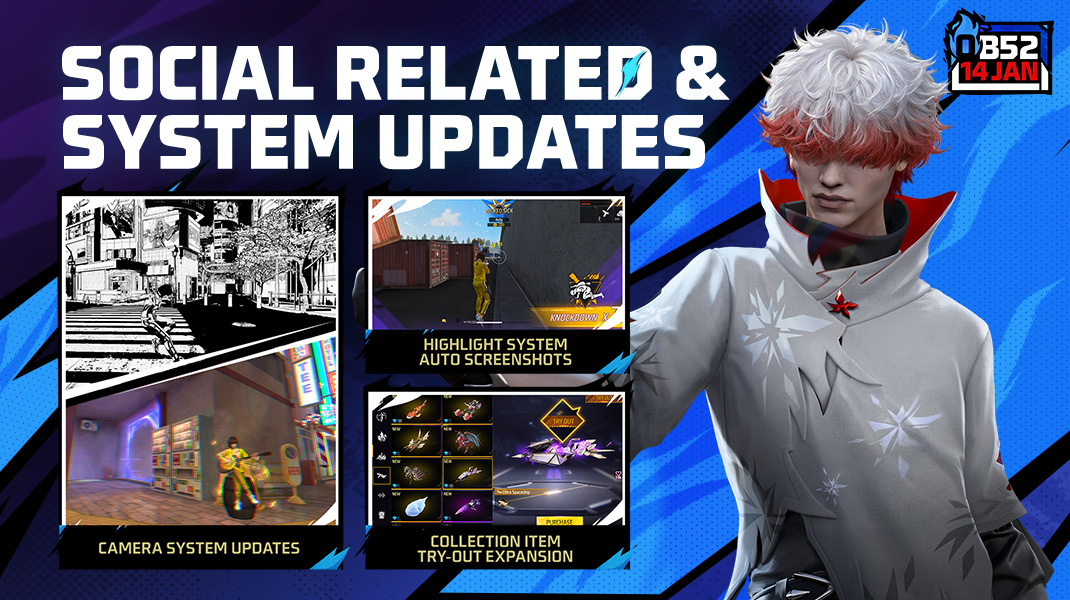
On a recent phone, first try a higher frame rate. Increase quality only after several matches without major heat. The experimental frame-rate boost is useful only if it causes neither stutters nor touch delay.
| Setting | Starting value | What to watch |
|---|---|---|
| Graphics | Low or standard | Slowdowns when landing and in combat |
| High FPS | Enabled if stable | Heat, battery use and input delay |
| General | 80 to 100 | Dragging towards the head should not overshoot the target |
| Red Dot | 70 to 90 | Tracking a nearby target |
| 2x / 4x Scope | 50 to 75 / 35 to 60 | Fine adjustments without oscillation |
| Sniper | 20 to 45 | Fine correction after opening the scope |
Garena has raised the sensitivity cap to 200. Do not start at the maximum: a consistent value helps more than a crosshair that is hard to stop. These ranges are a baseline and do not guarantee headshots.
Place the HUD around your grip
Keep fire, aim, Gloo Wall, heal, jump and crouch visible. Move emotes, vehicle controls and quick replies towards the edges. Recent HUD versions let you hide or move more buttons.
Place fire where your right thumb naturally lands and separate it from the Gloo Wall. A mix-up during a reload often costs more than imperfect sensitivity.
Do not copy a four-finger HUD if you play with two thumbs. Start with two fingers, then add a third only if the phone remains stable in your hand.
| Device | Priority | Recommended layout |
|---|---|---|
| Small phone | Readability and firing | Two thumbs and spaced-out buttons |
| Large phone | Avoid thumb overlap | Two or three fingers depending on your grip |
| Tablet | Use the surface without stretching your hand | Three or four fingers after stabilising your aim |
| Controller or mouse | Environment compatibility | Do not change the touch HUD before the device is recognised |
Change one value in the Training Ground
The Training Ground includes a firing sensitivity settings panel. Use a weapon you know and keep the same attachments and aiming mode between two tests.
- Write down your current values.
- Set graphics and frame rate.
- Play for five minutes in a busy area.
- Test Red Dot on a nearby target.
- Lower or raise one value by 5 points only.
- Test 2x, then 4x, at medium range.
- Start an unranked match to spot incorrect presses.
- Keep the change after two or three consistent sessions.
Do not change sensitivity, DPI, buttons and graphics at the same time. You will no longer know which setting helped. Presets are available under Settings > HUD. You can choose to import the linked sensitivity too.
The settings to keep in mind
- A stable frame rate comes before more detailed graphics.
- Adjust only one sensitivity setting at a time, in steps of 5.
- Gloo Wall, heal and fire must remain accessible without hiding the target.
- Modified APKs and unauthorised third-party software are prohibited by Garena.
Follow menu changes in the official OB52 notes and account rules through Garena support. You can also find the latest news, our practical articles and updates from the esports scene.
Frequently asked questions
Which sensitivity should beginners choose in Free Fire?
Start with General between 80 and 100, then Red Dot between 70 and 90. Adjust one value by 5 points after each test.
How can you get more FPS in Free Fire?
Lower graphics quality, close background applications and enable High FPS only if the phone remains stable.
Where should you place the fire button in the HUD?
Place it under your right thumb or index finger. It should remain easy to reach without covering the target.
How do you adjust a 2x or 4x scope that feels too sensitive?
Lower only the sensitivity for the scope concerned. Do not change General during this test.
Where can you follow HUD and performance changes?
The official OB52 notes detail recent changes. Garena support also lists account rules.
To keep following the topic, also read our article on PUBG Mobile: the settings that make aiming more, and our article on [Guide] Steam Deck OLED settings: stable FPS, battery.
Verified sources
These links let you verify the key information used in this article.
- ff.garena.com: Official OB52 notes: confirm the experimental boost in High FPS and the HUD recommendation system in Settings > HUD. No publication date was displayed on the page consulted.
- ff.garena.com: Official OB50 notes: confirm the sensitivity panel in the Training Ground, HUD access through Settings > In-Match, and buttons that can be hidden or moved. No publication date was displayed on the page.
- ff.garena.com: Official Garena notes: confirm the sensitivity cap raised to 200 and the addition of a customisable vehicle HUD. No publication date was displayed on the page consulted.
- ff.garena.com: Official Garena support: confirms the prohibition of third-party software, APKs and modified clients. Date accessed: 2026-07-26.


