![[Guide] Mimic PC Settings: 3 Checks Before You Change Anything](https://jeu.video/images/SSVcJxg63aiadnvdNIui41sg6QH4VAYWMVVwj_woFog/rs:auto:1280:720:1/g:sm/czM6Ly9qZXV2aWRlby1ib2x0LXN0b3JhZ2UvdXBsb2Fkcy8yMDI2LzEwL3RoZS1taW1pYy1iZXN0LXNldHRpbmdzLmpwZw.avif?v=1792502494)
Before changing your Mimic PC settings, match the symptom to the setting: DLSS for an image-quality and smoothness comparison, “Mic Input” for the microphone input display, and proximity chat volume for the voices you hear.
This guide covers Mimic by Ryan Laley Games on Windows. Start by identifying your playtest version and noting your current settings. The relevant updates added a graphics feature, corrected an audio interface display and raised a default voice volume. Each calls for a different check; none is a reason to reset everything.
Compare DLSS without changing everything else
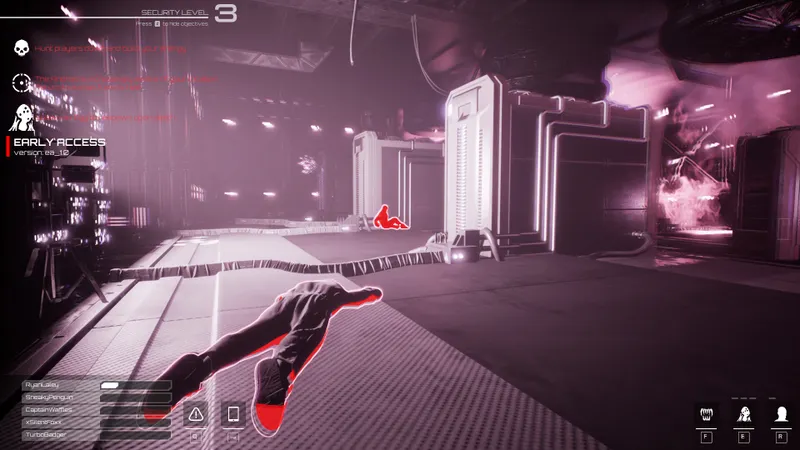
Playtest 0.9.17, dated April 20, 2026 announces support for DLSS 4.5, configurable in the game’s settings. If you are checking this feature in the relevant playtest version, look for the option there.
Note the current selection before changing it, so you can restore it if the result is worse. Then change only the DLSS selection and compare image quality and smoothness in a situation as close as possible to the one you used before. Changing several graphics options together makes it harder to tell which adjustment helped or introduced a compromise.
Judge both parts of the result. A change that feels smoother may still leave you less satisfied with the image; a result you prefer visually may not address the smoothness problem that prompted the adjustment. Keep the new selection only if that balance suits you. Otherwise, return to the setting you recorded.
The Steam page and the notes for playtests 0.9.17, 0.9.20 and 0.9.22 provide neither a recommended graphics preset nor numerical benchmarks. The DLSS announcement also does not specify a recommended mode or compatible hardware. It therefore cannot establish a universal choice or a measured performance gain for your computer. Use the comparison to answer a narrower question: does this available selection improve the problem you actually notice?
Check whether Mic Input displays correctly
Playtest 0.9.20, dated May 12, 2026 announces a fix for the display of “Mic Input” in “Audio Settings”. If that option appeared incorrectly, check your playtest version, then open “Audio Settings” and inspect the display before changing any audio settings.
The result to look for is straightforward: does “Mic Input” now display correctly? Keep your existing audio settings while checking this. Changing them would introduce an audio adjustment into what began as an interface problem, without helping you establish whether the display fix worked.
A correct display and an audible voice are separate observations. If the interface looks right but other players still cannot hear you, the remaining symptom concerns voice transmission. The announced display correction does not establish that a microphone transmission problem has been fixed.
When describing a continuing problem, state both observations separately: whether “Mic Input” displays correctly and whether your voice can be heard. That distinction gives a clearer account than saying only that the microphone setting is broken. If checking the interface was your sole aim and it now displays correctly, that check is complete.
Listen to proximity chat before reusing an old volume setting
Playtest 0.9.22, dated May 26, 2026 announces an increase in the default proximity voice chat volume. Before applying an older volume recommendation, listen to the voices you hear with your current settings in the relevant version.
Establish the symptom first. Are proximity voices too quiet, too loud, or already comfortable to hear? If their volume suits you, keep your current choice. If it does not, note that starting point before making a relevant volume adjustment, then listen again to judge whether the change addresses what you heard.
The announcement gives no numerical value to enter manually. Do not turn “increased default volume” into an arbitrary percentage, or assume it means a value you previously selected has necessarily changed. A change to the default is a reason to reassess an older recommendation, rather than copy it automatically.
Keep the direction of the audio problem clear, too. Proximity chat volume concerns the voices you hear; microphone input concerns your own voice. If other players sound quiet, changing your microphone settings would target a different part of the conversation. Describe the problem as incoming proximity voices being too quiet or too loud, rather than treating every voice issue as a microphone fault.
Start with the check that matches your symptom and keep the other settings steady until you can judge the result. Retain an adjustment when it solves the problem with an acceptable compromise; restore your recorded selection when it does not.
the Mimic game pageour article, [Guide] Getting Started in Mimic: Understand Your Role First