
The official Satisfactory launch trailer accompanies Satisfactory’s full release on September 10, 2024, after Early Access began on June 8, 2020. For your first hours, build a settings baseline around your hardware, the controls shown by your installation and the information you need to read while playing.
There is no confirmed universal value for resolution, shadows, vertical synchronization, field of view or sensitivity. Change one option at a time, repeat the same action in the same scene and keep the change only if it solves the problem you set out to fix.
Set your controls before adjusting graphics
From the main menu, open the controls, video and audio settings. Start by checking the keys and shortcuts offered by your version. Satisfactory tutorial states that HUD shortcuts follow the configured keys, so test the related action after every reassignment and confirm that the on-screen prompt matches.
An older tutorial also suggests trying directional subtitles and disabling Hold to sprint. Its page is marked as outdated, so treat both suggestions as options to verify in your current installation. Keep directional subtitles only if locating audio information is difficult, and disable Hold to sprint only if holding the key creates a comfort problem.

- Open the controls, video and audio settings from the main menu.
- Check the keys and shortcuts offered by your version.
- Try directional subtitles if audio information is difficult to locate.
- Try Hold to sprint in its current state if holding the key bothers you.
- Then change only one video option and compare the same scene before touching another setting.
This order keeps control comfort separate from interface readability and image smoothness. It also avoids treating an older HUD layout as a current rule: history of Satisfactory's development shows that interface elements have changed across versions.
Check the HUD while you build and fight
Satisfactory moves between exploration, factory construction and first-person combat. Check the HUD while running, gathering resources and managing installations, because a setting that looks comfortable in the menu may still hide an important prompt during an action.
After changing a key, perform its corresponding action immediately. If the text, key prompt or interaction marker becomes harder to read, restore the previous choice before changing another setting. This check matters in co-op as well, since each player may use different peripherals or habits.
The Steam store page lists French for the interface and subtitles. Enable it if needed, then check the amount of screen space used by HUD elements. A translated interface can still be difficult to read at a particular resolution or viewing distance.

Compare video options in one repeatable scene
The Steam store page lists minimum and recommended requirements for 64-bit Windows. These requirements indicate the hardware baseline, but they do not establish a target frame rate or an optimal graphics combination. If your PC is below the recommended requirements, begin by seeking stable performance. If it exceeds them, your resolution, the scene and your priorities still determine the useful settings.
Choose a location where the HUD, terrain and construction elements are visible. Identify the problem first: unstable motion, unclear interface text or an uncomfortable control. Change one video option, repeat the same action and compare the result. If the change does not improve the original problem, undo it.
- Choose a priority: image stability, interface sharpness or control comfort.
- Keep the same scene, position and action.
- Change only one video option.
- Check whether the targeted problem actually changed.
- Keep the setting only if it helps your priority without harming another important piece of information.
What Steam confirms about PC and multiplayer
The Steam store page for Satisfactory lists single-player, online co-op and cross-platform multiplayer. Your controls and HUD remain local choices, so check them before joining a session even when other players use different setups.
| Situation | Verified information | Useful action |
|---|---|---|
| Windows PC | Steam publishes minimum and recommended requirements for 64-bit Windows. | Compare your setup before attributing a performance drop to one setting. |
| Single-player and co-op | The Steam store page mentions single-player, online co-op and cross-platform multiplayer. | Check your local controls and HUD before a multiplayer session. |
| Other versions | The available information gives neither a separate graphics profile nor console-specific values. | Use the options offered by your version instead of applying PC guidance automatically. |
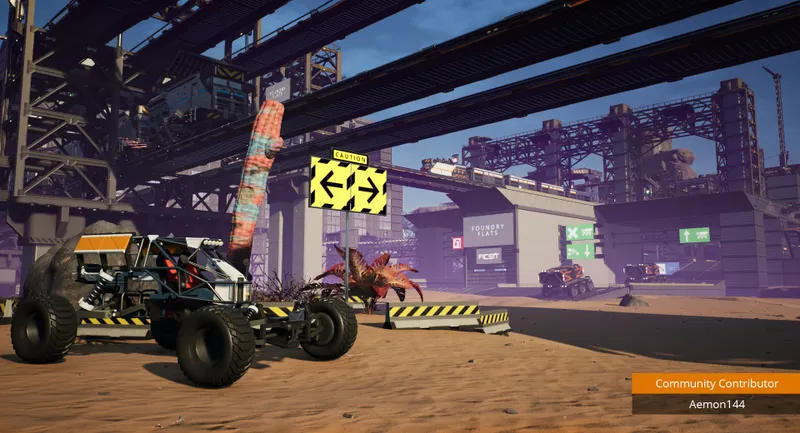
Begin with the keys and options your version actually shows, then compare each video change in an identical scene. Keep the setting that improves the targeted image, HUD or control without creating a new problem. the Satisfactory page, our article, [Guide] Satisfactory resources: the order to follow for and our article, [Guide] Satisfactory beginner's guide: place the HUB before expand on this method.


