
To secure your Roblox account, enable a passkey on a personal device and add a recovery method. These settings help protect your Robux, items, and account access from phishing links and other scams.
Review your security settings before your next session. A short check can prevent a much longer recovery process after an inventory theft.
Start with a passkey on your own device
A passkey replaces password entry on compatible devices. It uses the device’s screen lock, fingerprint, or facial recognition. Roblox presents passkeys as protection against phishing and credential stuffing.
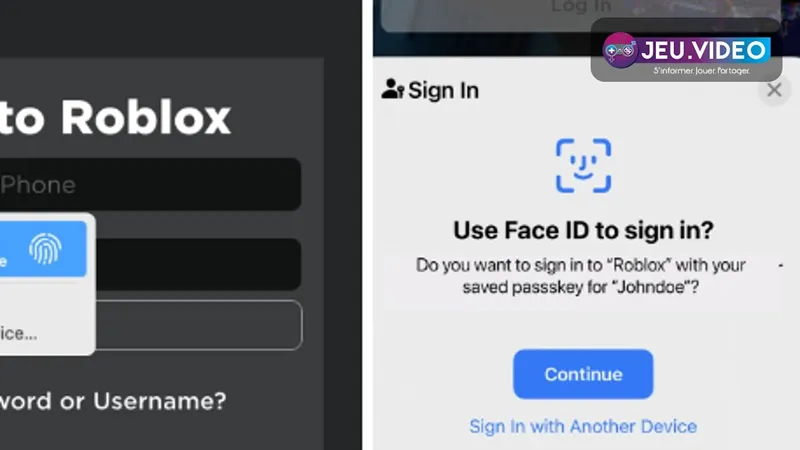
In the app or browser, open Settings > Account Info > Login Methods. Select Add Passkey, confirm your identity if Roblox asks, then unlock the device.
- Sign in from the official app or the Roblox website.
- Open Settings, then Account Info.
- Choose Add Passkey under Login Methods.
- Confirm the unlock requested by the phone or computer.
- Sign out and back in to check that Roblox offers the passkey.
Do not add a passkey on a friend’s PC, at school, or in an internet café. Anyone who can unlock that device could access the account.
A phone can also confirm a computer login. Choose the passkey on the PC, scan the QR code, then confirm on the phone. Synchronization is not automatic across every ecosystem, so add a new passkey after securely signing in on a new device.
Choose a 2-step verification backup
A passkey does not cover every situation. Roblox requires a verified email address before enabling 2-step verification. Make sure the address shown in Account Info is accessible to you or the responsible parent.
Next, open Settings > Security. Roblox lets you choose one 2SV method at a time. An authenticator app keeps codes separate from email. Email is simpler, but the inbox must be protected as well.
| Method | Choose it if… | Important limitation |
|---|---|---|
| Authenticator app | you want a code separate from email | prepare backup access in case the phone is lost |
| you use a verified personal inbox | also enable two-step verification on that inbox | |
| Security key | you already own a compatible hardware key | the authenticator app must remain enabled |
Generate recovery codes in Settings > Security. Save them in a password manager or another private location. Roblox shows them only once, and each code works only once.
Generating new codes invalidates the old ones, so replace your stored copy immediately. Keep a separate second method too: Roblox requires one to recover an account that has lost its primary method.
Check Enhanced Protection before enabling it
Enhanced Protection prioritizes phishing-resistant methods. It requires a passkey, a verified email address, and a second proof of identity, such as a verified phone number or recovery codes.
Find the setting under Settings > Security > Enhanced Protection. Once enabled, a passkey or hardware key is necessary for relevant logins and confirmations. Email codes and authenticator-app codes are no longer sufficient on their own.
Test the passkey and store the recovery codes before enabling this option. On a platform without passkey support, such as Xbox according to Roblox Help, use Quick Login. Do not disable protection just to save a few seconds.
When changing phones, add a passkey on the new device first. Then remove the old one in Login Methods. This order helps avoid an unnecessary lockout.
Recognize the scams that expose an account
Scammers often try to make you hand over your own protection. No Roblox employee should ask for your password, cookies, a 2SV code, a recovery code, or a screenshot of the login screen.
- Fake website: close the page if the address is not clearly roblox.com. Open Roblox in the app or in a new tab instead.
- Form in an experience: never enter your credentials in an in-game window. Leave the experience and use its reporting feature.
- Extension or program: Roblox says it offers no official browser extensions. Avoid injectors, “FPS boosts,” and Robux generators.
- External trade: do not buy items or currency outside official systems. Roblox does not guarantee the return of inventory lost after an external agreement.
- Screen sharing: hide codes, PINs, date of birth, and login QR codes.
Official promotions appear through the Roblox blog, Roblox messages, or website banners. A link sent by a friend can still be dangerous if their account has been compromised. You can also find our practical guides, jeu.vidéo news, and the latest publications.
Respond quickly to a suspicious login
Reject any login request you did not initiate. Check the device, approximate location, IP address, date, and time before confirming anything.
Reject an unknown delayed-action alert through the “this wasn’t me” link. Roblox then signs out the suspicious session. Change the password next and check Login Methods.
If access is already lost, change the password as soon as possible and remove suspicious extensions. Contact Roblox Support. If possible, use the account’s original email address or the one used for the first purchase. Roblox states that you have 30 days to request help with lost items or currency.
Frequently asked questions
Where do I add a passkey on Roblox?
Open Settings, Account Info, then Login Methods. Select Add Passkey on a personal device.
Does a passkey replace my Roblox password?
It lets you sign in without entering the password on compatible devices. Keep a unique password for situations where it is still required.
Why must my email be verified before 2SV?
Roblox requires a verified email address to enable 2-step verification. It also helps secure account recovery.
Which 2SV method should I choose on Roblox?
Choose an authenticator app if you want to separate codes from your email. Email is suitable if that inbox is itself protected.
Where should I store recovery codes, and what should I do after a mistake?
Place them in a password manager or private location. Never send them in a chat or through a screenshot. After giving away a verification code, change the password, reject unknown logins, and check Login Methods. Use official support if access is lost. Enhanced Protection requires a passkey, a verified email address, and a second proof of identity. To follow changes, consult the official pages on passkeys, 2-step verification, and enhanced protection.
To keep following the subject, also read our article on Warzone: mastering your drop and first rotations and our article on Call of Duty: Mobile Battle Royale: the right habits.
Verified sources
These links let you verify the key information used in this article.
- en.help.roblox.com: Roblox Support, “Logging in with a Passkey”: confirms adding one through Account Info > Login Methods, signing in by unlocking the device, compatibility, and passkey synchronization limitations.
- en.help.roblox.com: Roblox Support, “Add 2-Step Verification to Your Account”: confirms the Settings > Security path, the required verified email address, 2SV methods, recovery codes, and recovery requirements.
- en.help.roblox.com: Roblox Support, “Keep Your Account Safe”: confirms that passwords, cookies, and codes must not be shared, as well as the risks posed by fake links, in-game forms, and unofficial extensions.
- en.help.roblox.com: Roblox Support FR, “Enhanced Protection”: confirms the requirements and effects of phishing-resistant protection.


