
To get started properly in World of Warships on PC, begin with the options that directly affect how you read a battle: the mini-map, audio alerts and interface controls. This guide mainly covers the Steam version on Windows with a keyboard and mouse. No universal value has been confirmed for resolution, sensitivity or graphics quality.
Start with the best World of Warships settings for a readable mini-map
From the Port, open the gear icon. In battle, press Esc, then select Settings. First enable the information that answers a concrete decision: moving forward, turning, keeping your distance or watching for a threat.
- Display detection circles at sea and in the air, then add the numerical values in kilometers.
- Check the ranges of the secondary battery, anti-aircraft defense, Hydroacoustic Search and Surveillance Radar separately.
- The main battery range is always displayed.
- The anti-aircraft circle only shows the maximum range, not the medium and short ranges.
- Then adjust ship names, transparency and rotation according to what remains readable on screen.
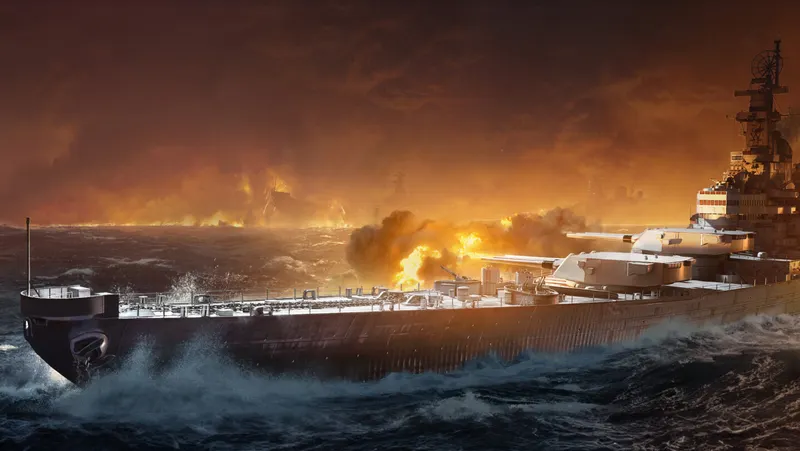
Adjust the controls one at a time
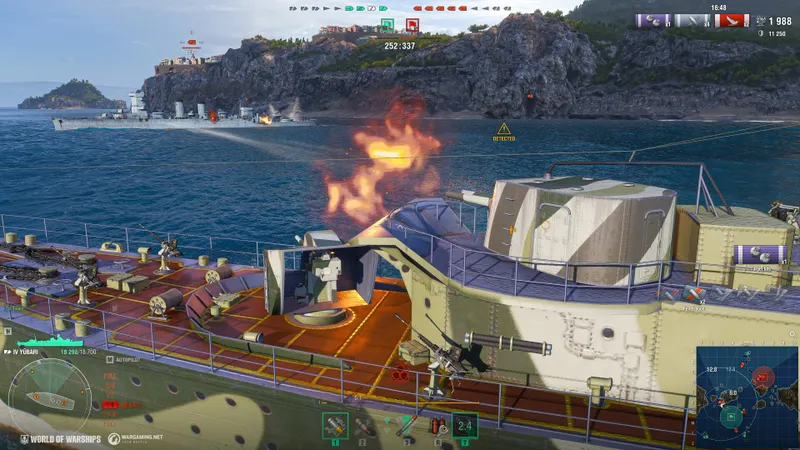
1. Open the right menu
The Port gear icon opens the settings before a game, while the Esc menu lets you reach them during battle. Use the official controls wiki as a reference when an option or key has a different name from the one you are used to.
2. Reduce overlapping markers
Detection circles at sea and in the air do not represent exactly the same information. Do not therefore interpret them as a single radius. Add the numerical values if you prefer to check a precise distance rather than read only the circles.
Keep only the indicators that match the ship you are using and the decision at hand. If the markers overlap, remove secondary information before changing the rest of the interface. This limitation is important for anti-aircraft defense: its circle shows only the maximum range.
3. Check the documented keys
The official page documents Alt, Ctrl, H, B, +/-, M, Ctrl+J and Alt+Enter for the interface, information, mini-map, tactical map and display mode.
Test these controls one by one in the Port and then in battle. Change only one key at a time: keep the documented layout as a reference, identify the one that genuinely slows you down, then check that the new command remains easy to find.
Adapt the audio to your hardware
First adjust the overall volume, then the specialized sliders. The interface volume covers, among other things, speed changes, the rudder, shell types, zoom, consumables and several alerts. Quick messages and damage have separate settings.
On a laptop, with built-in speakers or when the sound remains unbalanced, the wiki recommends disabling Wide dynamic range. The audio sliders on the right should then be set to maximum. The gap between loud and quiet sounds is reduced, which can make alerts easier to hear consistently on this type of hardware.
The High and Ultra audio qualities require more processing power. If the video stutters on an older system, try Low to test the audio load separately from the graphics settings. No measured FPS improvement is provided, however.
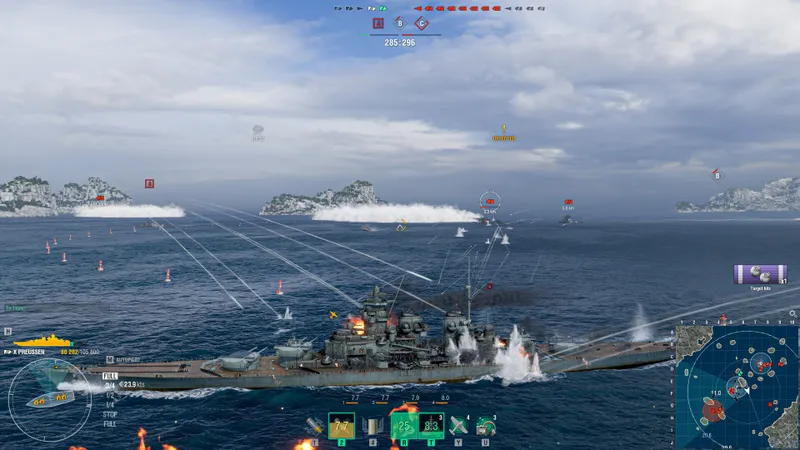
Separate Port and battle FPS
Close the game completely before modifying preferences.xml. The maxFrameRate key applies to battles, while maxDockFrameRate applies to the Port. A value of 0 means that no limit is applied. The documentation gives neither an ideal figure nor a universal gain, so check the result on your own configuration.
- From the Port, note your initial state for the mini-map, audio and display mode.
- Change one family of options, starting with the mini-map circles and values.
- Enter a battle and check whether distances remain readable, whether names obstruct the map and whether audio alerts remain audible.
- If the image stutters, first test Low audio quality on an older system.
- Close the game, change both limits in
preferences.xml, then check a battle and the Port separately. - Keep each change only if it improves readability in the same test situation.
This method prevents you from automatically blaming a single option for stuttering and from confusing the maximum anti-aircraft range with all available ranges.
What the PC version covers
| Platform | Available information | Choice to make |
|---|---|---|
| Steam on Windows | French interface and audio, 64-bit system and processor, and 67.2 GB of storage listed on Steam. | Start with the mini-map, then adjust the audio and controls. |
| Other platforms | No controller controls, console settings or specific values are documented in the selected sources. | Do not automatically transfer PC keys or values. |
The World of Warships Steam page lists Wargaming Group Limited as the developer and publisher and gives November 15, 2017 as the Steam release date. It confirms the free-to-play, PvP and online co-op context, but does not provide an optimal graphics profile. These settings therefore remain a starting point to check on your computer.
Frequently asked questions
What mini-map mistake should you avoid ?
Do not read the anti-aircraft circle as all available ranges: it corresponds only to the maximum range. Keep the markers useful to your ship and remove secondary information when they overlap.
How can you change FPS without mixing up the game areas ?
Close the game, then use maxFrameRate for battles and maxDockFrameRate for the Port in preferences.xml. Check each result separately, since no universal optimal value has been confirmed.
Which key should you change first ?
Change only one control at a time. Start with the one that genuinely slows you down after checking the documented keys on the official controls wiki, then test it in the Port and in battle.
The best starting point is to make the mini-map readable, adjust the audio to your hardware and test FPS limits separately. Controls and options not documented for consoles or controllers should remain open questions rather than being copied from the PC profile.
You can also find the World of Warships page.

![[Guide] DayZ on PS4: how to redeem a PlayStation Store code](https://jeu.video/images/WKFXDzUw5lhqoBa7L8T41_ANR4X0dT3icjdJTZrsR0M/rs:auto:800:450:1/g:sm/czM6Ly9qZXV2aWRlby1ib2x0LXN0b3JhZ2UvdXBsb2Fkcy8yMDI2LzEwL2RheXotY29kZXMtcHM0LmpwZw.avif?v=1792358272)


![[Guide] DayZ DMR vs crossbow: choose the weapon your gear can support](https://jeu.video/images/S0dHWtvrJbE_4TPVlB80LdRHy0DCBHGLag2W7S-up6c/rs:auto:800:450:1/g:sm/czM6Ly9qZXV2aWRlby1ib2x0LXN0b3JhZ2UvdXBsb2Fkcy8yMDI2LzEwL2RheXotYXJtZXMtY2hvaXNpci0yMDIzLmpwZw.avif?v=1792334993)


